

Lock the app with Face ID or your fingerprint
The app lock keeps your cards, journal and plans private if someone else picks up your phone. With it on, CopingCard opens only after you unlock it with Face ID, your fingerprint or your phone passcode. You need the latest version of the app from the store, and a passcode set on your phone.
Turn the lock on
Section titled “Turn the lock on”- In the app, tap the Settings tab, then tap Privacy Settings.
- Tap App lock.
- Under Lock after, choose Immediately, 1 min, 5 min or 15 min. The app starts with 1 min.
- Turn on the switch at the top. Its name depends on your phone: Require Face ID, Require Touch ID, Require fingerprint, Require iris scan, Require Face ID or fingerprint or Require phone passcode.
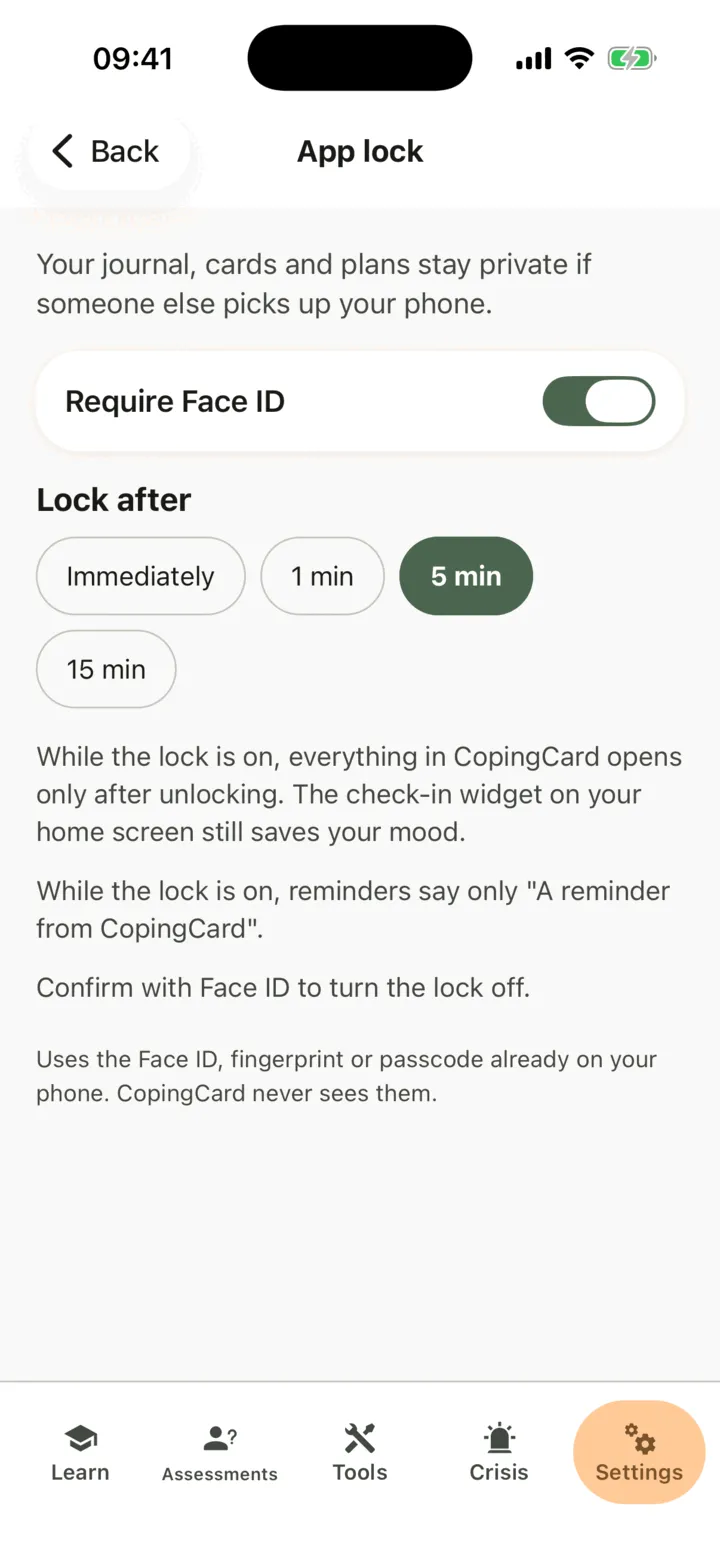
- Check yourself with your phone when it asks you to. The prompt reads Confirm to turn on the app lock.
If your phone has no passcode, the switch stays off and the screen says Set a passcode on your phone first. Then you can turn on the app lock. Set a passcode in your phone’s own settings, then come back.
The lock is for the phone you turned it on with. A second phone has its own setting. Turning it on, changing it and turning it off need an internet connection.
What the lock covers
Section titled “What the lock covers”While the lock is on, everything in CopingCard opens only after you unlock it. This includes every tab, including Crisis. It also includes the links that open a screen from outside the app: a reminder, a home-screen shortcut or the Siri and Shortcuts commands. After you unlock, the app shows the screen the link was for.
The app also covers its window the moment you leave it, so that your screens do not show in your phone’s list of open apps.
The one exception is the check-in widget on your home screen. It still saves your mood without unlocking, and it shows nothing from your account.
Unlock the app
Section titled “Unlock the app”The app locks when you come back to it after the time you chose under Lock after, and when it starts afresh. The screen reads CopingCard is locked.
- Wait for your phone to check you. It starts by itself. With Face ID, the screen asks you to look at your phone.
- If the check does not start, tap the unlock button, for example Unlock with Face ID or Unlock with fingerprint.
- If the check does not work, tap Use passcode and enter your phone passcode.
Unlocking works without an internet connection. CopingCard never sees your face, your fingerprint or your passcode: your phone does the check.
Reminders and e-mail while the lock is on
Section titled “Reminders and e-mail while the lock is on”While the lock is on, reminders show only A reminder from CopingCard, so that nobody reads their text on your lock screen. Reminders already set are changed to the short text when you turn the lock on, and they get their full text again when you turn it off.
If you have the lock on, even on one phone, the homework e-mail that CopingCard sends when a notification cannot be delivered has the same short text. Its subject is A reminder from CopingCard, and its button is Open CopingCard.
Change the lock or turn it off
Section titled “Change the lock or turn it off”- Go to Settings, then Privacy Settings, then App lock.
- To change the time, tap another choice under Lock after. To turn the lock off, turn off the switch.
- Check yourself with your phone when it asks you to. Every change needs this check, a shorter time too.
If you remove the passcode from your phone later, CopingCard opens without unlocking, and App lock tells you so. Set a passcode again to use the lock.