

See which clients need a look
Caseload shows your clients side by side, one row each. You search, filter and sort the table to answer a question. Every therapist can open it. A therapist sees their own clients. A practice admin sees their own clients and the clients who allow practice admins to view their data. Nothing here notifies anyone, so you open it when you choose to.
Open Caseload and narrow the table
Section titled “Open Caseload and narrow the table”- In the portal menu, click Caseload. It opens on the Overview tab.
- To find one client, type a name or an ID in Search by name or ID.
- Click one or more questions: Homework behind, Score went up, No check-in for 7+ days or Diary not filled this week. The number on each question is how many of your clients it applies to. With several chosen, a client shows if any one applies. Click a question again to take it off.
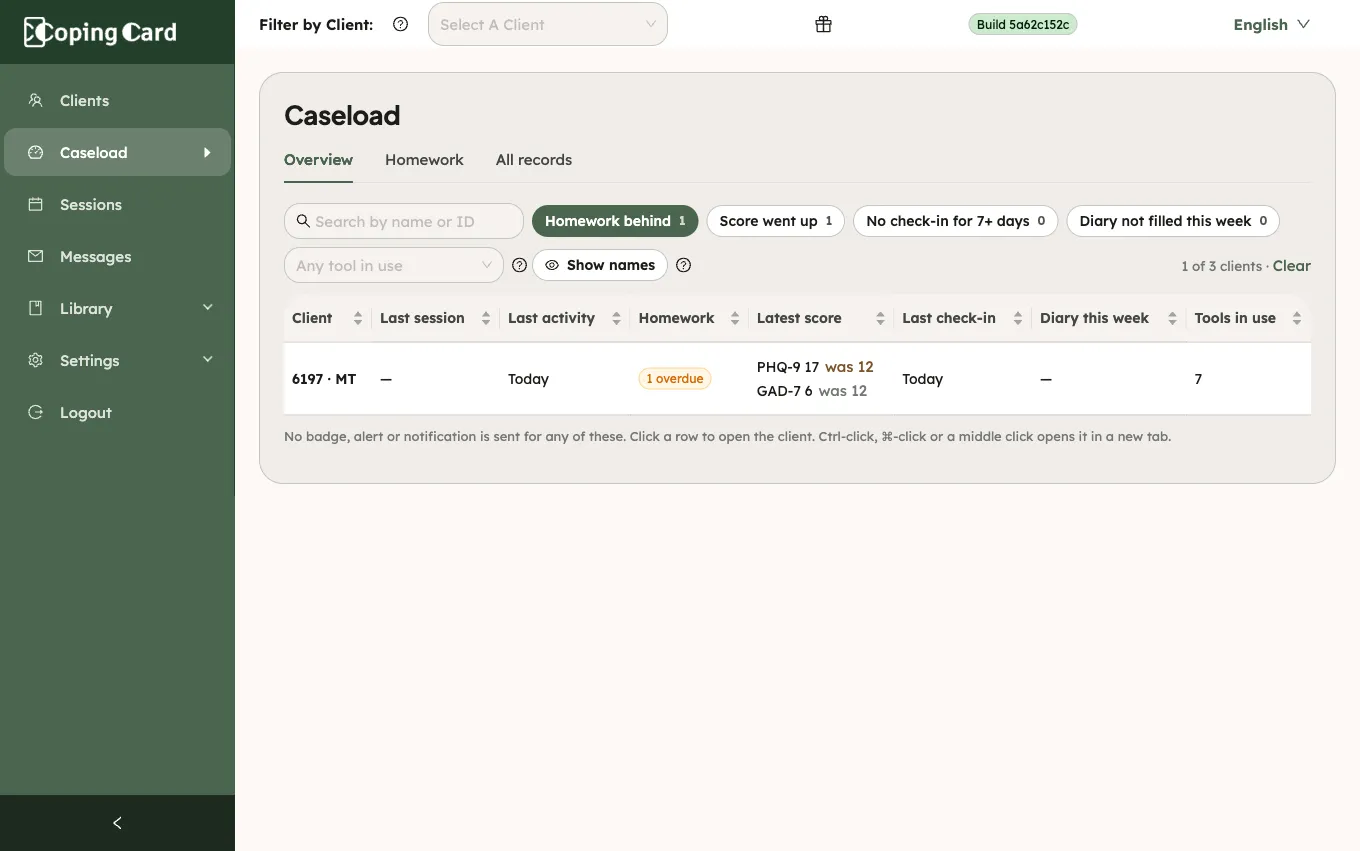
- To see the clients who use one tool, choose it in Any tool in use.
- To start again, when a filter is on, click Clear, next to the count of clients shown.
Point at a question to see what it counts. Point at the question mark to read what the page does. This week means the last 7 days, in your time zone. Client names are hidden by default, and search still finds a client by name. Click Show names to show them, and Hide names to hide them again. They hide again by themselves after a minute.
Sort and open a client
Section titled “Sort and open a client”- Click a column title to sort by it. Click it again to reverse the order. A client with no value in that column goes last.
- Click anywhere in a client’s row to open the client’s page: see Find a client and open their page.
- To open the page in a new tab, hold Ctrl (⌘ on a Mac) and click the row, or click it with the middle button. You can also move to a row with the keyboard and press Enter.
The address of the page keeps your search, questions, tool and sort. Bookmark it to come back to the same view.
What the questions count
Section titled “What the questions count”| Question | Shows the clients with |
|---|---|
| Homework behind | Homework your practice gave that is past due and not done. Homework that was withdrawn or skipped, and homework the client set for themselves, is not counted. |
| Score went up | An assessment whose latest score is worse than the take before it. A result entered from outside counts only when its direction is known. |
| No check-in for 7+ days | No check-in for 7 days or more. Only clients who use check-ins are listed. |
| Diary not filled this week | No day filled in during the last 7 days. Only clients who keep a diary card or a sleep diary are listed. A skipped night is not a filled day. |
Read a row
Section titled “Read a row”| Column | Shows |
|---|---|
| Client | The client, with their ID. |
| Therapist | The client’s therapist. It shows when the table holds clients of more than one therapist, which happens for a practice admin. |
| Last session | The day of the last session recorded with the client, or a dash when there is none yet. It shows even for a client who does not share their records. |
| Last activity | Today, yesterday or how many days ago the client last made or changed a record in any tool. A dash means there is none, or the client does not share their records with you. |
| Homework | How many pieces are overdue, or a dash. |
| Latest score | The latest score of each assessment the client took, with the score before it. |
| Last check-in | Today, yesterday, how many days ago, or No check-in yet. A dash means the client does not use check-ins. |
| Diary this week | On how many of the last 7 days the client filled in a diary card or a sleep diary. |
| Tools in use | How many tools the client uses with you. Point at the number to see their names. |
A client who does not allow you to view their data is a row that says Does not share their records with you, with no scores, check-ins or diary. You can still open their page.
What happens next
Section titled “What happens next”The other two tabs of Caseload are Homework, which is the Homework board (see See who is behind on the Homework board), and All records (see Find records across all your clients).
CopingCard sends no badge, alert or notification for any of these questions. A client’s page opens on Overview, which sums up what is new since your last session with them.