

Check in on how you are today
A check-in is a quick record of how you are today. One tap on a face is enough, and you can add more if you want to. It is free for everyone, with or without a therapist.
For clients
Section titled “For clients”You need the latest version of the CopingCard app, signed in.
Check in with one tap
Section titled “Check in with one tap”- Tap the Tools tab at the bottom of the screen.
- Find the How are you today? card. It is below Homework, if you have any. Tap the face that fits, from Very low to Very good.
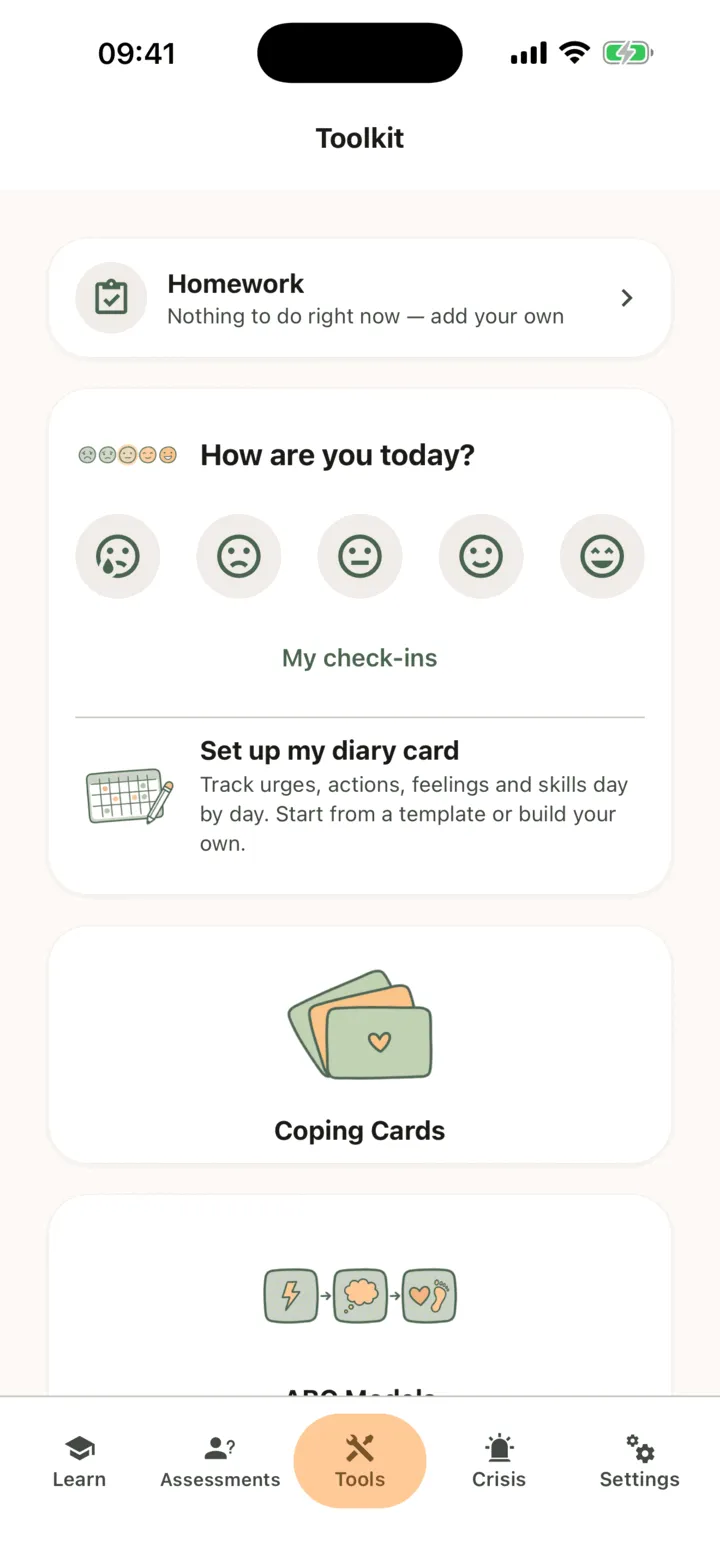
- Tap Save check-in.
The card then shows the time of your check-in. To record another one the same day, tap Add another. The same card holds the way in to your diary card: see Fill in a diary card.
Add more detail
Section titled “Add more detail”- On the card, tap a face, then tap Add more detail (optional).
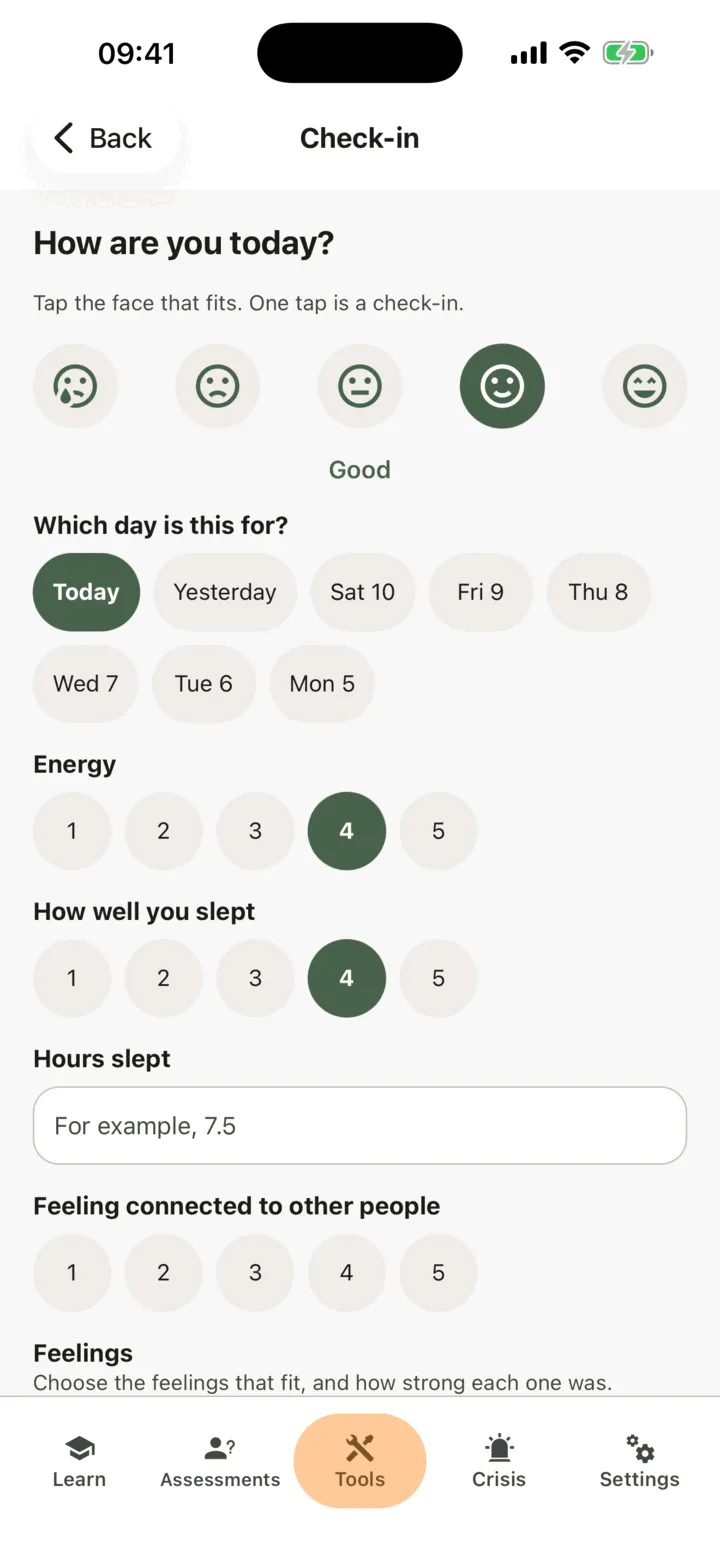
- Under Which day is this for?, choose Today, Yesterday or one of the earlier days shown. You can record a check-in for today or for any of the last 7 days.
- Rate Energy, How well you slept and Feeling connected to other people, and write the Hours slept. Fill in only what you want to.
- Tap Choose feelings, tap the feelings that fit, and for each one choose Mild, Moderate or Strong.
- Under What shaped today?, tap what applies, for example Work, Family or Sleep.
- Write what you want to remember in A note.
- Tap Save check-in.
The app confirms that your check-in is saved. A short note under the fields says that what you write there is not monitored in real time. Its link, Crisis lines and techniques, opens the help-line list.
If you have no connection, the app saves the check-in on your phone and sends it as soon as you are online.
Set a daily reminder
Section titled “Set a daily reminder”If your screen shows Daily reminder, you can ask for a quiet nudge each day.
- Tap Set a reminder.
- Choose the time and save.
At that time your phone shows a notification. Tap it to open the check-in. To change the time, tap Change the reminder.
See your check-ins over time
Section titled “See your check-ins over time”- On the How are you today? card, tap My check-ins.
- To change the period, tap 7 days or 30 days.
- Read the chart Mood over time, the number of days in a row, and each day’s entries with their notes.
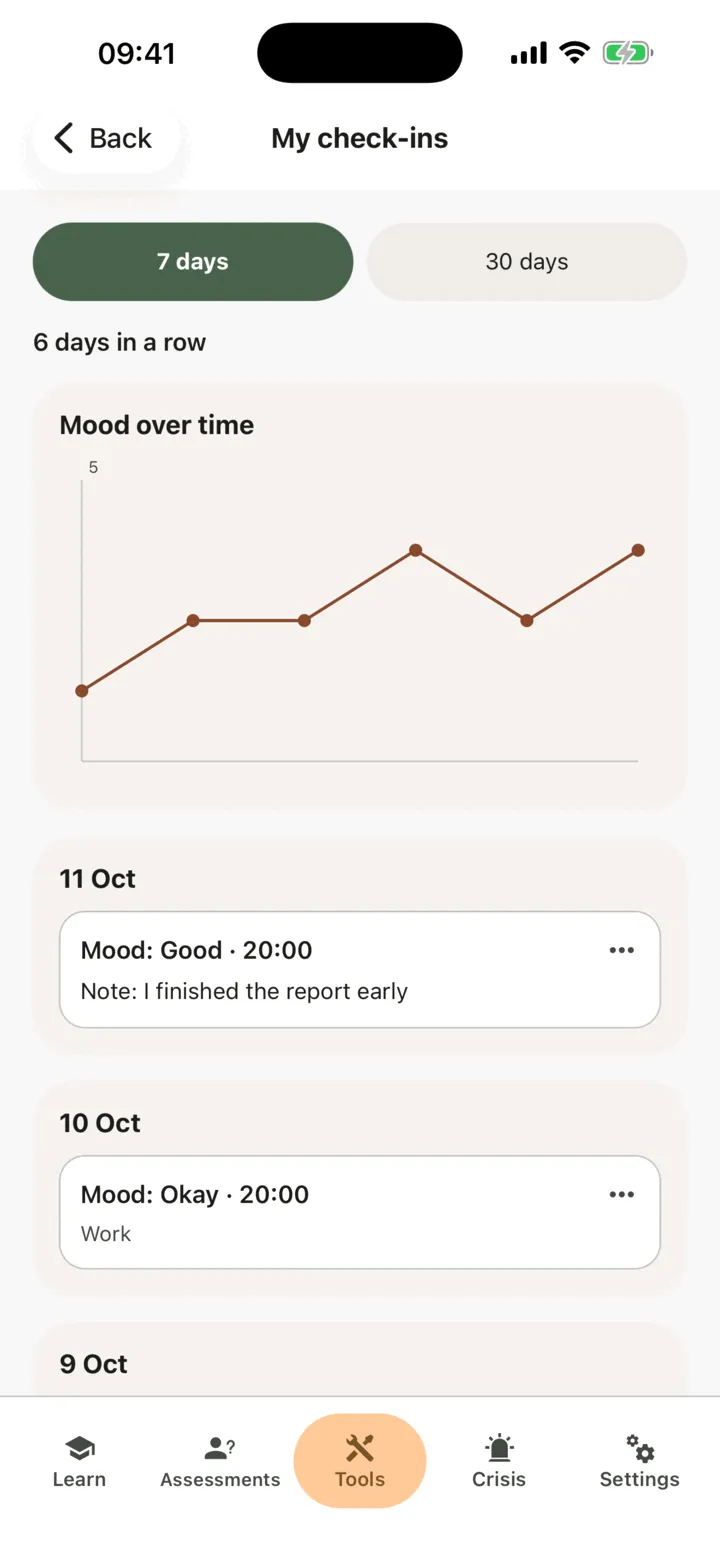
If you have connected health data, a line under a day shows what your phone recorded: the night you slept and your active minutes. See Share health data from your phone.
To delete a check-in, open its menu, tap Delete and confirm with Delete. Tap Keep it to leave it. A deleted check-in disappears from your history and from your therapist’s view. A check-in your therapist entered in your session says Entered in session, and only their practice can remove it.
Check in from your home screen
Section titled “Check in from your home screen”You can add the Check-in widget to your phone’s home screen. It shows the five faces and nothing else. This needs the latest version of the app from the store.
- Tap a face on the widget. The widget records your check-in and says it is saved. The app does not open.
- Tap a face again the same day to add another. The app opens on Check-in with that face chosen, and nothing is recorded until you save.
If you are signed out, the widget asks you to sign in. A tap on a face with no connection is kept on your phone and sent when you are online.
Who sees your check-ins
Section titled “Who sees your check-ins”If you are connected with a therapist, they can see your check-ins on your page in their portal, the next time they open it, but only if Allow viewing my data is on for them. If it is off, their portal says that you do not share this with them. They are not alerted when you check in. The admins of their practice see your check-ins too if Allow practice admins to view my data is on. See Choose what your therapist can see.
For therapists
Section titled “For therapists”A client’s check-ins show on the Check-ins tab of their page. You see them only if the client lets you view their data, or, as a practice admin, lets practice admins view it. If not, the tab reads The client doesn’t share this with you. You see them when you open the page: CopingCard does not alert you when a client checks in.
Read a client’s check-ins
Section titled “Read a client’s check-ins”- In the portal menu, click Clients and open the client’s page: see Find a client and open their page.
- Click the Check-ins tab.
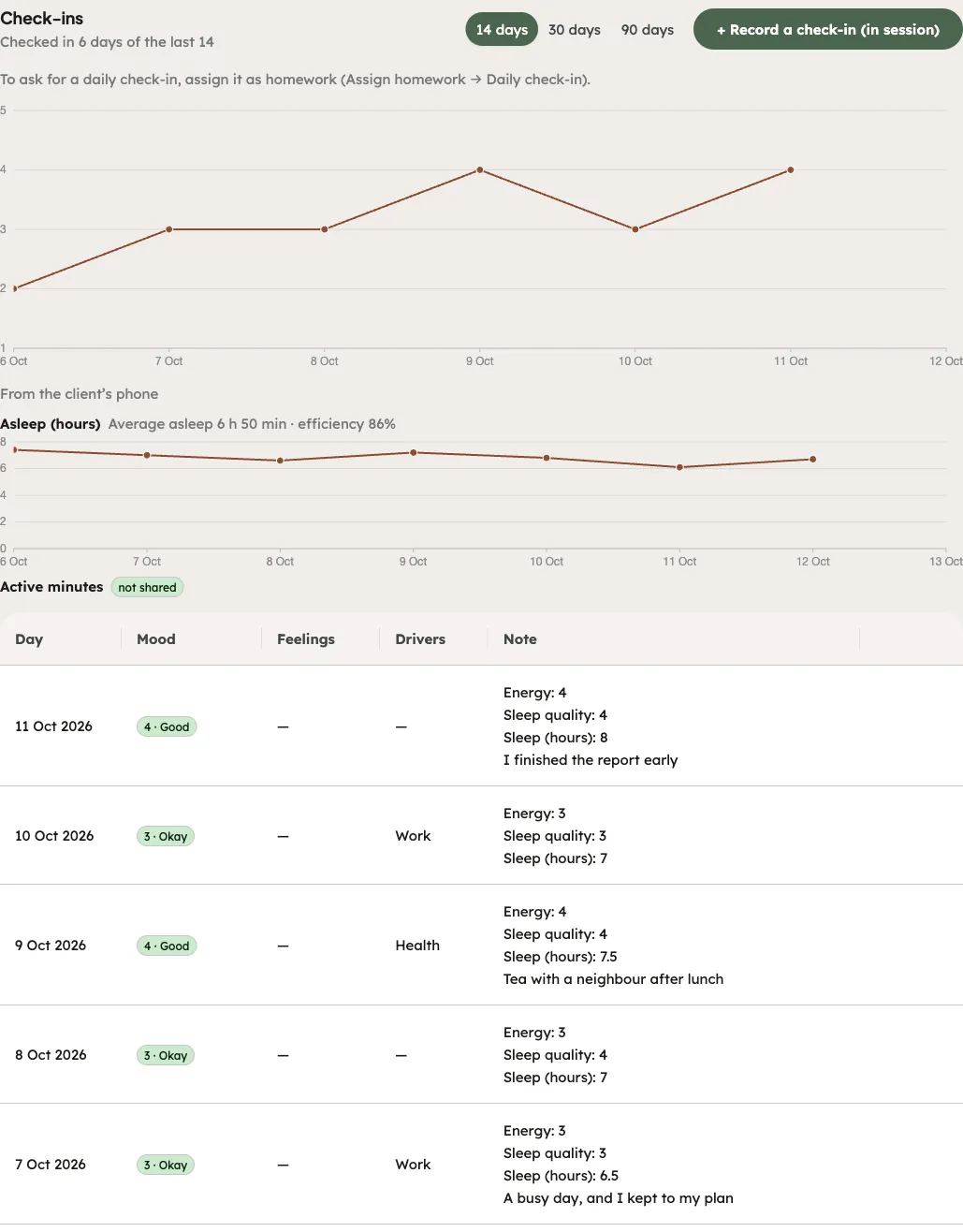
- Choose 14 days, 30 days or 90 days.
The tab shows mood over time, how many days the client checked in, and each entry with its note, feelings and drivers. Under the mood line, From the client’s phone shows Asleep (hours) and Active minutes for each type the client shares with you. A type they do not share reads not shared. The same numbers are on the Sleep & activity tab: see Share health data from your phone.
Record a check-in in session
Section titled “Record a check-in in session”- On the Check-ins tab, click Record a check-in (in session).
- Under Day, choose the day. It can be today or one of the last 7 days.
- Choose a mood. Record check-in stays off until you do.
- Fill in the optional lines.
- Click Record check-in.
An entry you record is marked Entered in session. It is part of your practice’s record, visible to your practice and to the client, and it does not count as the client checking in. You can remove an entry your practice recorded with Remove. You cannot remove the client’s own entries. The buttons are there only while the client lets you view their data. If not, the tab shows the not-shared line instead.
Read the recap before a session
Section titled “Read the recap before a session”Open the client’s session form: see Record a session. Click the Check-in recap tab. If the client does not let you view their data, it reads The client doesn’t share this with you. It covers the time since the previous session with your practice, or the last 14 days for a first session. It shows the number of check-ins, the mood average, the lowest day with its note, the most common drivers, and, from the client’s phone, the average sleep. Activity shows as not shared with you unless the client shares it.
Ask for a daily check-in
Section titled “Ask for a daily check-in”- On the client’s page, click the Homework tab, then Assign homework.
- Under Kind, choose Tool. Under What, choose Daily check-in.
- Fill in the rest. To ask for it every day, choose Repeats under Deadline and set the days. Click Assign.
The homework is marked done by itself when the client’s own check-in is saved after you assigned it. A check-in you record in session does not complete it. See Assign homework to a client.