

Work through a worry with the Worry Tree
The Worry Tree takes one worry through a few yes-or-no questions. You end on something to do now, a plan for later, or a way to turn your attention elsewhere. The app saves the finished tree with a picture of the path you took.
For clients
Section titled “For clients”You need the latest version of the CopingCard app, signed in.
Work through a worry
Section titled “Work through a worry”- On the Tools tab, tap Worry Trees.
- Tap Create Worry Decision Tree. On the free plan the app can open the subscription screen here instead: see Premium and the free plan.
- Under What am I worrying about?, write the worry. Next turns on when you have written at least six characters. Tap Next.
- On Is this a real problem?, tap yes or no.
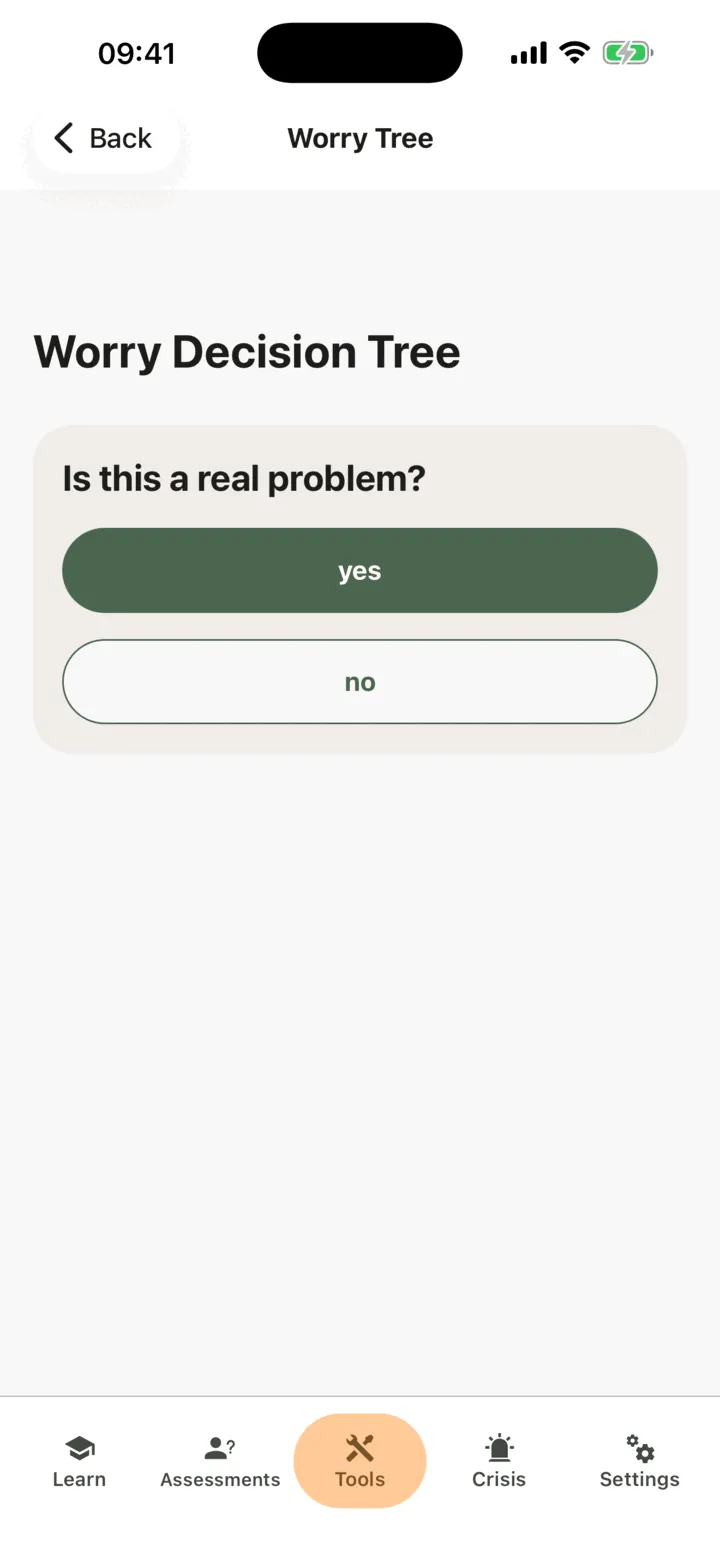
- If you tapped yes, answer Can I do anything to solve this problem? with yes or no.
- If you tapped yes again, write your ideas under List your options to solve the problem., tap Next, then answer Can I do anything right now?.
- Follow the questions the app gives you. Where they lead depends on your answers, as below.
Your answers lead to one of these endings:
- If the problem is not real, or you cannot do anything about it, the tree goes straight to the change of focus.
- If you can do something right now, you write it under Name the thing that you are going to do right now. and tap Next. The tree ends there.
- If you cannot do anything right now, you write what you could do and when under Plan what you could do and when you will do it. and tap Next. The tree then goes to the change of focus.
On the change of focus, Let the worry go. Change the focus of your attention., tap one of the cards, for example Practice deep breathing, Listen to music or Write in a journal. Some cards add a link to another part of the app, such as Meditations.
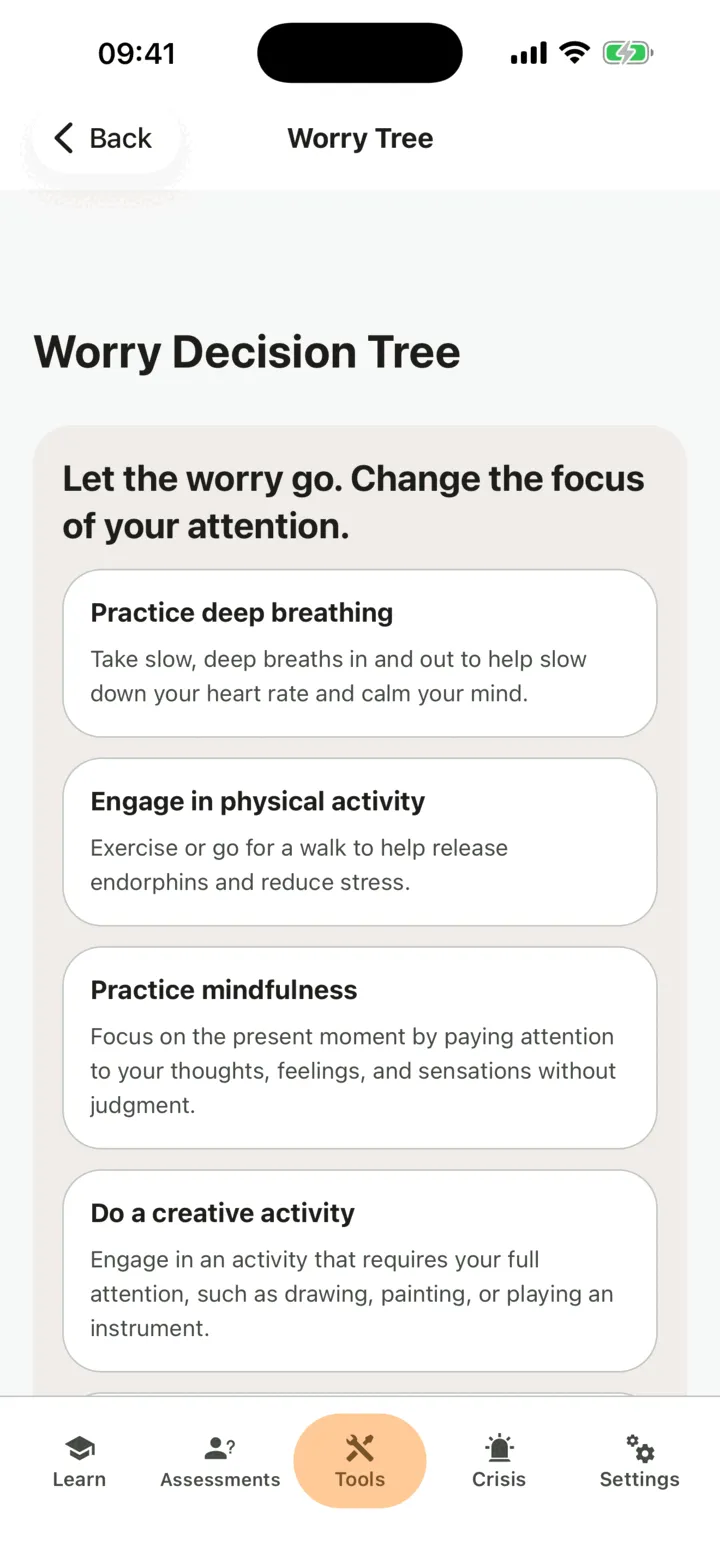
There is no Back button and no Save button. Answer the questions in order. When you reach the end, the app saves the tree by itself and shows Worry Tree saved successfully for a moment. If you leave before the end, nothing is kept.
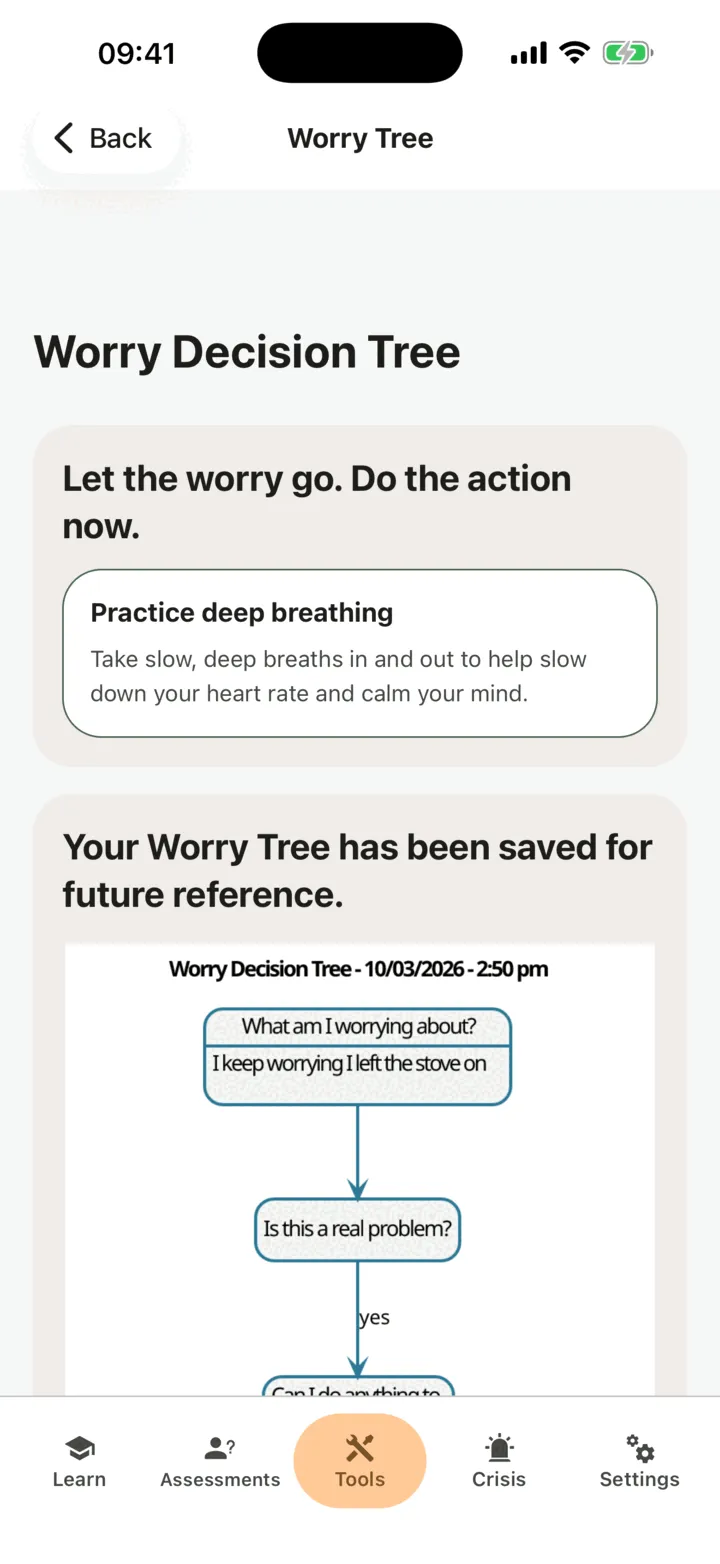
The last screen, Let the worry go. Do the action now., shows the action you chose and, under Your Worry Tree has been saved for future reference., a picture of the tree with your path marked. CopingCard draws the picture on its own servers, so your words are not sent to an outside service. If it cannot be drawn right now, the app shows We could not draw the picture right now. Here is what it says, so nothing is lost and the text of the picture instead. Tap Worry Trees to go back to the list.
Look at a saved tree
Section titled “Look at a saved tree”- On the list, find the tree. Each one shows Worry and the text, newest first.
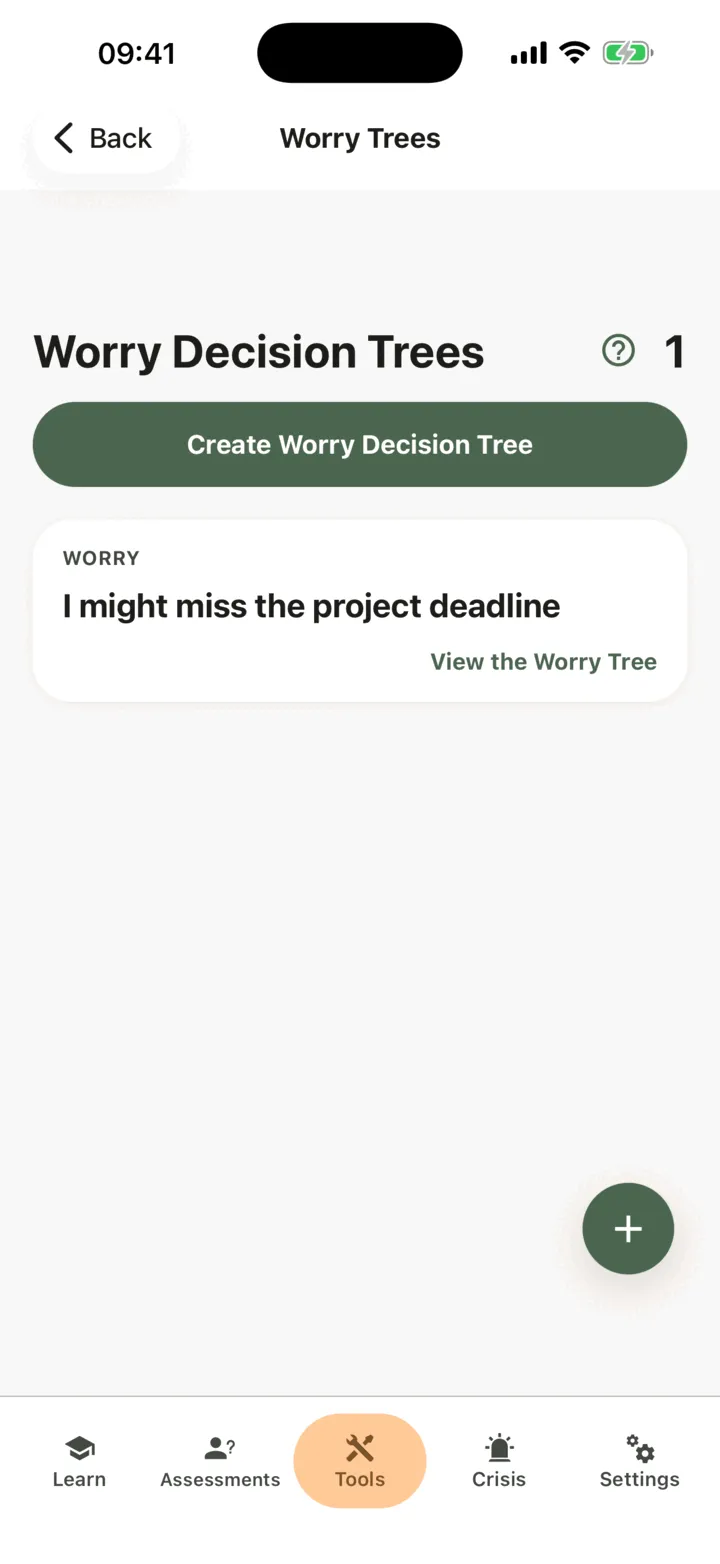
- Tap View the Worry Tree.
A saved tree only shows its picture (or your words, if it cannot be drawn). You cannot edit or delete it. To work through the worry again, make a new tree.
Who can see your worry trees
Section titled “Who can see your worry trees”If you connect with a therapist, the options on the Data Sharing with Therapists screen in Settings decide who sees your trees. With Allow viewing my data on, your therapist sees them in the CopingCard portal. With Allow practice admins to view my data on, the admins of your therapist’s practice see them too. They see a tree when they open it: they are not alerted when you finish one. With Allow editing my data or Allow practice admins to edit my data on, they can also add a tree for you. See Choose what your therapist can see.
For therapists
Section titled “For therapists”In the portal you can read a client’s worry trees and work through one with them, for example during a session. You see a client’s trees only if they let you view their data, or, as a practice admin, let practice admins view it. To add one, the client must allow you to edit their data, or allow practice admins to edit it, and must have a Premium account. CopingCard does not monitor or flag what clients write: you see a tree when you open the list.
Review a client’s worry trees
Section titled “Review a client’s worry trees”- In the portal menu, open Tools and click Worry Trees.
- To see one client’s trees, use the filter on the Client ID column, or choose the client in Filter by Client at the top of the page.
- Click the plus sign at the start of a row to see the picture of the tree.
The table shows the Worry, whether it was Not solvable, the Options to solve, the Immediate action, the Plan for later and the Refocus activity.
Work through a worry tree for a client
Section titled “Work through a worry tree for a client”- On the Worry Decision Trees list, click Create.
- Under Select a Client, choose the client. The list shows only clients with a Premium account who allow you to edit their data.
- Answer each question with the client, using Yes and No, and Next.
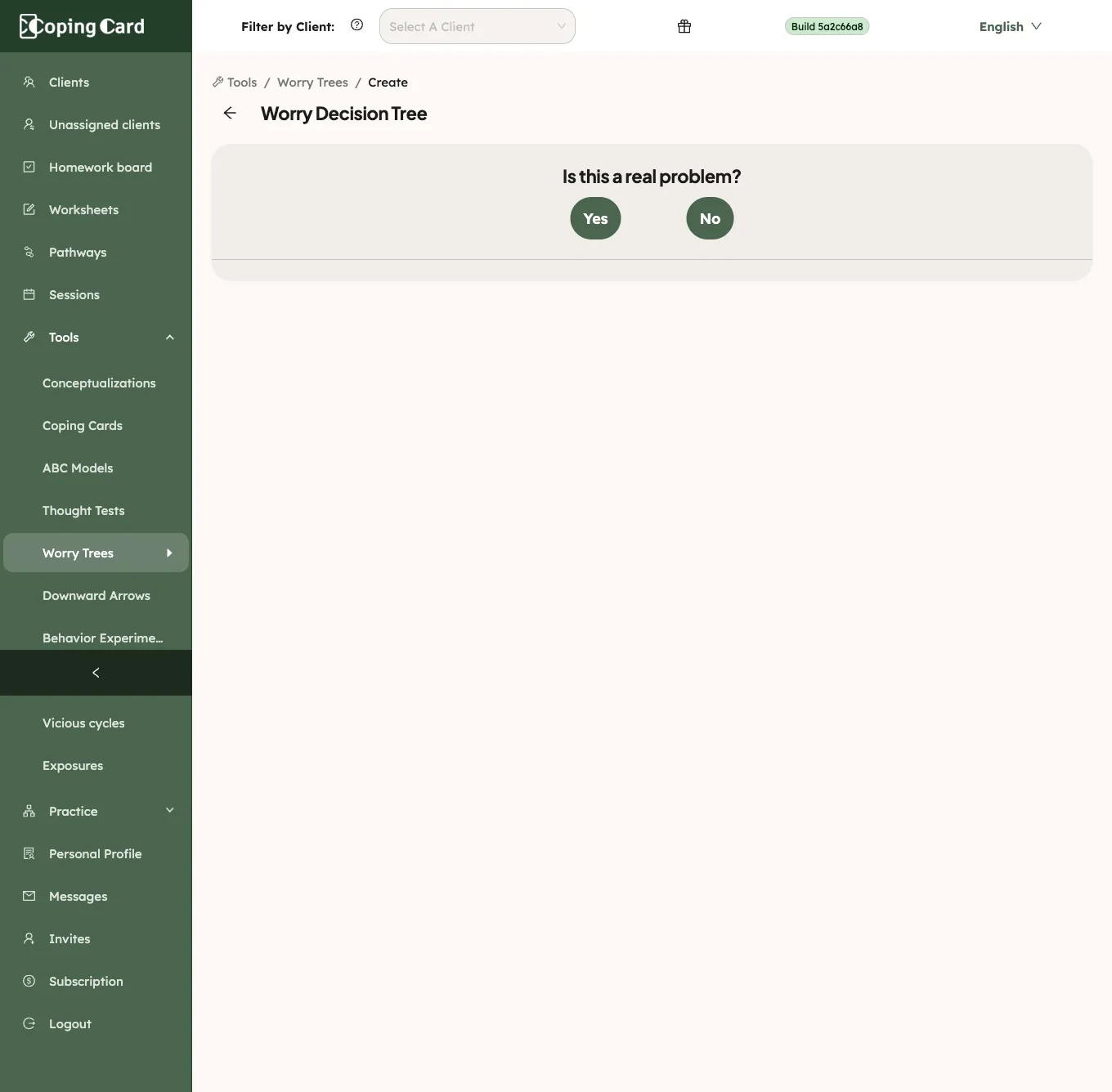
- On the step for the action to do right now, click Finish. If the walk goes to the plan or the change of focus instead, it ends when you click a card such as Practice deep breathing.
There is no Back button. When the walk ends, the portal saves the tree to the client’s account and shows the picture. The client sees it in their app. A saved tree cannot be edited or deleted in the portal, and if you leave before the end nothing is saved.
Assign it as homework
Section titled “Assign it as homework”Assign homework with kind Tool and Worry tree under What. It is marked done by itself when the client reaches the end of the tree in the app, or you walk a tree for them in the portal. Leaving halfway does not complete it.