

Choose a plan and manage billing
A practice admin chooses the plan on the Subscription page. The plan sets how many clients your practice can have, and payment happens on a page hosted by Stripe. Plan names and prices are read from the page itself, so this article does not list them.
Choose a plan
Section titled “Choose a plan”- In the portal menu, click Subscription.
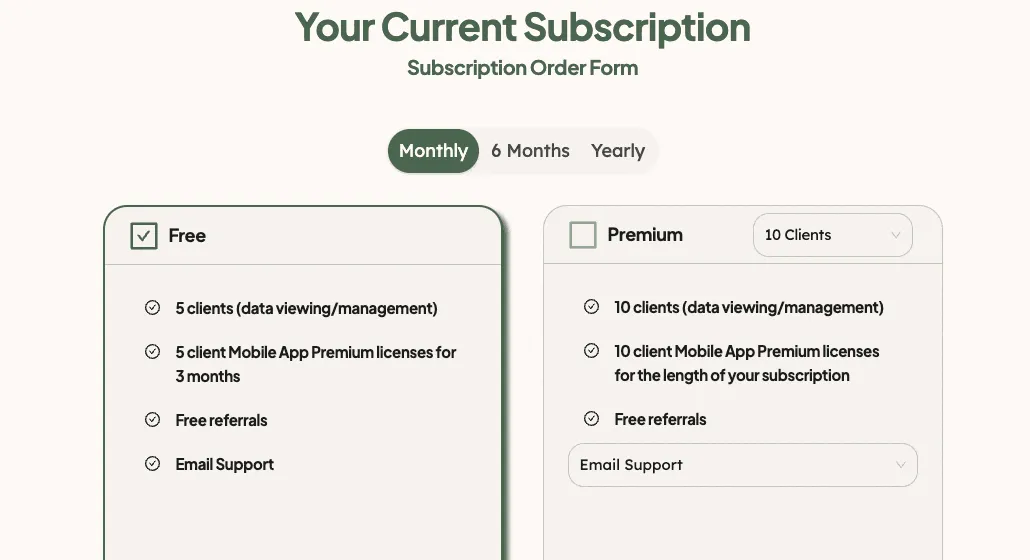
- Choose how often you want to pay: Monthly, 6 Months or Yearly.
- On the Premium card, tick the box and choose the number of clients in the first drop-down. Choose the kind of support in the second one.
- Read the price at the bottom of the card. The Free card lists what the free plan includes.
- Click Upgrade to Premium. Stripe’s payment page opens. Enter your payment details there.
Before you pay, Provider Agreement, Privacy Policy and Terms & Conditions at the bottom of the page open the documents you agree to.
What happens next
Section titled “What happens next”When the payment is complete, Stripe brings you back to the Subscription page with a message that your subscription is updated. The new number of clients can take a few seconds to show. Your clients are counted against the plan. When you have used 80 percent of the places, a counter such as 43 / 50 appears at the top of Clients, Invites and Subscription. Point at it to read what it counts: Clients Added / Subscription Clients.
Clients you add by name, and clients you give Premium via Practice, count toward the plan. See Set a client’s account type.
Change the plan, update payment details or cancel
Section titled “Change the plan, update payment details or cancel”- Click Subscription.
- Click Manage your Subscription at Stripe.
- In Stripe, change the number of clients or the billing period, update the payment method or billing details, read your invoices, or cancel.
A cancellation takes effect at the end of the period you have paid for.
If you reach your client limit
Section titled “If you reach your client limit”When the number of clients added reaches the plan’s number, Invite Client and Add Non-App Client are switched off, and you cannot give another client Premium via Practice. Upgrade the plan, or move some clients to Free. If a subscription expires, the page warns that your clients will lose their Premium features in the app.