

Mark homework done with a photo of paper
You can add a photo of a sheet you filled in on paper to some homework, and mark it done. Which homework allows it depends on its kind. You need the latest version of the CopingCard app.
| Kind | Photo of paper |
|---|---|
| task | You can always add a photo, but you do not have to. The task is marked done when you tap Mark done, or Mark done with this photo once you have chosen a photo. |
| tool | Only if your therapist allowed paper for this homework. Otherwise the tool is marked done when you finish it in the app. |
| worksheet | Only a worksheet with no score that is not a consent form, and that has something to fill in. A worksheet your therapist can print for you is one of these. Any other worksheet is done in the app. |
| questionnaire, reading, link, video | Not on paper. |
Homework you add for yourself with Add my own follows the same rules, except that a tool you add yourself is never done on paper. A tool that is a step of a program starts without paper; your therapist can allow paper for one released step.
If your therapist gave you a worksheet to do on paper, ask them to print it for you in the portal. The phone has no print.
Add the photo to a task or a tool
Section titled “Add the photo to a task or a tool”- On the Homework list, tap the homework.
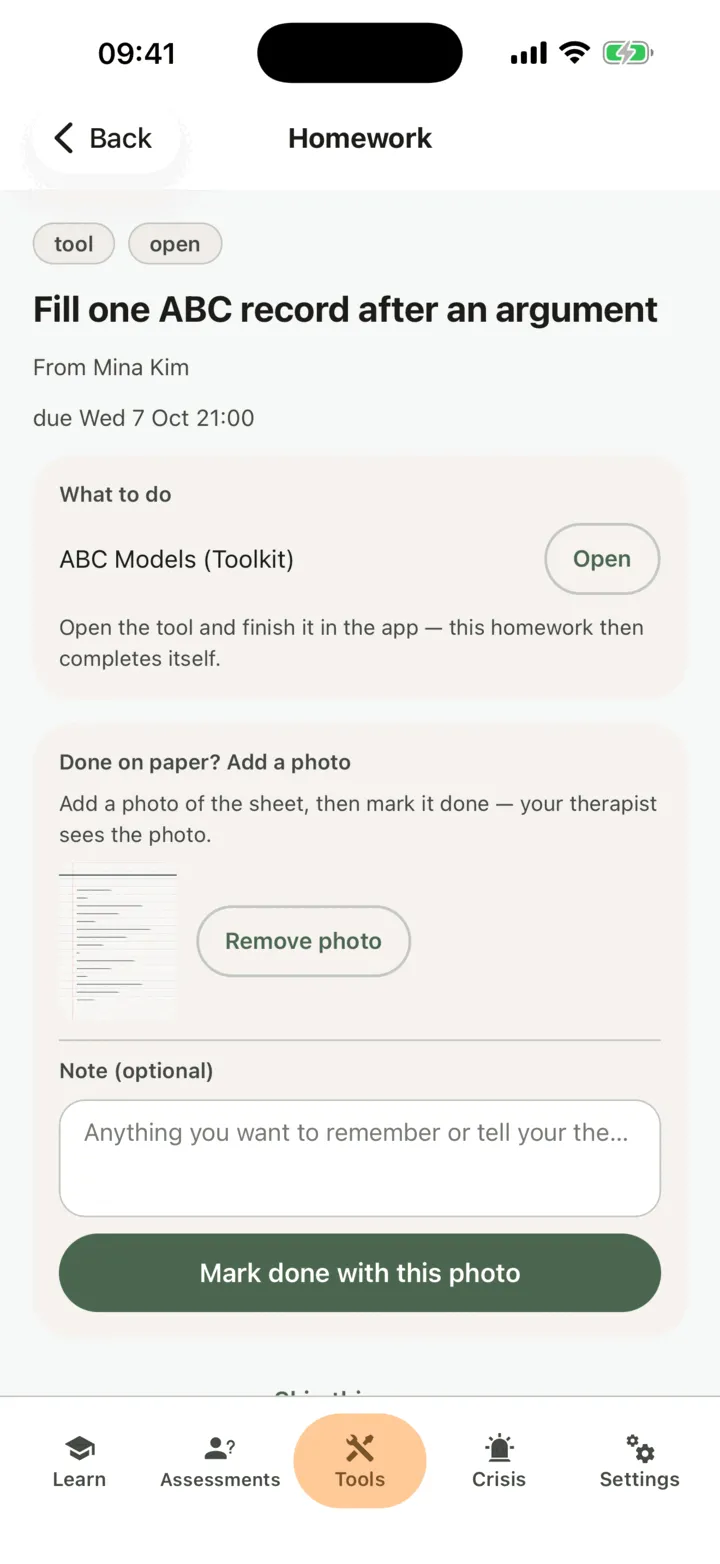
- Under Add a photo (optional) for a task, or Done on paper? Add a photo for a tool, tap Take a photo to use the camera, or Choose a photo to pick a photo you already have.
- Take or pick a photo of your sheet.
- Check the small preview. If it is the wrong photo, tap Remove photo and add another one.
- If you want, write a few words for your therapist in Note (optional).
- Tap Mark done with this photo.
Add the photo to a worksheet
Section titled “Add the photo to a worksheet”- On the Homework list, tap the worksheet.
- Tap Done on paper? Add a photo. The worksheet form opens.
- Under Done on paper? Add a photo, below the form, tap Take a photo or Choose a photo.
- Take or pick a photo of the filled-in sheet.
- If you want, write a few words for your therapist in Note (optional).
- Tap Mark done with this photo.
You do not fill in the form in the app when you do this.
Your therapist sees the photo and your note with the homework in CopingCard, the next time they look at your homework. If you allow practice admins to view your data, the admins of your therapist’s practice see them too, under the same conditions. For homework your therapist gave you, your therapist can still see the photo if you later switch off sharing. For homework you added yourself, a therapist sees the photo only while you allow them to view your data. The photo is stored in your CopingCard account and is deleted when you delete your account; your note stays with the homework as part of your therapist’s record.
If something goes wrong
Section titled “If something goes wrong”- If the app says CopingCard is not allowed to use the camera, tap Open Settings, allow the camera for CopingCard, and go back to the homework. Or tap Choose a photo and pick a photo you already took.
- If the app says adding a photo needs the latest version, update CopingCard from the App Store or Google Play, then try again.
- If the photo could not be sent, check your internet connection and tap Mark done with this photo again.
- If you tapped Mark done without a photo and the app asked you to finish the tool in the app, finish it there. A tool is marked done with a photo only when your therapist allowed paper for it.
- If the app says this one cannot be done on paper, open it in the app to finish it. Ask your therapist if you would rather do it on paper.