

Track a client's homework
Every piece of homework a client has, from you, from your colleagues or added by the client, is on the Homework tab of the client’s page. Open the client’s page from Clients and click the Homework tab. Rows that are still open come first.
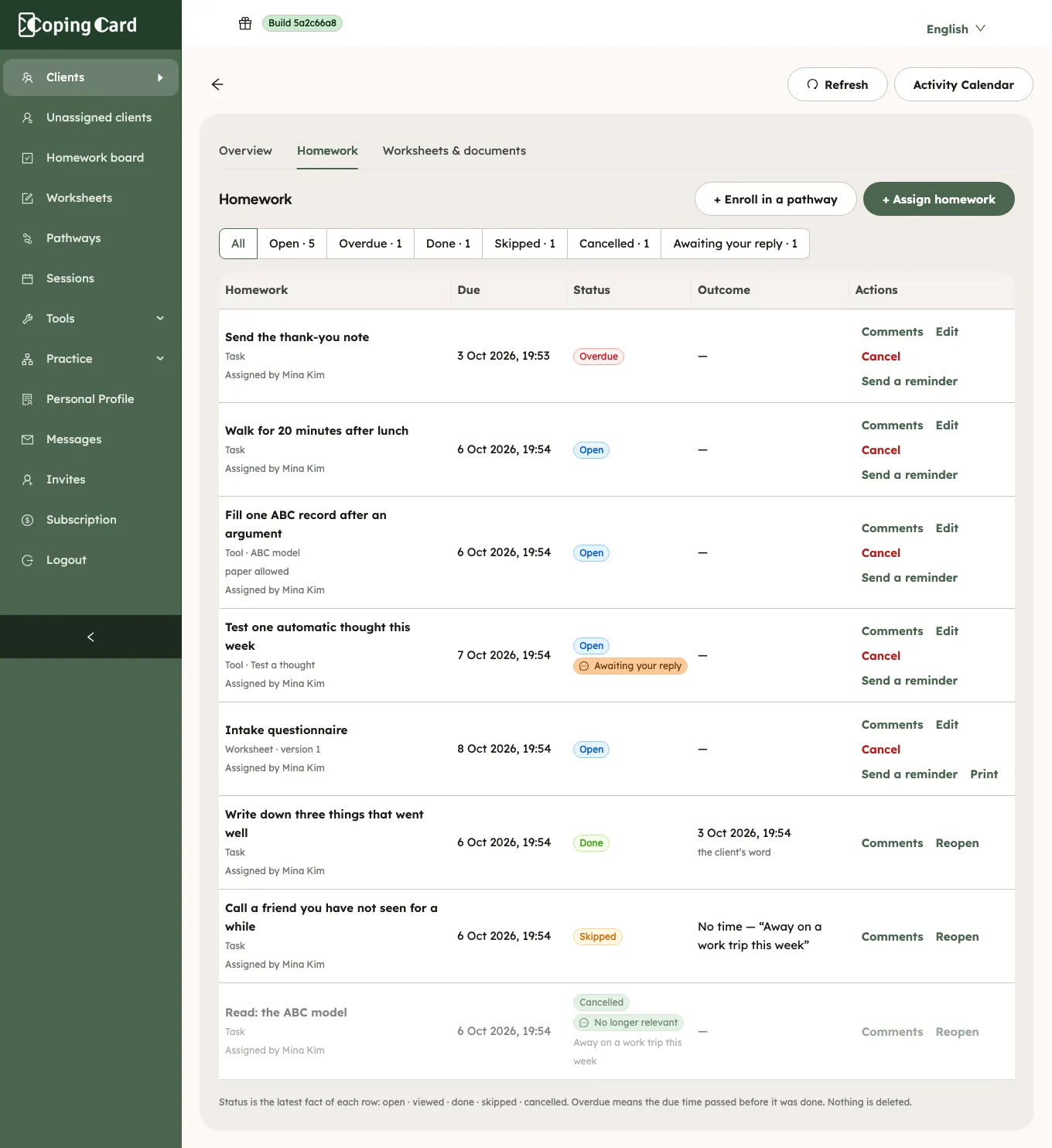
Filters
Section titled “Filters”The buttons above the table show how many rows each has, and show only those rows:
| Filter | Shows |
|---|---|
| All | Every piece of homework. |
| Open | Homework that is still to do. |
| Overdue | Open homework whose due time has passed. |
| Done | Homework the client finished. |
| Skipped | Homework the client skipped. |
| Cancelled | Homework that was withdrawn. |
| Awaiting your reply | Homework where the latest comment is the client’s and nobody has answered it. It counts the client’s own homework too, but not homework that was cancelled. |
Status
Section titled “Status”| Status | Means |
|---|---|
| Open | The client has not done it yet. |
| Viewed | The client has opened it in the app but not done it yet. |
| Overdue | The due time passed before it was done. |
| Done | The client finished it. |
| Skipped | The client skipped it and gave a reason. |
| Cancelled | It was withdrawn. It stays here, greyed out, and the client still sees it on their list, marked withdrawn. |
Nothing is deleted: a row keeps its history when it is changed, cancelled or reopened.
Outcome
Section titled “Outcome”The Outcome column shows how a piece of homework was completed or why it was skipped:
- “record:” and the kind of record, such as a thought test, a meditation or an Observation of a behavior experiment, when the client’s own record in the app completed it. Each observation of a behavior experiment shows, so several in one period appear as repeats.
- the client’s word when the client marked it done themselves. A note they added shows under the row.
- on paper · photo when the client did a tool or a worksheet on paper and added a photo of the sheet. Click it to open the photo.
- photo, beside done, when the client completed a task with a photo. Click it to open the photo.
- The reason and the client’s words for a skip.
For homework that repeats, the column lists each time with its result, for example “Sep 30: done” and “Oct 1: open”. A time that passed without an answer shows as missed. If the client did the same time twice, it shows as done once, with “repeated 1”.
Other lines on a row
Section titled “Other lines on a row”- Awaiting your reply, in amber, on a row whose latest comment is the client’s. On a cancelled row the same situation shows No longer relevant, in grey, and it is not counted.
- paper allowed on a tool row when you turned on May do it on paper for it.
- Print on a worksheet row the client may do on paper. See Print a worksheet for a client.
- “Reminder sent” and a date, after you or a colleague sent a reminder.
- “Could not be reached” when CopingCard found no way to tell the client about the homework: no phone that can receive notifications and no e-mail address. Check their e-mail address, or ask them to open the app.
- Above the table, a line says so when the client’s app is too old to show homework. You can still assign it; they see it after updating.
Homework the client added
Section titled “Homework the client added”A client can add homework for themselves. You see it if they allow you to view their data, marked as added by the client. You cannot edit, cancel, reopen or remind it, but you can read and reply to its comments with Comments.
Actions
Section titled “Actions”- Comments: read and answer the client’s comments, on homework the client added too. See Reply to a client’s comment on homework.
- Print: a worksheet the client may do on paper. See Print a worksheet for a client.
- Edit, Cancel and Reopen: see Change, cancel or reopen homework.
- Send a reminder: see Send a client a homework reminder.
Who can see this tab
Section titled “Who can see this tab”The client’s therapist sees it, and so do the practice’s admins when the client allows practice admins to view their data. It is part of the practice’s record: you keep seeing the homework you assigned even if the client later switches off sharing with you, but you can then no longer assign homework, change it or send reminders. You can still cancel what you assigned. To open the page of a client who no longer shares their data with you, click their row on the Homework board: on Clients, the eye icon is greyed out for them.