

Hide the tools you do not use
My tools lets you take the tools you do not use out of your way. Every tool is on until you switch it off. It is your own setting: it applies to all your clients and does not change what other therapists see.
Choose your tools
Section titled “Choose your tools”- In the portal menu, click Settings, then My tools.
- Find the tool. They are grouped as on a client’s page: Plan, Track, Formulation, Skills & exercises and Safety. In Skills & exercises, the tool Motivational interviewing comes after Values, and the tool Meditations after Motivational interviewing.
- Switch the tool off. It is then marked hidden for me.
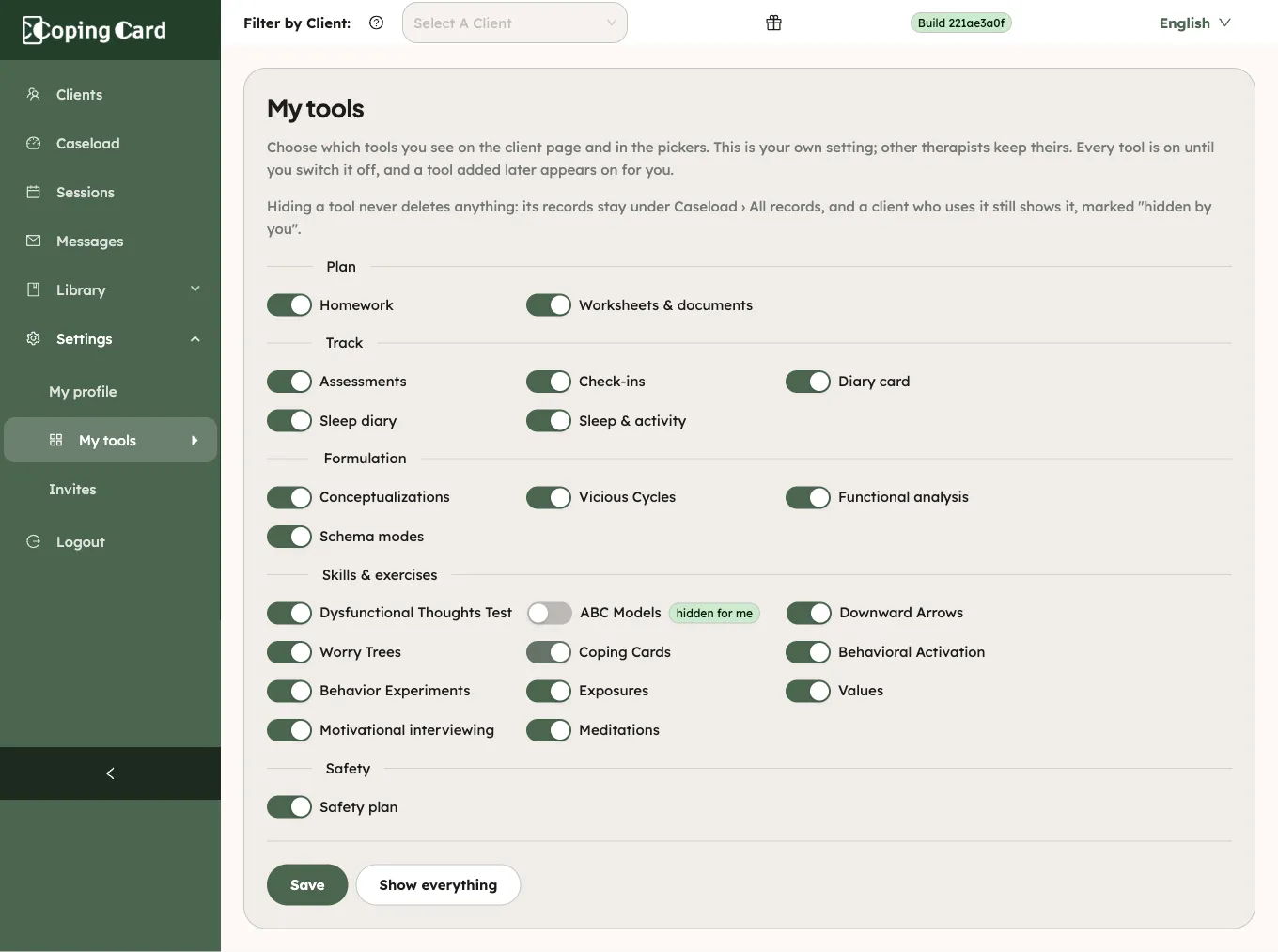
- Click Save.
The switches change a draft. Nothing is saved until you click Save, and the portal warns you if you leave with unsaved changes. To switch everything back on, click Show everything.
What changes
Section titled “What changes”A tool you hid:
- leaves the row of tools on every client’s page;
- is no longer offered as a choice when you assign homework, unless you open the drawer from that tool’s own section;
- still shows on the page of a client who has records of it or homework for it, marked hidden by you;
- still shows a card on a client’s Overview when there is something new, marked hidden by you;
- is still found by Find a tool;
- keeps its records under All records, marked hidden.
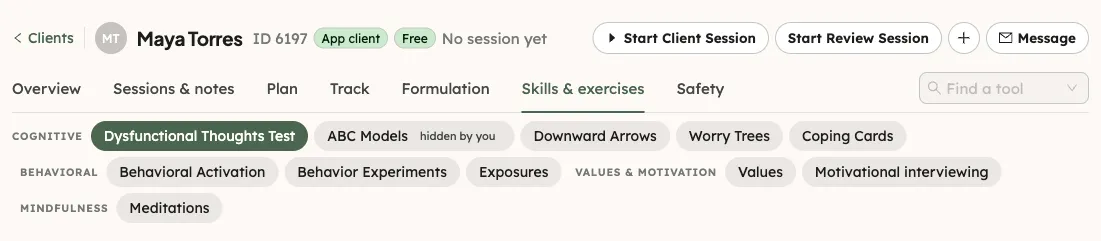
A group whose tools you all hid shows You hid every tool of this group in My tools. with a link, Show them again. A tool CopingCard adds later is on for you.
What happens next
Section titled “What happens next”Hiding a tool deletes nothing and changes nothing for your clients: they keep using it in the app. A client’s page shows the same tools in the same order for every client, apart from the tools you hid. Every tool looks the same, whether the client has used it or not.