

Run a behavior experiment
A behavior experiment tests a belief against what actually happens. You design it once, run it as many times as you like, write down each run, and finish it with what you learned. You can do it alone or with your therapist.
For clients
Section titled “For clients”You need the latest version of the CopingCard app, signed in. If your screens look different from the steps below, update the app.
Design the experiment
Section titled “Design the experiment”- On the Tools tab, tap Behavior Experiments.
- Tap Create Behavior Experiment.
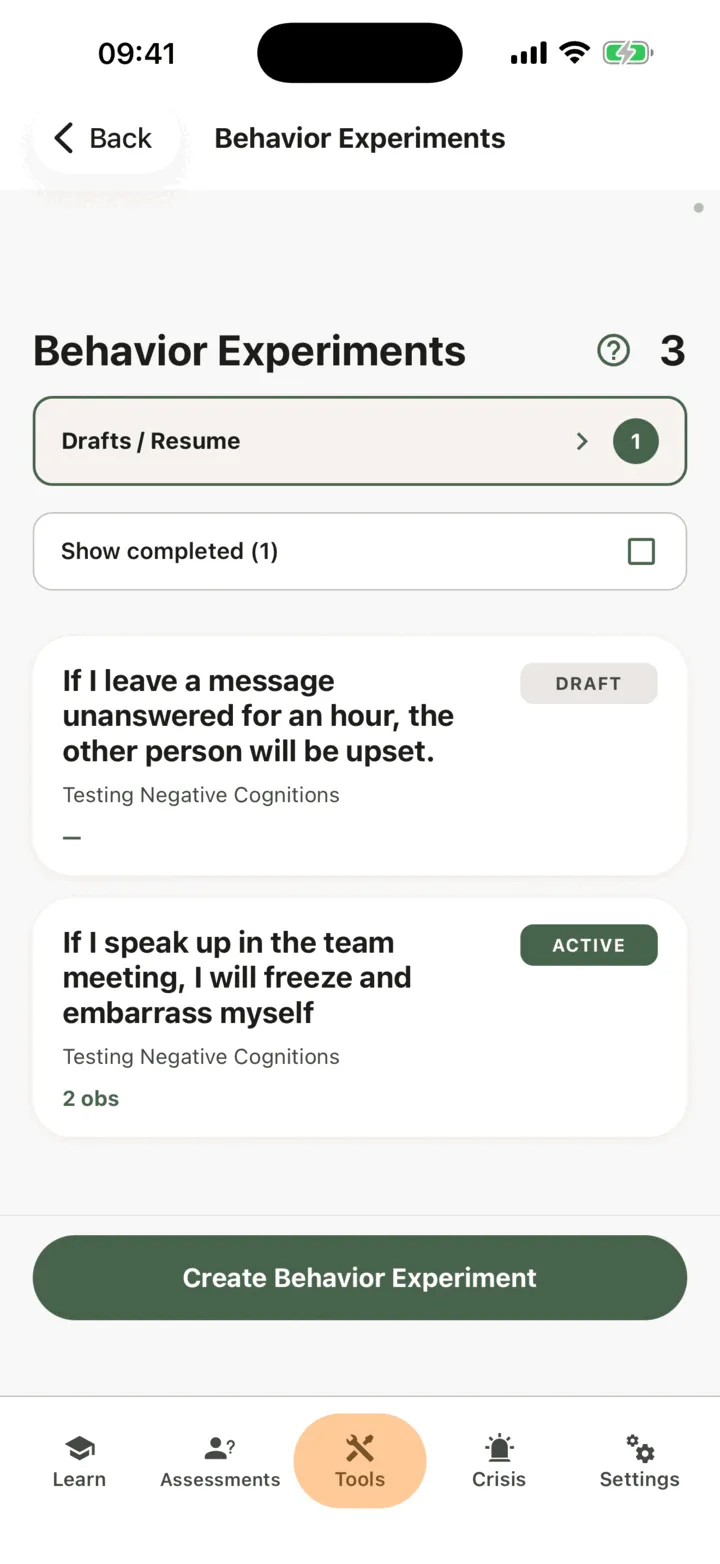
- On Setup, choose Experiment Purpose, Experiment Design, Number of Hypotheses and Experiment Type. The type you choose adds one more choice, Active Experiment Subtype or Observational Experiment Subtype.
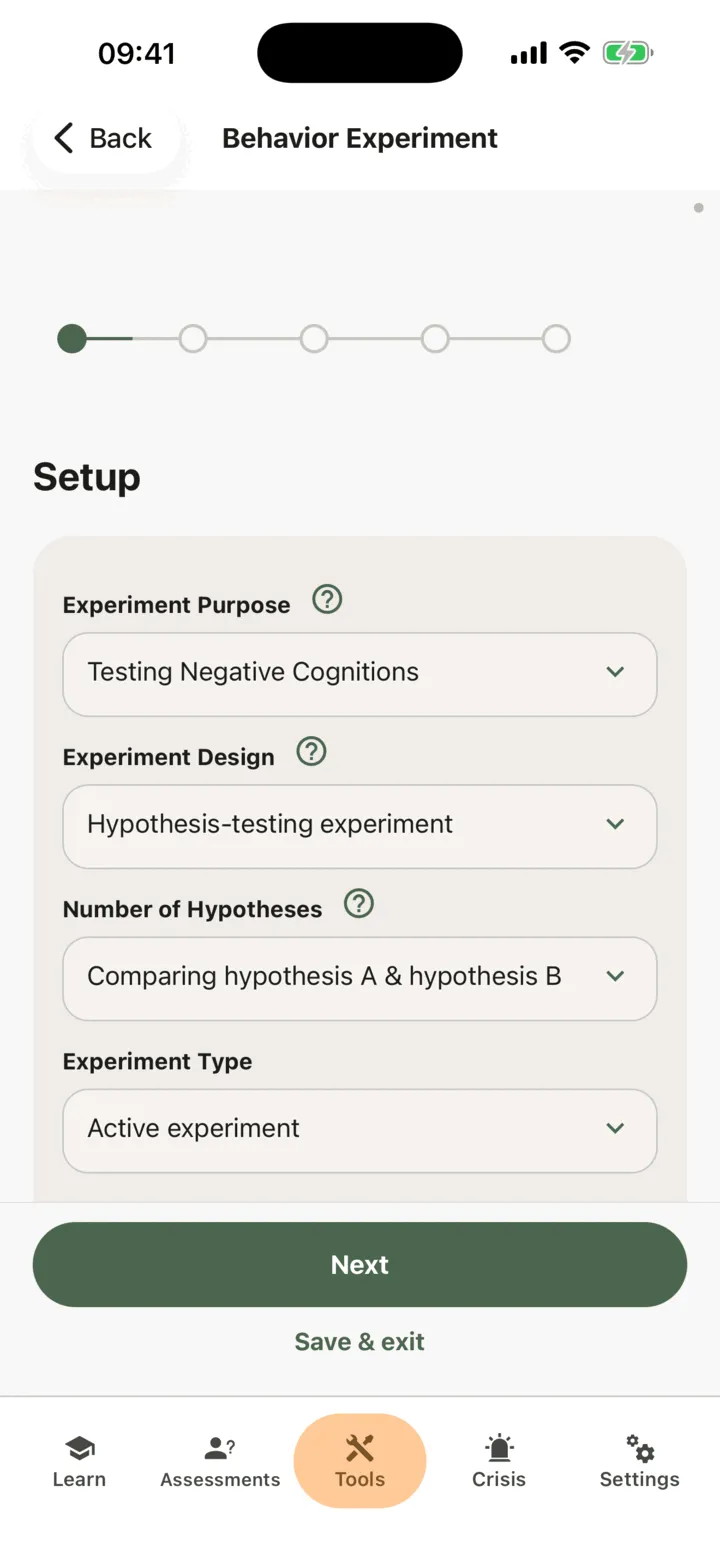
- Tap Next.
- On Hypotheses, write each hypothesis the screen shows, move its slider to show how strongly you believe it, and write the signs that would confirm it. Testing hypothesis A shows Hypothesis A, Testing hypothesis B shows only Hypothesis B, and a comparison shows both.
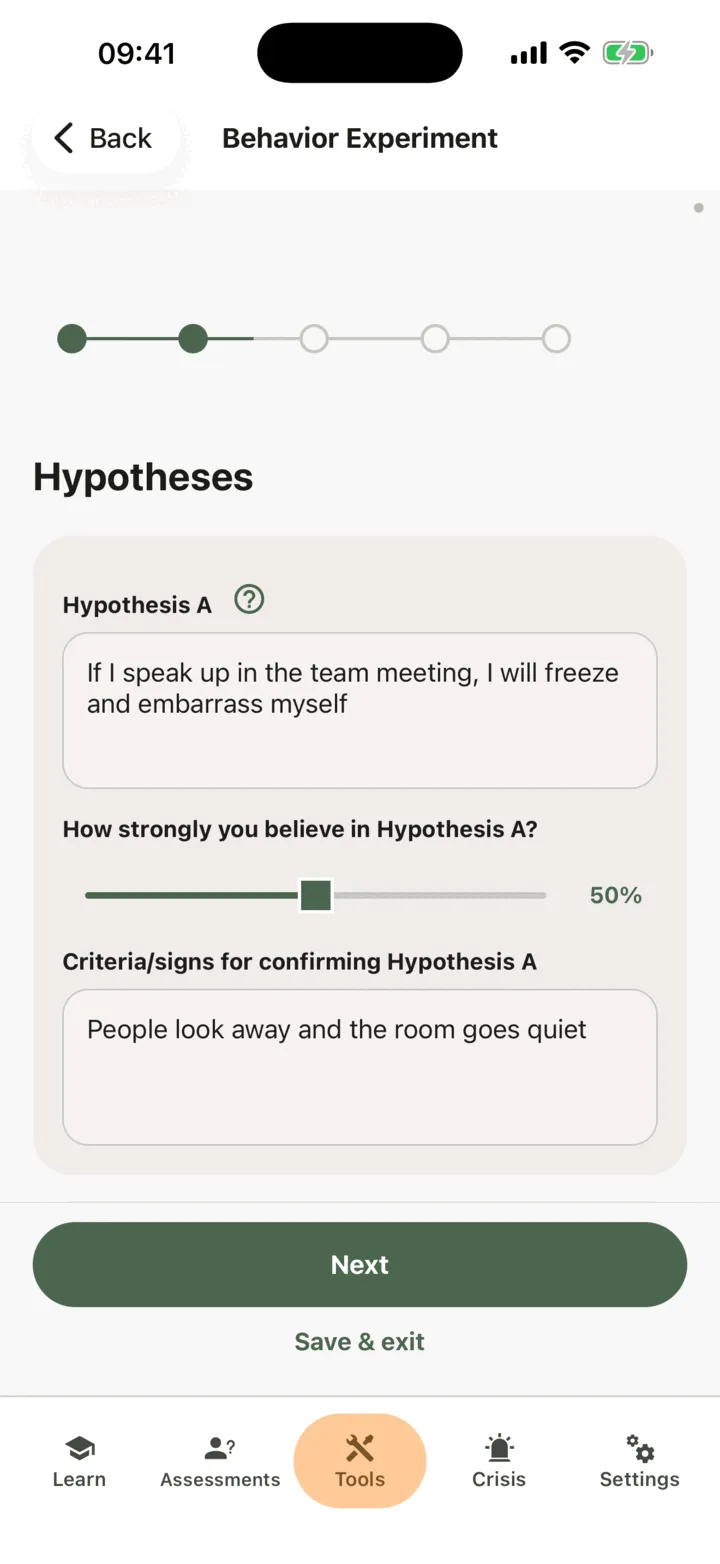
- Tap Next.
- On Plan, describe the Experiment and set Date and Time. Fill in Place, People, Resources and Instruments, Safety Behaviors and Helpful Coping Strategies as they apply. The app shows Place and Survey only for the experiment types that use them.
- Tap Next. On Prediction, choose your Expected Emotions and Expected Body Sensations, and write what you expect to happen, then tap Next.
- On Review & Activate, read the summary and tap Activate experiment.
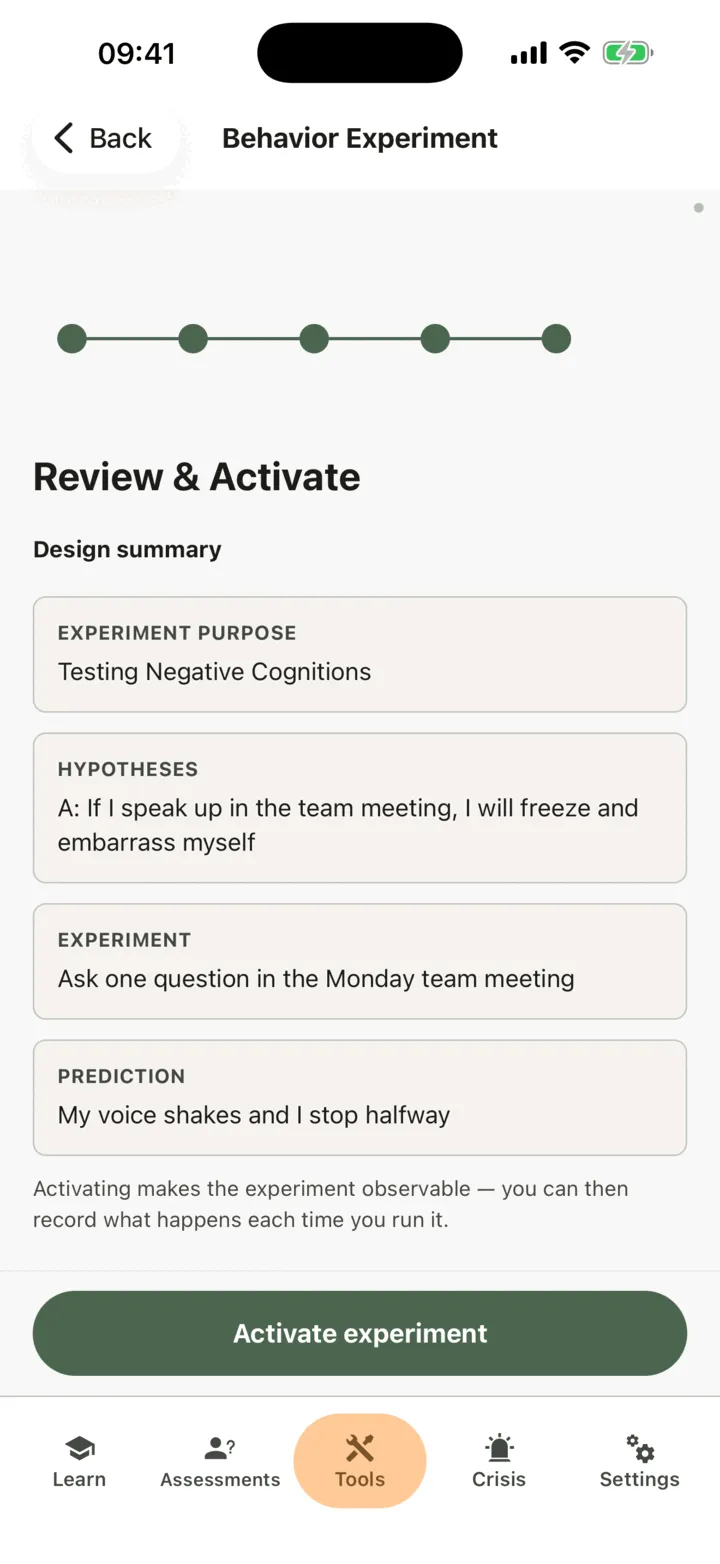
Once you have started an experiment you cannot change its purpose, design, number of hypotheses or type. Activate experiment stays off until the hypotheses, plan and prediction steps each have something in them. You can change the rest later: on the experiment, tap Edit design.
Stop and come back later
Section titled “Stop and come back later”Tap Save & exit on any step. The experiment stays as a draft. To go on, open Behavior Experiments, tap Drafts / Resume, then tap Resume next to the experiment. It opens at the first step you have not filled in.
Record what happened
Section titled “Record what happened”Do this each time you run the experiment.
- On Behavior Experiments, tap the experiment.
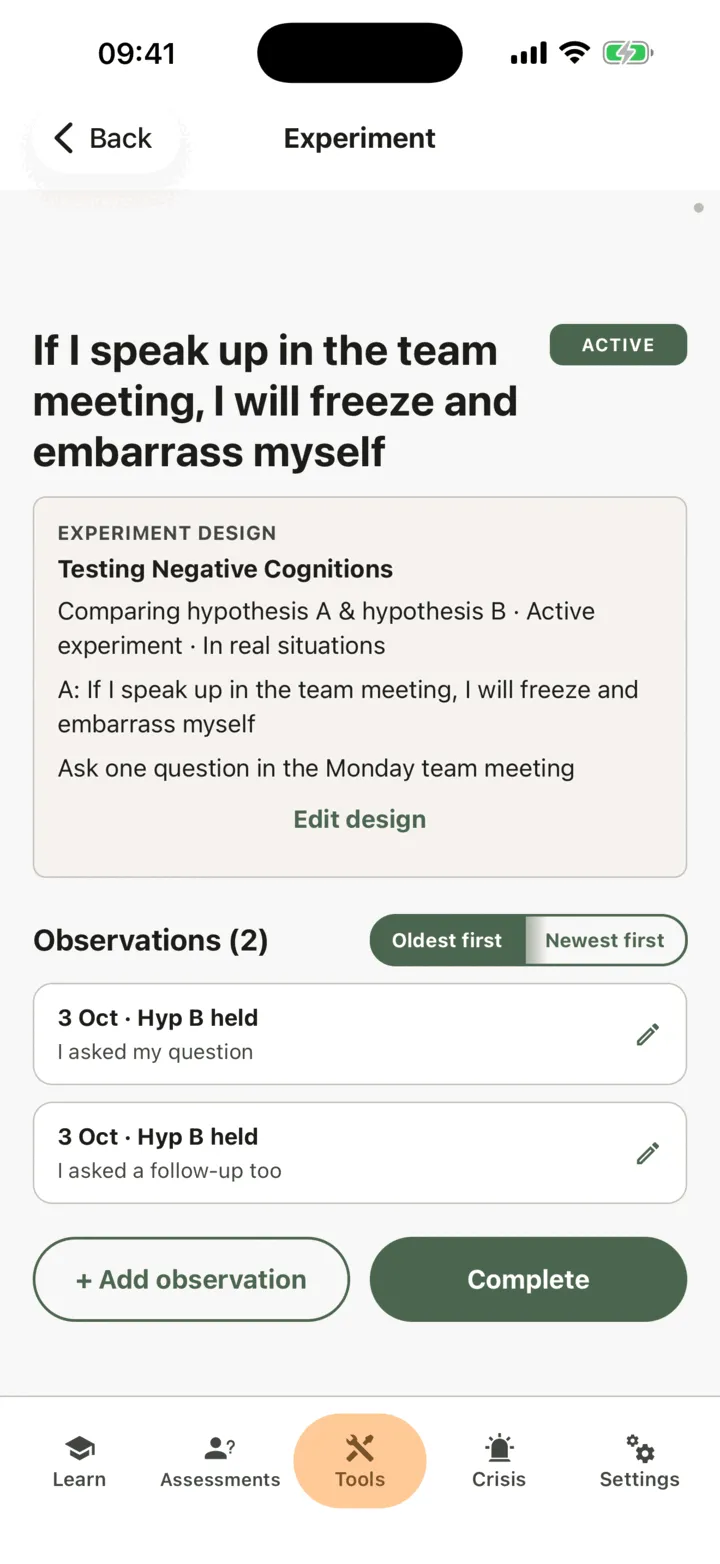
- Tap + Add observation. The button works while the experiment is active.
- On Record Observation, describe the run in What happened?, and choose Actual Emotions and Actual Body Sensations.
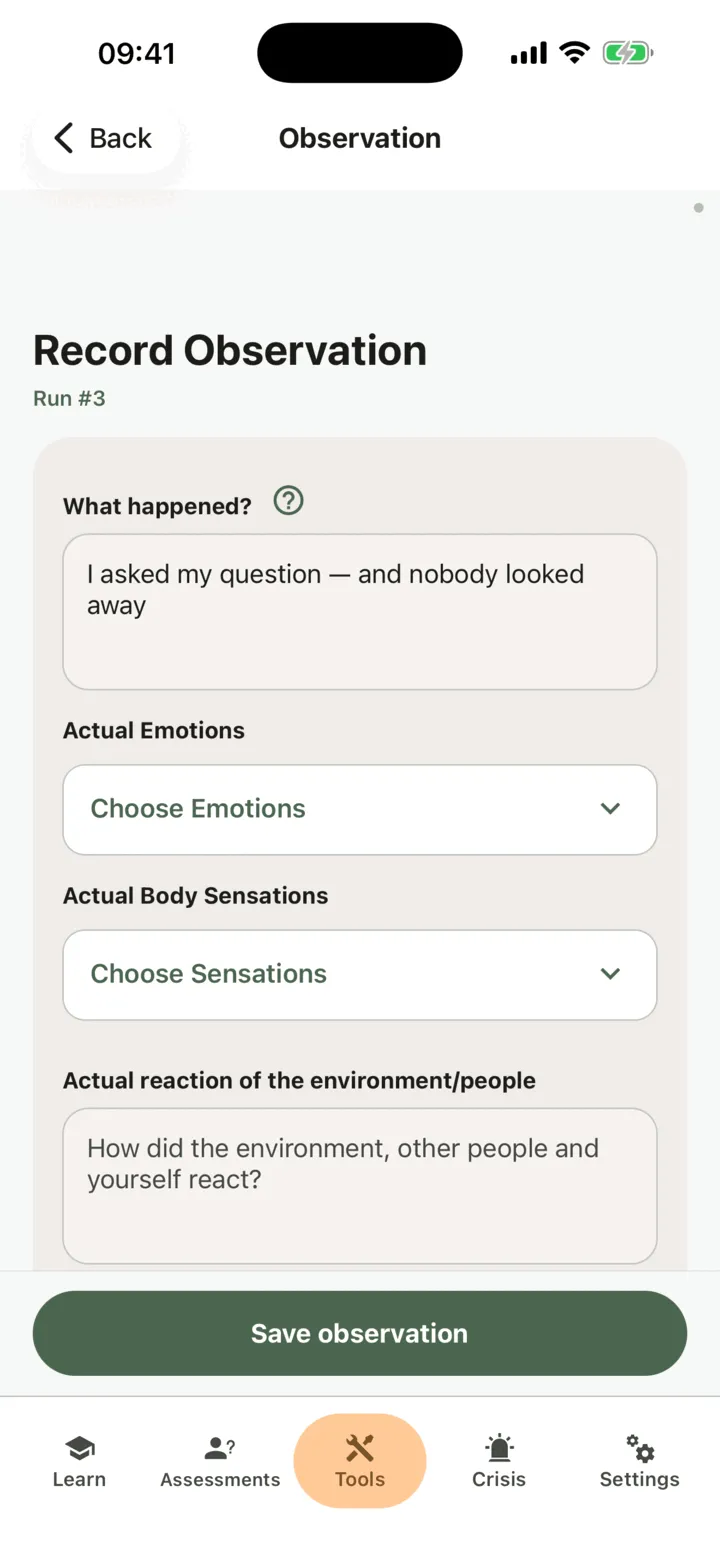
- Write what the people around you and you did in Actual reaction of the environment/people.
- Under Which hypothesis held?, choose A, B or Mixed, and set Belief in original thought now.
- Write what you learned in Learnings, then tap Save observation.
Every run is its own observation. If your therapist gave you a behavior experiment as homework, saving an observation marks it done. To change one, tap it in the list. You can edit observations of a completed experiment, but you cannot add new ones.
Complete the experiment
Section titled “Complete the experiment”- On the experiment, tap Complete.
- On Complete Experiment, fill in My reflections, New Thought or Belief and how strongly you believe your new and your old thought now.
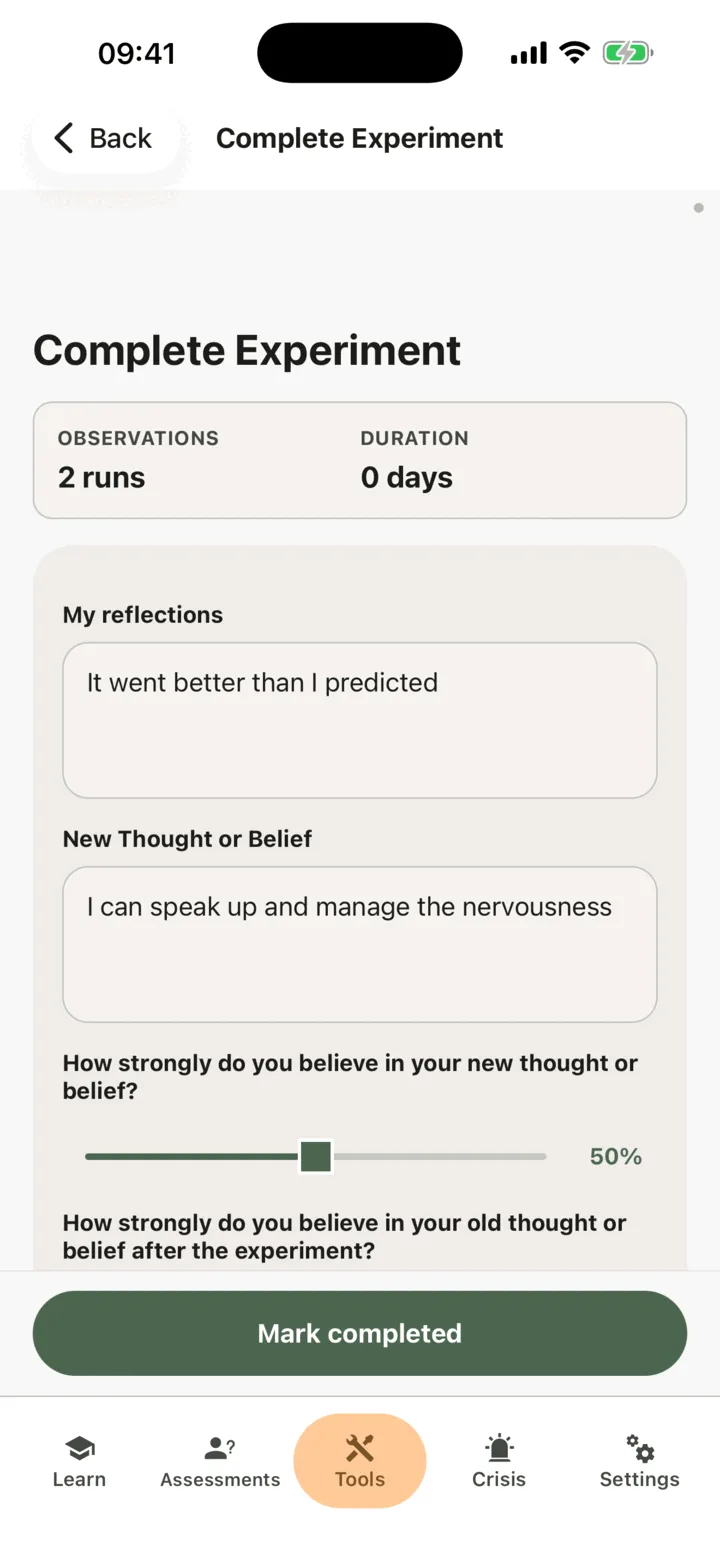
- Fill in New Learnings, Meaning for the original belief and Follow-up Experiments Ideas.
- Tap Mark completed.
A completed experiment is hidden from the list. To see it, tap Show completed. On the experiment, Review completion shows what you wrote, and you can change it and tap Save changes.
On the free plan there is a limit on how often you can start a new experiment. When you reach it the app offers Premium. See Premium and the free plan.
Who can see your experiments
Section titled “Who can see your experiments”If you connect with a therapist, the options on the Data Sharing with Therapists screen in Settings decide who sees your experiments. With Allow viewing my data on, your therapist sees them in the CopingCard portal. With Allow practice admins to view my data on, the admins of your therapist’s practice see them too. They see an experiment when they open it: they are not alerted when you add or complete one. With Allow editing my data or Allow practice admins to edit my data on, they can also change your experiments. See Choose what your therapist can see.
For therapists
Section titled “For therapists”In the portal you can design an experiment with a client, record runs during a session, and finish it. You see a client’s experiments only if they let you view their data, or, as a practice admin, let practice admins view it. To write, the client must allow you to edit their data, or allow practice admins to edit it, and must have a Premium account. CopingCard does not monitor or flag what clients write: you see an experiment when you open the list.
See a client’s experiments
Section titled “See a client’s experiments”- In the portal menu, open Tools and click Behavior Experiments.
- To see one client’s experiments, use the filter on the Client ID column, or choose the client in Filter by Client at the top of the page.
- Click the eye icon in a row to open the experiment.
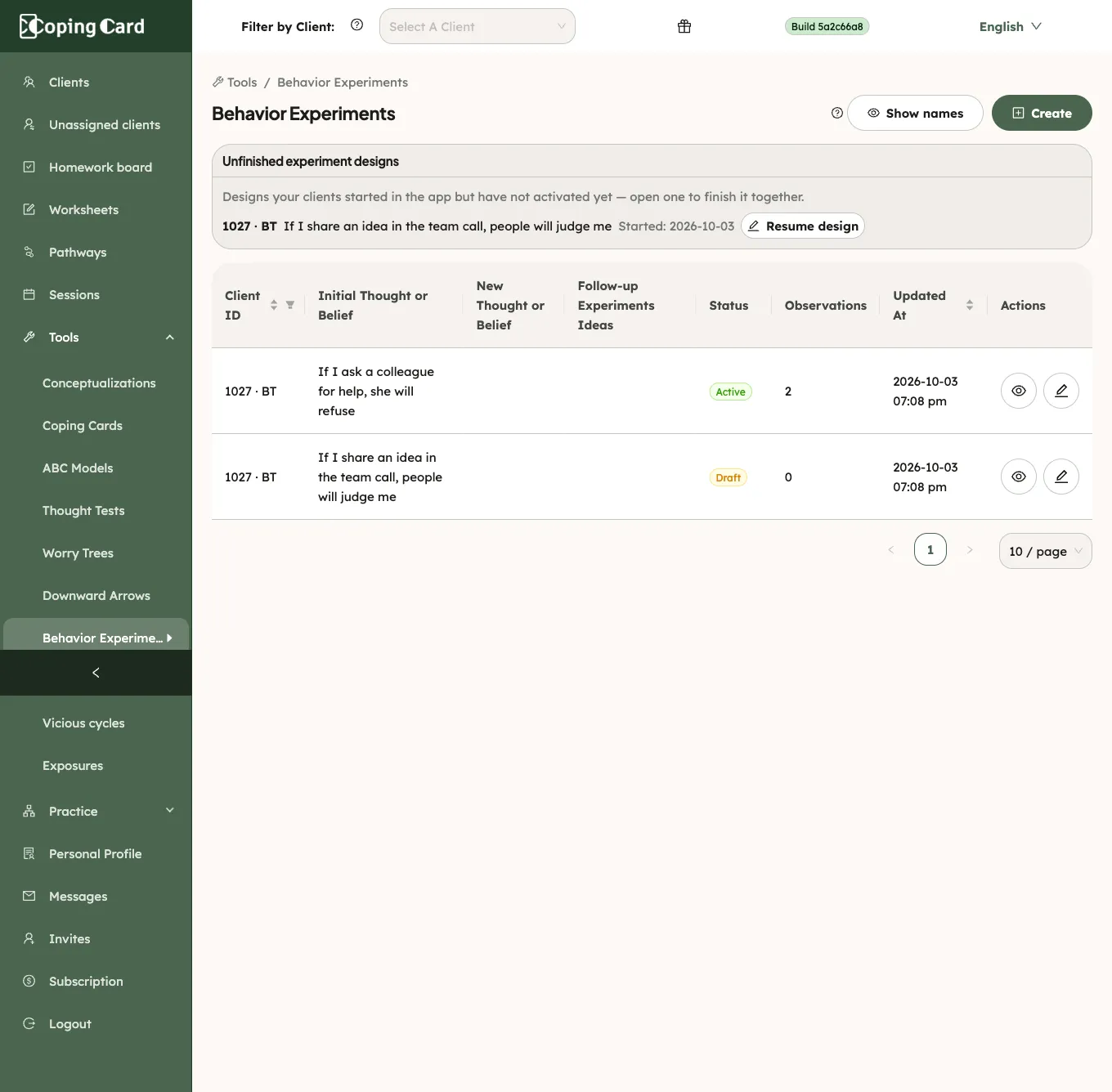
Designs a client started in the app and has not activated appear under Unfinished experiment designs. Click Resume design to finish one together.
Design an experiment for a client
Section titled “Design an experiment for a client”- On the Behavior Experiments list, click Create.
- Under Select a Client, choose the client. The list shows only clients with a Premium account who allow you to edit their data.
- Fill in the form: the purpose, design, number of hypotheses and type, then the hypotheses, the settings, the safety behaviors and coping strategies, and the prediction.
- Click Save.
For a client on the newest version of the app, one Save records the design and activates it. After that, observations and the completion are recorded on the experiment’s own page, and the form shows a button to open it. The setup choices cannot be changed once the experiment is started.
To get ideas for the plan, click Generate AI Suggestions. It is on once a hypothesis has text. You can ask for up to three variants and pick one. The portal sends the text of your design, without the client’s name or ID, to an AI service. The request is recorded on your own account, not on the client’s. Nothing is added to the experiment until you click Save, and you are responsible for reviewing what the AI wrote before you use it with a client.
Record a run or finish the experiment
Section titled “Record a run or finish the experiment”- On the Behavior Experiments list, click the eye icon in the experiment’s row.
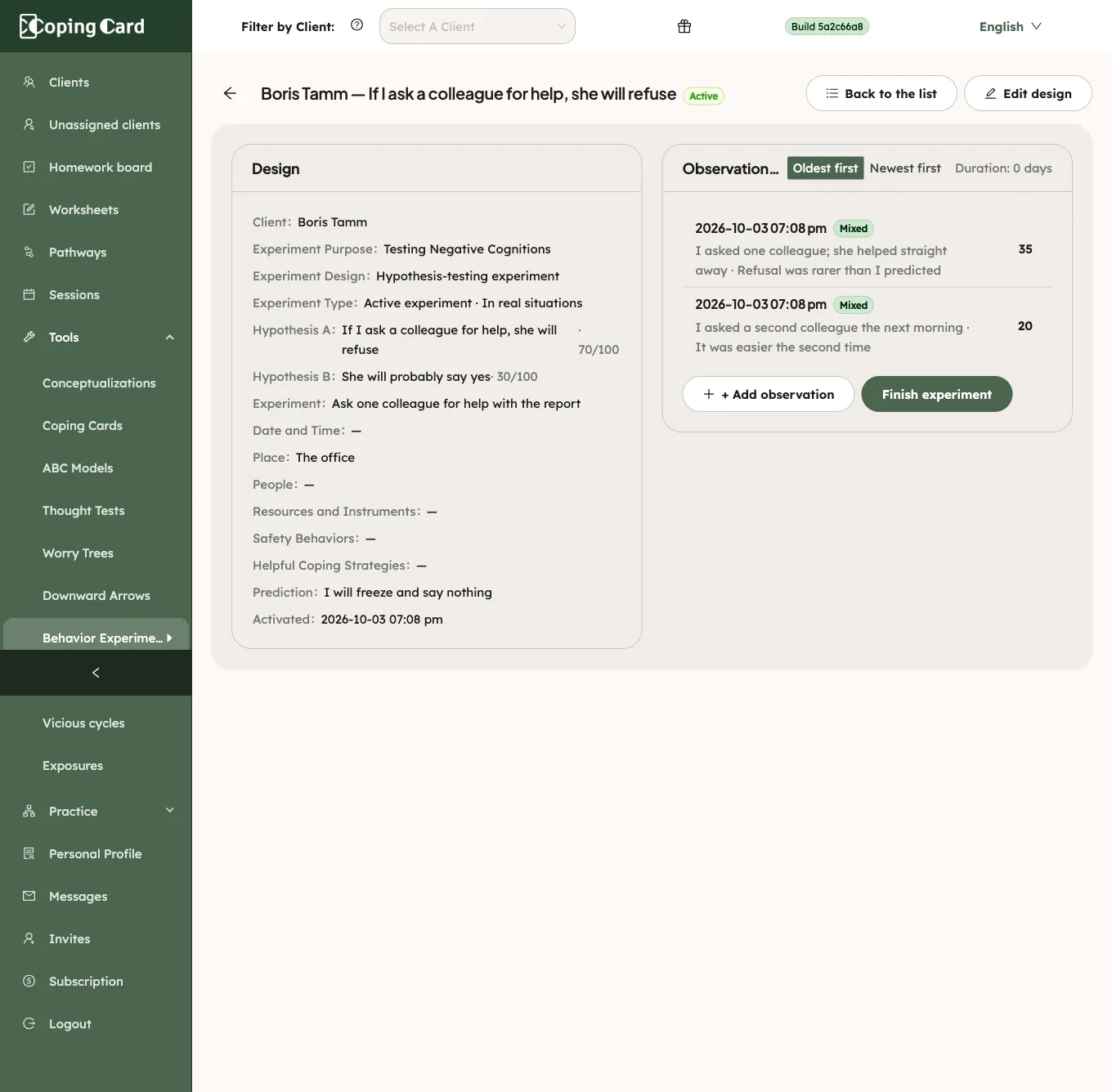
- To record a run, click + Add observation, fill in the drawer and click Save observation.
- To finish, click Finish experiment, fill in the completion notes and click Mark experiment finished.
The completion notes include Therapist Reflections, which clients do not have in the app. The client sees your observations and completion in the app.
Assign it as homework
Section titled “Assign it as homework”Assign homework with kind Tool and Behavior experiment under What. It is marked done by itself when the client records an observation of an experiment in the app, or completes one, or you record an observation or complete one for them in the portal. Starting or activating an experiment does not complete it. Several observations in the same period count as repeats of the homework, and you see each one on the client’s Homework tab as an Observation.