

Plan activities with Behavioral Activation
Behavioral Activation starts from what you do. You write down your hours, notice which ones you enjoyed or felt were important, then plan the next small step and see how it felt. You work from the easiest activities toward the harder ones.
For clients
Section titled “For clients”You need the latest version of the CopingCard app, signed in.
Log your hours
Section titled “Log your hours”- Tap the Tools tab at the bottom of the screen, then Behavioral Activation in the list of tools. It comes after Safety plan.
- On Today, tap an hour that is not logged yet, or tap Log an hour.
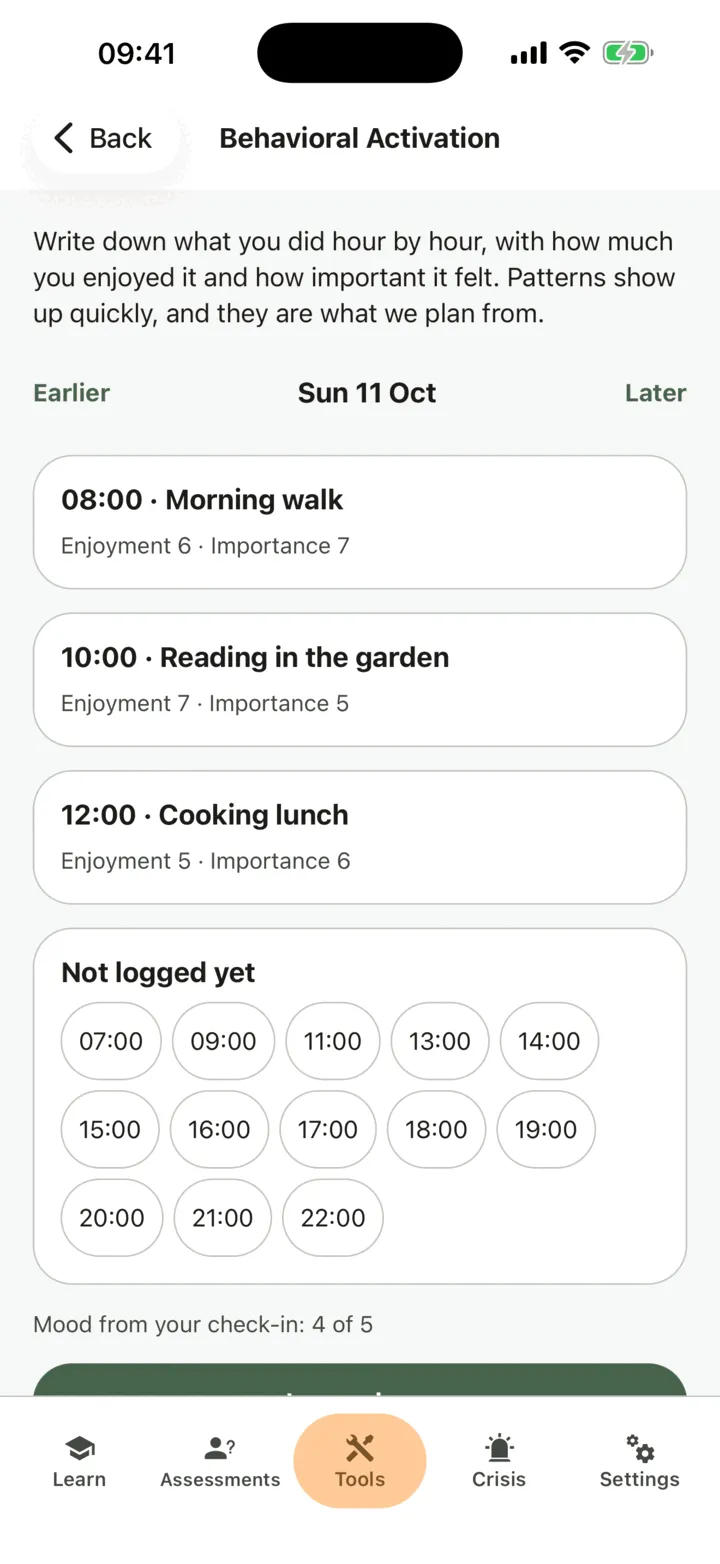
- Under What did you do?, write it, for example “walked to the shop”.
- Rate Enjoyment and Importance from 0 to 10. To use pictures instead of numbers, tap Use faces.
- To change the hour, tap An hour earlier or An hour later. To change its length, tap Make it longer or Make it shorter.
- Tap Save. Tap Save and log the hour before to go on to the hour before.
To see another day, tap Earlier or Later. To remove an entry, press and hold it and confirm with Remove. You can log the hour again afterwards.
If your screen shows Remind me three times a day, tap it to get three quiet nudges a day to log your hours. Tap Turn the reminders off to stop them.
If you have connected health data, From your health data offers walks and workouts your phone recorded that are not in your log yet. Nothing is logged until you tap Log it and rate it. Tap Dismiss to hide one. See Share health data from your phone.
Choose activities
Section titled “Choose activities”- On Today, tap Choose activities.
- Look at From your week: the hours you enjoyed or that mattered, from the last two weeks.
- Look at Ideas for your values. Ideas for the values you ranked come first, each with a rough difficulty out of 10. Tap Show more ideas for more.
- To add an idea, tap Use this, write it In your own words, say What it is for and how hard it feels, and tap Add to my activities. To write your own, tap Add my own.
- When you have several, tap Put my activities in order.
The difficulty of an idea is only a guess. Under My activities, an idea an AI service suggested for you is marked as suggested. Suggest more with AI asks an AI service for ideas, as in Values. The ideas are suggestions, not advice.
Build your ladder
Section titled “Build your ladder”- On Put them in order, tick up to 15 activities.
- Put them in order, the easiest at the top, with Move up and Move down.
- Tap Save my ladder.
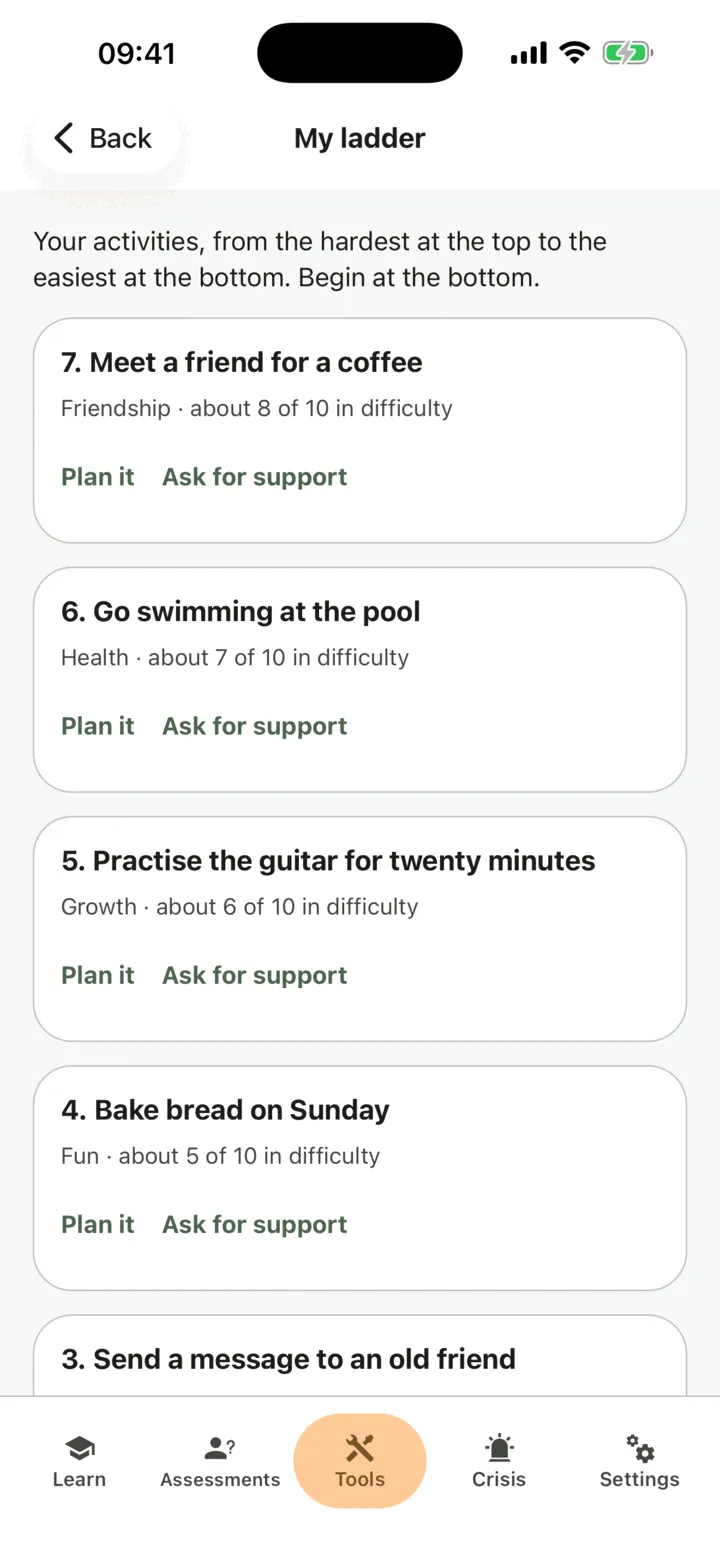
My ladder then shows your activities from the hardest at the top to the easiest at the bottom. Begin at the bottom. To change the order later, tap Change my ladder.
Plan an activity
Section titled “Plan an activity”- On My ladder, tap Plan it on a rung. You can also tap My plan, then Plan an activity.
- Write What will you do?.
- Choose the Day and the Time, and How long it takes. One to three of the easiest steps a day is plenty.
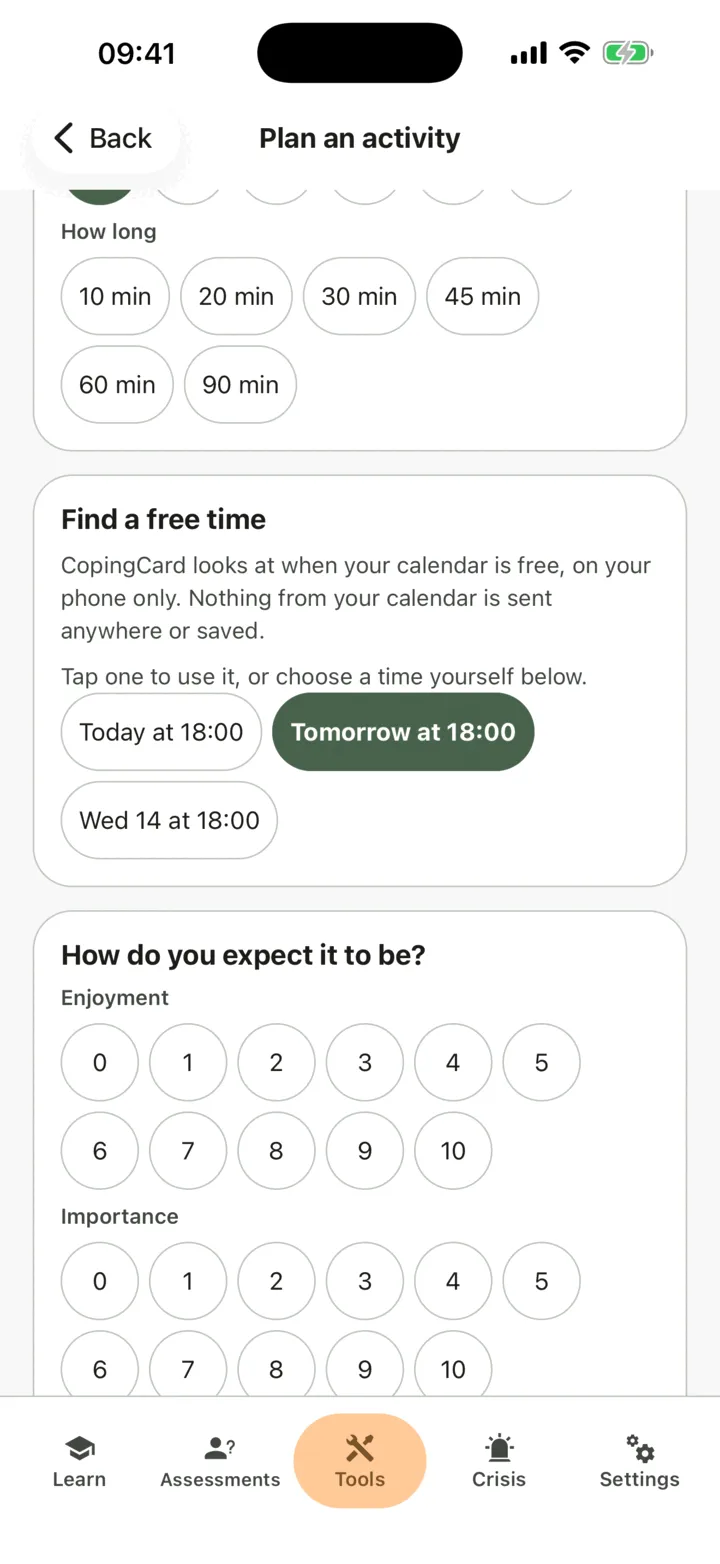
- Under How do you expect it to be?, rate the expected enjoyment and importance.
- If you want, say How sure are you that you will do it?, from 1 to 10. If it is low, the screen suggests Make the step smaller or Ask someone to help.
- Tap Plan it.
The plan is on your Homework list, and you get a nudge at the time. Tap See my plan to see it. To put it in your phone’s calendar, tap Add to calendar. The calendar gets a copy, and if you change the plan later, change the calendar too.
To find a free time, tap Suggest free times. CopingCard looks at when your calendar is free, on your phone only: nothing from your calendar is sent anywhere or saved. Your phone asks you to allow calendar access first. The app offers up to three whole-hour slots in the next seven days. Tap one to use it. If you say no, you can still choose a time yourself.
Do it, or say what got in the way
Section titled “Do it, or say what got in the way”- Tap My plan and find the plan.
- If it happened, tap Done, rate how it was, add what you noticed, and tap Save. The screen shows what you expected beside your rating, and ticks the plan off your Homework list.
- If it did not, tap It did not happen, choose What got in the way, and tap Save. The choices are No time, Too hard, Low mood, Forgot, Other people and Something else.
- To try again, smaller or at another time, tap Plan it again.
A plan that did not happen is useful to know, not a failure.
Ask for support
Section titled “Ask for support”- On My ladder, tap Ask for support on a rung.
- Write a Name and How could they help? for up to three people. Tap Choose from contacts to pick one. Tap Add another person for more.
- Tap Save.
- Tap Message or Call next to a person. Your own messages or phone open with a line already written.
CopingCard sends nothing to these people. You decide when to ask.
Look back at the week
Section titled “Look back at the week”On Today, tap This week. The screen shows how many plans were planned, done and did not happen, what most often got in the way, your expected and actual enjoyment and importance, your hours by life area, your mood beside your activities, and what your phone recorded. Tap Plan next week to go on.
Who sees your activities
Section titled “Who sees your activities”If you are connected with a therapist, they can read your week on your page in their portal when they open it, if you allow them to view your data. The admins of their practice can too if Allow practice admins to view my data is on. They are not alerted when you log, plan or finish something. See Choose what your therapist can see.
For therapists
Section titled “For therapists”A client’s activity shows on the Behavioral Activation tab of their page. You see it if the client lets you view their data, or, as a practice admin, lets practice admins view it. CopingCard does not alert you when a client logs or plans.
Read the week
Section titled “Read the week”- In the portal menu, click Clients and open the client’s page: see Find a client and open their page.
- Click the Behavioral Activation tab.
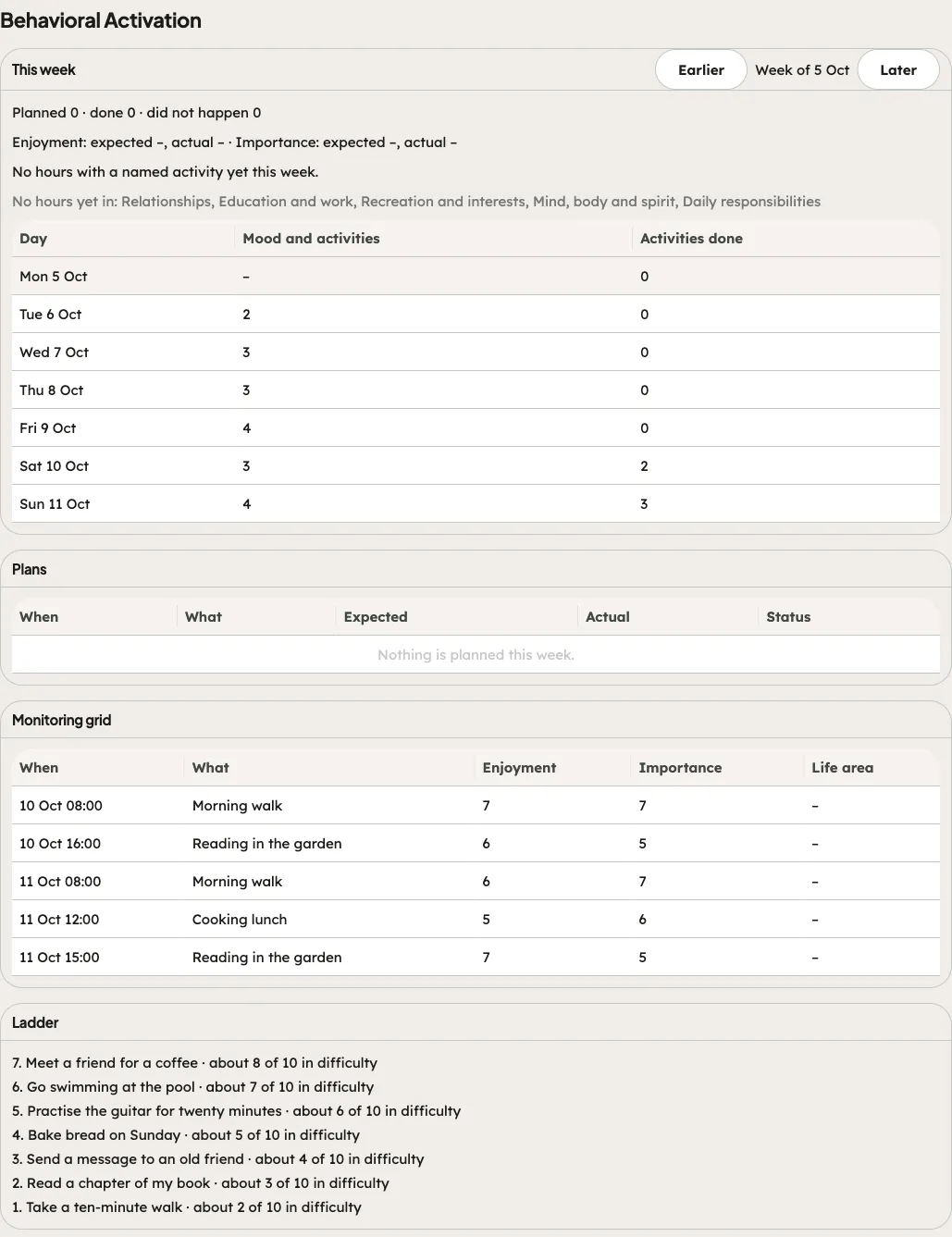
The tab shows This week with the number of plans planned, done and not happened, and the days with the activities done and the phone’s active minutes. Plans lists each plan with When, What, Expected, Actual and Status, so you can see the expected and actual ratings side by side. The Monitoring grid shows the hours the client logged by life area, and Ladder shows their ranked activities. They are read only.
Plan with the client
Section titled “Plan with the client”- Find the card Plan with the client.
- Write the activity, then choose the Day and time by clicking through the date popup.
- Give the Expected enjoyment (0–10) and the Expected importance (0–10).
- Click Plan it.
The portal confirms that the plan is on the client’s phone and Homework list. A plan made together is marked as planned together and is your practice’s record. The client rates it when it has happened.
Assign a step
Section titled “Assign a step”- Under Assign a step, choose one of the four steps: Log your days (activity monitoring), Choose and rank activities, Plan an activity or Ask for support.
- Change the Title if you want, and add Instructions for the client (optional). Set the Number of days and a Due (optional) date if you want.
- Click Assign.
The portal confirms that it is on the client’s Homework list. A step is marked done by itself when the client does it on their phone. You can also assign the steps with Assign homework, with Tool under Kind. See Assign homework to a client.