

Write a progress note
Each session has a Progress Notes tab. You fill in the details of the session there, and write the note in an editor below them. You can ask for an AI draft, or write the note yourself. The details and the note are saved with two separate buttons. Two things are the exception: the diagnoses and the preferred pronouns are saved to the client’s record as soon as you change them. You need a recorded session first: see Record a session.
Fill in the details
Section titled “Fill in the details”- In the portal menu, click Sessions, then click the edit icon in the session’s row.
- Click the Progress Notes tab.
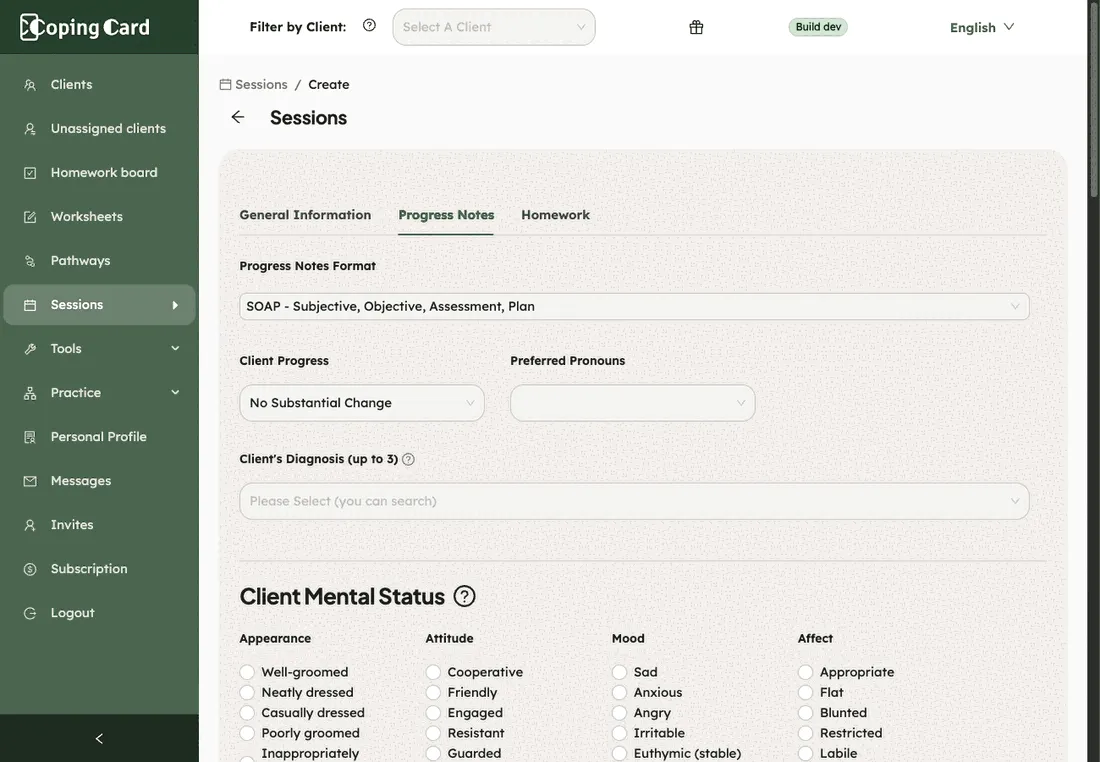
- Under Progress Notes Format, choose SOAP, DAP, GIRP, BIRP or SIRP. If you change the format later, the portal asks you to confirm, because the note’s headings change.
- Choose the Client Progress: Improvement, No Substantial Change or Deterioration.
- Under Client’s Diagnosis (up to 3), choose up to three diagnoses. You can search the list. It starts with the diagnoses already on the client’s record. Your changes are saved to the client’s record at once, without Save details. Preferred Pronouns come from the client’s profile, and a change there is saved to the record at once too.
- Under Client Mental Status, tick what you observed.
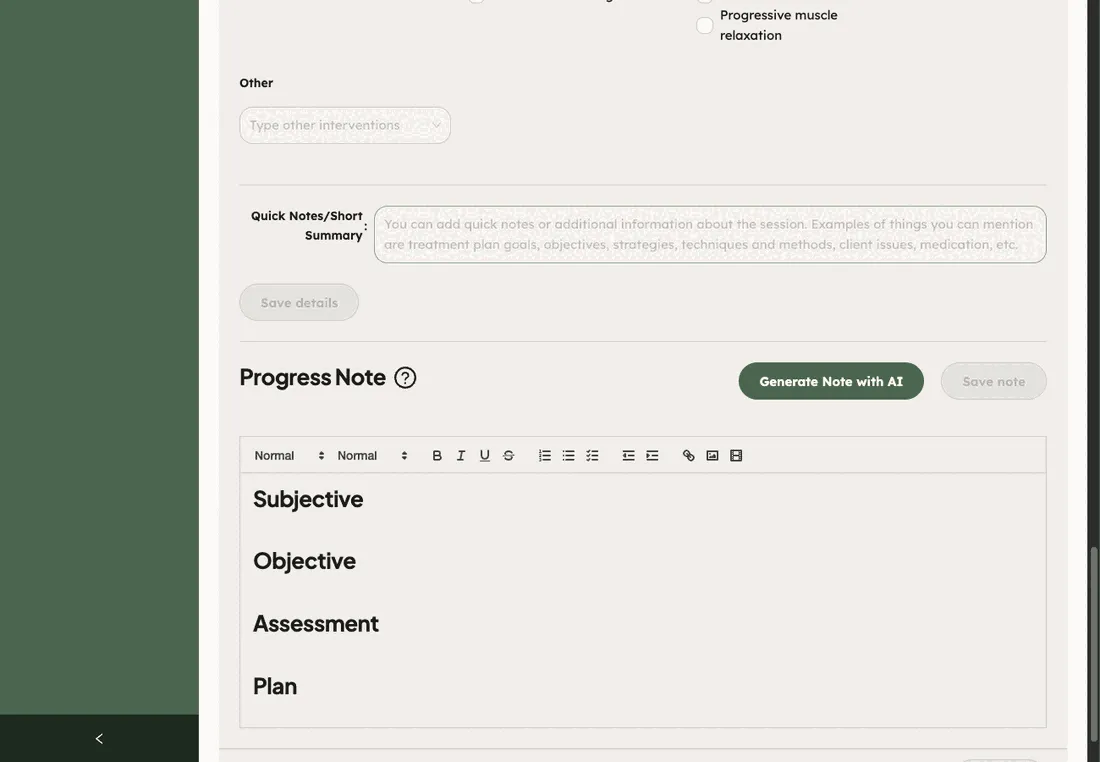
- Under Other Used Interventions, tick the techniques you used, or type your own under Other. Automatically Detected Interventions lists the tools the client used in CopingCard during the time of the session. You cannot change that list. It is only a hint for the AI and is not copied into the final note.
- Write anything else you want in Quick Notes/Short Summary.
- Click Save details.
Write the note
Section titled “Write the note”- Optionally, click Generate Note with AI. If your details are not saved yet, the portal saves them first. The draft appears in the editor below Progress Note.
- Read the note and edit it. Its headings follow the format you chose.
- Click Save note.
If no draft comes back, write the note yourself. The editor works without the AI.
What the AI step sends
Section titled “What the AI step sends”Generate Note with AI sends the following from CopingCard’s servers to an AI service run by CopingCard’s provider, which returns the draft:
- the format and the Client Progress;
- the diagnoses you chose, the mental status and the interventions, including the detected ones;
- the place of service of the session and the client’s preferred pronouns;
- the text you typed in Quick Notes/Short Summary and under Other.
CopingCard does not add the client’s name or e-mail address to what it sends.
Who can see the note
Section titled “Who can see the note”A progress note is part of the practice’s own record. It is not shown to the client in the app. You open a note from Sessions, with the edit icon in the row of a session you recorded. That icon shows for a client who allows you to edit their data, and it is greyed out unless the client has a Premium account. If the client later ends their sharing, the note stays in the practice’s record, but you can no longer open it from that list.