

Find a core belief with the Downward Arrow
The Downward Arrow starts from one thought and asks, step after step, what it would mean if that thought were true. The chain goes from a surface thought to the belief underneath it.
For clients
Section titled “For clients”You need the latest version of the CopingCard app, signed in.
Follow a thought down
Section titled “Follow a thought down”- On the Tools tab, tap Downward Arrows.
- Tap Create Downward Arrow. On the free plan the app can open the subscription screen here instead: see Premium and the free plan.
- In Thought, Underlying Assumption or Belief, write the thought you want to look at.
- Read the prompt under it, If that were true it would bother me because it would mean…, and write your answer in the new box that appears.
- Keep going: each answer adds another box. You decide how long the chain is.
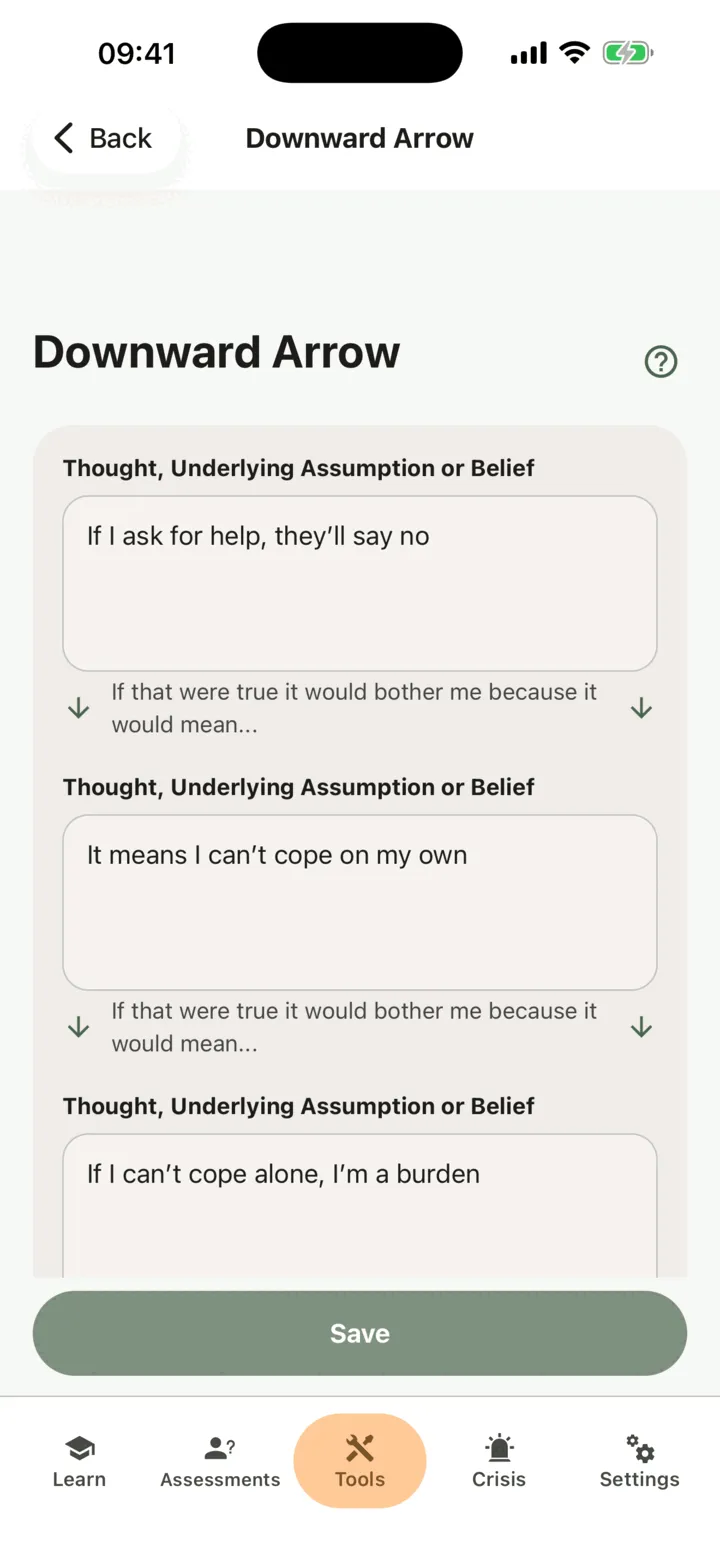
- Tap Save.
The app shows Downward Arrow saved successfully for a moment and stays on the page. Save stays off until you have written something. The app saves nothing until you tap Save. If you leave the page first, what you typed is lost.
Read and extend a chain
Section titled “Read and extend a chain”- On Downward Arrows, find the chain. The list shows its first thought under Initial Thought, newest change first.
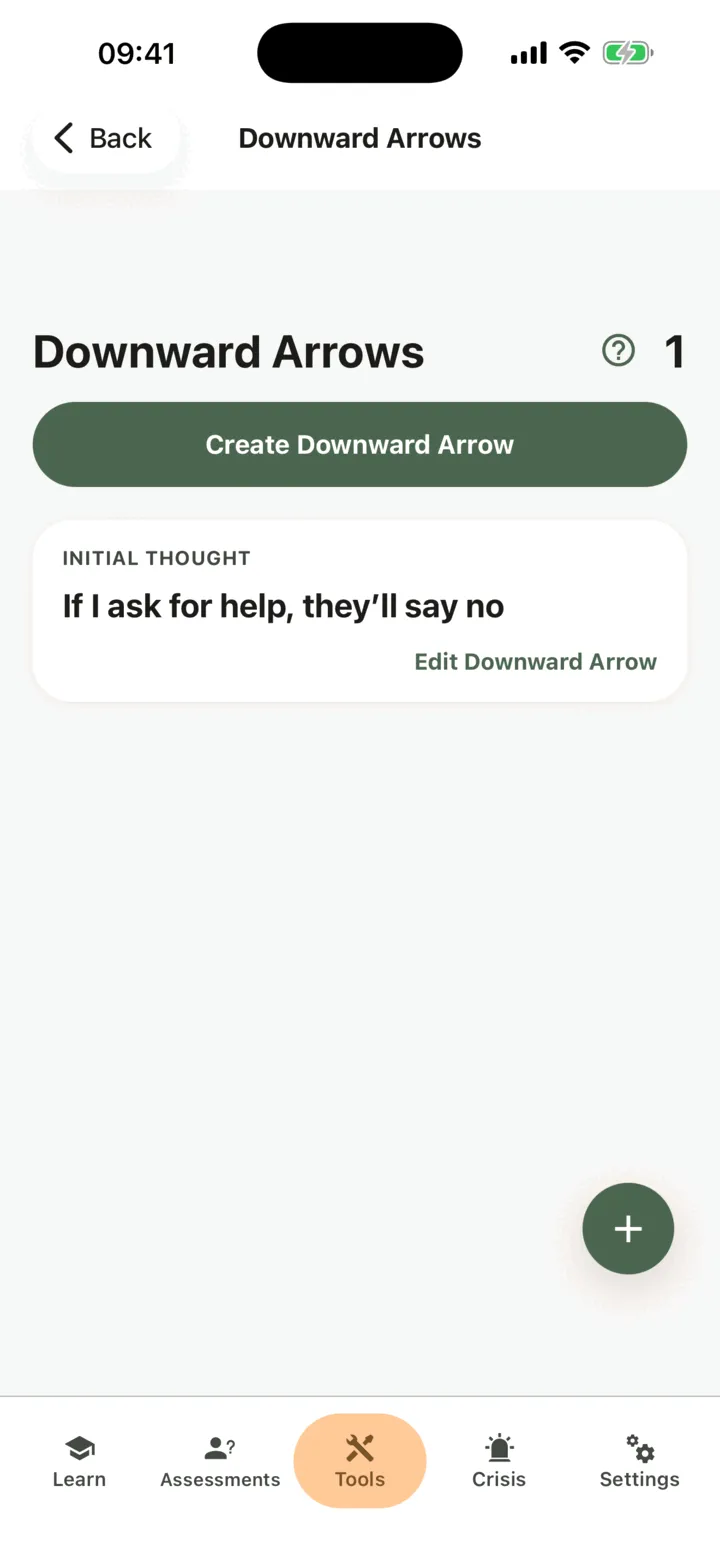
- Tap it to open it.
- Change a step or write the next one in the empty box at the bottom, then tap Save.
To learn what the technique is for, tap the help circle next to the title. You cannot delete a chain in the app.
Who can see your downward arrows
Section titled “Who can see your downward arrows”If you connect with a therapist, the options on the Data Sharing with Therapists screen in Settings decide who sees your chains. With Allow viewing my data on, your therapist sees them in the CopingCard portal. With Allow practice admins to view my data on, the admins of your therapist’s practice see them too. They see a chain when they open it: they are not alerted when you add one. With Allow editing my data or Allow practice admins to edit my data on, they can also change your chains. See Choose what your therapist can see.
For therapists
Section titled “For therapists”In the portal you can read a client’s chains and build one with them, for example during a session. You see a client’s chains only if they let you view their data, or, as a practice admin, let practice admins view it. To write, the client must allow you to edit their data, or allow practice admins to edit it, and must have a Premium account. CopingCard does not monitor or flag what clients write: you see a chain when you open the list.
Review a client’s downward arrows
Section titled “Review a client’s downward arrows”- In the portal menu, open Tools and click Downward Arrows.
- To see one client’s chains, use the filter on the Client ID column, or choose the client in Filter by Client at the top of the page.
The table shows the first thought of each chain under Initial Thought.
Build a downward arrow for a client
Section titled “Build a downward arrow for a client”- On the Downward Arrows list, click Create.
- Under Select a Client, choose the client. The list shows only clients with a Premium account who allow you to edit their data.
- Write the first thought in Thought, Underlying Assumption or Belief. A new empty box always waits below the last one.
- Write each next step in the next box.
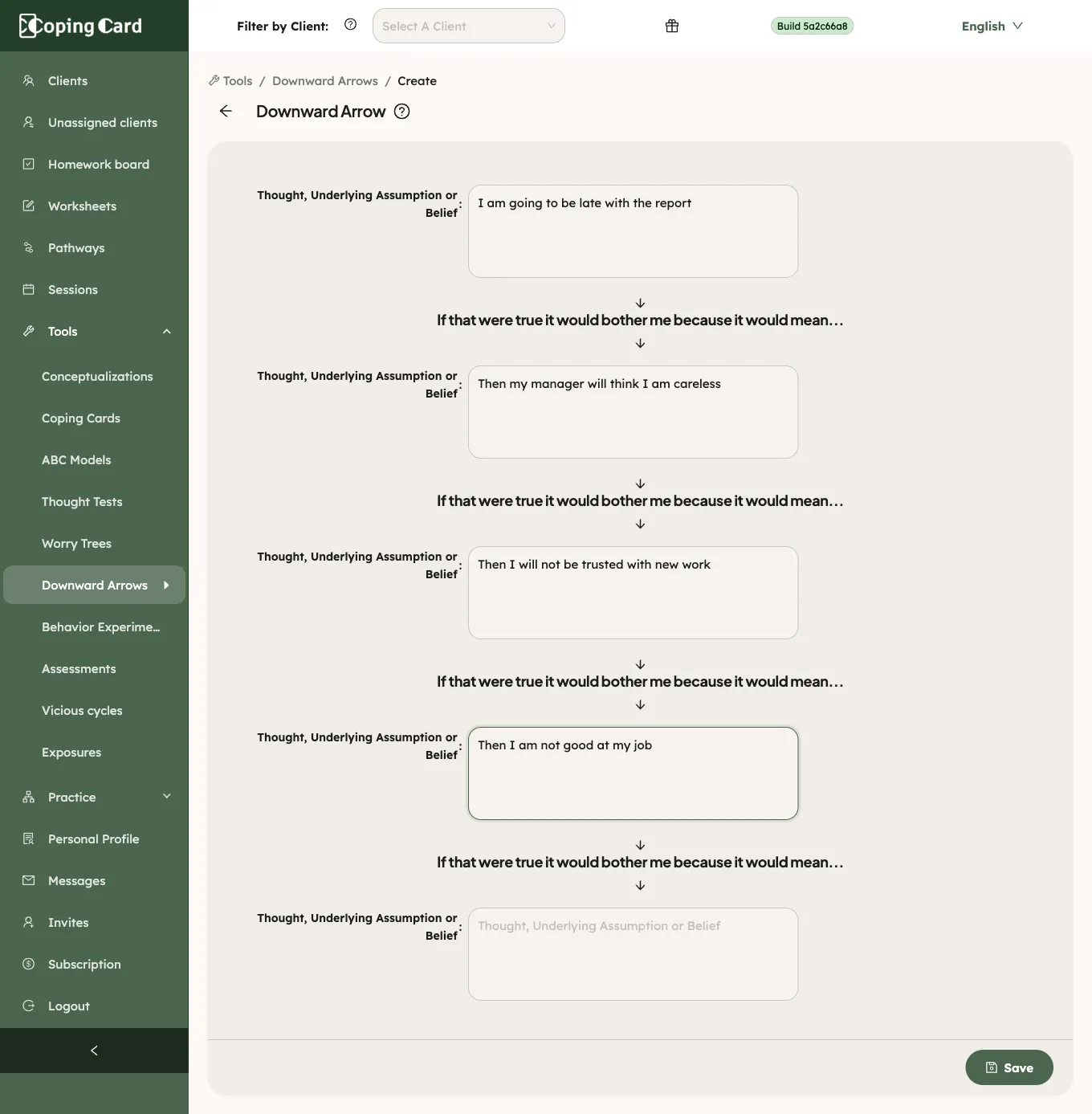
- Click Save.
If you leave the page with unsaved changes, the portal asks you to confirm. To change a chain later, click the pencil in its row. The pencil is greyed out, with a tooltip, while the client has no Premium account. The chain is saved to the client’s account and they see it in their app.
Assign it as homework
Section titled “Assign it as homework”Assign homework with kind Tool and Downward arrow under What. It is marked done by itself when the client saves a new chain in the app, or you build one for them in the portal, after you assigned it. Changing an earlier chain does not complete it.