

Review homework in a session
The session form has a Homework tab. It shows what the client did or skipped since their previous session, and what is still open, so you can go through it together.
Review the client’s homework
Section titled “Review the client’s homework”- In the portal menu, click Sessions.
- Click Create, or open the client’s session.
- Under Select a Client, choose the client, if it is not already chosen.
- Click the Homework tab.
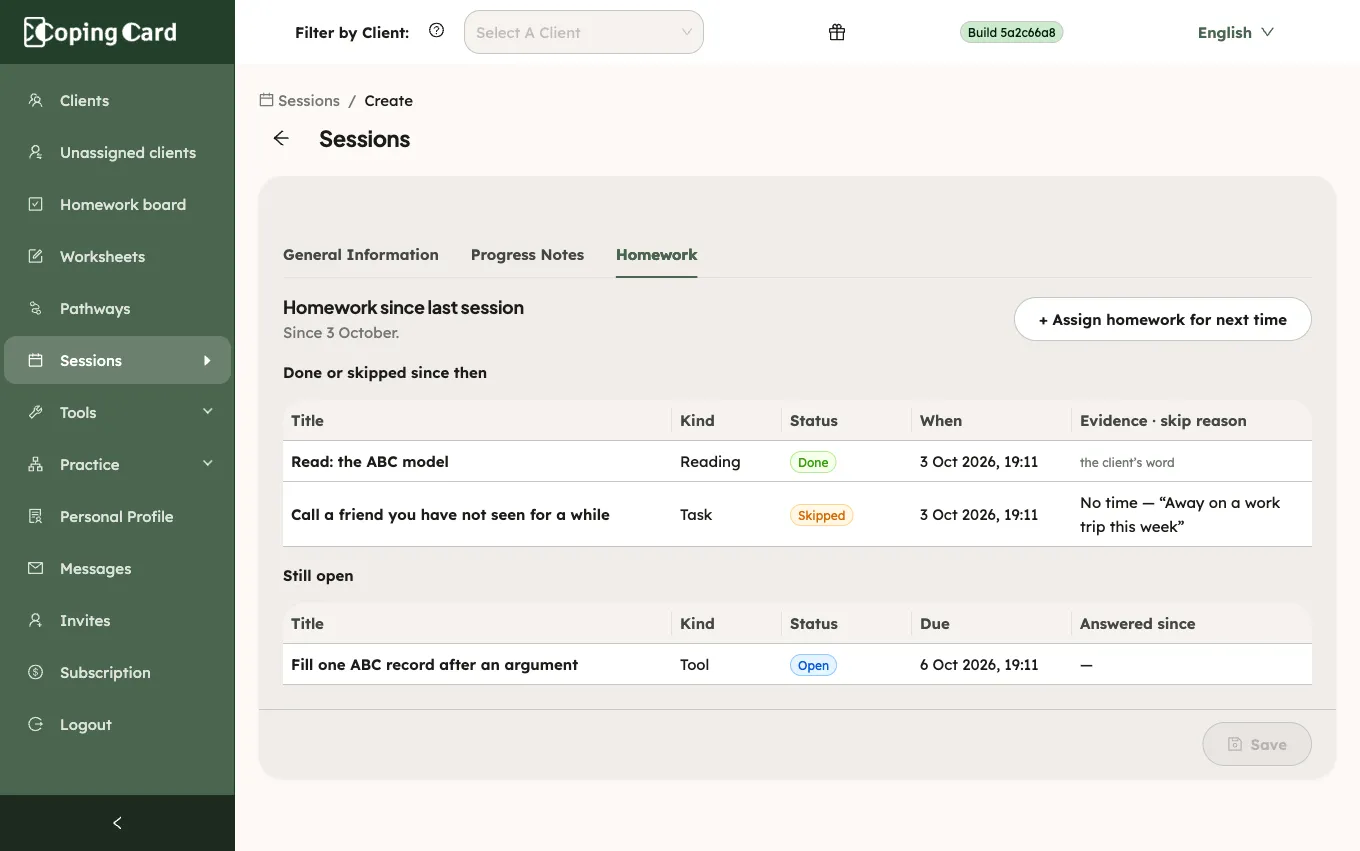
Under Homework since last session, the tab shows the date of the previous session. For a first session, it lists everything assigned so far.
- Done or skipped since then lists the homework the client finished or skipped since that date: when, and how it was completed (the client’s own record in the app, their word, or a photo of a paper sheet) or why it was skipped.
- Still open lists the homework that is still to do, with its due date. For homework that repeats, Answered since shows the times done since the last session.
Where a row has Open in the client hub, click it to see that homework on the client’s Homework tab, with its comments and notes.
Assign homework for next time
Section titled “Assign homework for next time”- On the Homework tab of the session form, click Assign homework for next time.
- Fill in the homework and click Assign. See Assign homework to a client.