

Record a session
A session in CopingCard is a record of a meeting with a client that has taken place: who, when it started and ended, and where it was held. It does not schedule a future meeting, so you cannot pick a date in the future. You can record sessions for your clients. If your practice has reached its client limit or its subscription has expired, Create opens an Upgrade Needed message that takes you to Subscription.
Record a session afterwards
Section titled “Record a session afterwards”- In the portal menu, click Sessions, then click Create.
- Under Select a Client, choose the client.
- Under Sessions Start and End Date & Time, choose the start and the end. The Duration is worked out for you.
- Under Place of Service, choose where the session was held. It starts as the telehealth option for a client at home. Point at the question mark to see that these are CMS place of service codes.
- Click Save.
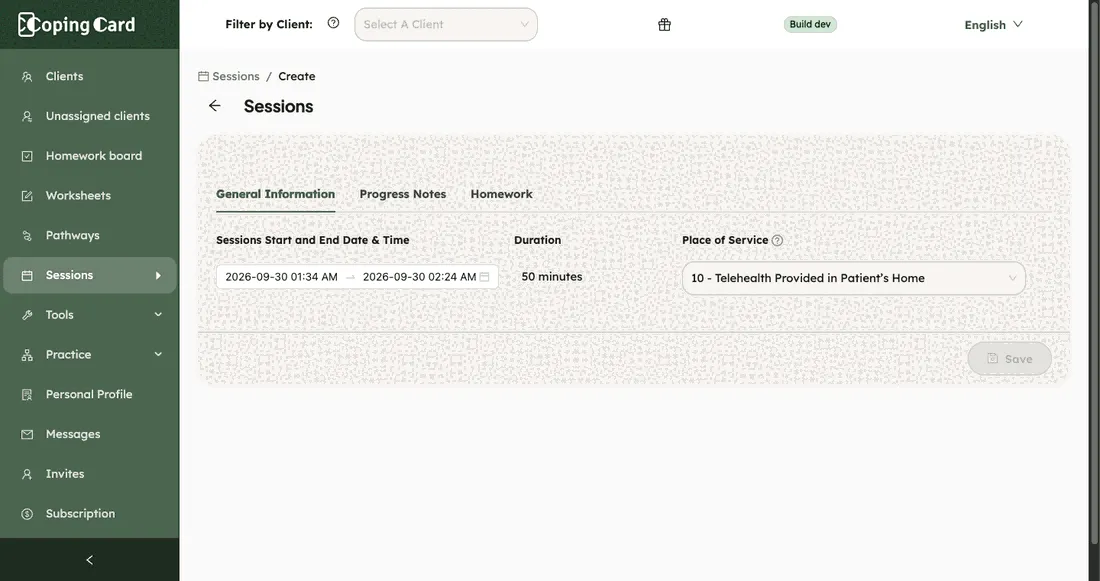
The portal says the session was saved. Save is only available after you change something, and the portal warns you if you leave the page with changes that are not saved.
Record a session as it happens
Section titled “Record a session as it happens”- In the header, under Filter by Client, choose the client. The header buttons only show on a screen wider than 768 pixels.
- Click Start Client Session. A Start Time and an End Time field open under the header.
- Choose the start time. Leave End Time empty to end at the moment you finish.
- When the session is over, click Finish Client Session.

The portal saves the session with the times you set.
Find and change a session
Section titled “Find and change a session”Click Sessions. The list shows each session you recorded, with its client, Created At, Finished At and Duration. Choose a client in Filter by Client to see only their sessions.
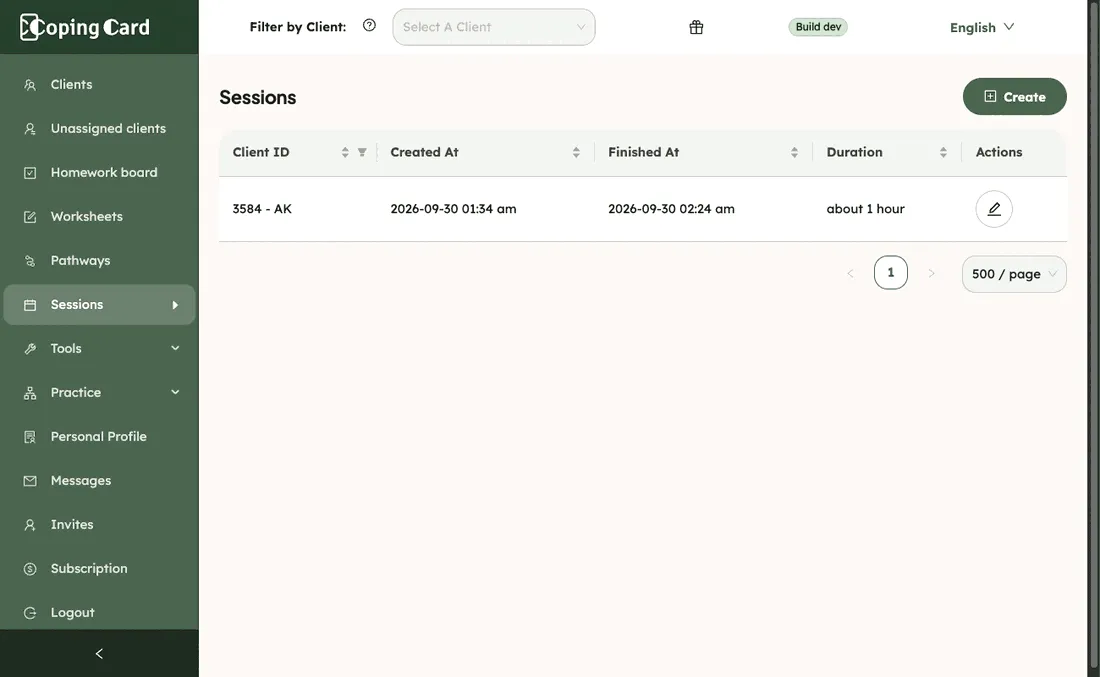
Click the edit icon to reopen a session. The form has four tabs: General Information, Progress Notes, Homework and Check-in recap. See Write a progress note, Review homework in a session and Check in on how you are today. If the client does not let you view their data, the Check-in recap tab reads The client doesn’t share this with you. The edit icon shows for a client who allows you to edit their data. It is greyed out unless the client has a Premium account.
Who can see a session
Section titled “Who can see a session”A session is part of the practice’s own record. It is not shown to the client in the app. The Sessions list shows the sessions you recorded, for clients who are still on your list. Colleagues, including practice admins, do not see them in their list.