

Motivational interviewing
Motivational interviewing is a way of exploring a change you are thinking about but have not decided on. In CopingCard it is a tool for you to use on your own or with your therapist. You write the change in your own words, rate how important it is, how confident you are and how ready you are, look at both sides, and make a plan when you feel ready. It is free for everyone and needs no therapist. Nothing in it is a promise.
For clients
Section titled “For clients”You need the latest version of the CopingCard app, signed in.
Write down a change
Section titled “Write down a change”- Tap the Tools tab at the bottom of the screen.
- Tap Motivational interviewing.
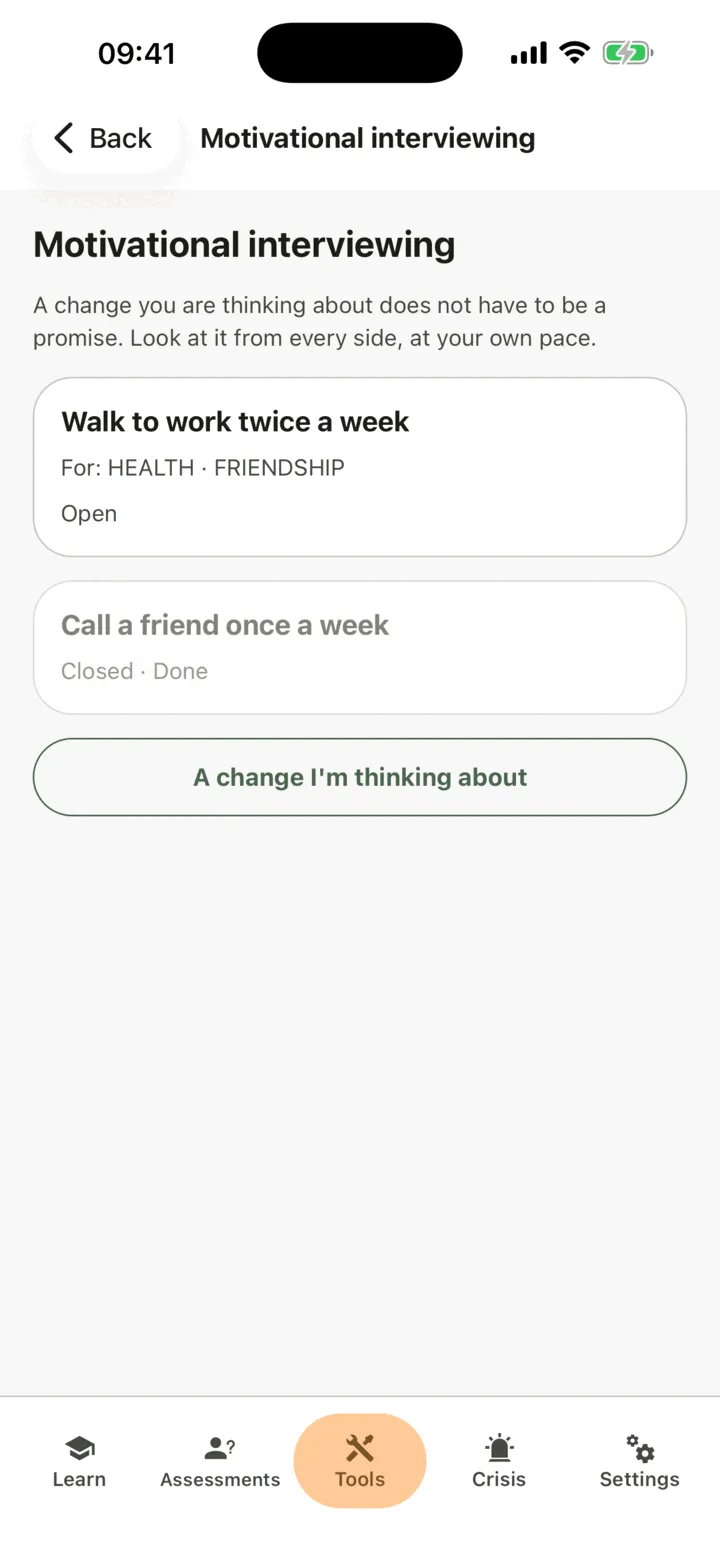
- Tap A change I’m thinking about.
- Under The change, write the change in your own words.
- If you like, under What it matters for (optional), tap the values this change serves. They come from your values in Values. If you have not sorted your values yet, the screen says so.
- Tap Save.
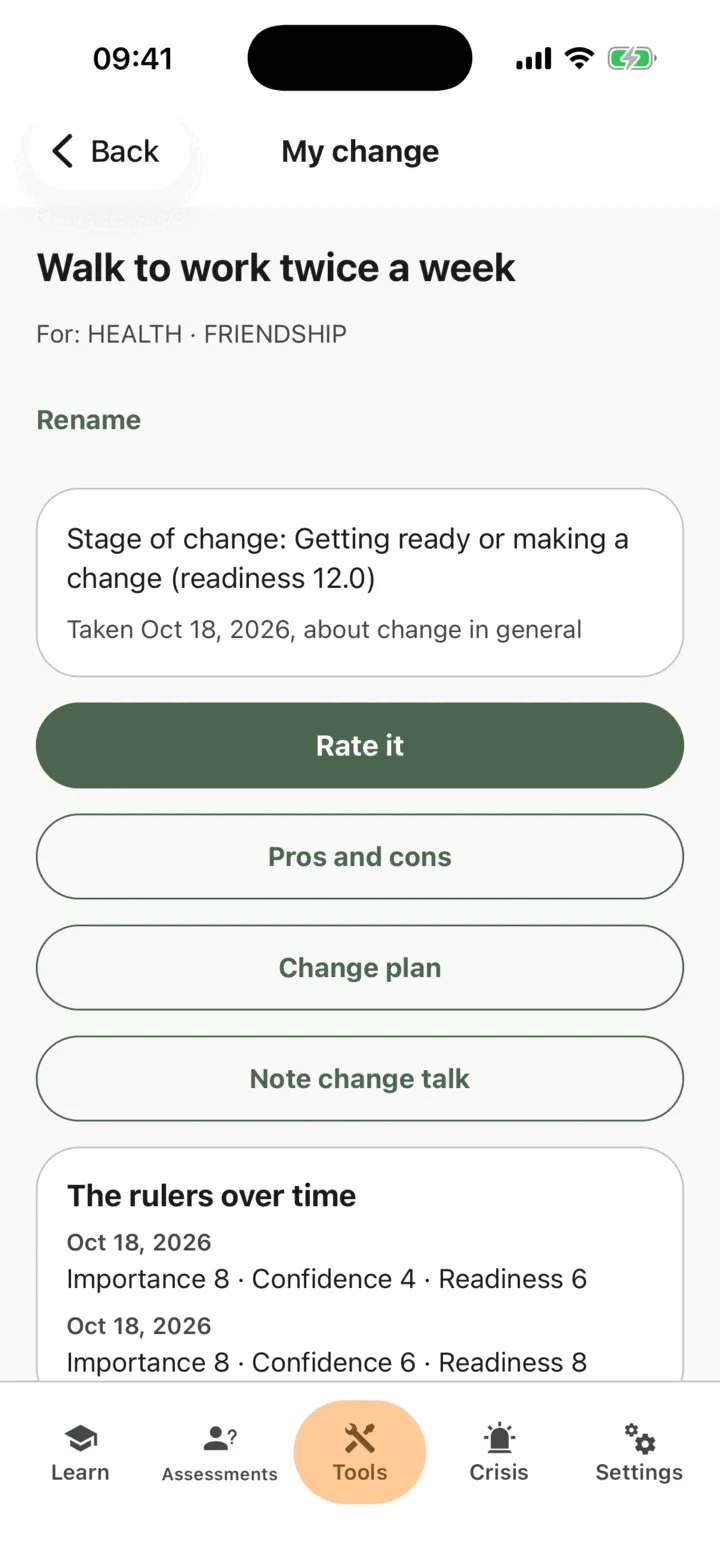
The change opens on its own page, My change. Each change on this screen shows your words, the values it serves and whether it is open or closed. You can have up to three open changes. To fix the wording, tap Rename on the change’s page.
Rate the change on the rulers
Section titled “Rate the change on the rulers”- On the change’s page, tap Rate it.
- For Importance, Confidence and Readiness, tap a number from 0 to 10. 0 is “not at all” and 10 is “completely”. There are no right numbers.
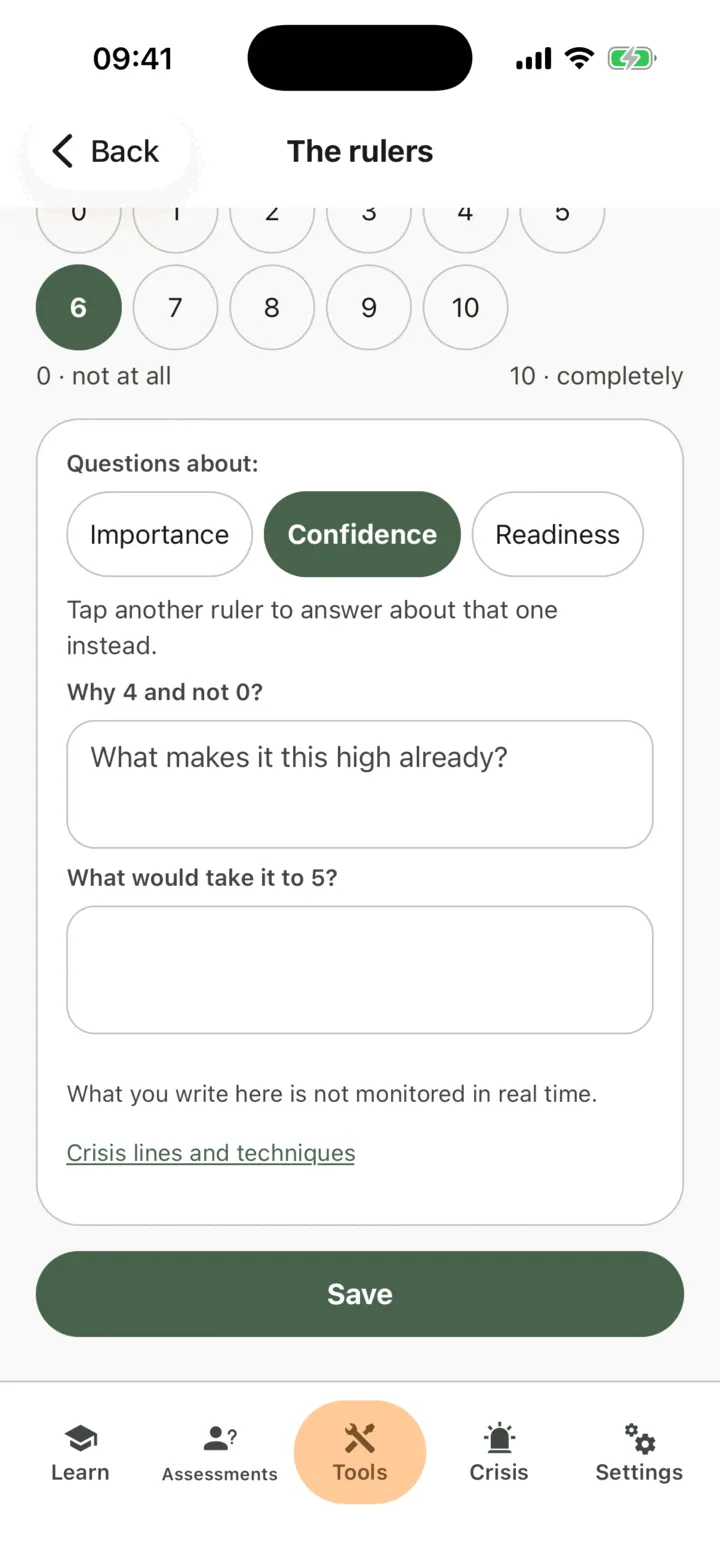
- Answer the two questions that appear. They are about one ruler: the lowest one above 0. They ask why you chose that number and not 0, and what would take it one higher. To answer about another ruler, tap it under Questions about:.
- Tap Save.
If every ruler is at 0, or every ruler is at 10, the app asks no questions. Your answers are optional. Each time you rate the change, the page adds a line to The rulers over time, and your answers to the first question collect under My reasons, in my words. The app shows your numbers and your words. It does not judge them or give advice.
Write the pros and cons
Section titled “Write the pros and cons”- On the change’s page, tap Pros and cons.
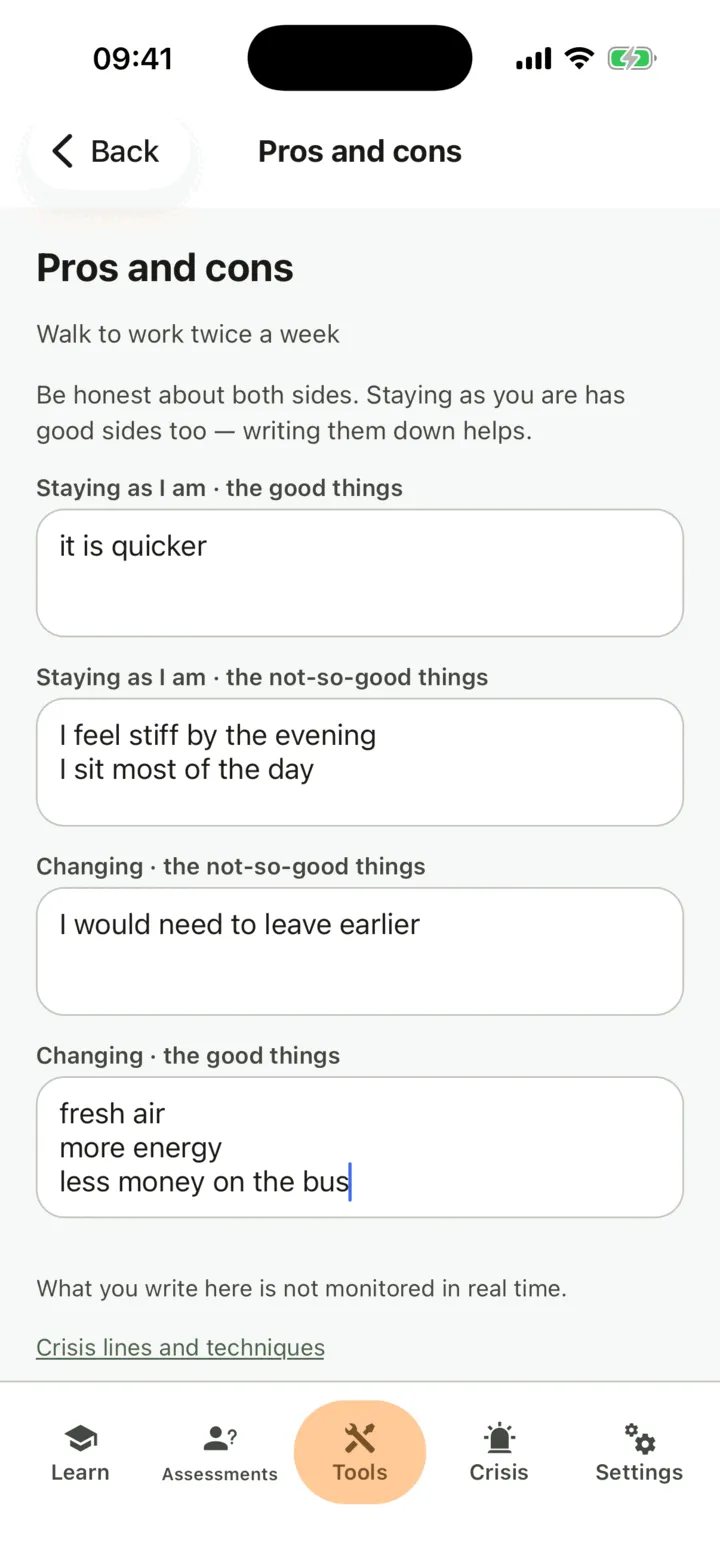
- Write in each of the four boxes, one item per line: Staying as I am · the good things, Staying as I am · the not-so-good things, Changing · the not-so-good things and Changing · the good things.
- Tap Save.
You need to write at least one thing in one box. Staying as you are has good sides too, so write them down. The screen opens with what you wrote last time, and saving replaces it.
Make a change plan
Section titled “Make a change plan”- On the change’s page, tap Change plan.
- Under What I will change, write the change you will make. The other fields are optional.
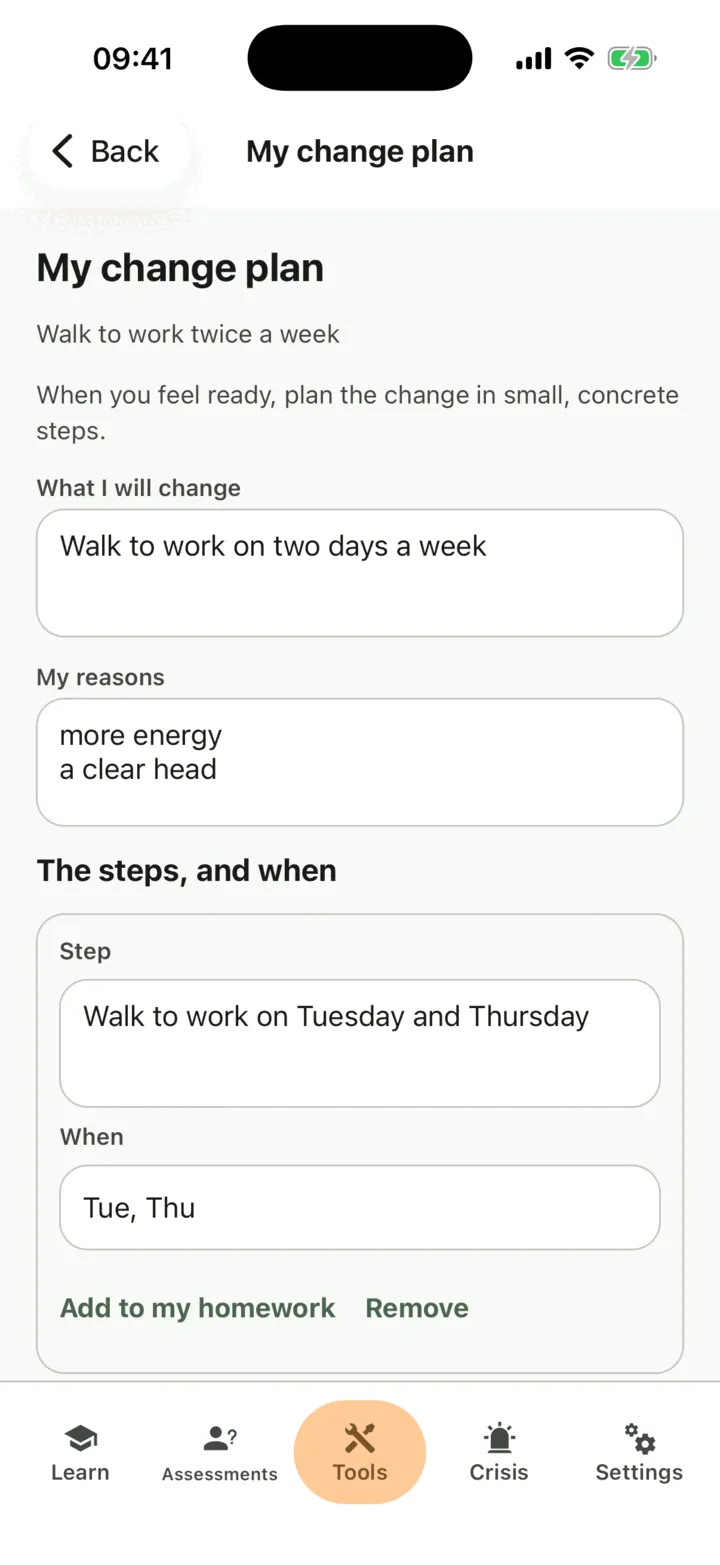
- Under My reasons, write your reasons, one per line.
- Under The steps, and when, write each Step and When. To add another, tap + Add a step.
- Under Who can help, write who can help you.
- Under What could get in the way, and what I will do then, write What could get in the way and What I will do then. To add another, tap + Add another.
- Under How I will know it is working, write how you will tell.
- Tap Save.
Once a step has words, Add to my homework appears under it. It opens the form for adding your own homework with the step filled in: see Add your own homework. The plan opens with the latest version, and saving replaces it.
Note change talk
Section titled “Note change talk”- On the change’s page, tap Note change talk.
- Under What I noticed, write a reason to change, a wish or a step you took, in your own words.
- If you like, under It was… (optional), tap Something I want, Something I can do, A reason, Something I need, Something I will do or A step I took.
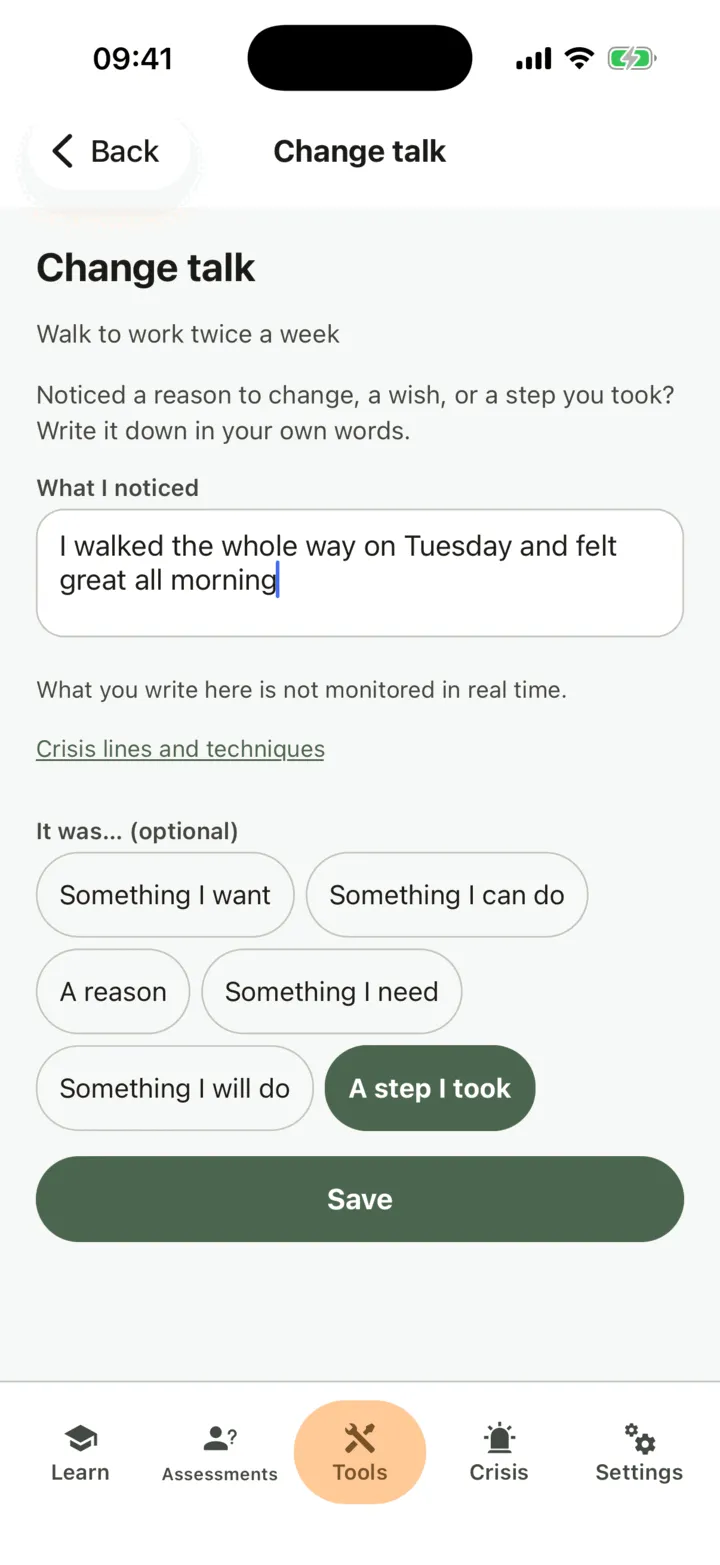
- Tap Save.
The line goes into Change talk on the change’s page, newest first, with the day you noted it.
See where you are
Section titled “See where you are”The change’s page shows the rulers over time, your reasons, the pros and cons, the plan and the journal in one place. At the top, a card shows your stage of change if you have taken the URICA, a short questionnaire about how ready you are to change (University of Rhode Island Change Assessment). If you have not, tap How ready am I for change? (URICA questionnaire) to take it. The URICA is about change in general, not about one change, so the card says when you took it and that it is about change in general. Your latest one shows on every change.
Close a change
Section titled “Close a change”- On the change’s page, tap Close this change.
- Under How it ended, tap Done, Decided not to or Other.
- If you like, write a note under A note (optional).
- Tap Close the change.
Deciding not to change is a real answer. The change stays in your history, marked closed, and it no longer counts toward your three open changes. Until you reopen it, you cannot add to it. To go on, open it and tap Reopen. Everything you wrote is still there.
Who sees it
Section titled “Who sees it”If you allow your therapist to view your data, they see your changes, rulers, answers, pros and cons, plans, change talk and URICA stage on your page in their portal, and so do the practice admins if you allow them to view your data. They see them when they open the page, and they are not alerted when you write. See Choose what your therapist can see.
For therapists
Section titled “For therapists”A client’s changes show on the Motivational interviewing section of their page. You read it if the client lets you view their data, or, as a practice admin, lets practice admins view it. If not, the section reads The client doesn’t share this with you. To set a change or assign the rulers, the client must still share something with you. The section shows the client’s words and numbers as they are, with no alerts, scores or advice. CopingCard does not alert you when a client writes.
Read the client’s changes
Section titled “Read the client’s changes”- In the portal menu, click Clients and open the client’s page: see Find a client and open their page.
- Click Skills & exercises, then Motivational interviewing.
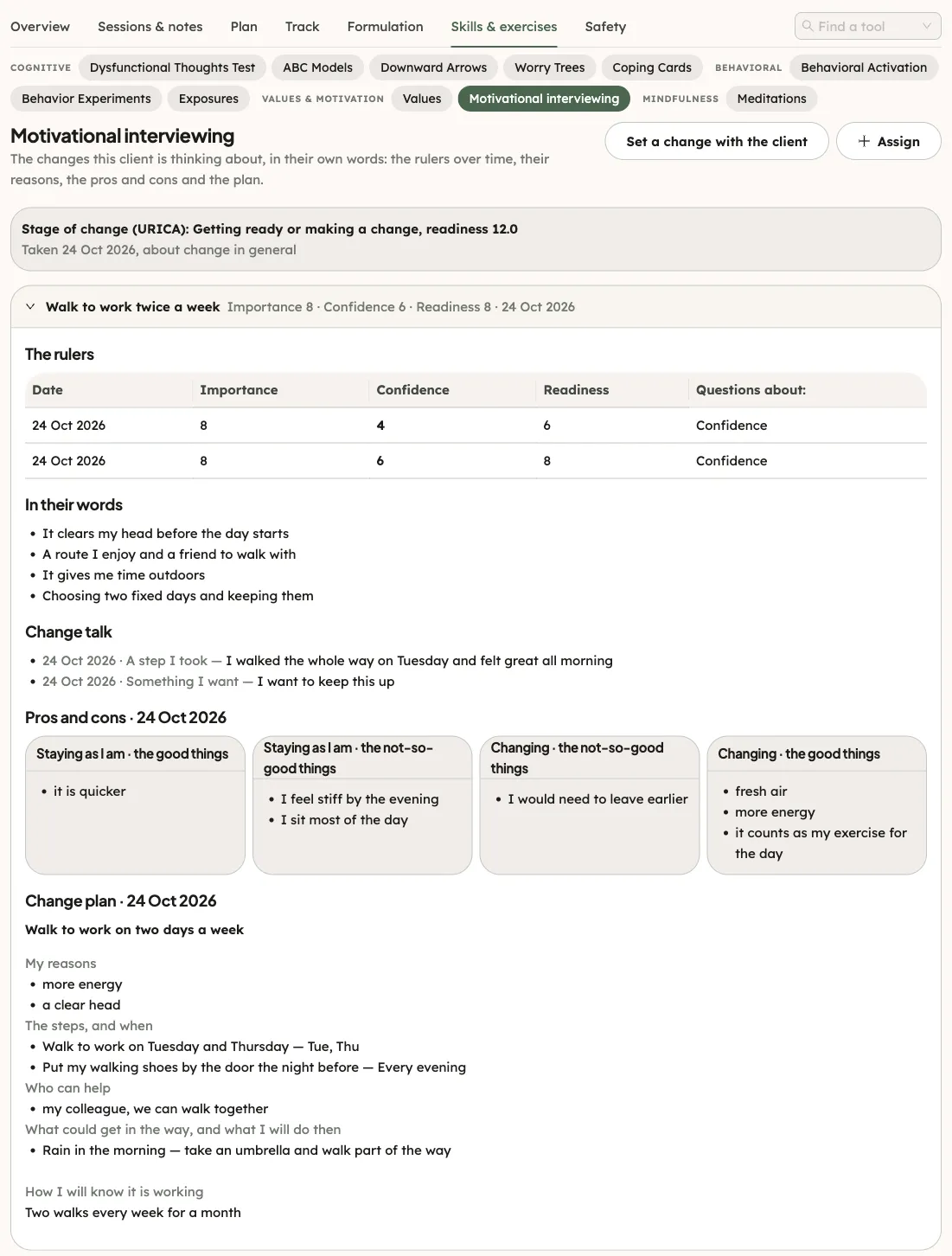
If the client has taken the URICA (a short questionnaire about readiness to change), the first card shows their stage of change, the day it was taken and that it is about change in general. It is one result for the person, not one for each change.
Under it, each change is one line, open ones first, with the values it serves and the client’s latest ruler numbers. Click a line to open it. The first open change opens by itself. A closed change is marked with the day and how it ended. A change you wrote down in session is marked Written down in session. An open change shows:
- The rulers, one row for each time the client rated it. The ruler the questions were about is in bold.
- In their words, the client’s answers to the two questions.
- Change talk, the lines the client noted, with the day and, if they chose one, what kind it was.
- Pros and cons, the four boxes as the client last wrote them.
- Change plan, as the client last wrote it.
A client with no change yet sees one line and one button, Set a change with the client, in place of the cards.
Set a change with the client
Section titled “Set a change with the client”- In the header of the section, click Set a change with the client. A panel opens at the side.
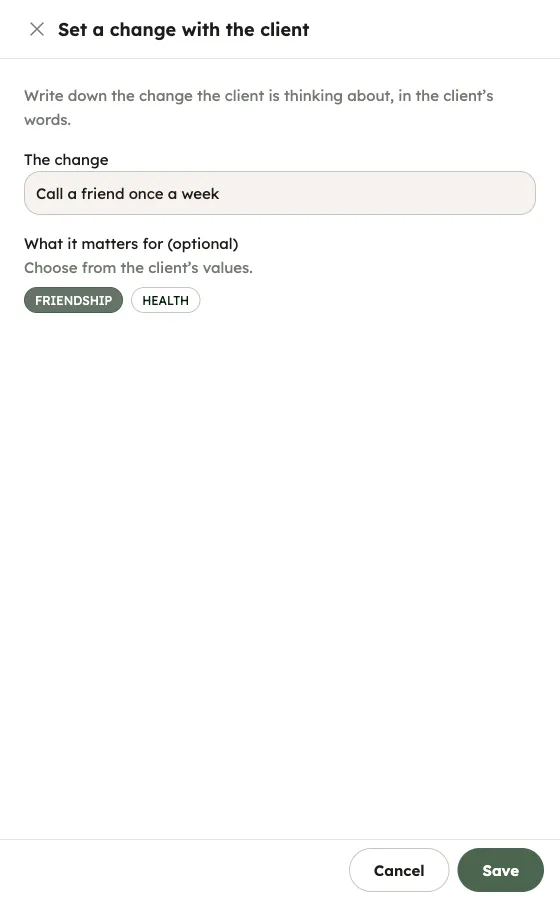
- Write the change in the client’s words under The change.
- If the client has sorted their values, choose the values it serves under What it matters for (optional).
- Click Save.
The change appears on the client’s phone under Motivational interviewing, and the client can rate it, write the pros and cons, make a plan and close it there. A client has at most three open changes: the portal shows the message if you try a fourth. The change opens in the section.
Assign the rulers, the pros and cons or a plan
Section titled “Assign the rulers, the pros and cons or a plan”- In the header of the section, click Assign. The Assign homework panel opens.
- Under What, choose The three rulers, Pros and cons or A change plan.
- Under Which change, choose Any change or one of the client’s open changes.
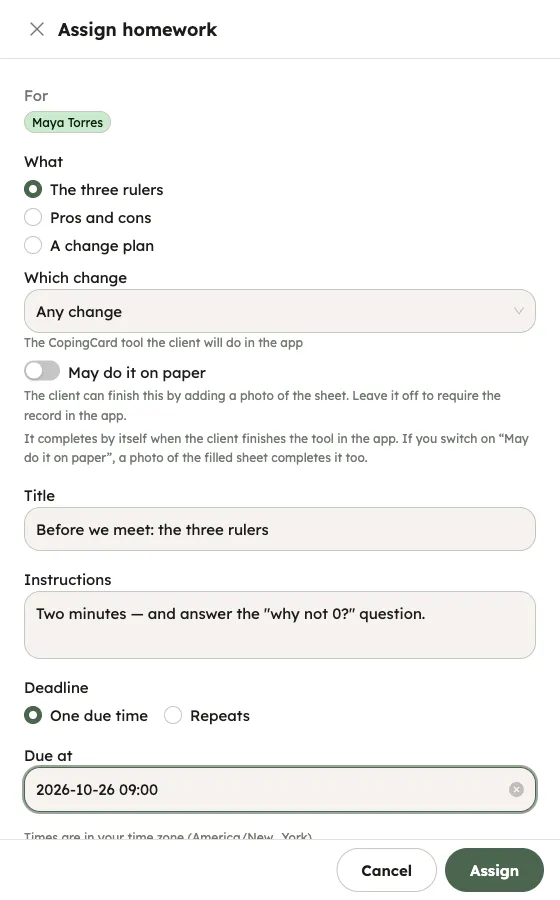
- Check the Title and the Instructions. The portal fills in both for the kind you chose.
- Set Due at. The time starts at 09:00 once you pick a date, and you can change it.
- Click Assign.
The client gets homework in the app with the usual reminders. It is marked done by itself when the client saves that record in the app: the rulers, the pros and cons or the plan, for the change you named, or for any change if you chose Any change. Only a record saved after you assigned it counts. You cannot rate a change, write the pros and cons or make the plan for the client in the portal, so nothing you do there completes it. See Assign homework to a client.