

Functional analysis
Functional analysis looks at one behavior at a time: what led up to it, what it did for you right away and what it cost later. The app and the portal both call the tool Functional analysis. You can use it on your own, or your therapist can set a behavior with you.
For clients
Section titled “For clients”You need the latest version of the CopingCard app, signed in.
Add a behavior
Section titled “Add a behavior”- Tap the Tools tab at the bottom of the screen.
- Tap Functional analysis. If you are new to it, tap New here? See how it works (3 cards).
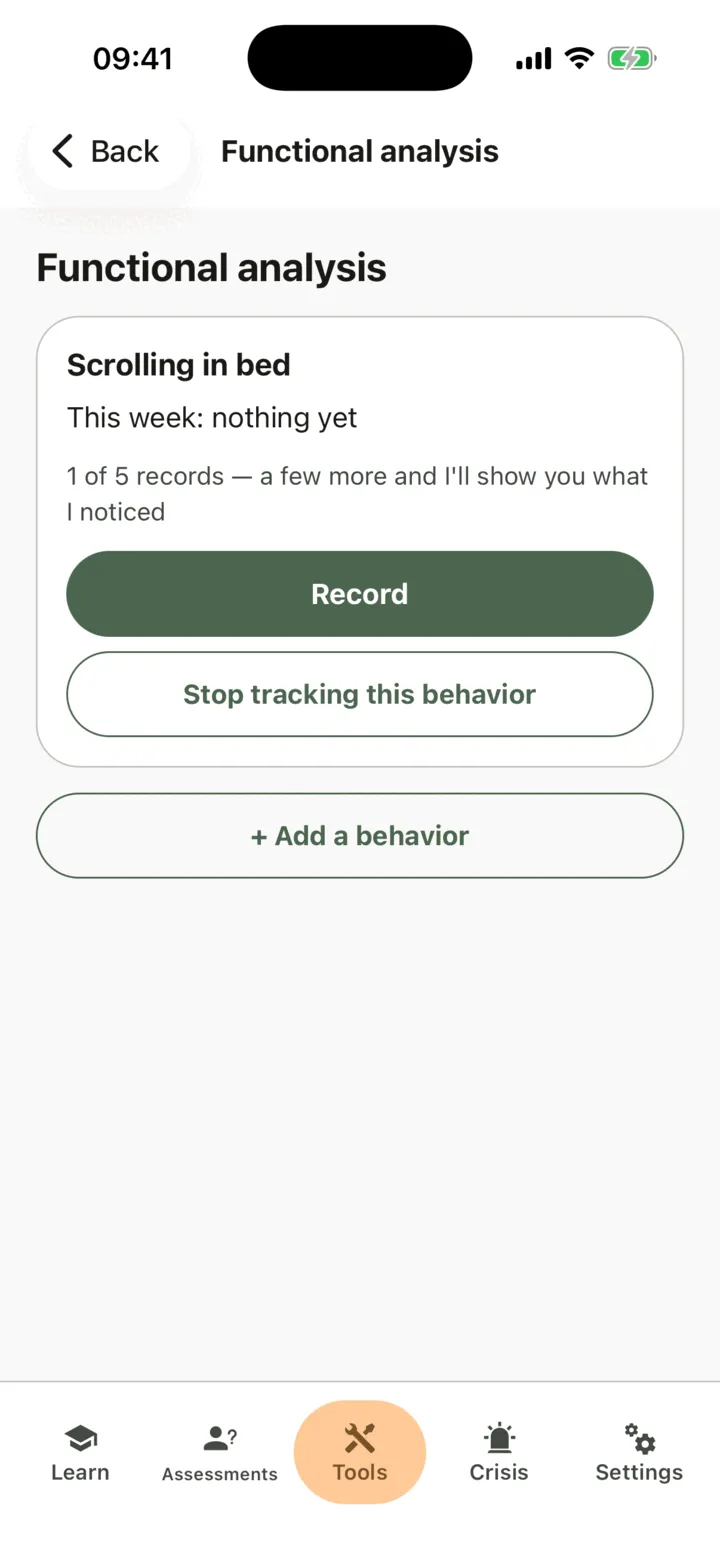
- Tap + Add a behavior.
- Under What do you want to understand?, write the behavior in your own words.
- Under What counts as one, write what counts as one time. This is optional.
- Choose the Measure: frequency (how many times), duration (minutes) or intensity (0–10).
- Under What it does for me, tick one or more of Escape or avoidance, Attention, A tangible gain and Automatic relief, or tick Not sure yet on its own. Ticking Not sure yet clears the others, and ticking any of the four clears Not sure yet.
- Tap Add.
You can look at up to three behaviors at a time. Your therapist sees a behavior you add on your page in their portal. A behavior your therapist set with you in session is marked Set with my therapist.
Record what happened
Section titled “Record what happened”- On the behavior’s card, tap Record.
- Under When, choose Just now or Earlier. A record can be for today or up to 7 days back.
- Under Before · what made me vulnerable, tap what applies, for example Slept badly or A hard day, and add your own words if you like.
- Under What set it off, write what happened just before.
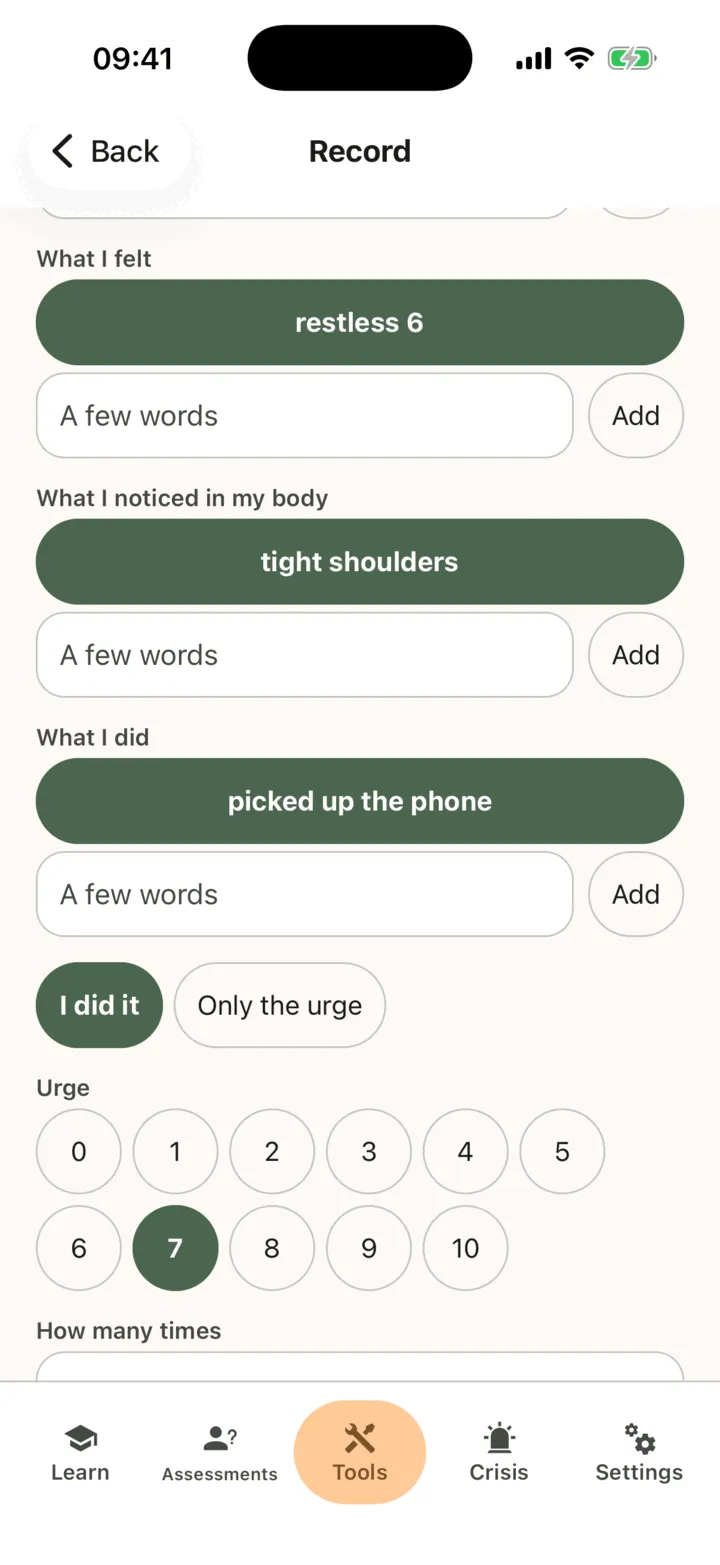
- Under Then, add the steps that followed: What happened, What I thought, What I felt, What I noticed in my body or What I did. Tap Add after each one.
- Choose I did it or Only the urge, and rate the Urge from 0 to 10.
- Write what it did for you under Right away and what it cost under Later.
- Under Next time I could change, write which step could go differently. You can also choose A tool that could help.
- Tap Save.
A record takes about a minute, and a record of only the urge counts too. Without a connection, the app keeps the record on your phone and sends it when you are online.
See what you noticed
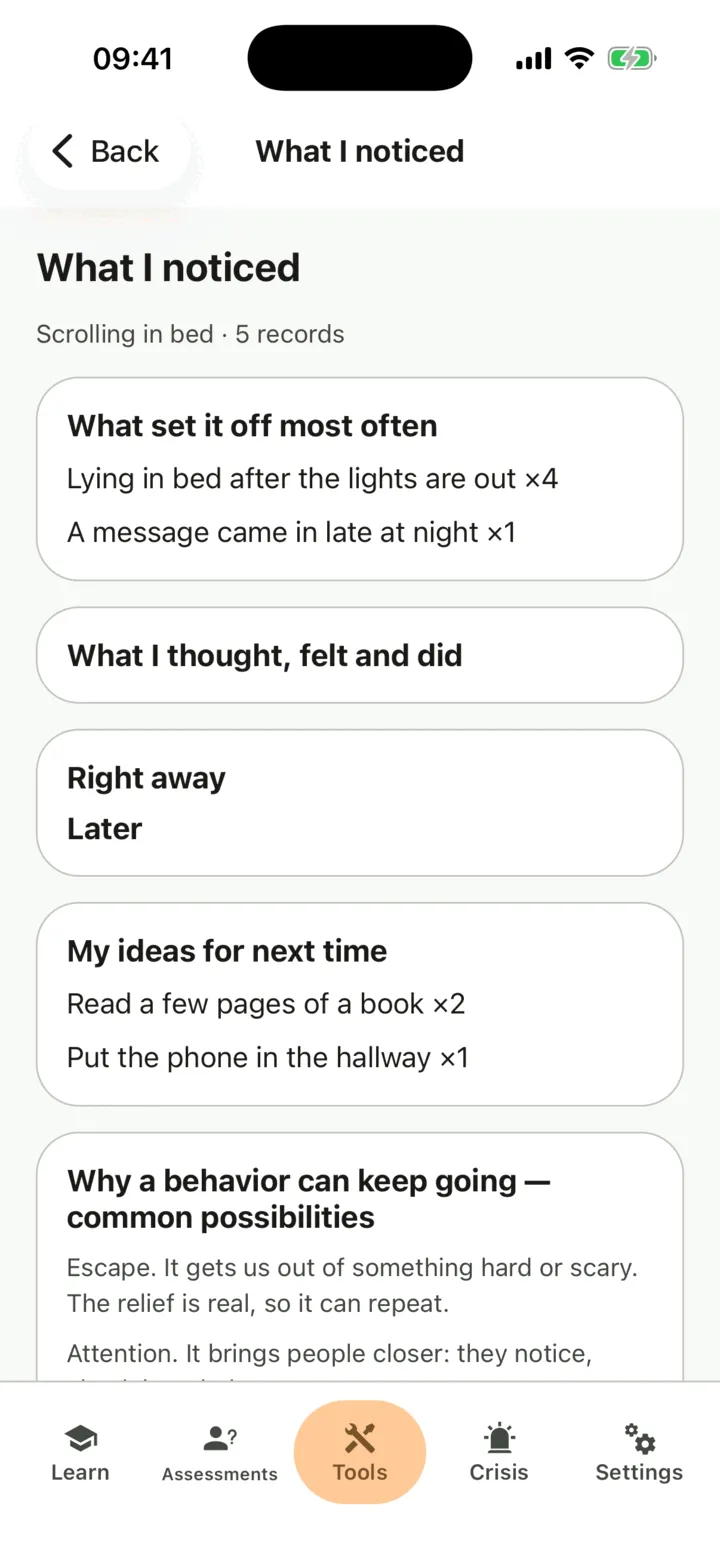
Section titled “See what you noticed”Each behavior’s card shows how many records you have. From about five records, the card shows What I noticed. Tap it to read, from your own records, What set it off most often, What I thought, felt and did, what happened Right away and Later, and My ideas for next time. Until then, the card shows how many records you have so far. The app only counts and shows your own words. It does not judge them or give advice.
Plan one change
Section titled “Plan one change”- On the behavior’s card, tap Plan a change. The button shows once you have enough records to see what you noticed.
- Under What I will try, write the change. If you wrote the same idea several times, it is filled in for you.
- Under What I expect, write what you think will happen.
- Under From, choose the day it starts.
- Tap Plan.
From that day, the card shows I did the planned change today. Tap it each day and answer Yes, Partly or No. The card shows on how many days you did it.
Close a behavior
Section titled “Close a behavior”When you no longer want to track a behavior you added yourself, tap Stop tracking this behavior, say why under Why am I stopping? and tap Stop tracking. Your records stay, and the behavior leaves your list. A behavior set with your therapist is changed or closed in session, and you can still record it and plan a change for it.
Who sees it
Section titled “Who sees it”Your therapist sees your behaviors and records on your page in their portal when you allow them to view your data. The practice admins see them too when you allow practice admins to view your data. They see the records when they open your page, and they are not alerted when you record. See Choose what your therapist can see.
For therapists
Section titled “For therapists”You set up the behavior with the client, ask for records, read the formulation and plan a change. You see a client’s behaviors and records only if the client lets you view their data, or, as a practice admin, lets practice admins view it. If not, the section reads The client doesn’t share this with you. To set a behavior, assign the records, plan a change or retire a behavior, the client must still share something with you. CopingCard does not alert you when a client records.
Read a client’s behavior
Section titled “Read a client’s behavior”- In the portal menu, click Clients and open the client’s page: see Find a client and open their page.
- Click Formulation, then Functional analysis.
- If the client has more than one behavior, choose the one to look at under Behavior, at the top.
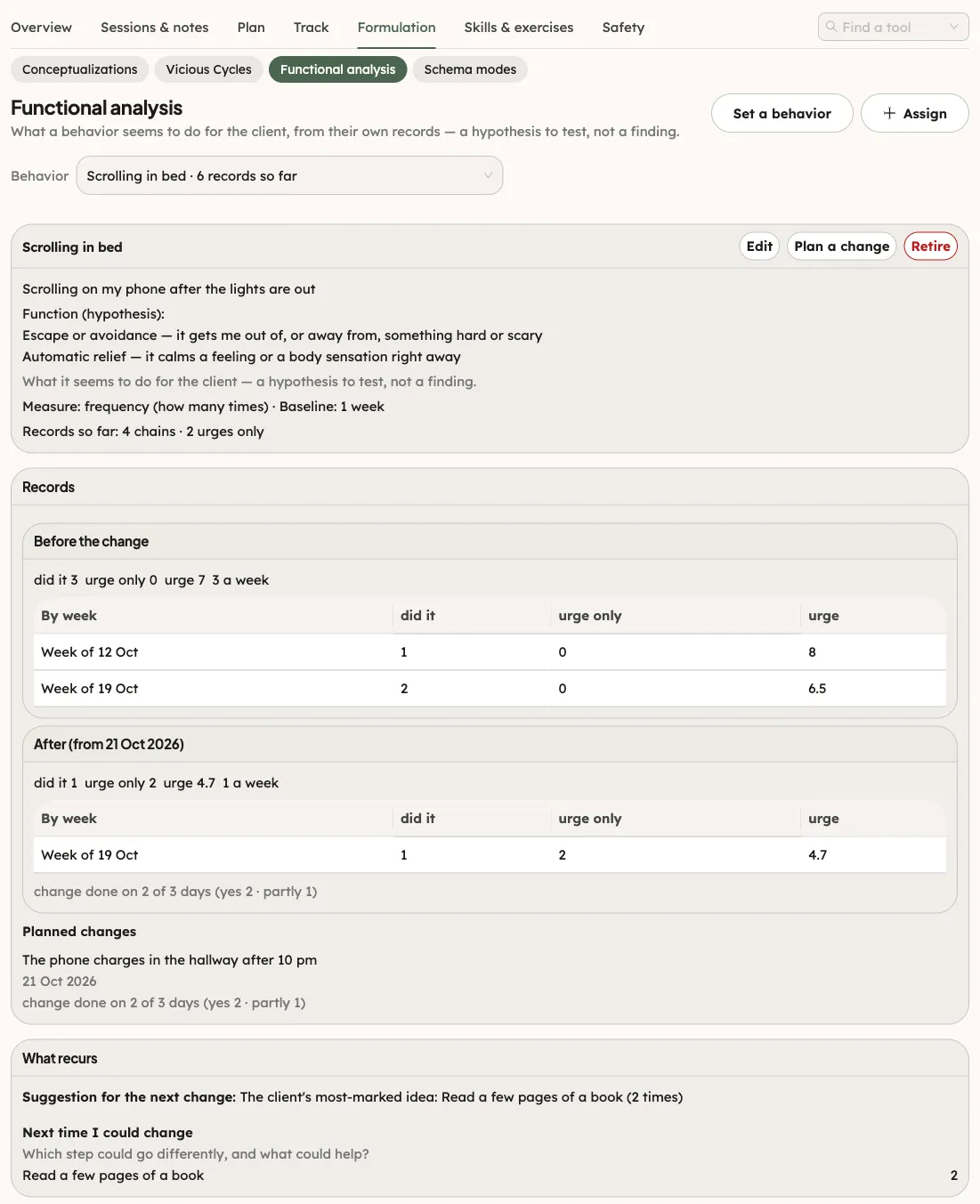
The client’s results come first. The Behavior card shows the behavior in the client’s words, what counts as one, the function hypothesis (each function the therapist chose, on its own line), the measure with the baseline, and Records so far: the chains and the records of only the urge. A behavior the client added themselves is marked Added by the client. The function is a hypothesis to test, not a finding.
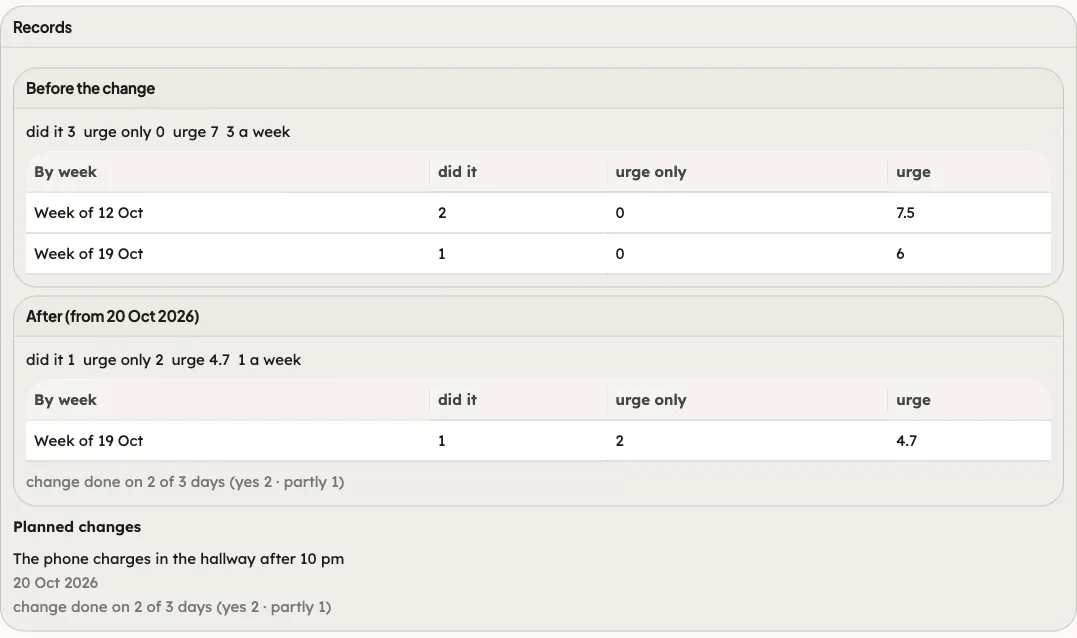
The Records card shows the records Before the change. Under By week, each week shows how many times the client did it, how many times only the urge came and the mean urge. Once you plan a change, the records split into Before the change and After, and the card lists the Planned changes with the number of days the client did the change. The What recurs card counts the words the client used for what set it off, what came before, each step, and what happened right away and later. Suggestion for the next change shows the idea the client marked most often. CopingCard counts and shows the client’s words. It gives no verdict.
Set a behavior with the client
Section titled “Set a behavior with the client”- In the header of the section, click Set a behavior. On a client with no behavior, the section shows one line and this button.
- In the panel that opens, write the behavior under Behavior, in the client’s words, and what counts as one under What counts as one.
- Choose the Measure, and set the Baseline (weeks of records before a change).
- Under What it seems to do for them (function), tick one or more of the four functions, or tick Not sure yet on its own. This is a hypothesis to test, not a finding.
- Click Save.
A client has at most three active behaviors. To change one, choose it under Behavior, and click Edit on the Behavior card.
Plan a change
Section titled “Plan a change”- On the Behavior card, click Plan a change.
- In the panel, write What changes and What we expect. The panel shows the client’s ideas and what comes before and after the behavior; the client’s most-marked idea is filled in for you when there is one.
- Choose the day under From.
- Click Plan.
With fewer than five records, a note says the change is easier to read after about five. You can still plan it.
Retire a behavior
Section titled “Retire a behavior”- On the Behavior card, click Retire.
- Write Why.
- Click Retire.
The records stay. Edit, Plan a change and Retire show only while the behavior is open.
Assign the records
Section titled “Assign the records”- In the header of the section, click Assign. The button is off until a behavior is set and open.
- The Assign homework panel opens with the tool chosen. Under Behavior, choose the behavior to record. Check the Title and the Instructions.
- Under Deadline, the records repeat weekly from tomorrow at 18:00, for 3 weeks. Change the number under For how many weeks, or the day, the time and the start.
- Click Assign.
The client is marked done in a week when they record the behavior in the app. You cannot record a behavior for the client in the portal: records come from the client’s phone. See Assign homework to a client.