

Build and practise an exposure ladder
An exposure is a planned, gradual practice with something you find hard or avoid. In CopingCard you list the situations on a ladder, rate each one, and record what you feel as you practise. You can work alone or with your therapist.
For clients
Section titled “For clients”You need the latest version of the CopingCard app, signed in. A SUD rating is a number for how stressed or anxious you feel. The app calls it Level of stress and anxiety (SUD), and its scale runs from 1 to 100.
Build the ladder
Section titled “Build the ladder”- On the Tools tab, tap Exposures.
- Tap Create Exposure. If you have no exposures yet, the button reads Start a New Exposure Session and does the same.
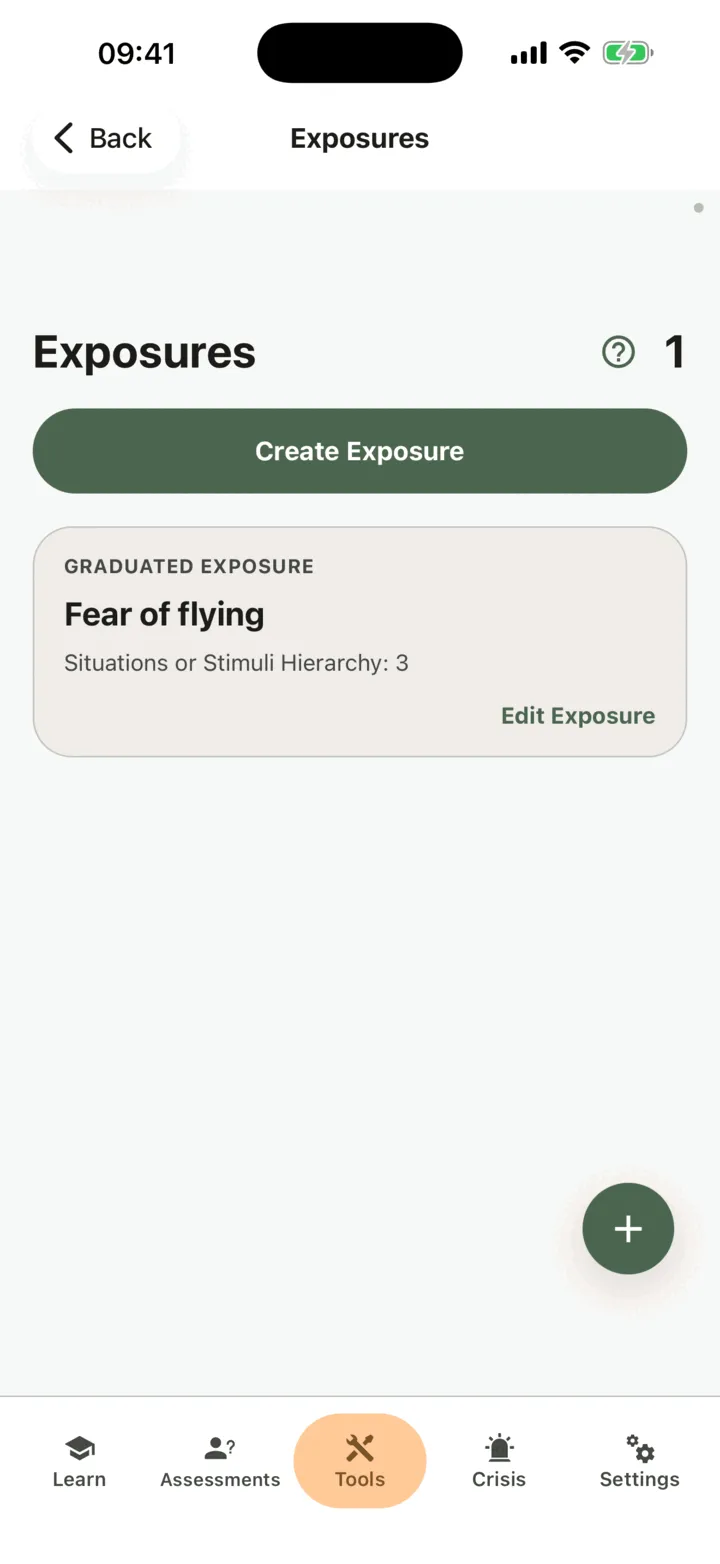
- Under Exposure Type, choose Graduated Exposure or Exposure and Response Prevention. The help circle next to each explains it.
- For a graduated exposure, write the fear in Fear or worry. For the other type, write Obsession and Safety Behaviors (Compulsion) to Avoid.
- Tap Save.
You can change the type and these fields later and tap Save again.
Add a situation to the ladder
Section titled “Add a situation to the ladder”- On the ladder, tap Add Situation or Stimulus. If you have not saved the exposure yet, the app asks you to save it first.
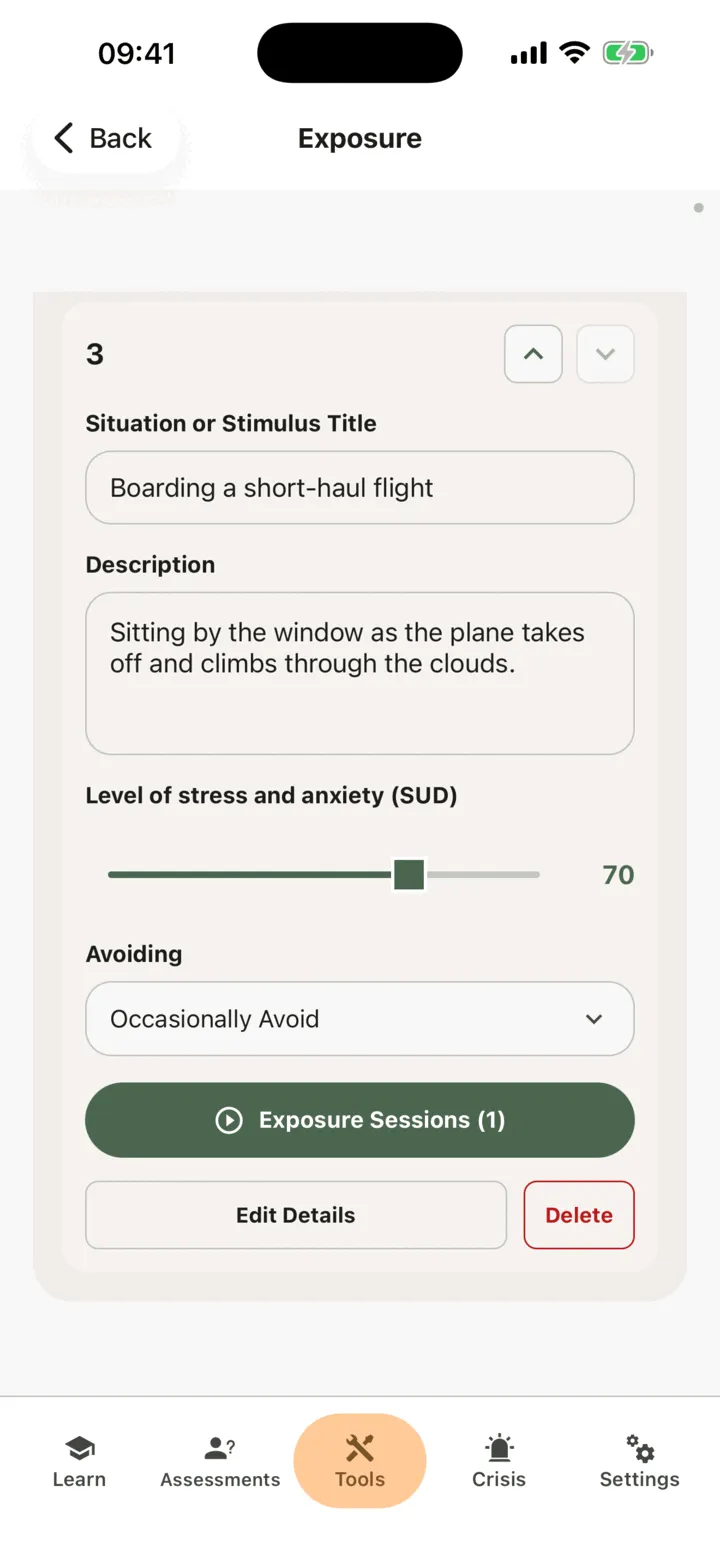
- Write Situation or Stimulus Title and Description.
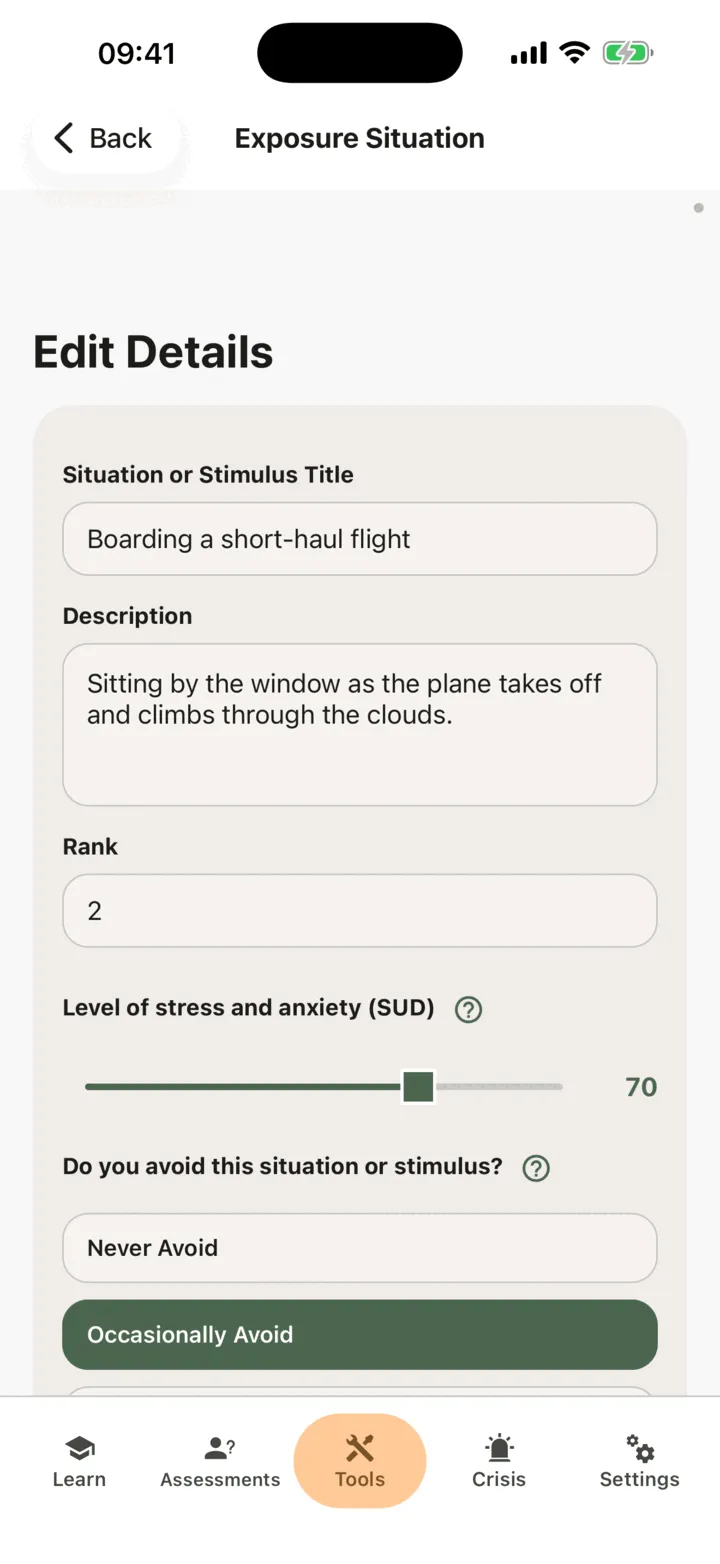
- Move the slider under Level of stress and anxiety (SUD) to how stressful the situation feels. The slider shows 50 until you move it.
- Choose an answer to Do you avoid this situation or stimulus?, from Never Avoid to Always Avoid.
- Write what you fear in Worst thing that could happen in this situation?.
- Tap Save.
Each situation shows on the ladder with its number. Use the arrows on it to move it up or down, and the ladder is saved as you do. On the ladder you can also change a situation’s title, description, rating and avoidance in place, or tap Delete to remove the situation after confirming. The app has no button to delete a whole exposure.
To make a picture of a situation, write a prompt in AI Image Prompt and tap Generate Image with AI. The app sends the prompt text to an AI service. You can keep up to five pictures for a situation. On the free plan there is a limit on AI pictures: see Premium and the free plan.
Record an exposure session
Section titled “Record an exposure session”- On the ladder, tap Start a New Exposure Session on the situation. If it already has sessions the button reads Exposure Sessions, followed by their number.
- Move the slider under Anticipated to how stressed or anxious you expect to feel.
- If you want, write what you expect in What do you fear will happen?. You can skip it.
- If you want, move How likely is it? to how likely you think it is, from 0 to 100 %. It starts unset, and Clear answer takes your answer back.
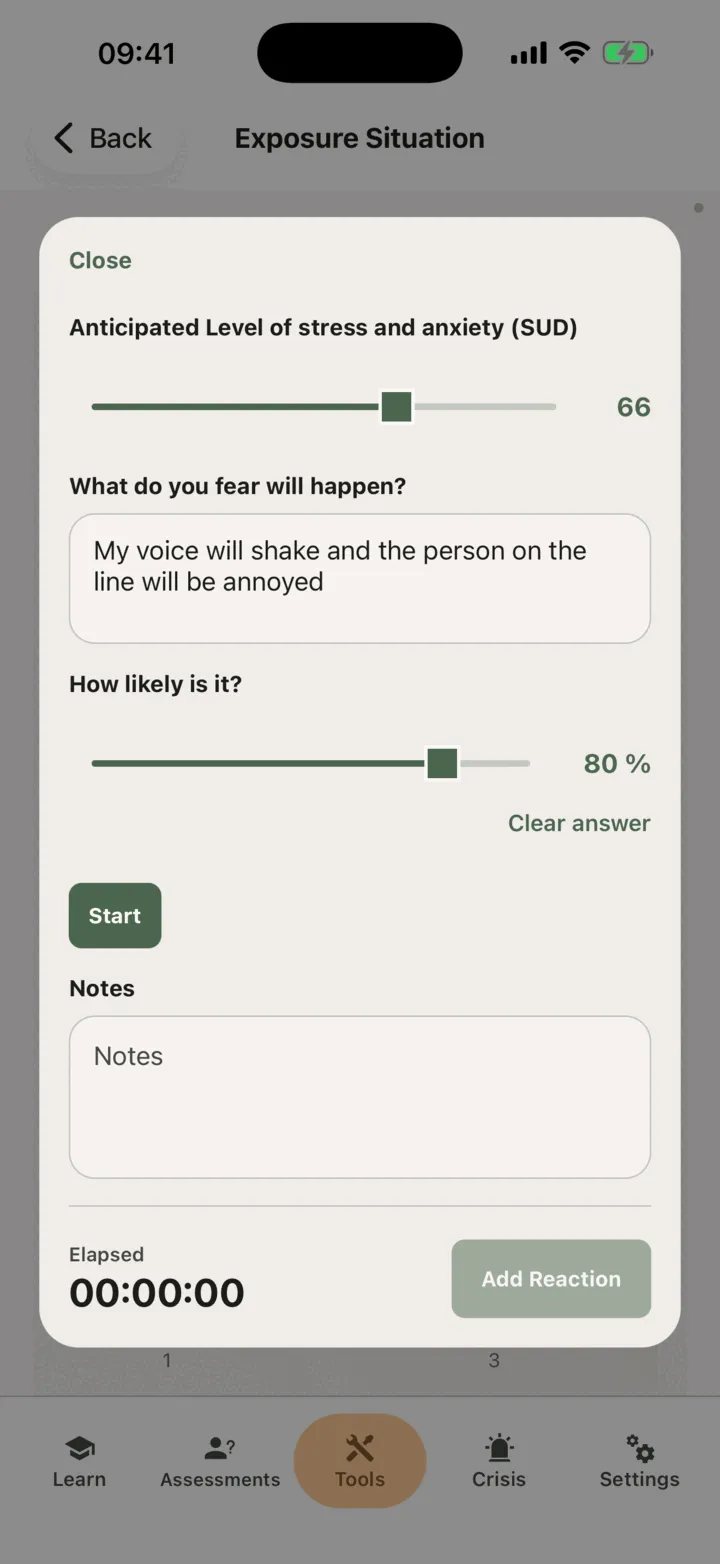
- Tap Start. The app counts the time under Elapsed, and the two answers above are locked.
- During the practice, move Record Current SUD to how you feel now and tap Add Reaction. Do this whenever your feeling changes.
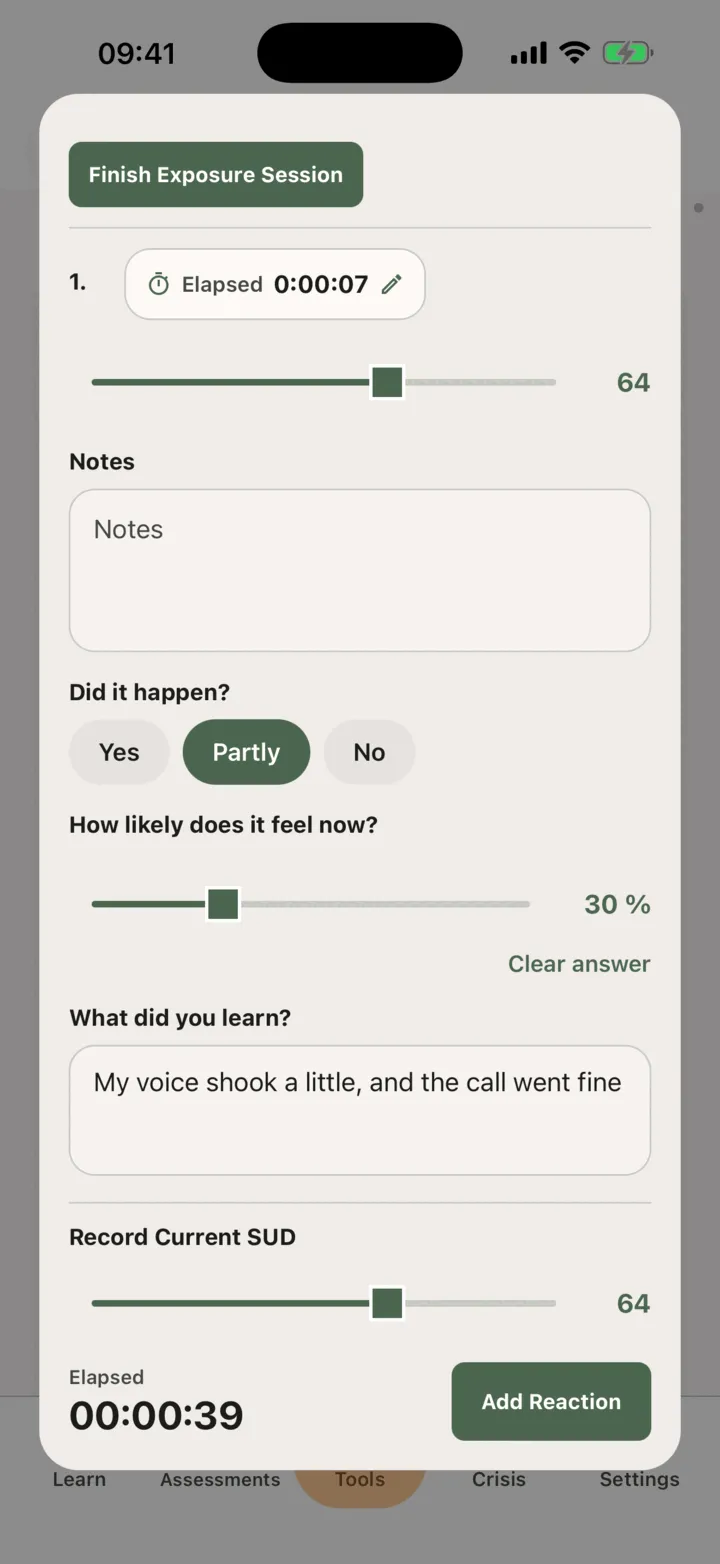
- If you want, write something in Notes.
- If you want, answer Did it happen? with Yes, Partly or No, move How likely does it feel now?, and write What did you learn?. Every one of them is optional.
- Tap Finish Exposure Session.
Each reading is saved the moment you add it. If you close the session while it is running, the app finishes it. A session you never started is not saved.
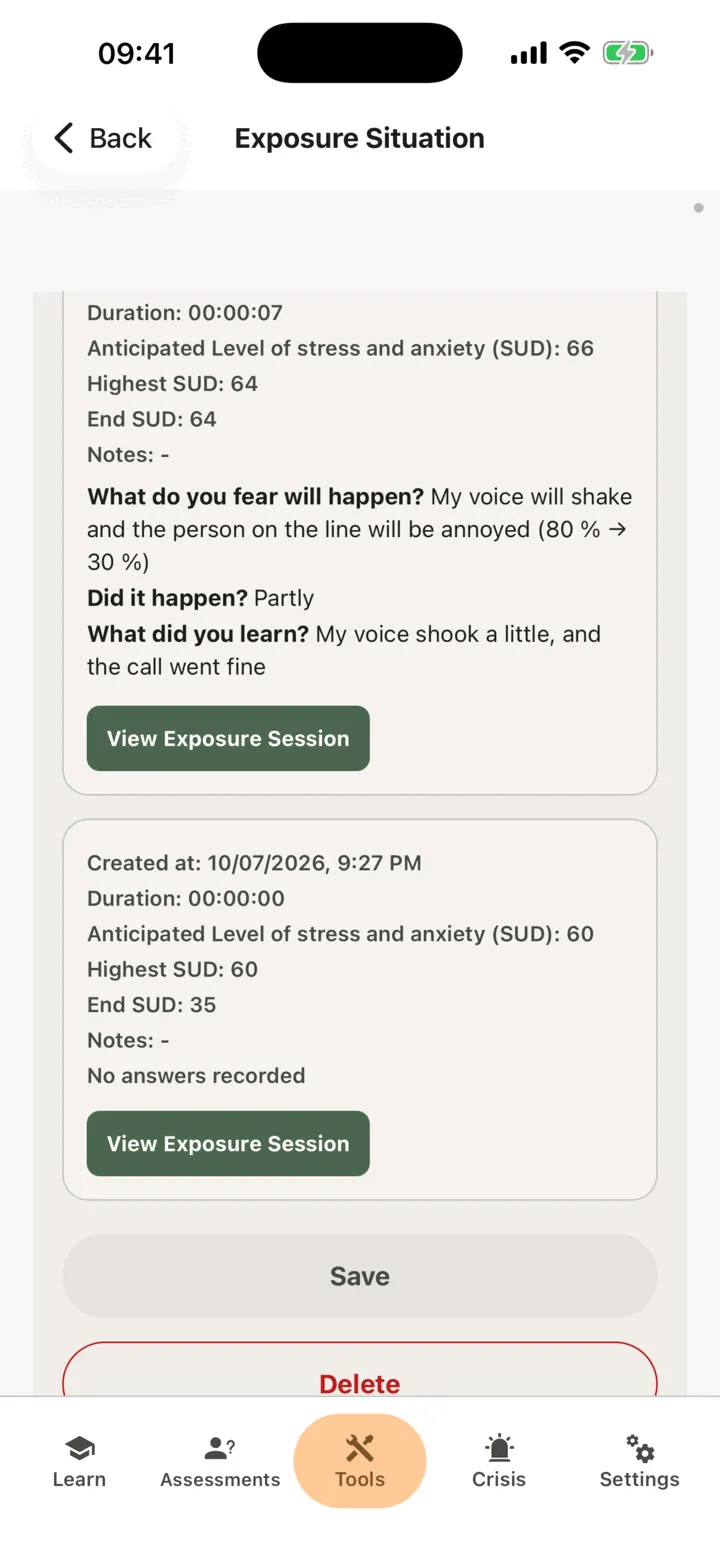
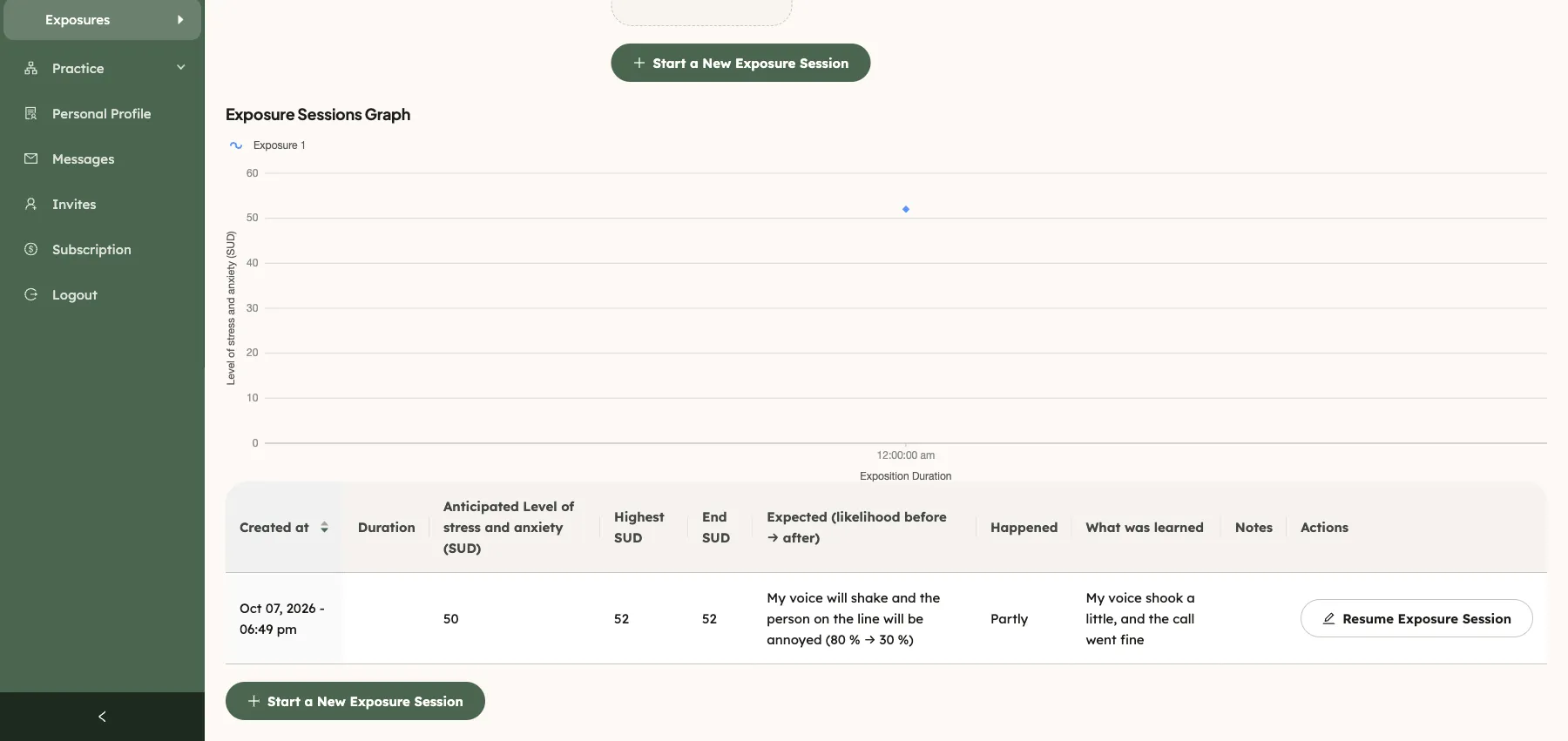
The situation then shows Exposure Sessions Graph and a card for the session with Duration, Highest SUD, End SUD and your notes. The card also repeats your answers: the fear with how likely you thought it was before and after, what happened, and what you learned. A session where you answered none of the questions reads No answers recorded, whenever you recorded it. The app only shows what you wrote and the numbers: it does not score them or give advice.
- To add more readings, or to fix one that came out wrong, tap the session and tap Resume Exposure Session. A corrected reading is marked corrected, and the app keeps the original beside it.
- To look at a finished session, tap View Exposure Session.
Who can see your exposures
Section titled “Who can see your exposures”If you connect with a therapist, the options on the Data Sharing with Therapists screen in Settings decide who sees your exposures. With Allow viewing my data on, your therapist sees them in the CopingCard portal. With Allow practice admins to view my data on, the admins of your therapist’s practice see them too. They see an exposure when they open it: they are not alerted when you add a reading. With Allow editing my data or Allow practice admins to edit my data on, they can also change your exposures. See Choose what your therapist can see.
On the free plan there is a limit on how often you can start a new exposure. When you reach it the app offers Premium.
For therapists
Section titled “For therapists”In the portal you can build a ladder with a client, run a session in the room and read the readings. You see a client’s exposures only if they let you view their data, or, as a practice admin, let practice admins view it. To write, the client must allow you to edit their data, or allow practice admins to edit it, and must have a Premium account. CopingCard does not monitor or flag what clients write: you see an exposure when you open the list.
Build a ladder for a client
Section titled “Build a ladder for a client”- In the portal menu, open Tools and click Exposures, then click Create.
- Under Select a Client, choose the client. The list shows only clients with a Premium account who allow you to edit their data.
- Choose the Exposure Type and fill in the fear, or the obsession and the compulsion.
- Click Save exposure.
- Under the hierarchy, click Add Situation or Stimulus and fill in the situation.
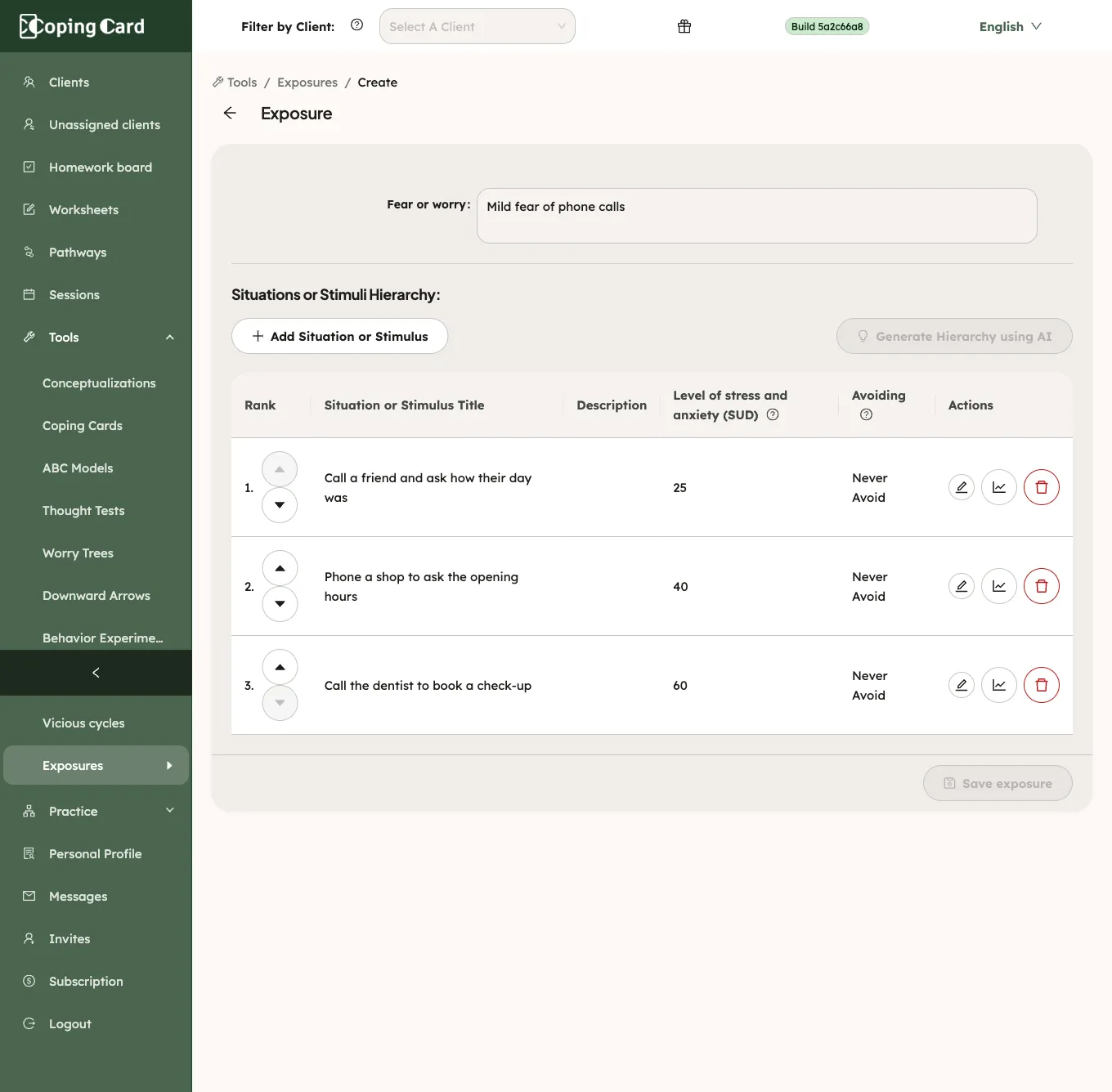
To draft the rungs with AI, click Generate Hierarchy using AI. It works on a saved exposure that has at most one situation. The portal sends the exposure type, the fear or obsession, the safety behaviors and the language to an AI service, and adds the rungs it returns to the table. You can edit or delete them like any other.
You can delete a situation for up to two hours after it was created. After that only the client can delete it.
Run a session with the client
Section titled “Run a session with the client”- On the Exposures list, click the pencil in the client’s row, then open the situation from the hierarchy table.
- Click Start a New Exposure Session.
- Set the anticipated level.
- If the client wants to say it, write their answer in What do you fear will happen? and move How likely is it? to their estimate, from 0 to 100 %. Both are optional, and Clear answer takes the estimate back.
- Start the timer. The two answers are now locked.
- Move Record Current SUD and click Add Reaction as the client reports each reading.
- When the run is over, you can record Did it happen? (Yes, Partly or No), How likely does it feel now? and What did you learn?. All three are optional.
- Click Finish Exposure Session.
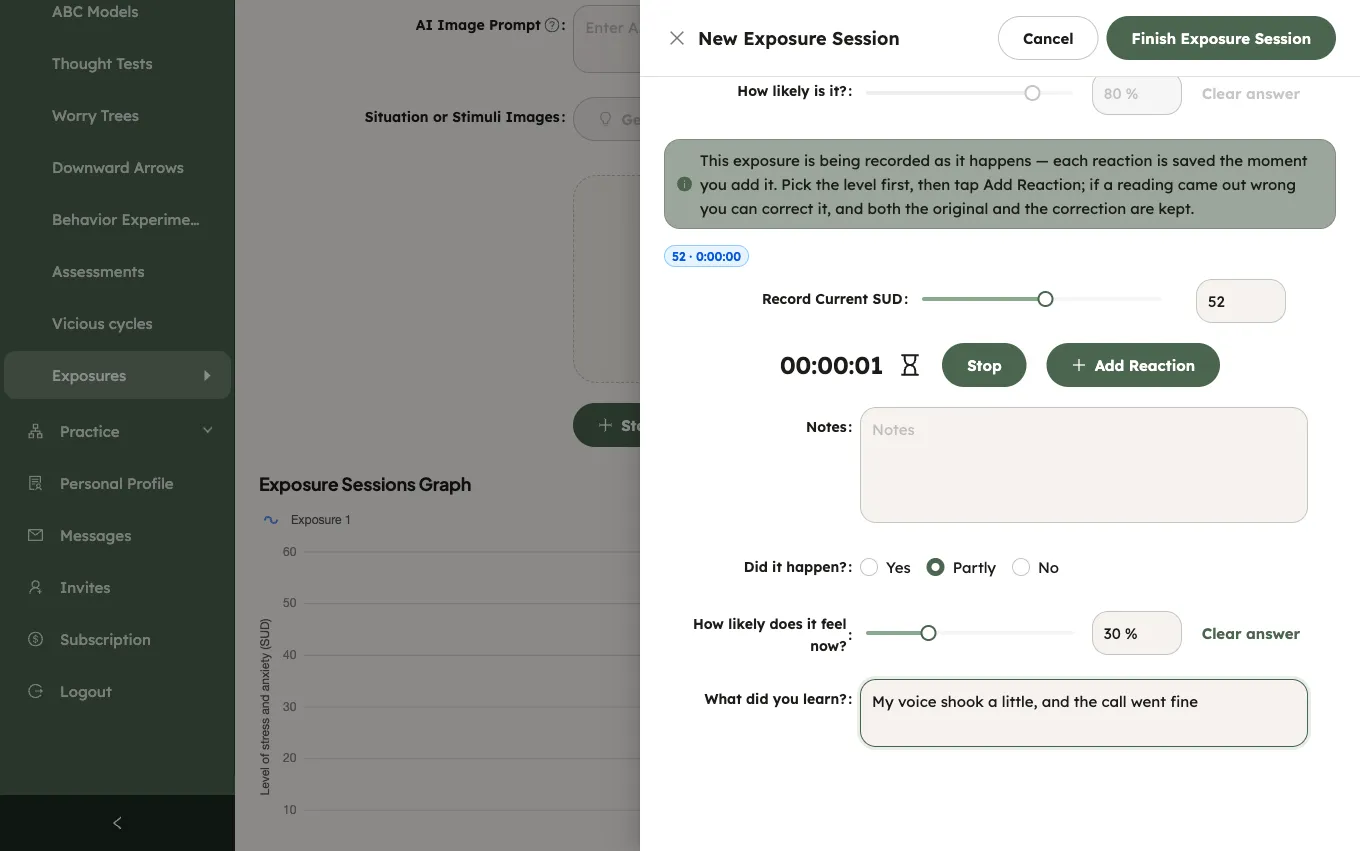
The session is stored on the client’s ladder. To add readings later or correct one, use Resume Exposure Session on the session. The portal keeps the original reading beside the correction.
Read the answers in the history
Section titled “Read the answers in the history”Under the graph, the history table has three columns for the answers. Expected (likelihood before → after) shows what the client feared with how likely it seemed before and after, for example 80 % → 30 %. Happened shows Yes, Partly or No. What was learned shows what they wrote. A run with no answers reads No answers recorded, whenever it was recorded. CopingCard shows the answers as they were given: it does not judge them or alert anyone.
Assign it as homework
Section titled “Assign it as homework”Assign homework with kind Tool and Exposure under What. It is marked done by itself when the client finishes an exposure session in the app, or you finish one for them in the portal. Building a ladder, adding situations or pressing Start does not complete it.