

Keep a sleep diary
A sleep diary is a short record of last night: when you went to bed, how long it took to fall asleep, how often you woke up and when you got up. The app asks for it each morning, and you can read your weeks. If your therapist sets a sleep window with you, the app shows it.
For clients
Section titled “For clients”You need the latest version of the CopingCard app, signed in.
Fill in last night
Section titled “Fill in last night”- Tap the Tools tab at the bottom of the screen.
- Tap Sleep diary. The screen says Good morning. At the top are the buttons My weeks and My sleep window, then the Morning prompt card, then the nights that wait for you.
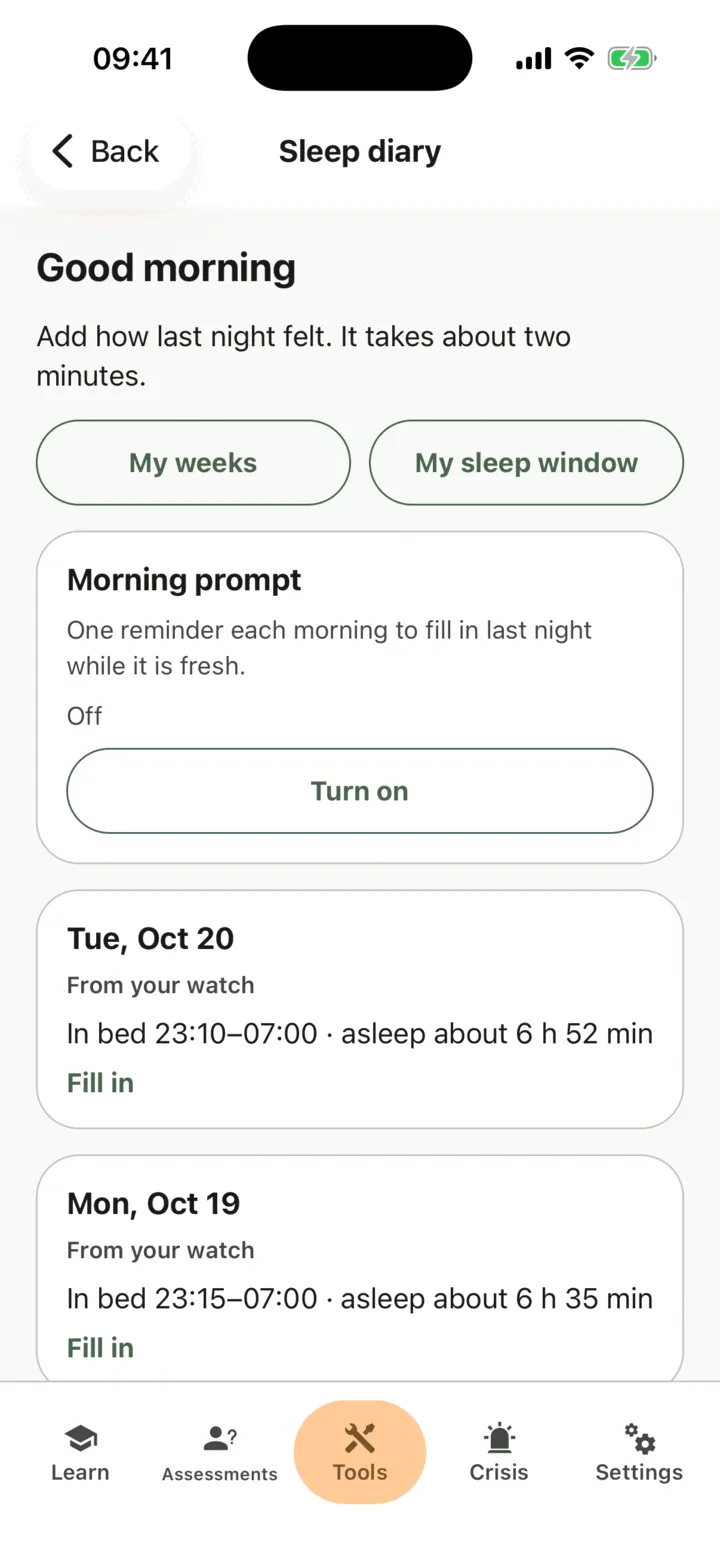
- Tap the night, then Fill in. You can add a night for up to three days back.
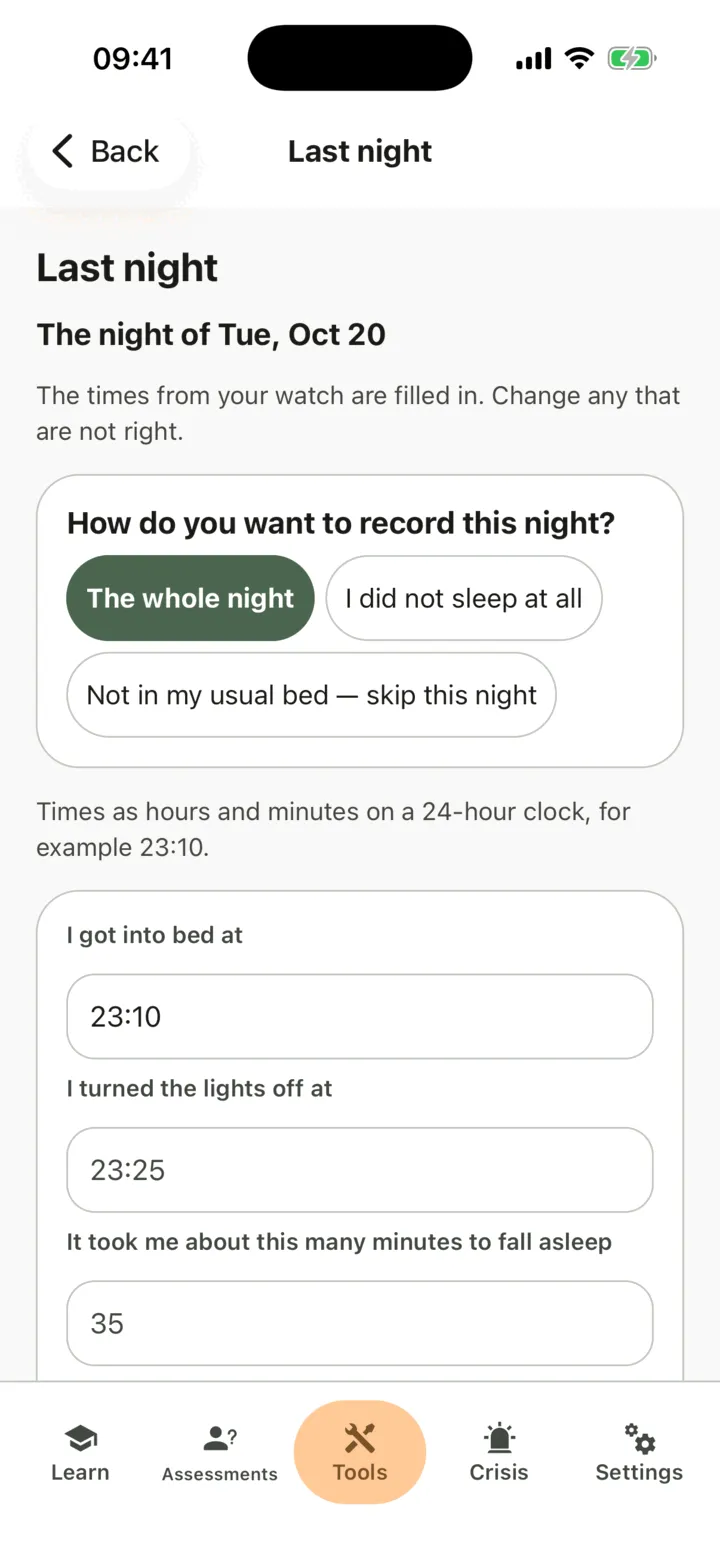
- At the top of the form, under How do you want to record this night?, The whole night is chosen. Fill in the times as hours and minutes on a 24-hour clock, for example 23:10: I got into bed at, I turned the lights off at, I woke up for good at and I got out of bed at.
- Fill in It took me about this many minutes to fall asleep, I woke up this many times in the night and In all, I was awake in the night for this many minutes.
- Under How well did I sleep?, choose from Very poor to Very good.
- Under If you like, add a nap, Coffee, tea or cola after noon, Alcoholic drinks, A sleep aid I took or Anything else about the night.
- Tap Save.
If you did not sleep at all, choose I did not sleep at all at the top of the form, before you fill in anything. The app then asks only when you got into bed and when you got out of bed, and the night counts with no sleep. If you were not in your usual bed, choose Not in my usual bed — skip this night. The night is marked and left out of your weekly numbers. To go back to the full form, choose The whole night.
If you share your sleep with CopingCard, the night shows From your watch, and the times from your watch are filled in. Change any that are not right. How long it took you to fall asleep and how long you were awake are about how it felt to you. See Share health data from your phone. Saving a night again replaces it.
When every night is filled in, the screen reads You are all caught up. Last night is in your diary. A night older than three days cannot be added by you. Your therapist can add it from your paper diary.
Get a morning prompt
Section titled “Get a morning prompt”- On the Sleep diary screen, find Morning prompt, near the top.
- Tap Turn on.
The app reminds you each morning to fill in last night. With a sleep window, the prompt comes 30 minutes after your get-up time. Without one, it comes at 07:30. To stop it, tap Turn off.
Read your weeks
Section titled “Read your weeks”- On the Sleep diary screen, tap My weeks.
- To move by one week, tap Earlier week or Later week.
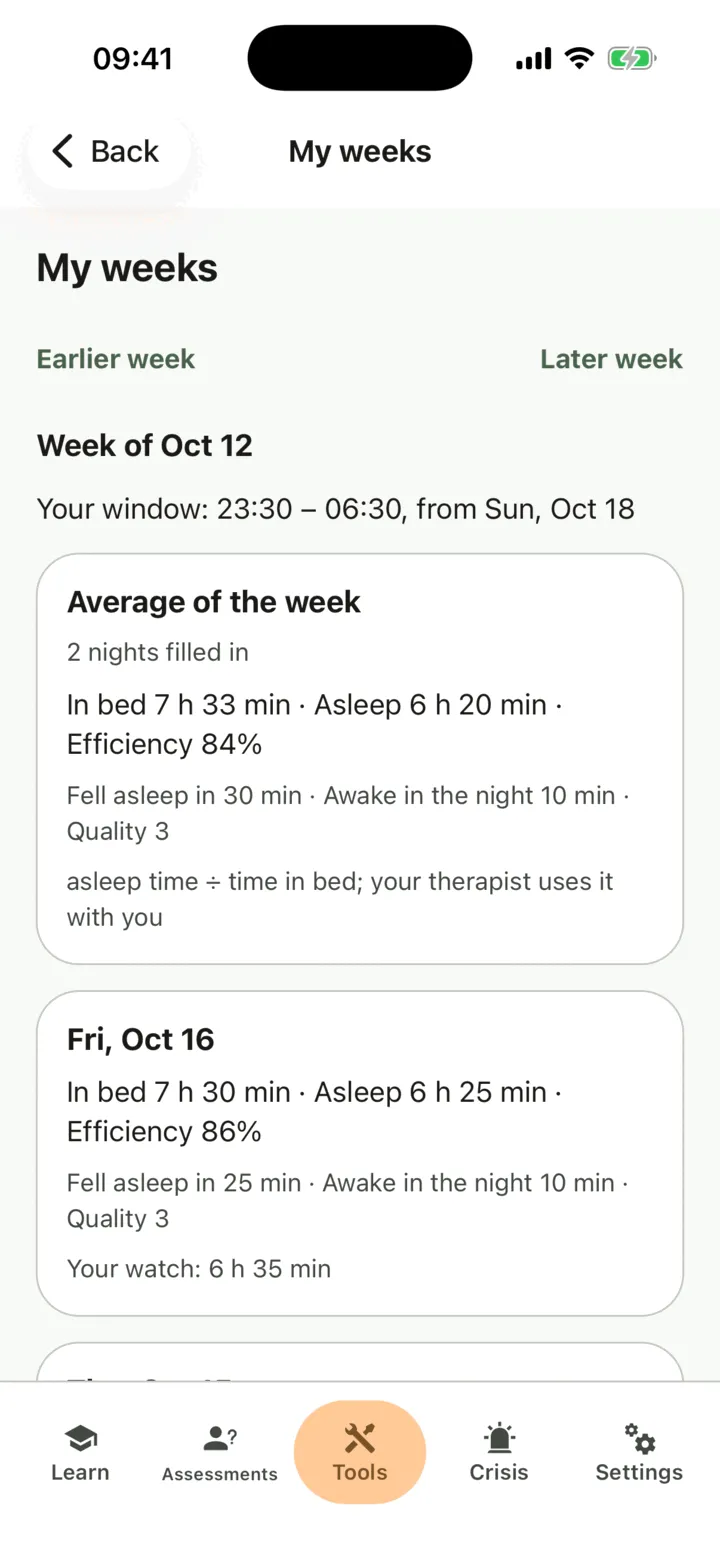
Average of the week shows how many nights you filled in, with In bed, Asleep, Efficiency, Fell asleep in, Awake in the night and Quality. Efficiency is the time asleep divided by the time in bed. Each night below shows the same figures, and your watch’s figure beside them if you share it. A night you skipped shows skipped, and a night with no sleep shows no sleep. A night your therapist added from your paper diary says so. The weeks before lists earlier weeks. The app shows numbers only. It does not judge a night or give advice.
See your sleep window
Section titled “See your sleep window”- On the Sleep diary screen, tap My sleep window.
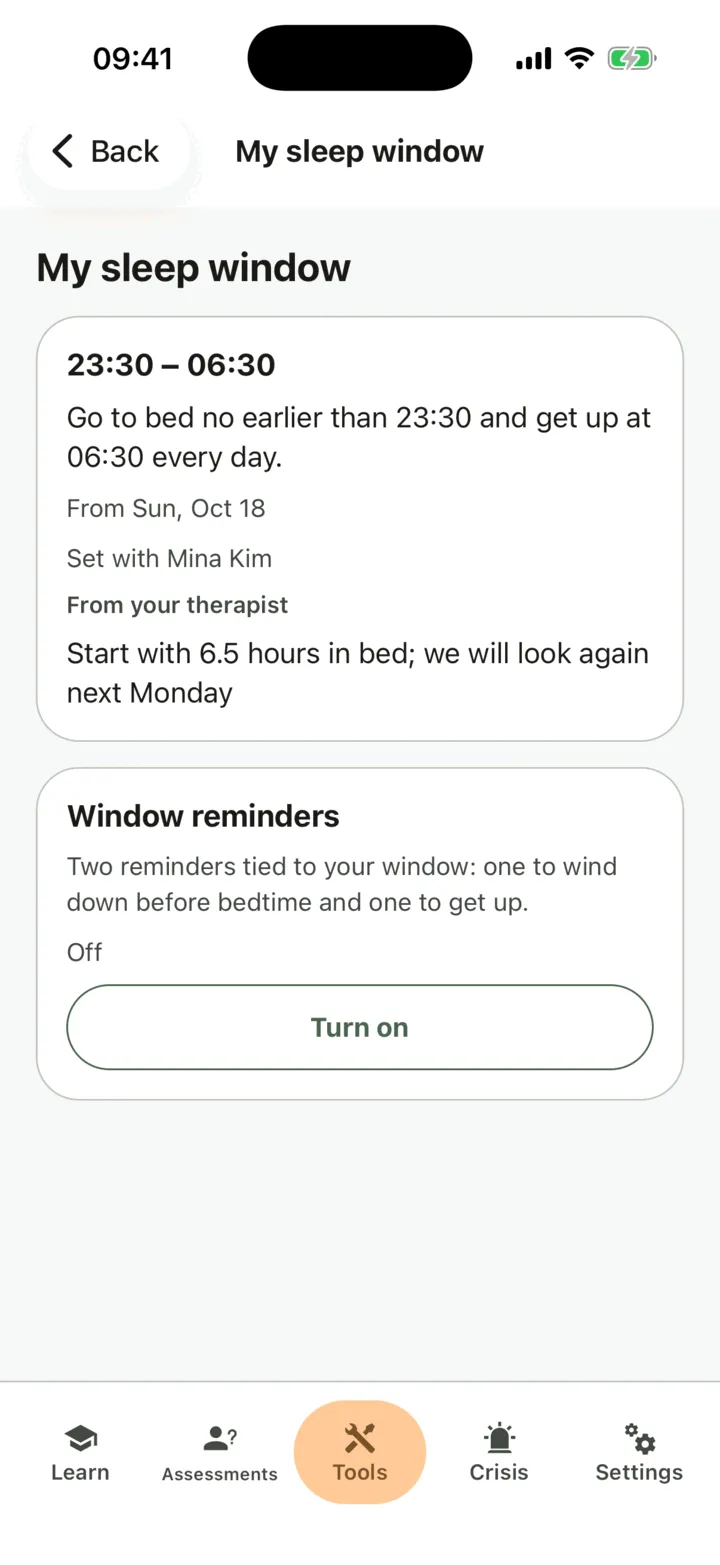
If your therapist has set a window, the screen tells you when to go to bed at the earliest and when to get up, from which day, who set it and their note. Without one, the screen says your therapist sets a sleep window with you when the time is right. Only your therapist sets or changes the window. The app never does.
To get reminders for your window, find the Window reminders card right under the window and tap Turn on. One reminder comes an hour before bedtime, to wind down, and one at your get-up time. If your therapist changes the window, turn the reminders on again to move them.
Who sees it
Section titled “Who sees it”If you allow your therapist to view your data, they see your nights and weeks on your page in their portal, and so do the practice admins if you allow them to view your data. They see them when they open the page, and they are not alerted when you fill in a night. See Choose what your therapist can see.
For therapists
Section titled “For therapists”A client’s diary shows on the Sleep diary section of their page. You read it if the client lets you view their data, or, as a practice admin, lets practice admins view it. If not, the section reads The client doesn’t share this with you. To enter a night, set or end a window, or assign the diary, the client must still share something with you. CopingCard does not alert you when a client fills in a night.
Read the diary
Section titled “Read the diary”- In the portal menu, click Clients and open the client’s page: see Find a client and open their page.
- Click Track, then Sleep diary.
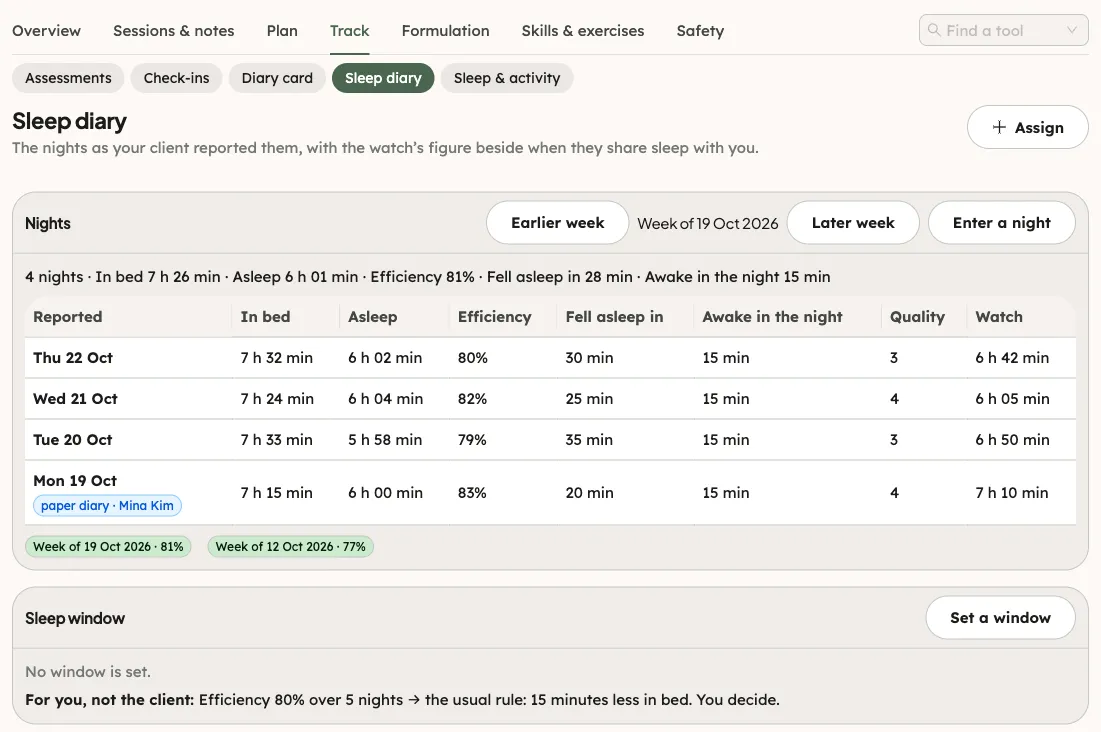
- To move by one week, click Earlier week or Later week in the Nights card.
The Nights card comes first. Its line of averages shows the nights filled in, with In bed, Asleep, Efficiency, Fell asleep in and Awake in the night. The table lists each night as the client Reported it, with the Watch figure beside it for the types the client shares. A type they do not share reads not shared. A night you entered from a paper diary shows your name. The weeks with filled nights are listed under the table.
The Sleep window card is under it. It shows the current window, or No window is set. with the last one. Earlier windows opens the windows set so far. When there are filled nights, the card also shows a line that starts For you, not the client:. It tells you what the usual rule would do with the last 7 nights, from yesterday back, whatever week you are looking at: add 15 minutes in bed, keep the window, or take 15 minutes away. You decide. The client never sees that line, and the app never sets a window by itself.
A client with no nights, no window and nothing else in the diary sees one line in place of the cards: No nights in the diary yet. Assign the diary and (the client’s name) fills in a night each morning. Under it are two choices, Assign the diary and Enter a night from a paper diary.
Enter a night from a paper diary
Section titled “Enter a night from a paper diary”- In the Nights card, click Enter a night. A panel opens at the side.
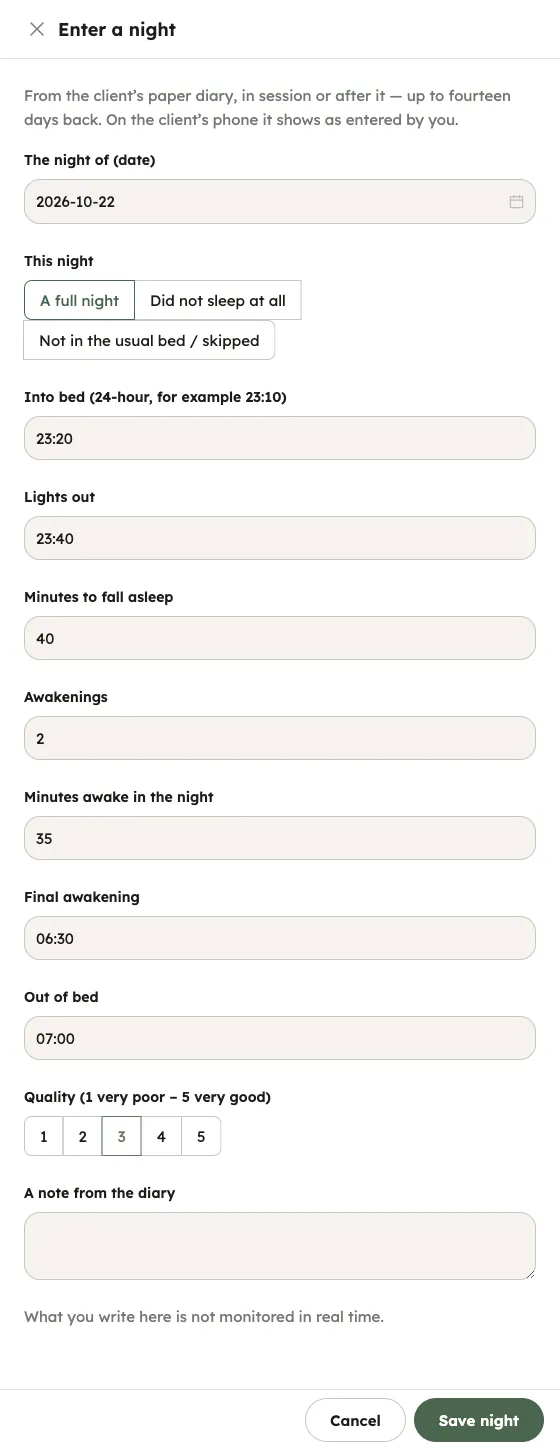
- Under The night of (date), pick the night. You can go back up to fourteen days.
- Under This night, choose A full night, Did not sleep at all or Not in the usual bed / skipped.
- Fill in the times and the minutes. A full night needs every time. The fields are Into bed (24-hour, for example 23:10), Lights out, Minutes to fall asleep, Awakenings, Minutes awake in the night, Final awakening and Out of bed.
- Choose the Quality (1 very poor – 5 very good) and add A note from the diary if you like.
- Click Save night.
The portal confirms The night is in the diary. The week of that night opens, so you see the new row. On the client’s phone the night shows as entered by their therapist from a paper diary. It does not complete an assigned diary. To close the panel without saving, click Cancel; if you typed something, the portal asks first whether to discard it.
Set the sleep window
Section titled “Set the sleep window”- In the Sleep window card, click Set a window. When a window is already current or upcoming, the button reads Set a new window, and the panel says which window it replaces.
- In the panel, read the screening note. Check what applies to this client before sleep restriction.
- Under Protocol, choose CBT-I — adjust by efficiency (at least 5 hours) or BBTI — adjust by time to fall asleep and awake in the night (at least 6 hours).
- Fill in Bedtime (24-hour, for example 23:30), Rise time (24-hour, for example 06:00) and Starts on.
- Add A line for the client if you like.
- Click Set window.
A window shorter than the minimum for its protocol is refused. A note warns you when there are fewer than five diary nights in the last seven. The client sees the window, your name and your line on their phone.
End the sleep window
Section titled “End the sleep window”- In the Sleep window card, click End the window. The button shows only while a window is current or upcoming.
- Write a reason under Reason (optional) if you like.
- Click End window.
The client’s screen goes back to no window.
Assign the diary
Section titled “Assign the diary”- In the header of the section, click Assign. On a client with no data, click Assign the diary instead.
- The Assign homework panel opens with Sleep diary chosen. Check the Title and the Instructions.
- Under Deadline, the diary repeats daily from tomorrow at 09:00, for 14 days. Change the days under For how many days, or the time and start.
- Click Assign.
Each night the client fills in completes that day. A night you typed in from a paper diary completes nothing. See Assign homework to a client.