

Find urgent help and calming exercises
The Crisis tab of the CopingCard app holds links to help lines and three short calming exercises. It is free for everyone, with or without a therapist. CopingCard is not an emergency service, and CopingCard does not watch what you do in the app as you do it.
For clients
Section titled “For clients”You need the latest version of the CopingCard app, signed in.
Find a help line
Section titled “Find a help line”- Tap the Crisis tab at the bottom of the screen.
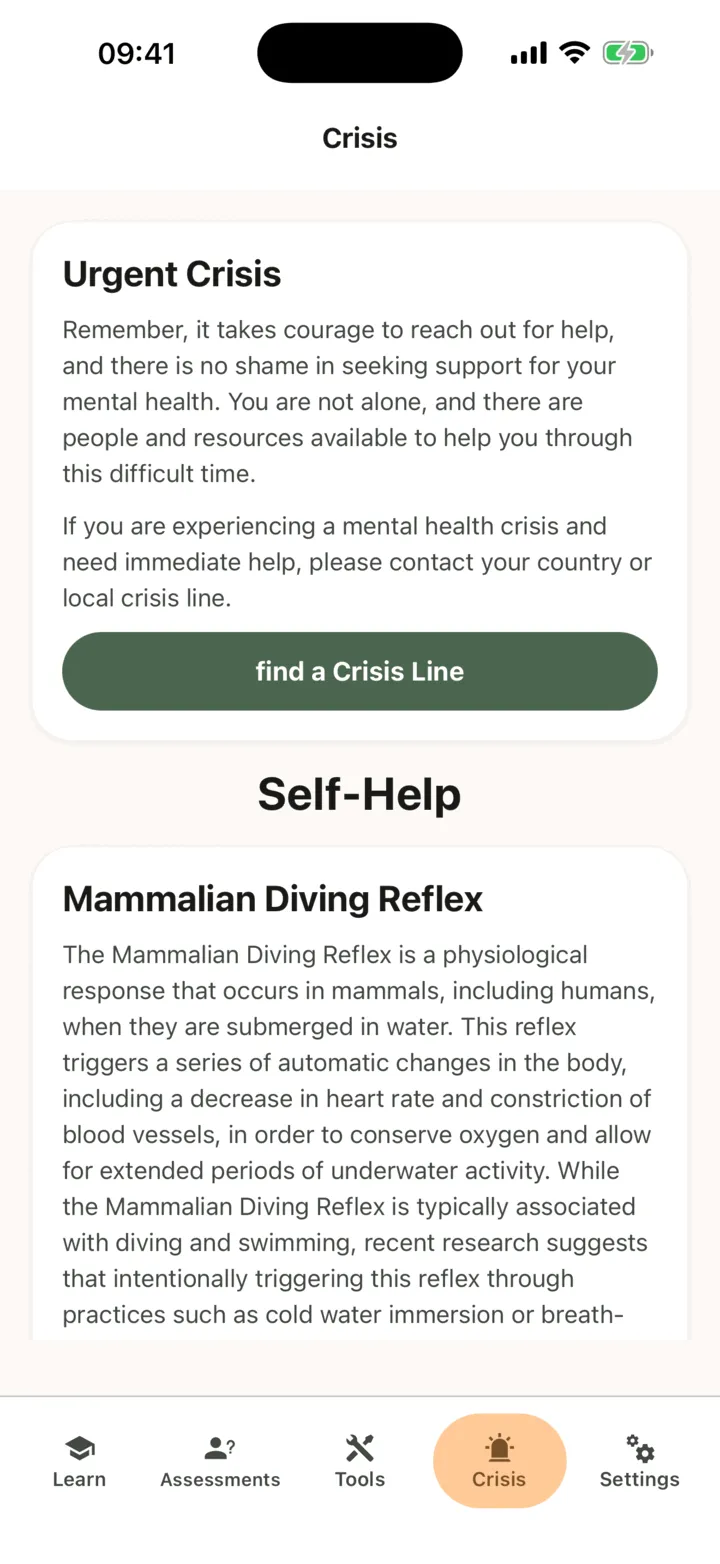
- Under Urgent Crisis, tap find a Crisis Line.
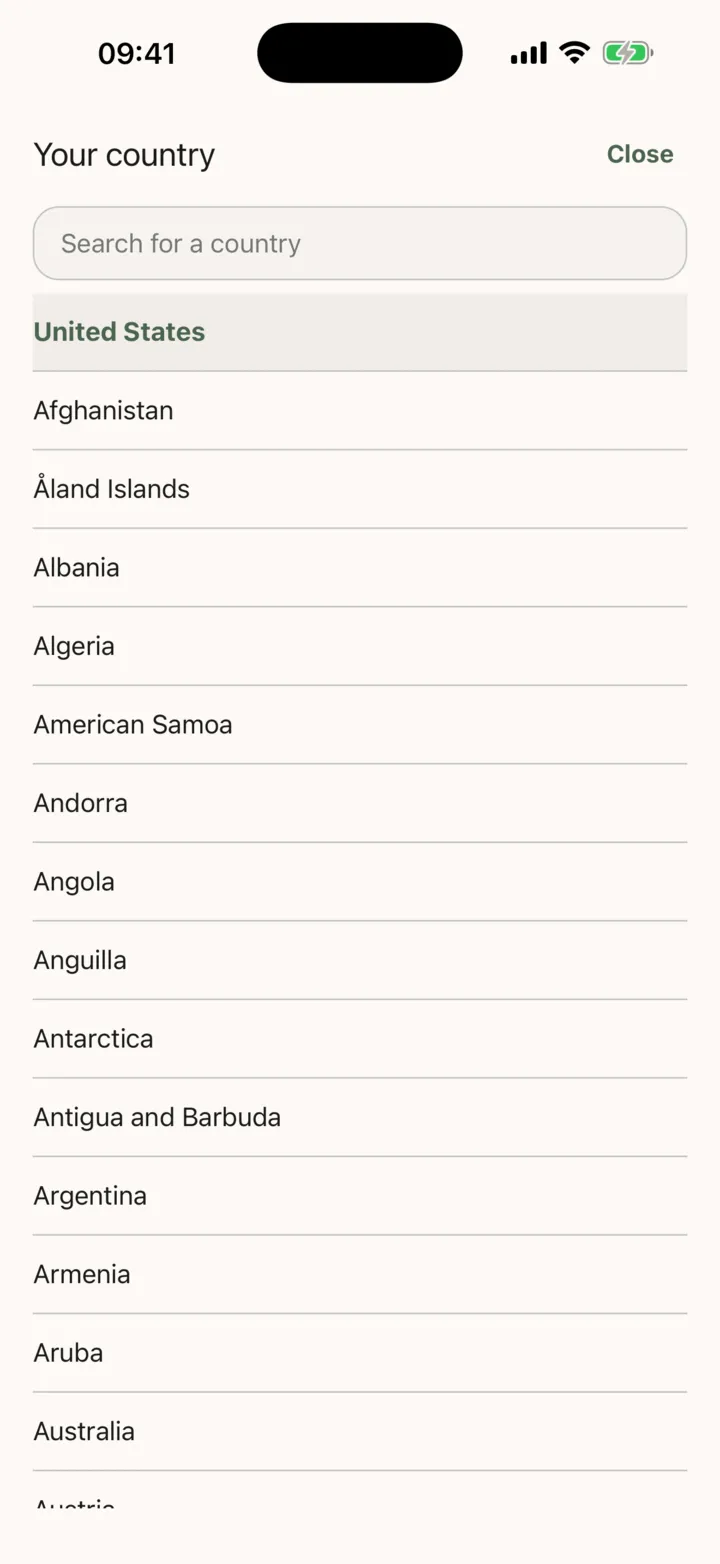
- To see the lines for another country, tap the control under Your country at the top of the list. Until you pick a country, it reads United States in English and Other countries in Russian.
- In the full-screen list of countries, scroll or type the name in the search field, then tap your country. The list closes. To leave it without choosing, tap Close.
- Tap a number or a link.
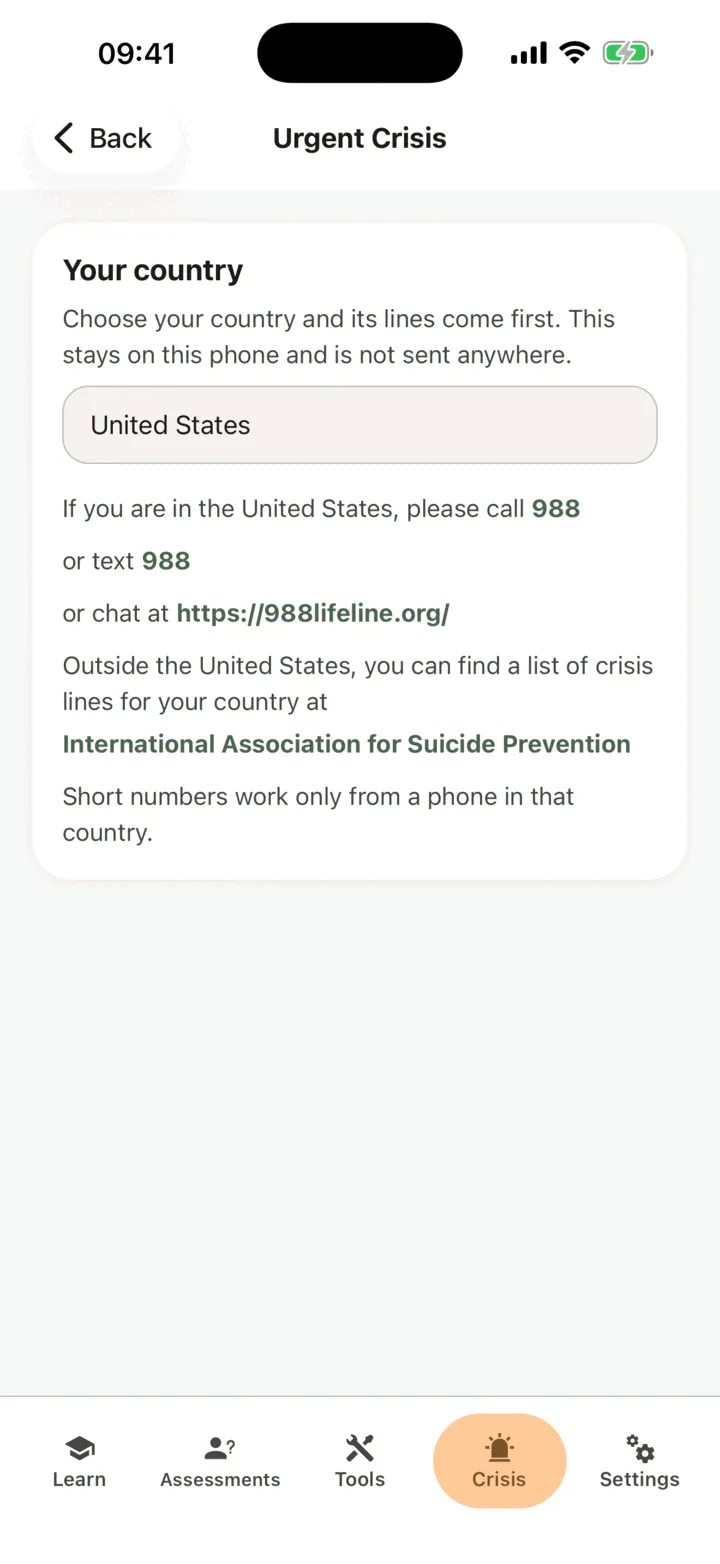
A number opens your phone’s dialer with the number filled in, and you press call yourself. A link opens in your browser and needs an internet connection.
What the list shows first depends on the language of the app.
- In English, the list shows the United States line, 988, which you can call, the same number to text, and the 988 chat. Texting opens your phone’s Messages app. Under them, one line is for people outside the United States. It opens an international list of help lines in your browser. The lines of other countries are not in the list until you pick that country.
- In Russian, the list shows the lines of the countries the app has: Armenia, Belarus, Estonia, Kazakhstan, Kyrgyzstan, Latvia, Lithuania, Russia and Ukraine, with one line for another country that opens the international directory. The United States lines are not in the list until you pick the United States.
The list of countries has every country, with names in the app’s language. If nothing matches your search, it says No country matches that search. In English, United States is at the top, then every country from A to Z. In Russian, Other countries is first, then the countries the app has lines for, then every other country in alphabetical order.
If you pick a country the app has lines for, its lines come first, and the rest of the list follows. Estonia puts both of its lines first. Where a line is not open round the clock, the sentence gives its hours. Under the list, a note says that short numbers work only from a phone in that country.
If you pick a country the app has no lines for, such as Germany, the first row says that the help lines for your country are listed on the Find A Helpline directory. Its link opens that country’s page on Find A Helpline in your browser, in Russian when the app is in Russian. The rest of the list follows. A few countries have no page there. For those, the app shows no such row, only the rest of the list.
The country you pick stays on your phone, and the app is still set to it the next time you open it. The note at the top of the screen says so: it is not sent anywhere, and it is not recorded or counted. To go back to the first list, choose United States in the list in English, or Other countries in Russian. Part 5 of your safety plan has the same Your country control and follows the same pick: choose a country in either place and both change. See Make and use your safety plan.
The numbers and the written steps are part of the app, so they are not loaded from a server. The video needs a connection.
When you write in the card editor, in the first step of a thought test or in a form with questions, a short note under the fields says that what you write there is not monitored in real time. Its link, Crisis lines and techniques, opens the same help-line list, and the back arrow returns you to what you were writing.
Try a calming exercise
Section titled “Try a calming exercise”- Tap the Crisis tab.
- Scroll to Self-Help.
- On the exercise you want, tap Read Instructions.
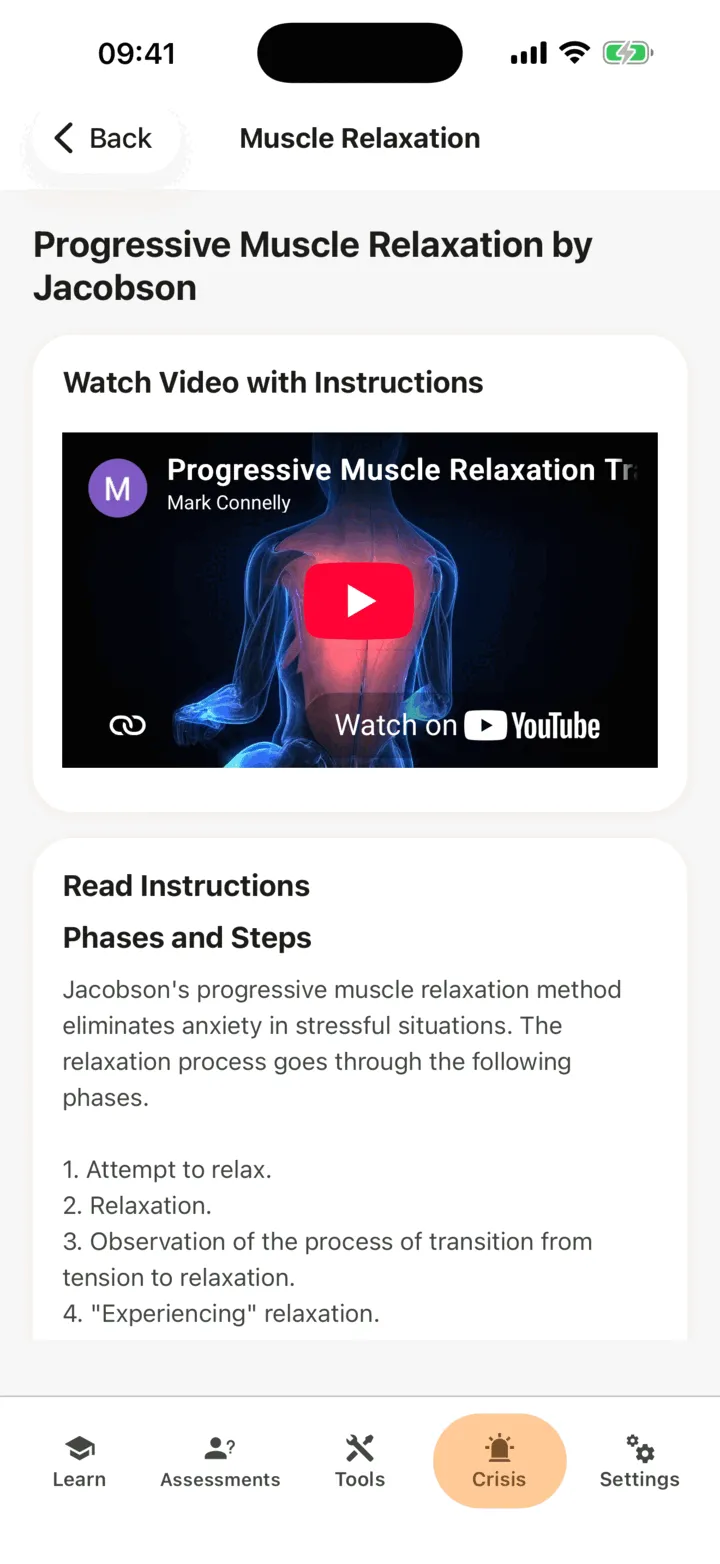
- Read the screen, or follow the steps it gives.
The exercises are:
- Mammalian Diving Reflex: a warning for people who should not use it, which you read first, then the steps with cold water.
- Progressive Muscle Relaxation by Jacobson: a video under Watch Video with Instructions, then written instructions for each group of muscles under Read Instructions. The video plays from YouTube inside the app.
- 5-4-3-2-1 Technique: a short grounding exercise in written steps.
The two cards below them, Worry Tree and Meditations, take you to those tools with Go to the tool and Go to Meditations. See Work through a worry with the Worry Tree and Listen to a guided meditation.
What the app records
Section titled “What the app records”When you tap a card, a help line or a link, or play the video, the app records it as part of how you use the app. Tapping Crisis lines and techniques under the fields you write in is recorded the same way. So is tapping the Find A Helpline row: the app records an outside link, with no country, the same as for the international line. Opening the Crisis tab alone records nothing. If you are connected with a therapist, the options on the Data Sharing with Therapists screen in Settings decide who sees this. With Allow viewing my data on, your therapist sees it in the CopingCard portal. With Allow practice admins to view my data on, the admins of your therapist’s practice see it too. They see it when they open your page: they are not alerted when you use the tab. See Choose what your therapist can see.
For therapists
Section titled “For therapists”The Crisis tab is part of the app for every client. You cannot assign it as homework, and CopingCard does not alert you when a client uses it. The portal records the use and shows it on the client’s page when you open it.
See how a client used the tab
Section titled “See how a client used the tab”- In the portal menu, click Clients and open the client’s page: see Find a client and open their page.
- On the Overview tab, find Crisis Section Usage. The chart Crisis Section Usage History counts the taps described above, not visits to the tab.
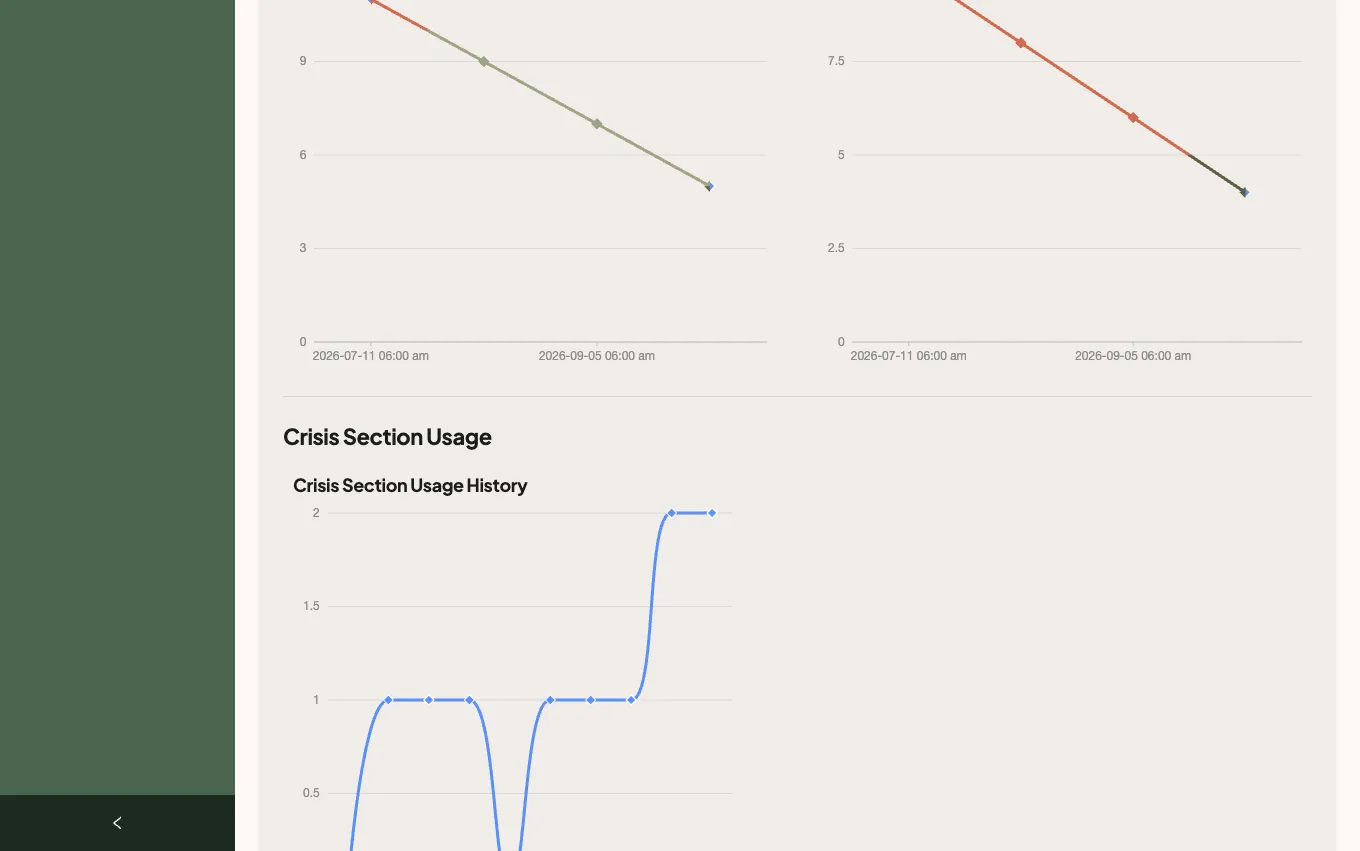
- To see single events, click Activity Calendar, then Activity Log. A row says that the client opened one of the tab’s screens, with the screen’s name, or that they phoned or used an outside link, or played the video.
You see this only if the client lets you view their data, or, as a practice admin, lets practice admins view it. If they do not, the section reads The client doesn’t share this with you. See See a client’s activity in the app for everything else on the Overview tab.