

Print a worksheet for a client
You can print a worksheet that has something to fill in, no score and no signature, for a client who prefers to fill it in on paper. Any therapist of your practice can do it. The sheet is blank: it never carries the client’s name.
Print a worksheet from the library
Section titled “Print a worksheet from the library”- In the portal menu, click Worksheets.
- In the row of the worksheet, click Print.
- On the sheet that opens, click Print or save as PDF.
- In your browser’s print window, choose a printer, or choose to save as a PDF.
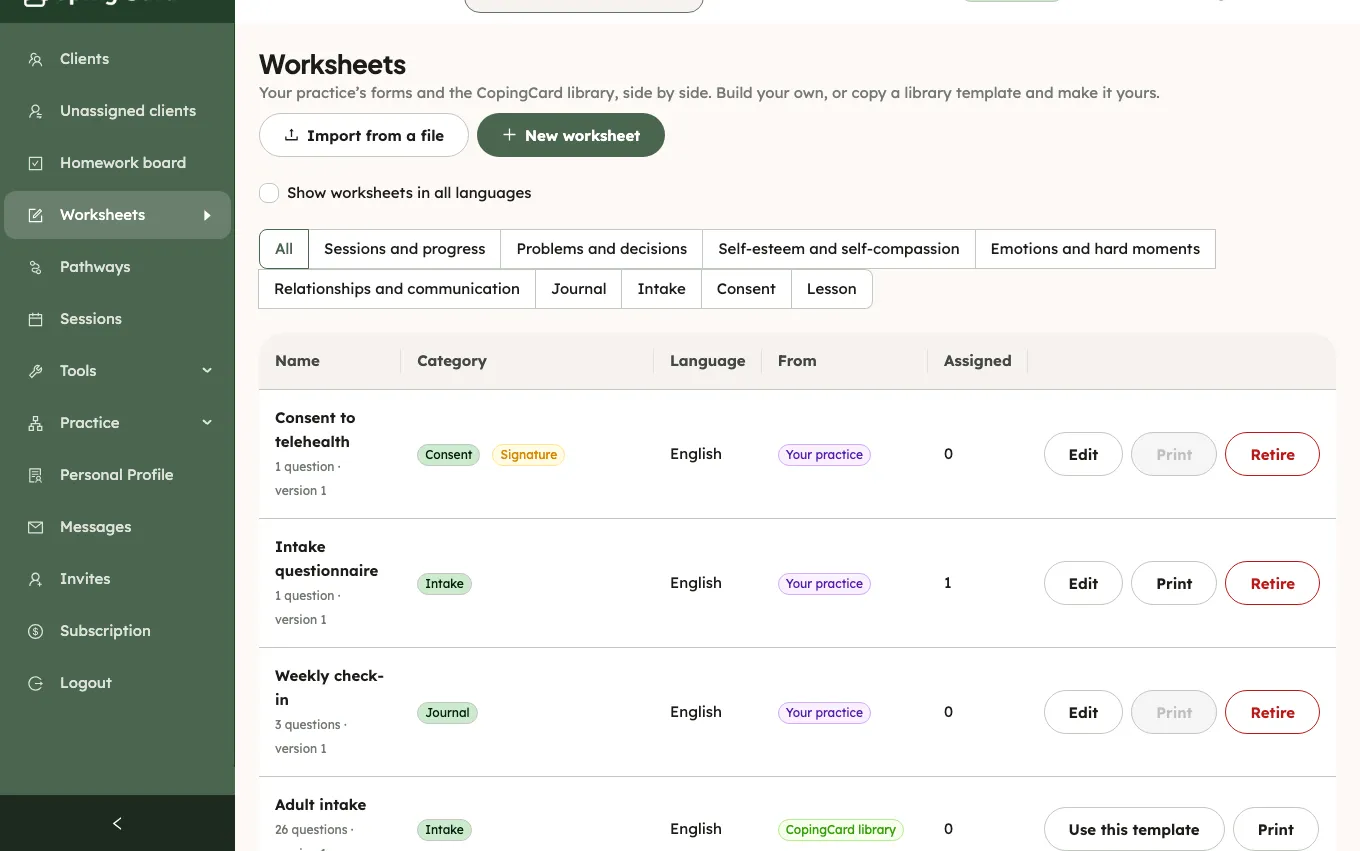
To go back, click Back. You can also click Print at the top of a worksheet’s own page. Both print the latest version of the worksheet.
Print the sheet a client was assigned
Section titled “Print the sheet a client was assigned”- On the client’s page, click the Homework tab.
- In the row of the worksheet homework, click Print.
- Click Print or save as PDF, then choose a printer or a PDF in your browser’s print window.
This prints the version that was assigned to the client. Print is in the row only for a worksheet the client may do on paper and that has not been withdrawn.
What the sheet shows
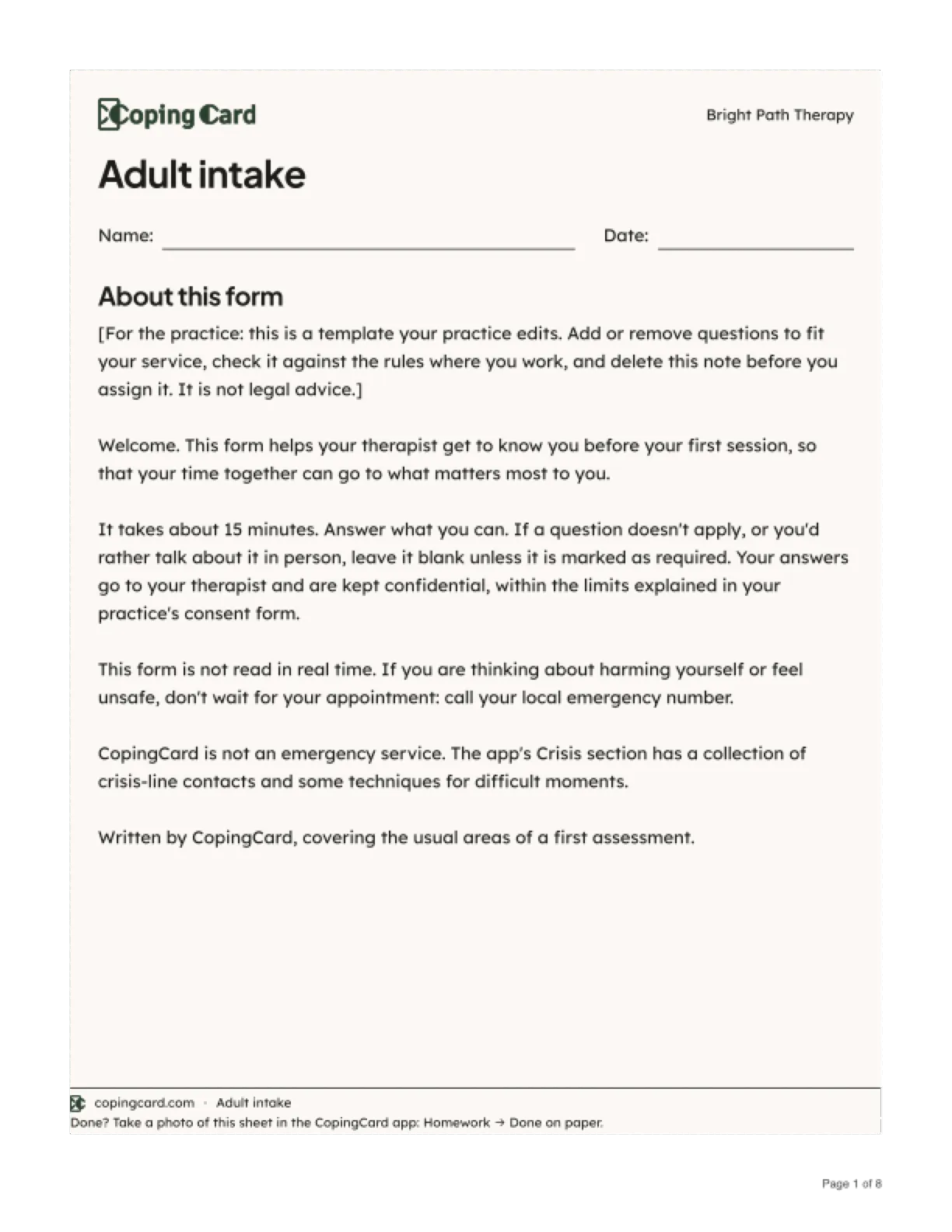
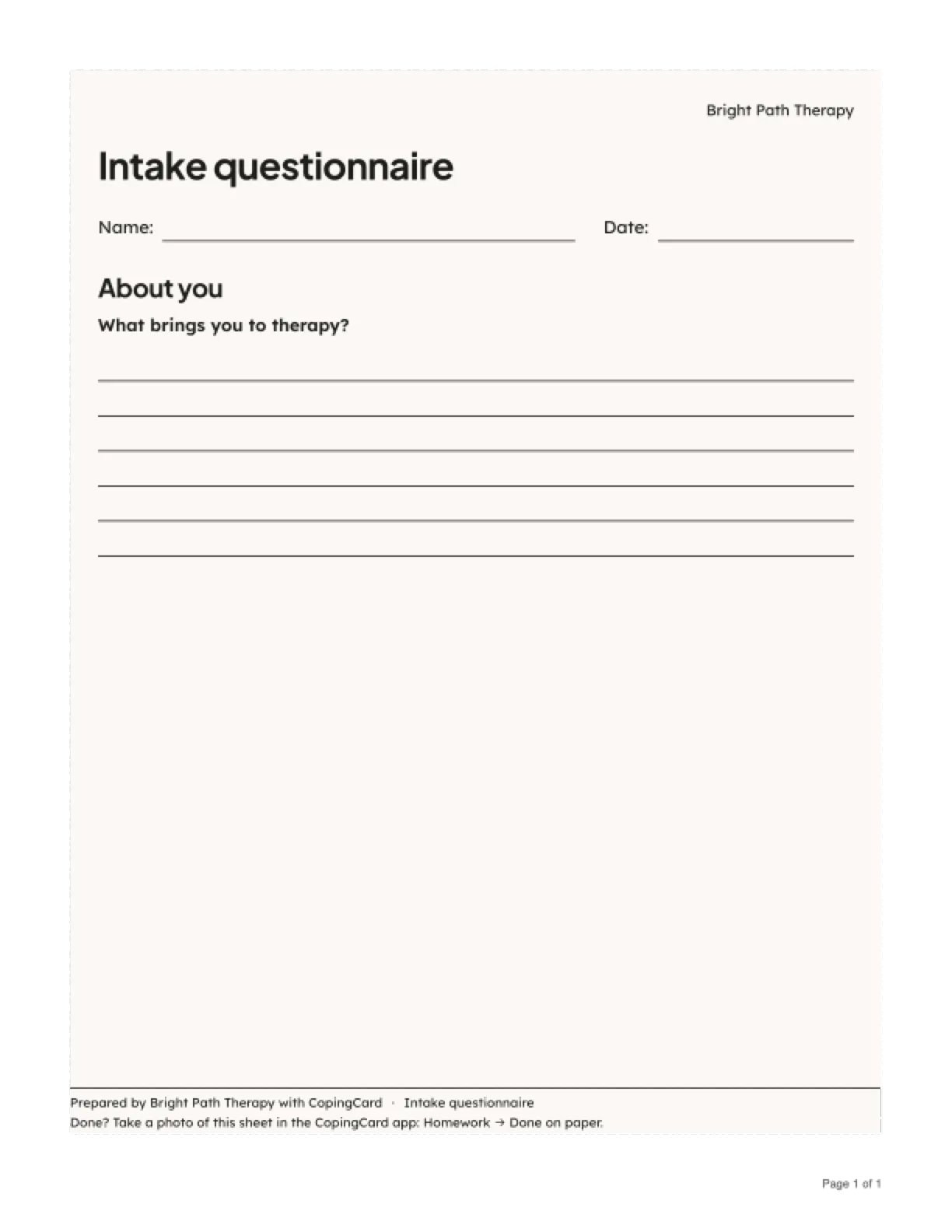
Section titled “What the sheet shows”The sheet has the worksheet’s title and each section’s text. Each question has room to answer: a line, ruled lines, the numbers of a scale to circle, or boxes to tick. A Name line and a Date line are at the top and stay empty. Your practice’s name is at the top of the first page.
At the bottom of every page, the footer has the worksheet’s name and a line that tells the client what to do next: Done? Take a photo of this sheet in the CopingCard app: Homework → Done on paper. The pages are numbered: Page 1 of 3, Page 2 of 3, and so on. This text prints in the worksheet’s language, whatever language the portal is in. The menu and the buttons do not print. CopingCard does not keep a copy of what you print.
How the sheet is branded depends on who made the worksheet:
- A worksheet from the CopingCard library has the CopingCard logo at the top of the first page, and the CopingCard mark and copingcard.com in the footer.
- Your practice’s own worksheet, an imported form and your copy of a library template have no CopingCard logo. The footer says your practice prepared the sheet with CopingCard, for example “Prepared by Bright Path Therapy with CopingCard”.
A scored worksheet, a worksheet that asks for a signature and a worksheet with nothing to fill in cannot be printed. Print is greyed out in the library, and when you point at it the portal says Only a worksheet with something to fill in, no score and no signature can be printed. The others are completed in the app. The phone has no print.
What happens next
Section titled “What happens next”The client fills in the sheet, then adds a photo of it to the homework in the CopingCard app. See Mark homework done with a photo of paper. That marks the homework done.
On the client’s Homework tab, the done row shows on paper · photo; click it to open the photo. The form’s status on the Worksheets & documents tab reads Done on paper, with a link to the photo. You see it the next time you open the client’s page: CopingCard does not tell you.