

Test a thought with the Dysfunctional Thoughts Test
The Dysfunctional Thoughts Test takes you through one upsetting thought, from what happened to a more balanced way of seeing it, and saves the result as a coping card. You can use it on your own or together with your therapist.
For clients
Section titled “For clients”You need the latest version of the CopingCard app, signed in. An automatic thought is the thought that pops into your head in a situation, for example “They are pulling away from me”.
Describe the situation
Section titled “Describe the situation”- On the Tools tab, tap Dysfunctional Thoughts Test. If you see Continue where you stopped, tap Start a new thought test at the end of the list.
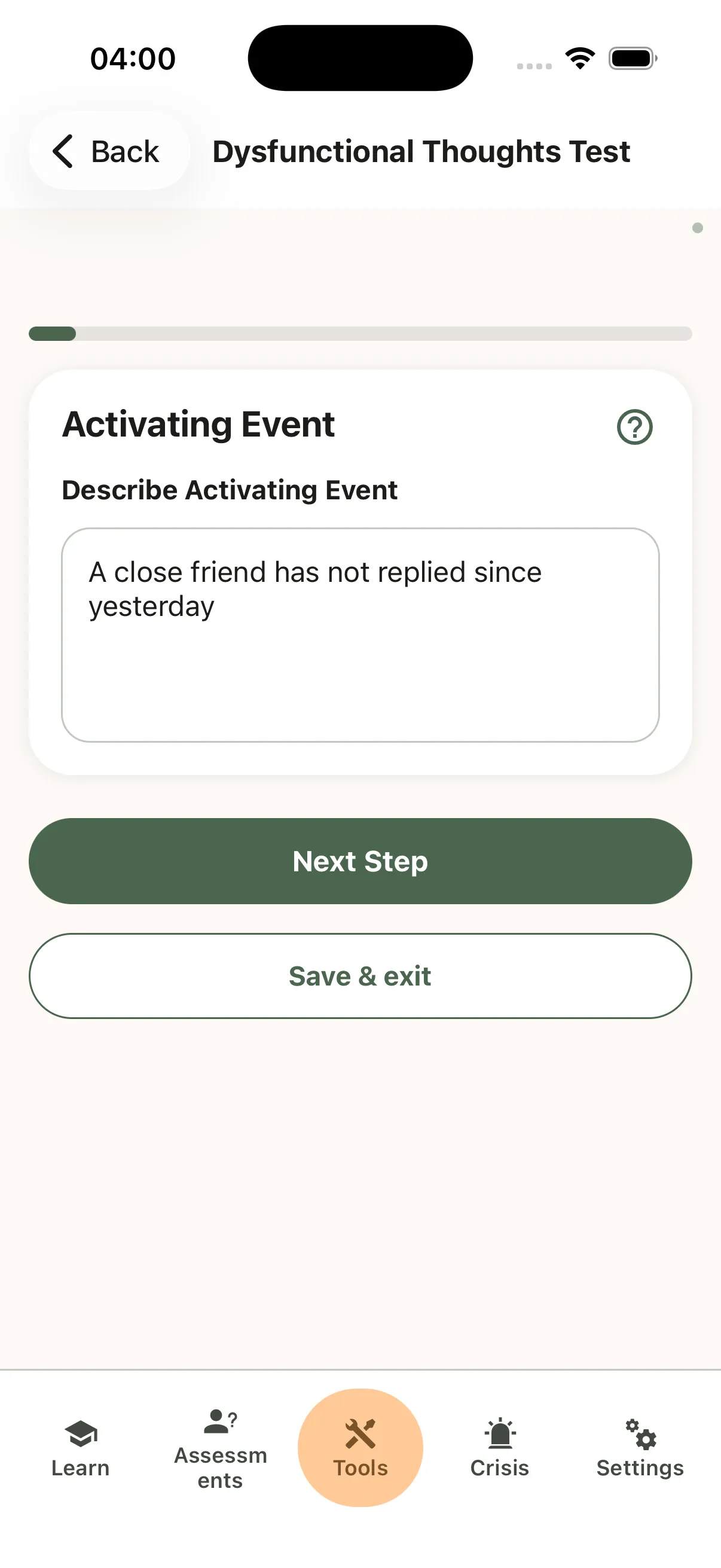
- On Activating Event, describe what happened in a sentence or two, then tap Next Step.
- On Describe Your Emotions, tap Choose Emotions, pick each emotion you felt and tap Confirm.
- Under Rate Emotions Strength, move each slider to show how strong the emotion was, then tap Next Step.
- On Describe Your Sensations, tap Choose Sensations, pick what you felt and tap Confirm, or tick where you felt it in Sensations in the Body.
- Tap Next Step.
- On Behavior, write what you did, if anything, and tap Next Step. You can leave it empty.
- On List Your Automatic Thoughts, write the thought and set Belief to how much you believe it.
- To add another thought about the same situation, tap Add thought. Then tap Next Step.
The list of open tests is explained under “Stop and continue later”.
Test the thought
Section titled “Test the thought”The next steps test one thought. If you listed more than one, you test the first one now, and the others wait in your list of open tests, described under “Stop and continue later”.
- On List Facts and Evidence supporting the Negative Thought, write one fact that seems to back up the thought.
- Under Alternative explanation, write what else could explain that fact.
- To add another fact, tap Add evidence. When you are done, tap Next Step.
- On List Facts and Evidence against the Negative Thought, write the facts that do not fit the thought, then tap Next Step.
- On Cognitive Distortions, tap Select Cognitive Distortions, pick any thinking traps you notice and tap Confirm. You can skip this.
- Tap Next Step.
- On List Realistic and Helpful Ideas, write a more balanced way to see the situation and set Belief to how much you believe it, then tap Next Step.
- On Assess Result, move the two sliders to show how much you now believe your original thought and how strong the main emotion is now.
- Tap Next Step. This finishes the test, and your coping card is ready.
A cognitive distortion is a common thinking trap, such as guessing what someone else thinks.
Keep your coping card
Section titled “Keep your coping card”- On Thought reminders, check the reminders for your card. The app sets up to three daily reminders for you.
- To change a time, tap Edit. To add a reminder, tap Add a reminder.
- Tap Next Step.
- On Geolocation Notifications, to be reminded when you arrive at or leave a place, tap Add location or Select from saved locations and choose the place. You can skip this.
- For each place you added, use the Notify when approaching and Notify when leaving switches to choose when you are reminded.
- Tap Next Step.
- On That thought is tested, tap Test another thought about this situation, or tap Done to finish.
- On Congratulations!, tap Go To Coping Cards to see your new card.
Test another thought about this situation opens Your Automatic Thought for a new thought about the same situation, and you test it the same way. To test a thought you listed earlier, open it from Continue where you stopped.
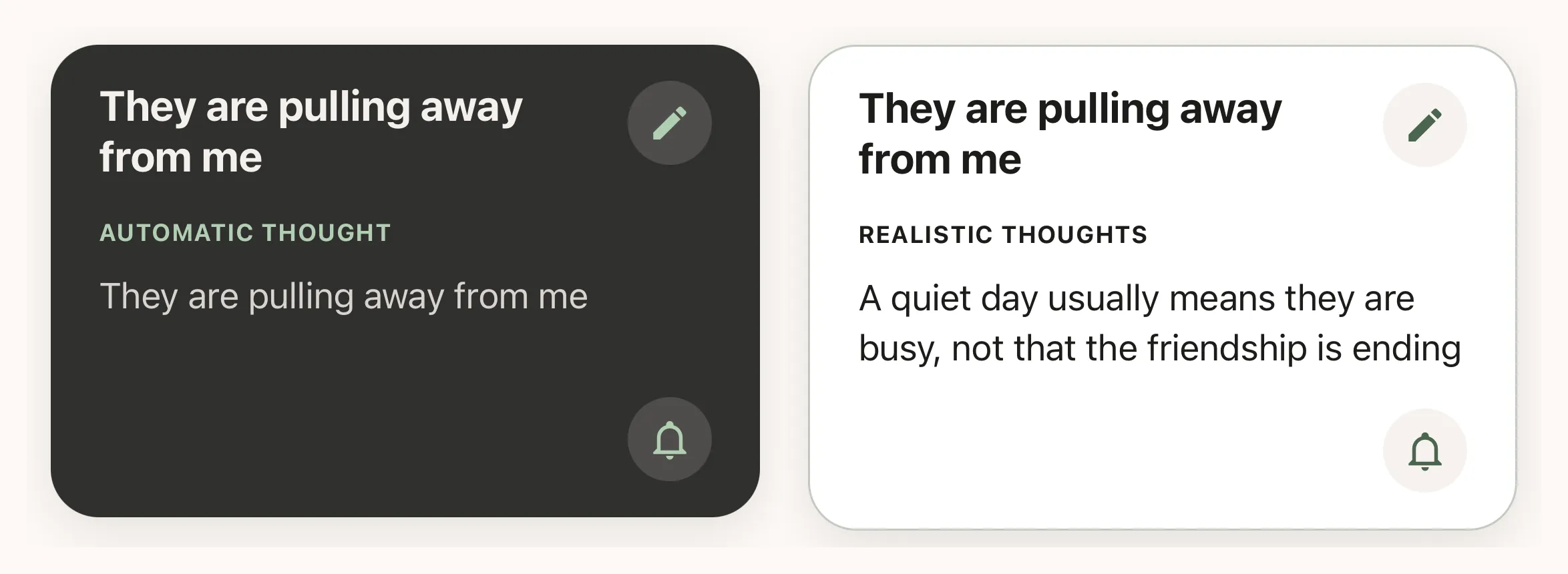
Your card stays in Coping Cards, and the reminders bring it back to you during the day. On the free plan, the number of reminders you can switch on is limited. The app sets up only as many daily reminders as your limit allows, and a place you add past your limit starts with both switches off. When you reach the limit, the app offers Premium.
Stop and continue later
Section titled “Stop and continue later”You do not have to finish in one go.
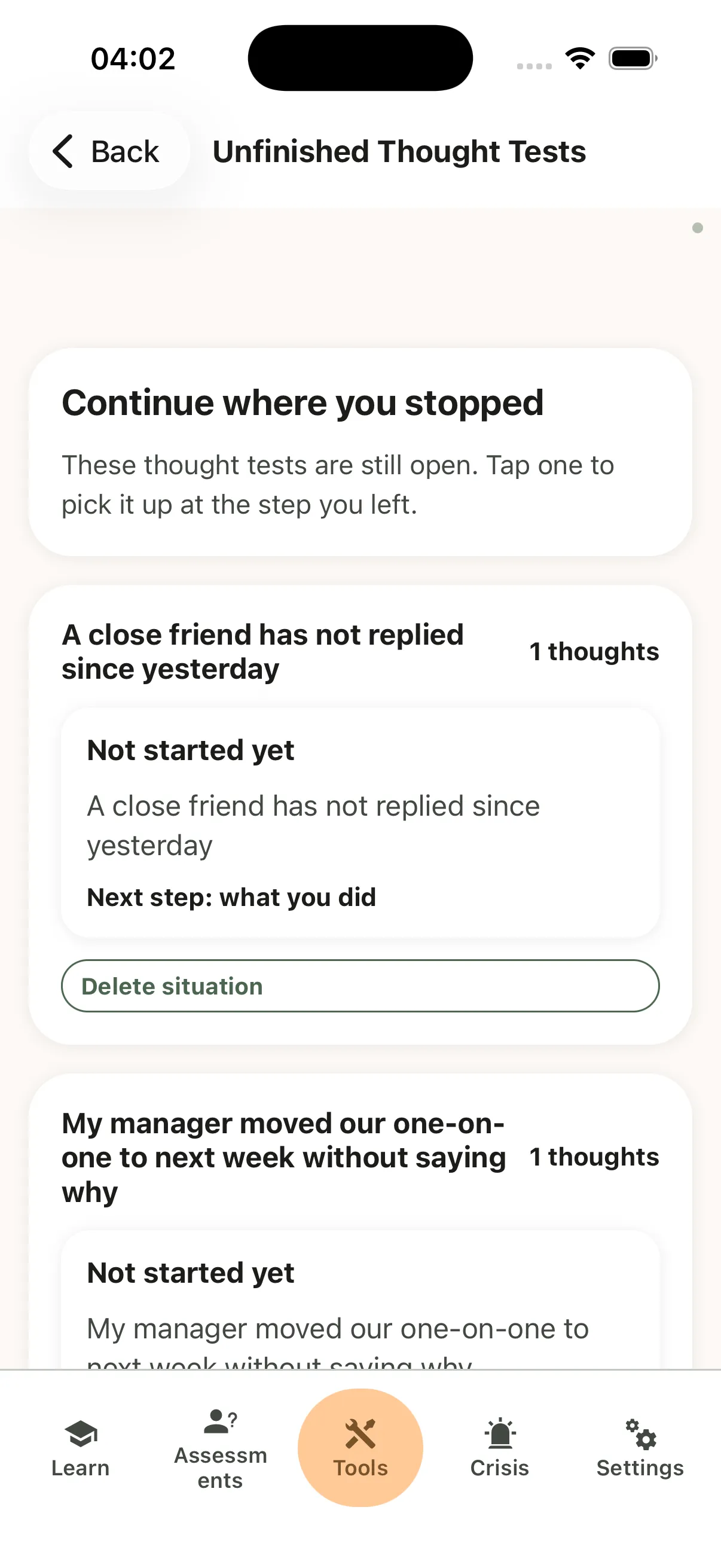
- Tap Save & exit on any step up to Assess Result. The steps you have finished are kept, the test stays open, and you see Continue where you stopped, with your open tests grouped by situation.
- Next time, on the Tools tab, tap Dysfunctional Thoughts Test. The same list opens first.
- Tap a test to pick it up at the next step you have not answered.
- To start a new test instead, tap Start a new thought test at the end of the list.
- To remove a situation marked Not started yet (you described it but did not write a thought), tap Delete situation under it, then tap Delete.
A situation that already has a thought cannot be deleted from this list.
Leaving the test another way, for example by tapping a tab, also keeps the steps you have finished. On Activating Event, tap Next Step or Save & exit first, or your description is not kept. Only tapping Next Step on Assess Result finishes a test.
Who can see your tests
Section titled “Who can see your tests”If you connect with a therapist, the switches on the Data Sharing with Therapists screen in Settings decide who sees your tests, and you can change them at any time. With Allow viewing my data on, your therapist sees your thought tests and coping cards in the CopingCard portal, including tests you have not finished. With Allow practice admins to view my data on, the admins of your therapist’s practice see the same. With Allow editing my data on, your therapist can also continue and change your tests, and Allow practice admins to edit my data gives practice admins the same. To fill in a new test for you, or to change one you have finished, they also need you to have Premium.
For therapists
Section titled “For therapists”In the portal, you can review a client’s thought tests, see the ones they started and did not finish, and continue or fill in a test with them, for example during a session. You see a client’s tests only if they allow you to view their data (or, as a practice admin, allow practice admins to view it). To continue a test, the client must also allow you to edit their data (or allow practice admins to edit it). To fill in a new test for them, or change a finished one, they also need a Premium account.
Review a client’s thought tests
Section titled “Review a client’s thought tests”- In the portal menu, open Tools and click Thought Tests.
- In Filter by Client at the top of the page, choose the client.
- Click the plus sign at the start of a row to see that test’s Emotions, Feelings (the sensations the client chose), Behavior and Feelings in the Body.
The table lists every test that has an automatic thought, finished or not: the situation, the automatic thought, the evidence for and against, the cognitive distortions and the realistic thoughts. A test the client has not finished is also listed under Unfinished thought tests, and the columns for the steps it has not reached yet stay empty.
Continue an unfinished test with your client
Section titled “Continue an unfinished test with your client”Unfinished tests show only for clients on the latest app.
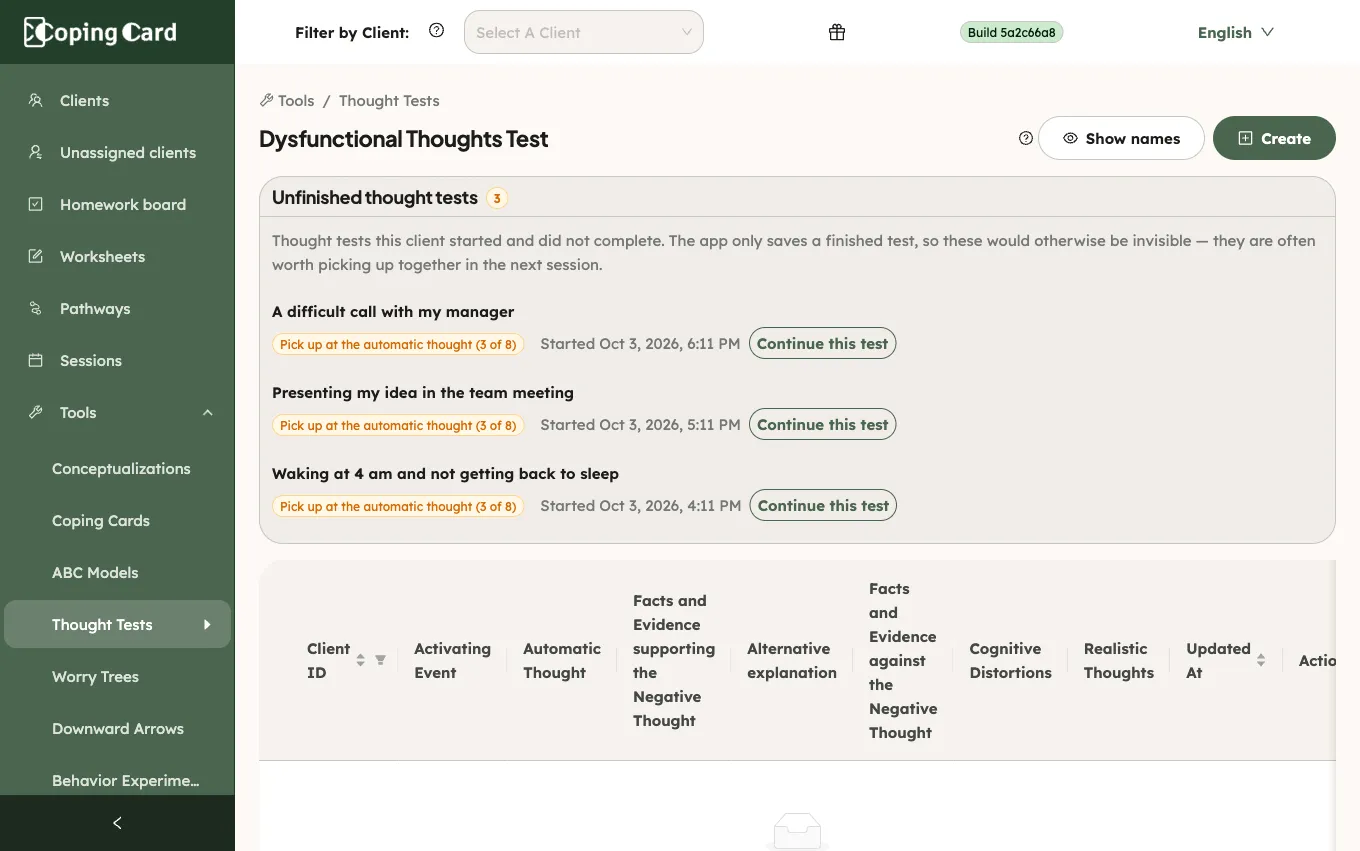
- On the Dysfunctional Thoughts Test page (Tools → Thought Tests), choose the client in Filter by Client. The Unfinished thought tests section lists the tests they started and did not finish, and the step to pick each one up at.
- Click Continue this test next to the test. The form opens with the client’s answers filled in.
- Open each numbered section to check the answers, and fill in the empty ones.
- In Assess Result, move the sliders to the client’s ratings. If you leave both as they are, the test stays unfinished and remains under Unfinished thought tests.
- Click Save.
Only the sections you changed are saved. The test counts as finished once you set the Assess Result sliders, and the client sees your changes in the app.
Fill in a thought test for a client
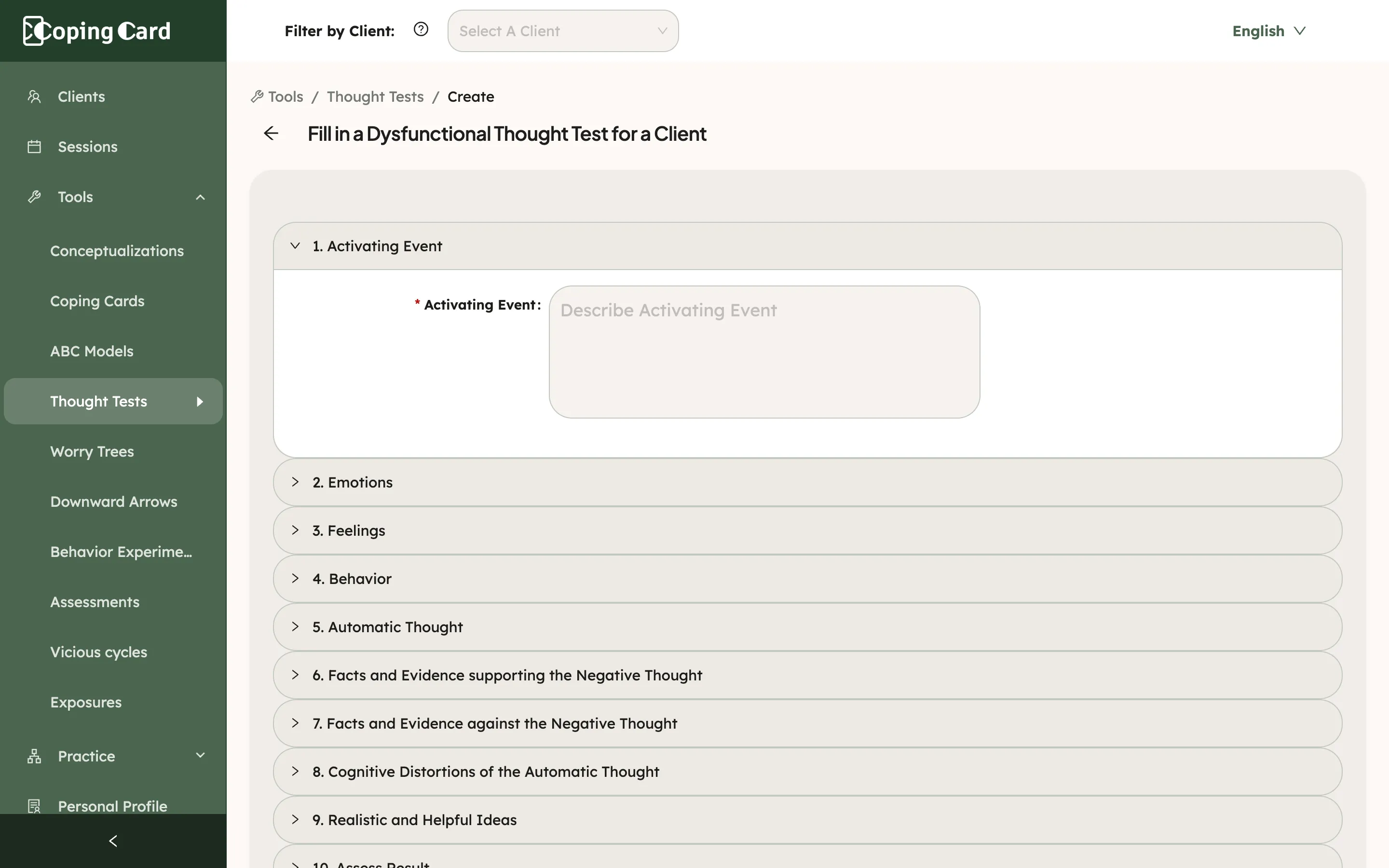
Section titled “Fill in a thought test for a client”- On the Dysfunctional Thoughts Test page (Tools → Thought Tests), click Create.
- Under Select a Client, choose the client. The list shows only clients with a Premium account who allow you to edit their data.
- Open each numbered section, from Activating Event to Assess Result, and fill it in.
- In Assess Result, move the sliders to the client’s ratings.
- Click Save.
The sliders start at 50. If you save without moving them, a client on the latest app gets the test as unfinished, listed under Unfinished thought tests. For a client who has not updated the app yet, the test is saved as finished, with both ratings at 50.
After you save, the portal confirms that the coping card was created and shows a preview. The card appears in the client’s Coping Cards in the app. Reminders for the card are in the last numbered section. If it asks you to save the card first, set them right after you save.
Assign it as homework
Section titled “Assign it as homework”Assign homework with kind Tool and Test a thought under What. It is marked done by itself when the client finishes a thought test in the app, or you finish one for them in the portal.
Learn more
Section titled “Learn more”- Dysfunctional Thought Testing: the technique step by step: why the technique works and how to get the most from it.
- Tools A–Z
- Help for clients
- Help for therapists and practices