

See who is behind on the Homework board
The Homework board shows the homework of all your clients on one page, one row per client, with the clients who have overdue homework first. Every therapist can open it. A therapist sees their own clients; a practice admin sees their own clients and the clients who allow practice admins to view their data.
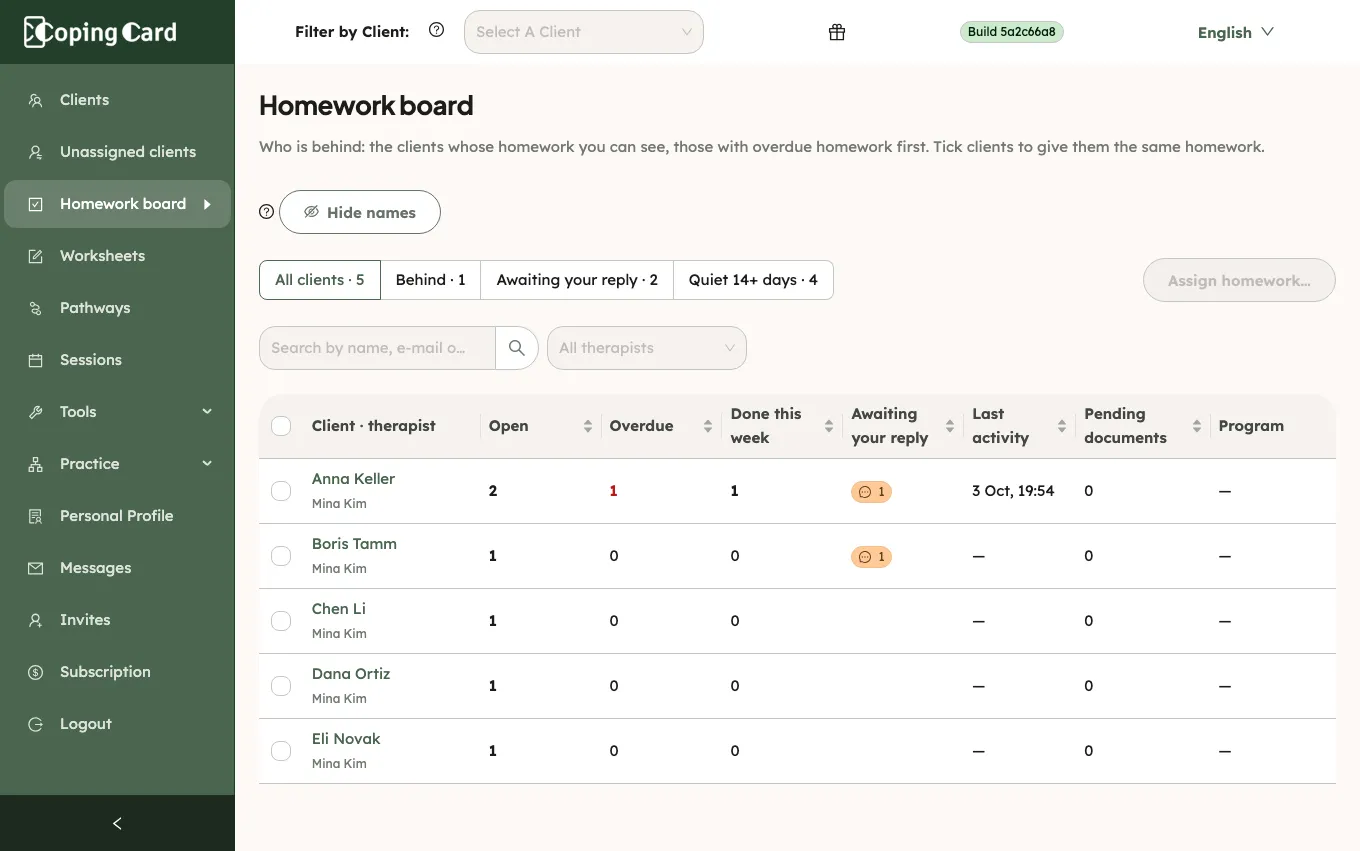
Open the board
Section titled “Open the board”- In the portal menu, click Homework board.
- To narrow the list, click a filter: All clients, Behind, Awaiting your reply or Quiet 14+ days.
- To open a client’s homework, click their row.
The client’s page opens on its Homework tab.
Find a client
Section titled “Find a client”- In Search by name, e-mail or id, type any part of the client’s name, e-mail or id. It also works while client names are hidden.
- As a practice admin, to see one therapist’s clients, open the list that shows All therapists and choose the therapist. To see everyone again, clear the choice. A therapist sees only their own clients, so they have no such list.
- To sort, click the title of a column: Open, Overdue, Done this week, Awaiting your reply, Last activity or Pending documents. Click it again to reverse the order.
Without a sort, clients with overdue homework come first. If nothing matches, the board says so; clear the search or the filters to see everyone.
Narrow the board to one client
Section titled “Narrow the board to one client”Before a telehealth or a review session, choose the client in Filter by Client in the header. The board then shows only that client’s row. Clear the choice in the header to see all your clients again. The search and the sort work on that one row too.
What the columns show
Section titled “What the columns show”| Column | Shows |
|---|---|
| Client · therapist | The client and their therapist. |
| Open | How many pieces of homework your practice assigned are still to do. Homework that repeats counts while it has a time still open. |
| Overdue | How many open pieces are past their due time. |
| Done this week | How many pieces, or times of repeating homework, were done this week. |
| Awaiting your reply | An amber badge with a speech bubble and a number: how many pieces have a comment from the client as the latest comment, with no answer yet. Point at it to see the full label. It counts the client’s own homework too while the client allows you to view their data, but never cancelled homework. It is the same number as on the client’s Homework tab. |
| Last activity | When the client last completed or skipped a piece of homework. |
| Pending documents | Intake forms and consents the client has not sent yet, and consents they sent but have not signed. |
| Program | The pathway the client is on and how far along they are. |
A client whose app is too old to show homework is marked App needs an update. You can still assign homework to them: they see it after they update the app.
Assign the same homework to several clients
Section titled “Assign the same homework to several clients”- On the Homework board, tick the clients.
- Click Assign homework….
- Fill in the homework as for one client. See Assign homework to a client.
- Click Assign.
Each client gets their own copy of the homework and is told about it. If the homework cannot be assigned to one of them, for example because they no longer share their data with you, the portal lists that client with the reason and assigns it to the others.