

Set up your practice
In about ten minutes you create your account in the CopingCard portal, either start your practice or join one, and reach your empty Clients page. You need an e-mail address, a phone number and, to join an existing practice, a practice invite code from your practice admin.
Create your account
Section titled “Create your account”- Open the CopingCard portal and click Sign up.
- Enter your e-mail address and a password. Enter the password again in Confirm Password. To use your Google account instead, click Create a Free Account using Google.
- Click Create a Free Account.
You should now see Initial Setup with three steps.
If you already have a CopingCard client account in the phone app with the same e-mail address, a window called Mobile App Account Detected opens first. Click Continue to use that account as a provider account as well, or Sign Out if you did not mean to. The next stage then starts.
Accept the terms
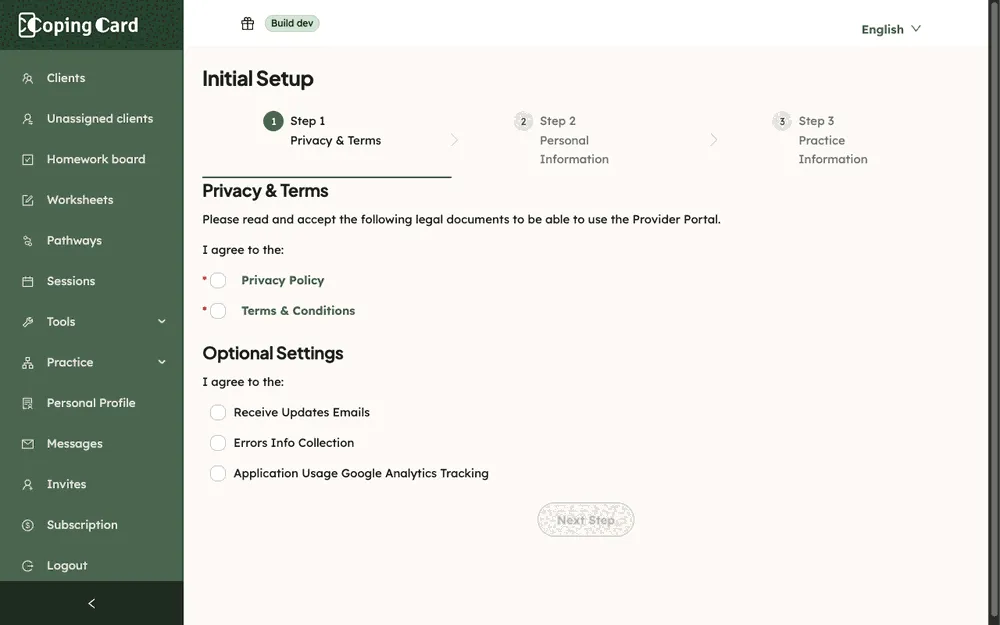
Section titled “Accept the terms”On Privacy & Terms:
- Tick Privacy Policy and Terms & Conditions. You need both to continue.
- Under Optional Settings, tick Receive Updates Emails, Errors Info Collection or Application Usage Google Analytics Tracking if you agree to them. You can leave them empty.
- Click Next Step.
Add your details
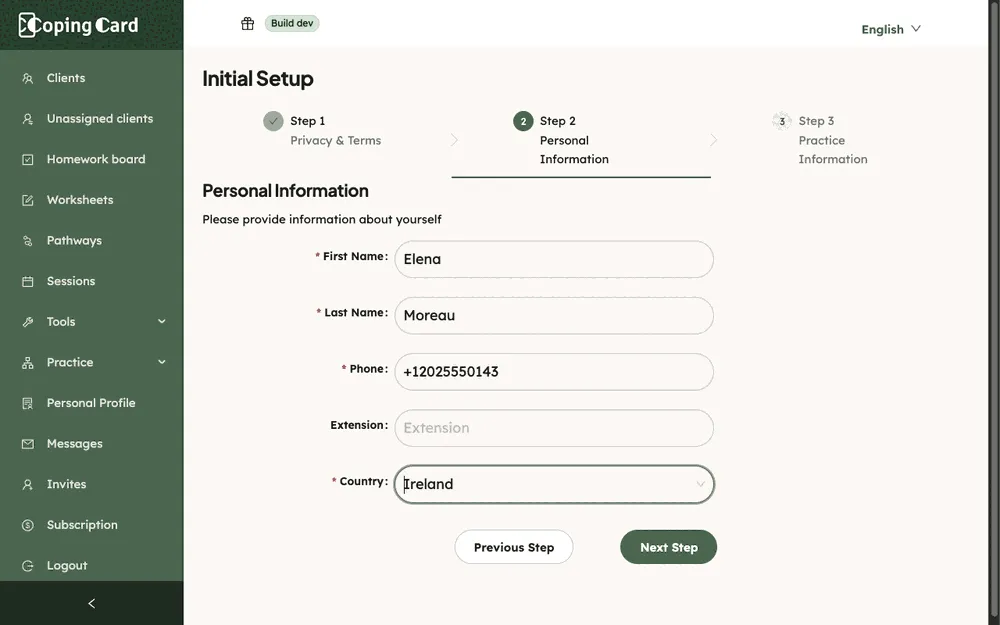
Section titled “Add your details”On Personal Information:
- Enter your First Name, Last Name and Phone. Add an Extension if you have one.
- Choose your Country.
- Click Next Step.
Create your practice or join one
Section titled “Create your practice or join one”On Practice Information, answer Does your practice already have a CopingCard Portal account?
If your practice is new, choose no, then:
- Fill in Address 1, City, State/Region, Zip/Postal Code and Country. Address 2 is optional.
- Choose the size of your practice under Mental Health Professionals in your Practice.
- Fill in Practice Name, Practice Email, Practice Phone and Practice Description. Practice Website and Extension are optional.
- Tick Read and Accept Provider Agreement. You need it to finish.
- If you like, choose the insurances your practice takes under Accepted Insurances.
- Click Finish.
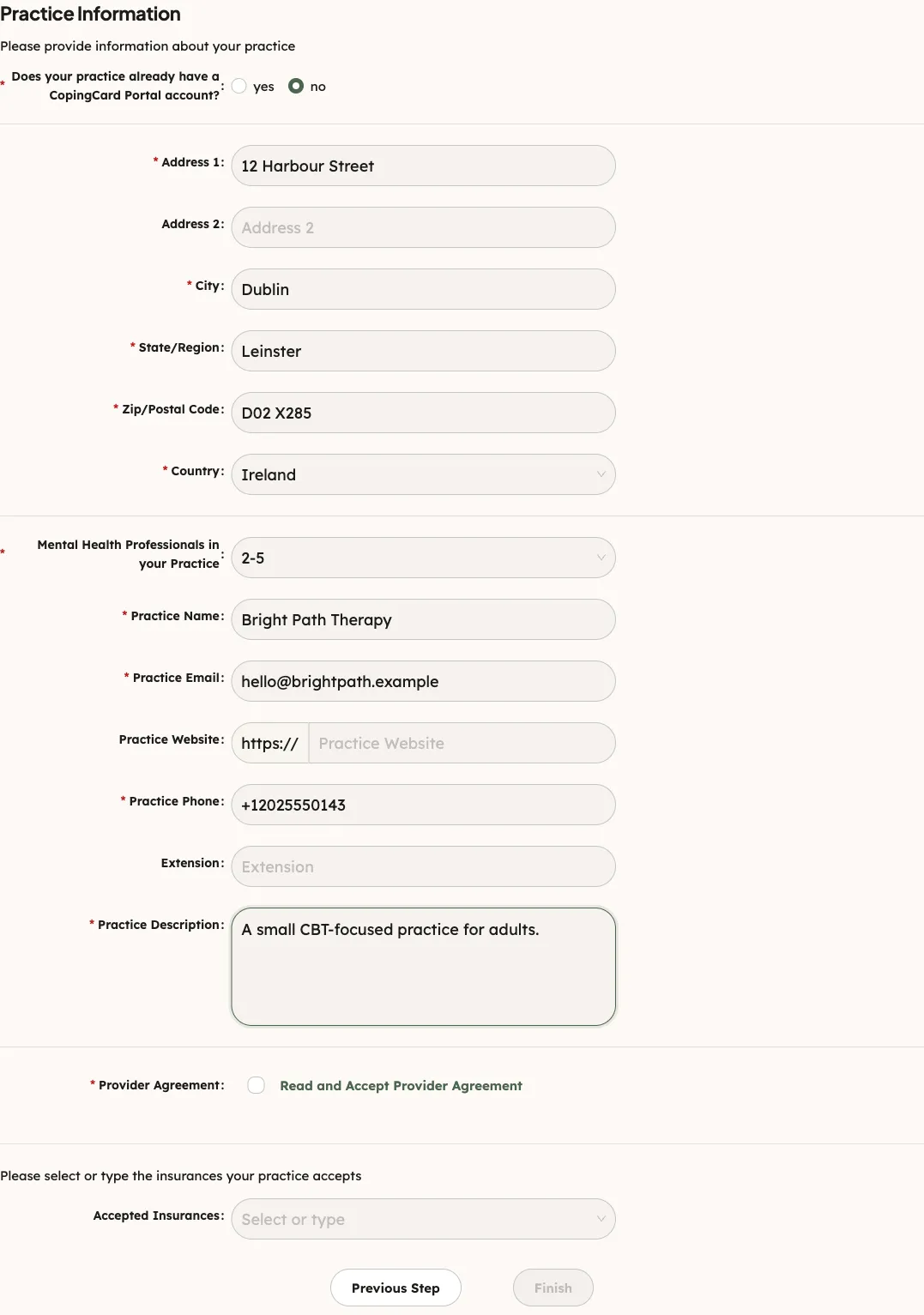
If a colleague already set up your practice, choose yes, enter the code they gave you in Practice Invite Code/Token, and click Finish. Your practice admin gets this code from Invites: see Add a therapist to your practice.
You should now see a message that your practice was added. Five seconds later the portal opens Clients. The list is empty until you add or invite a client.
What happens next
Section titled “What happens next”- When you created the practice, you are its admin. You can add colleagues, change the practice details and choose a plan.
- When you joined with a code, you have the role the invitation gave you: Practice User or Practice Admin.
- A new practice starts on the Free plan.