

Find records across all your clients
All records is one table of the records your clients made with CopingCard’s tools. It replaces the separate Tools lists the portal menu used to have. You see records of your own clients, and, as a practice admin, of the clients who allow practice admins to view their data. A client who does not allow you to view their data adds no rows.
Find a record
Section titled “Find a record”- In the portal menu, click Caseload, then click the All records tab.
- Click the first filter, All tools, and tick the tools you want. The list is grouped like a client’s page: Plan, Track, Formulation, Skills & exercises and Safety. Next to each tool is the number of records it has. Leave it empty to see all tools.
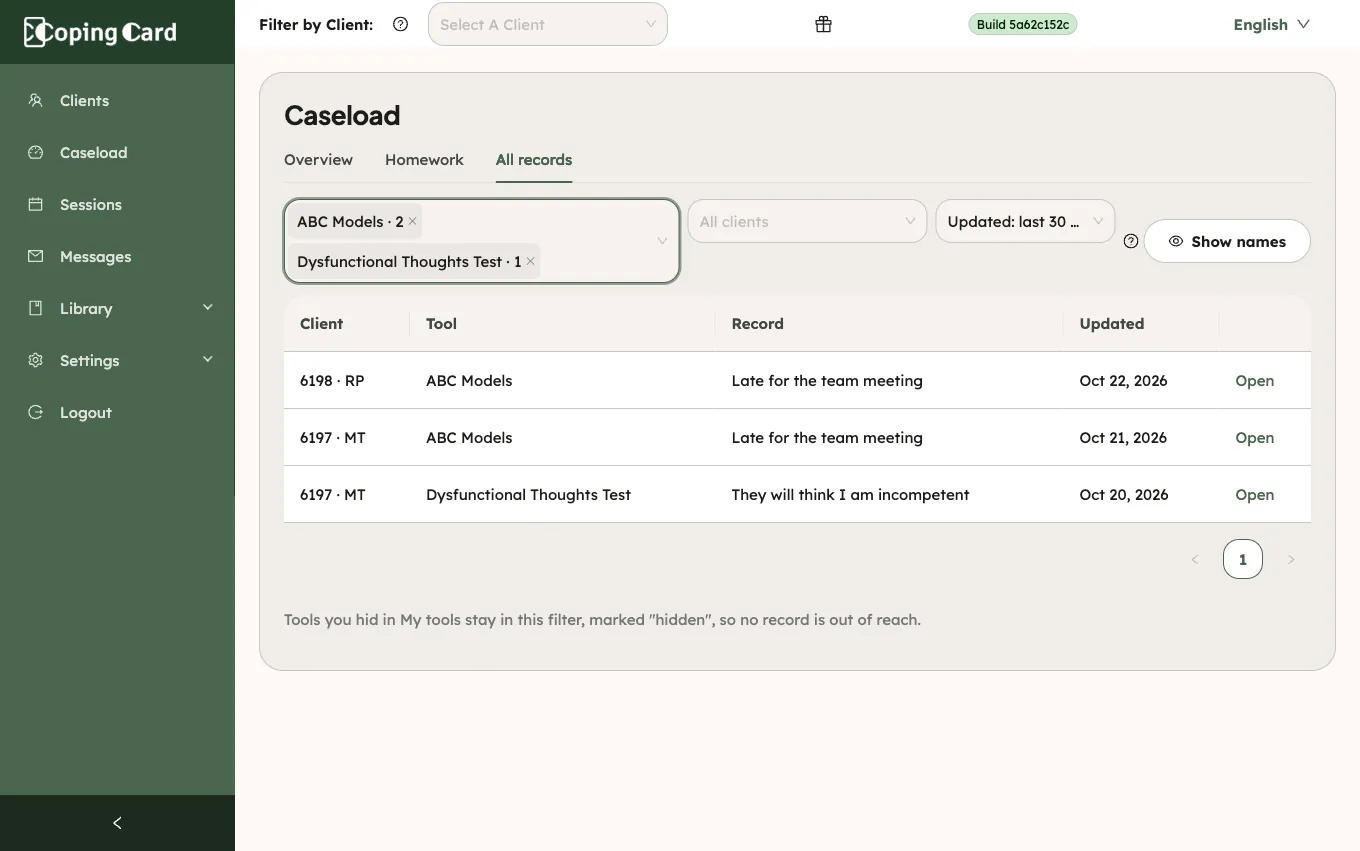
- To narrow the table, choose a client in All clients, and change Updated: last 30 days to Updated: last 7 days, Updated: last 90 days or Updated: any time.
- As a practice admin, choose a therapist in Any therapist to see one therapist’s clients.
- To open a record, click Open in its row.
The table shows the Client, the Tool, a line about the Record and when it was Updated. Client names are hidden by default. Click Show names to show them. Open takes you to the client’s page, in the section of that tool.
What happens next
Section titled “What happens next”A tool you hid in My tools stays in the filter, marked hidden, so no record is out of reach: see Hide the tools you do not use. The address of an old Tools list that you saved opens All records with that tool ticked.
CopingCard does not alert you when a client makes a record. The table shows what has been recorded when you open it.