

Share health data from your phone
CopingCard can read daily summaries of your sleep, activity and heart rate from your phone’s health app, so you do not have to type them in. Your therapist sees none of it unless you turn sharing on for them. Nothing is written back to your health app.
For clients
Section titled “For clients”You need the latest version of the CopingCard app from the store, signed in. On an iPhone it reads from Apple Health. On Android it reads from Health Connect, which needs Android 9 or later. Health Connect is built in from Android 14, and comes from Google Play before that. It has data in it only if a watch or a health app writes to it.
Connect your health data
Section titled “Connect your health data”- Tap the Settings tab, then tap Health data.
- Read what each type is: Sleep, Activity and Heart rate. The screen says that nothing is written back, and that your data is used only for your care, never for advertising and never sold. All three types are ticked. Untick the ones you do not want to share with CopingCard.
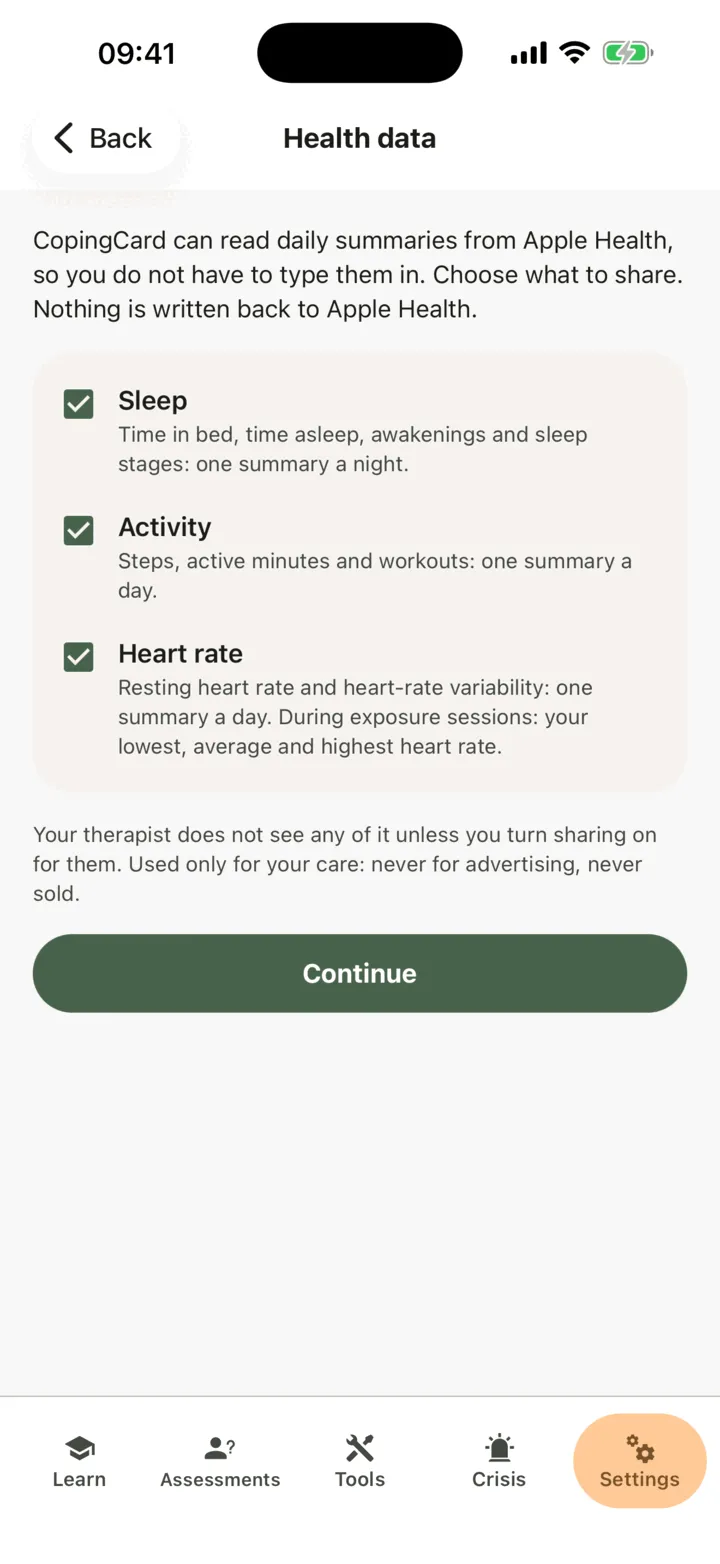
- Tap Continue.
- Allow access in the sheet your phone shows. On an iPhone it is Apple’s Health Access sheet. On Android it is Health Connect’s permission screen.
You land back in CopingCard. Each type you allowed shows when sharing started, and within seconds the last night or the last day that came in. The first read covers the last 30 days. After that the app reads when you open it. It reads nothing while it is closed.
If your phone has no health app, Health data tells you why. On Android 8 or older it says Health Connect needs Android 9 or later. If Health Connect is not installed or needs an update, tap Open Google Play.
Read your own numbers
Section titled “Read your own numbers”- On Health data, tap My sleep, My activity or My heart.
- Scroll the last 30 days.
The screens show numbers only, with no scores, labels or advice. My sleep shows time in bed, time asleep, efficiency and awakenings for each night. My activity shows steps, active minutes and workouts for each day. My heart shows your resting heart rate and heart-rate variability for each day. Variability is measured as SDNN on an iPhone and as RMSSD on Android. They are different measures, so the numbers are not comparable between phones.
Your sleep and active minutes also show beside your check-ins, and your walks and workouts can be offered in Behavioral Activation. See Check in on how you are today and Plan activities with Behavioral Activation. If you share heart rate with CopingCard, an exposure session also records your lowest, average and highest heart rate for that run. See Build and practise an exposure ladder.
Choose what your therapist sees
Section titled “Choose what your therapist sees”- On Health data, tap Therapist sharing.
- Find your therapist. Their name is listed with three switches: Sleep, Activity and Heart rate. All are off until you turn them on.
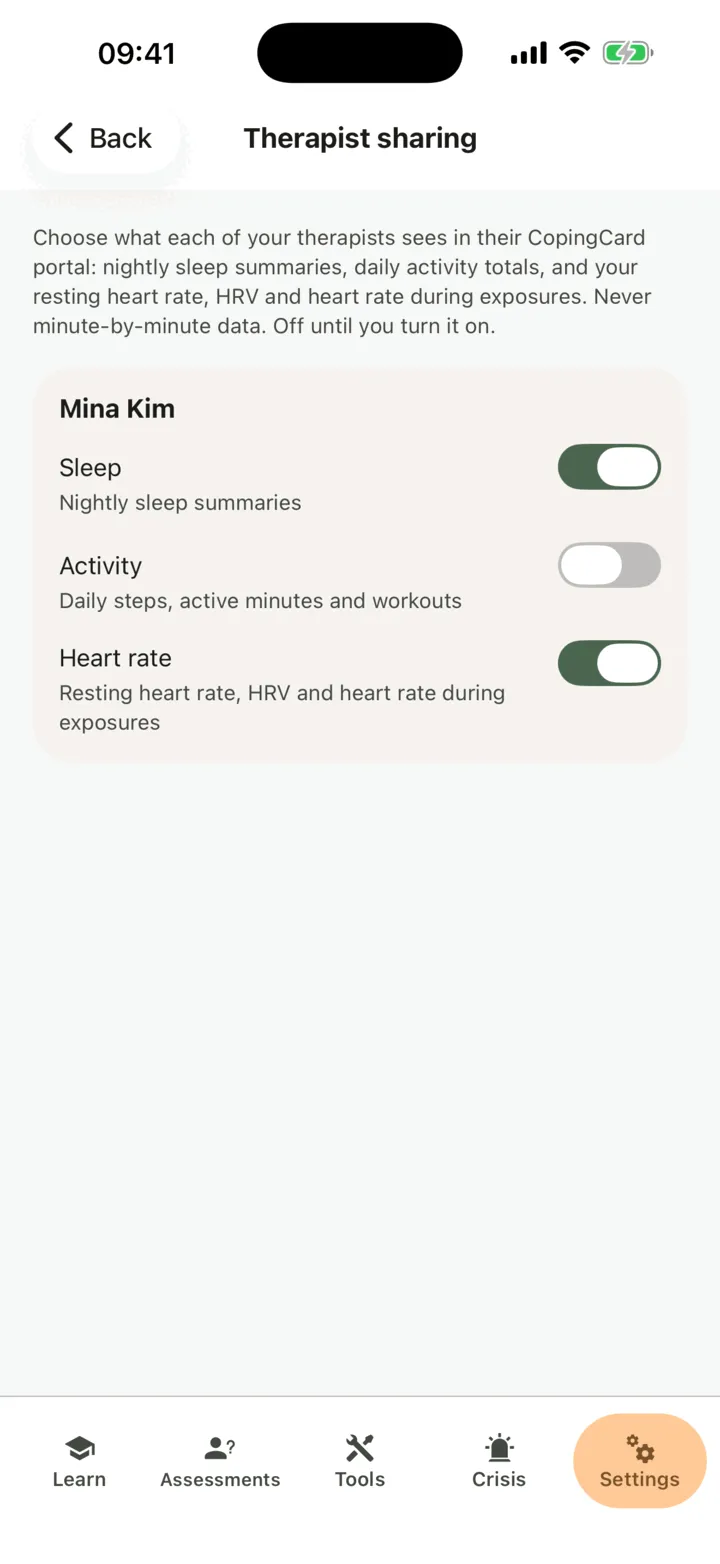
- Turn on the ones you want them to see.
If Allow viewing my data is on for them, your therapist sees nightly sleep summaries, daily activity totals, and your resting heart rate, variability and heart rate during exposures. They never see minute-by-minute data. A type you have not shared with CopingCard first cannot be turned on for a therapist. If you are not connected to a therapist, the screen says so. Each therapist has their own switches. For the rest of what a therapist can see, see Choose what your therapist can see.
Stop sharing
Section titled “Stop sharing”- On Health data, tap Stop sharing….
- Choose what to stop sharing.
- To remove what CopingCard already imported, tick Also delete what was imported. Without it, the earlier numbers stay.
- Tap Stop sharing.
The app confirms that sharing stopped. A therapist you shared that type with sees it as not shared at once. The imported numbers are deleted within about a minute. To remove CopingCard’s access completely, also turn it off in your health app: tap Open the Health app or Open Health Connect to get there.
For therapists
Section titled “For therapists”A client’s health data shows on the Sleep & activity tab of their page. You see it only if the client lets you view their data, or, as a practice admin, lets practice admins view it. If not, the tab reads The client doesn’t share this with you. It shows only the types the client turned on for you, numbers only. CopingCard does not alert you when new data arrives.
Read what the client shared
Section titled “Read what the client shared”- In the portal menu, click Clients and open the client’s page: see Find a client and open their page.
- Click the Sleep & activity tab.
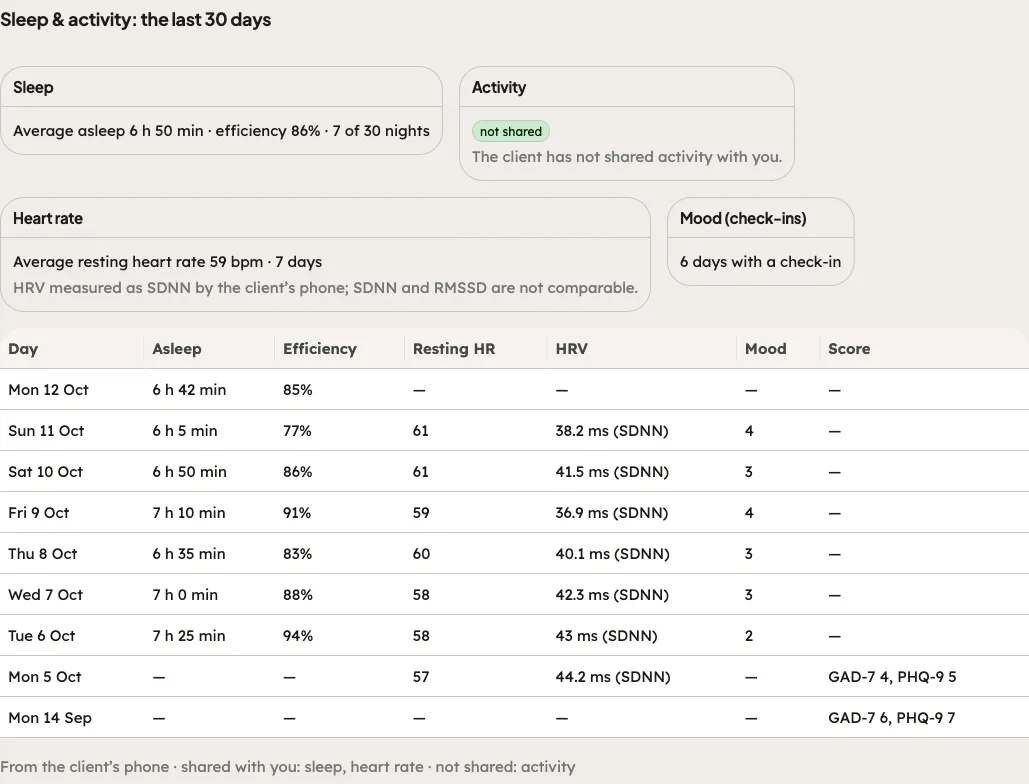
The tab shows the last 30 days. Cards show the average sleep and its efficiency, the average steps and active minutes, and the average resting heart rate. A type the client has not shared with you reads not shared. A table lists each day with Asleep, Efficiency, Steps, Active min, Resting HR, HRV, Mood and Score, only for the types shared. The footer lists what is shared with you and what is not. HRV is measured as SDNN or RMSSD by the client’s phone, and the two are not comparable.
A therapist the client lets view their data, but who has none of the types switched on, sees every type as not shared, even in the same practice. When a client stops sharing a type with deletion, that card reads not shared at once.
The same numbers appear in other places. Under the mood line on the Check-ins tab, From the client’s phone shows the night’s sleep and active minutes. In the Check-in recap of a session, they are averaged since the last session. See Check in on how you are today. On an exposure’s Exposure Sessions Graph, a run shows the range of the client’s heart rate while they share heart rate with you.
Set an activity target on a task
Section titled “Set an activity target on a task”- On the client’s Homework tab, click Assign homework.
- Under Kind, choose Task.
- Under What, turn on Set an activity target.
- Choose the Workout, the Minutes each and the Times a week.
- Fill in the rest and click Assign.
If the client shares activity with CopingCard, the task completes itself once their phone shows enough workouts. Otherwise the client marks it done. See Assign homework to a client.