

Create your account and sign in
You create your account in the CopingCard app, with your e-mail address, your Google account or, on an iPhone, your Apple account. You need a phone with the app installed and an e-mail address you can open.
Create your account
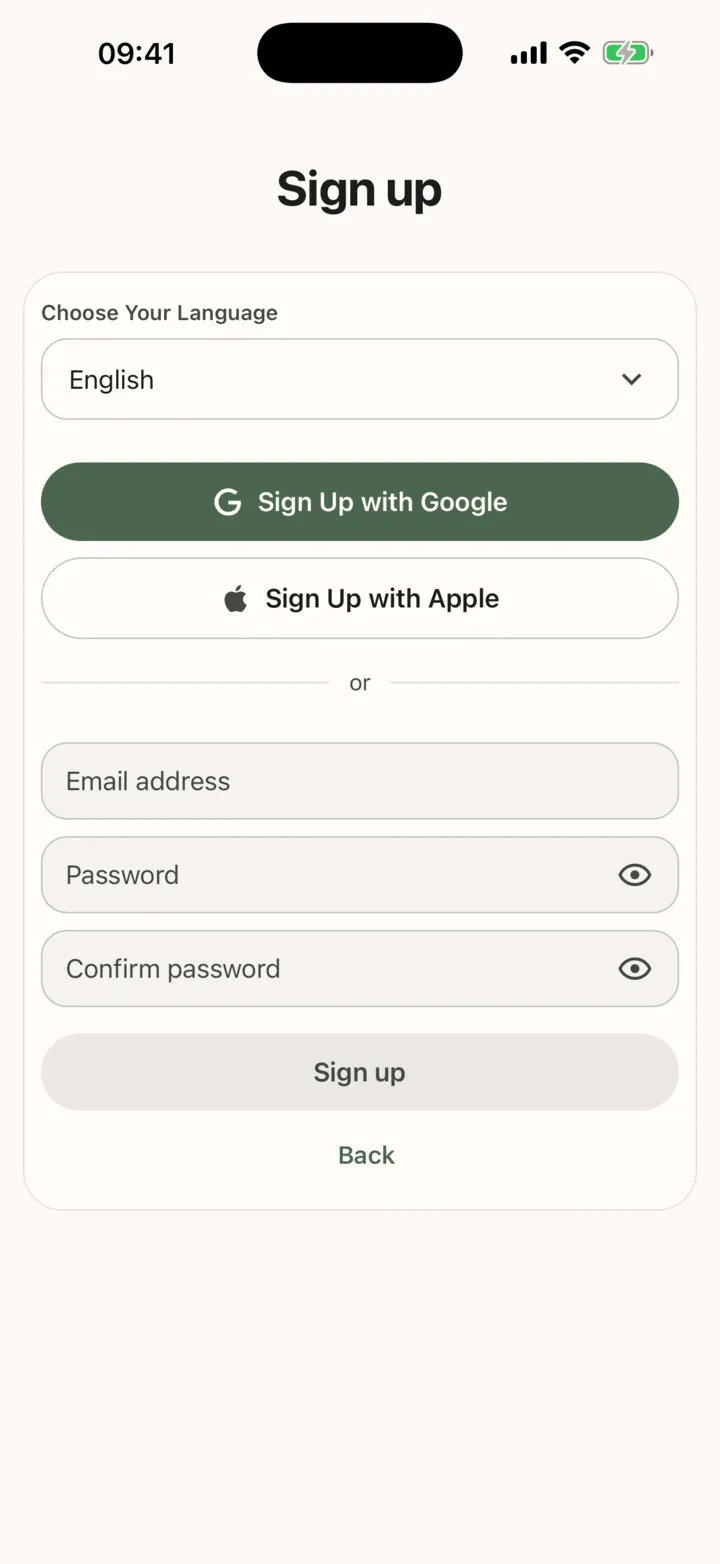
Section titled “Create your account”- Open the CopingCard app. On the sign-in screen, tap Sign up.
- To use Google, tap Sign Up with Google. On an iPhone you can tap Sign Up with Apple instead. Then go to the section Accept the Privacy Policy and Terms below.
- To use your e-mail, type it in Email address.
- Type a password in Password. It needs at least 8 characters.
- Type the same password in Confirm password, then tap Sign up.
- If you signed up with e-mail, the app shows Confirmation Email Sent and the address it sent to. Open the e-mail on your phone and tap the link in it.
The app moves on by itself when your e-mail is confirmed. If the e-mail does not arrive within a few minutes, look in your spam folder. If the link opens in a browser instead of the app, close the CopingCard app and open it again. After a minute the screen shows Still no email? and a button, Go back to Sign In, so you can start again with another address.
Accept the Privacy Policy and Terms
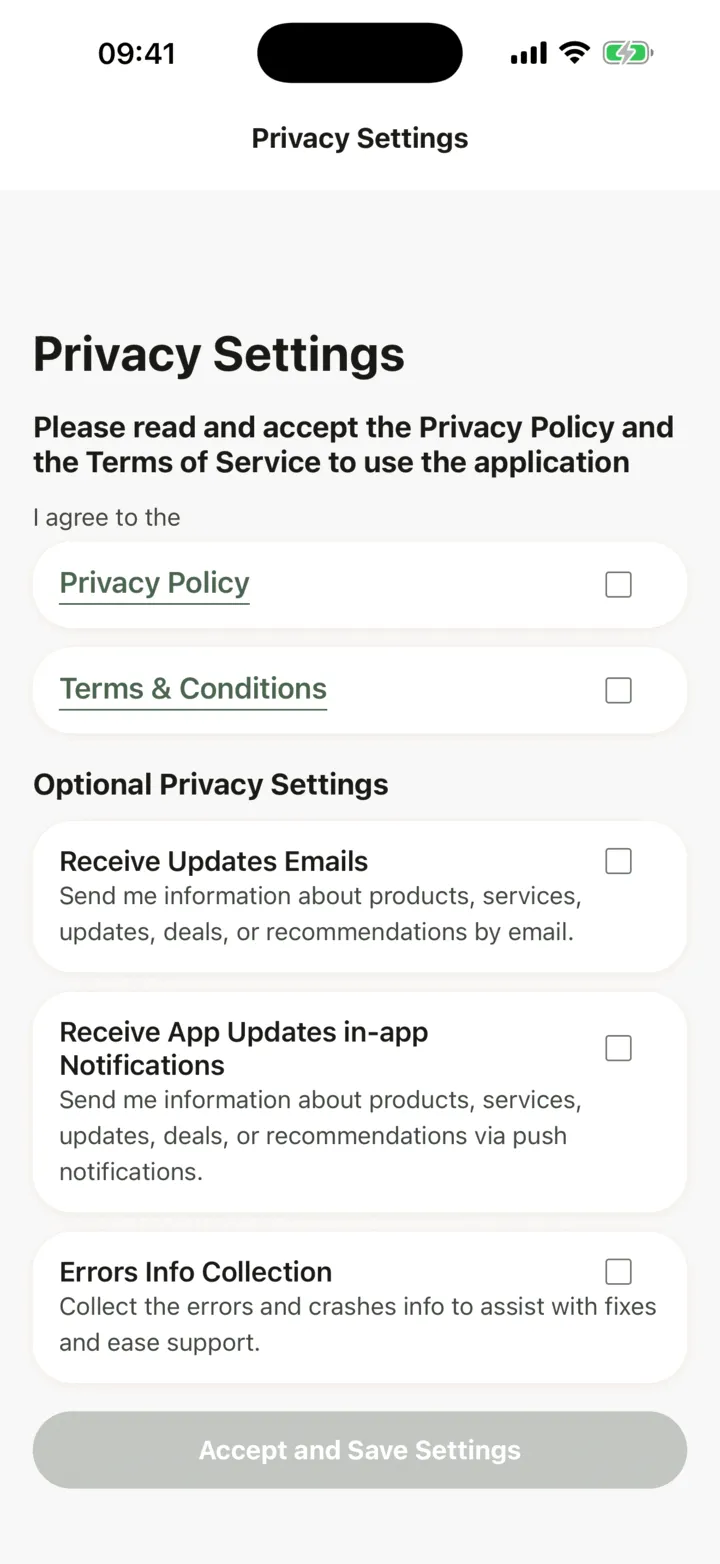
Section titled “Accept the Privacy Policy and Terms”The first time you sign in, the app shows Privacy Settings. You need to accept the Privacy Policy and the Terms before you can use the app.
- Tap Privacy Policy and read it, then go back.
- Tap Terms & Conditions and read it, then go back.
- Tick the box next to each of them.
- If you want, choose the optional switches. They are all off until you turn them on. See Choose your privacy settings.
- Tap Accept and Save Settings.
The app opens on the Tools tab. You can now use the tools on your own, or join your therapist.
Sign in again later
Section titled “Sign in again later”- Open the app. On the sign-in screen, type your Email address and Password, then tap Sign In. Or tap Sign In with Google, or Sign In with Apple on an iPhone.
To use the app in Russian or English, tap the language under Choose Your Language at the top of the screen.
If you forget your password
Section titled “If you forget your password”- On the sign-in screen, tap Forgot password?.
- On Reset your password, type the Email address you signed up with, then tap Reset.
- The app shows Reset Email Sent. Open the e-mail on your phone and tap the link.
- On Set New Password, type the password in New password and again in Confirm new password. It needs at least 8 characters.
- Tap Set Password.
The app says your password is updated and takes you back to the sign-in screen.