

Invite a client
You can invite a client to CopingCard from the portal by e-mail, and a practice admin can also share the practice’s invite link. You need free client places in your plan: Invite Client is switched off when your practice has reached its limit or its subscription has expired.
Invite a client by e-mail
Section titled “Invite a client by e-mail”- In the portal menu, click Clients, then click Invite Client. You can also click Invites, then Create.
- As a practice admin, choose Client under Who do you want to invite?.
- Enter the client’s Email, First Name and Last Name.
- Read the Message Preview. It is the e-mail your client receives, written in your name.
- Click Send Invite.
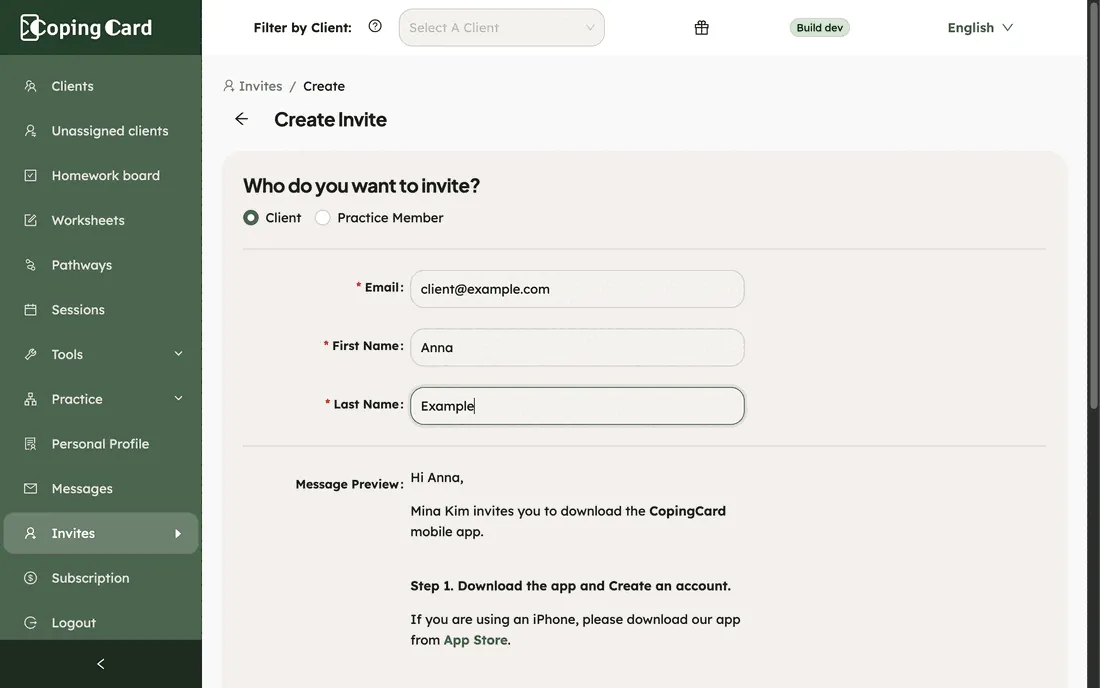
CopingCard sends the e-mail. The invitation is valid for four weeks, and it shows in Invites with its Type, Created At, Expires At, Token and Email.
Share your practice invite link
Section titled “Share your practice invite link”A practice admin can use one link for the whole practice, for example on the practice’s website.
- Click Invites.
- Under Your practice invite link, click Create the link. You only do this once.
- Click Copy Link and paste it where clients will find it.
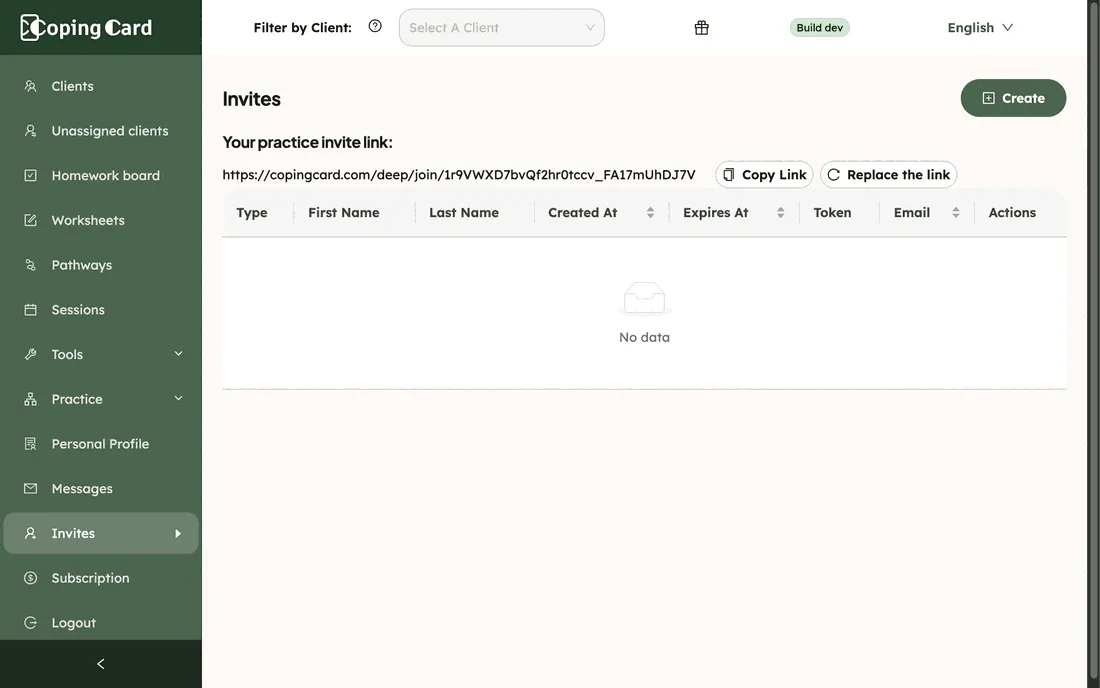
To stop a link from working, click Replace the link and confirm. Every copy of the old link stops working straight away, including the ones you printed or e-mailed. Clients who have already joined are not affected.
What the client does
Section titled “What the client does”- The client installs the CopingCard app and creates an account. The e-mail has links to the App Store and Google Play.
- The client opens the link in the e-mail, or opens Data Sharing with Therapists in the app’s settings, taps Enter a link or token, and enters the code from the e-mail.
- The client chooses what to share: Allow viewing my data, Allow editing my data, Allow practice admins to view my data and Allow practice admins to edit my data. All four start switched on, and the client can change them at any time.
- The client taps Accept Invite.
A client who joins through your practice invite link is connected to your practice and chooses what to share in the same way.
What happens next
Section titled “What happens next”- The client appears on your Clients list. The eye and pencil icons in the Access column show whether they allow you to view and to edit their data.
- What you can open follows what the client allows. You can view a client’s page when they allow you to view their data. A practice admin can also open the page of a colleague’s client from the eye icon on the Clients list when that client allows practice admins to view their data.
- If a client later switches every option off, they stay on the list and the Access column says Client revoked access. The eye icon on the Clients list is greyed out for them. You can still open their page from the Homework board.
- The client counts toward your plan. Near the plan’s limit, a counter appears at the top of Clients. See Choose a plan and manage billing.