

Import a blank form from a PDF, Word file or photos
If your practice already uses paper forms, such as a homework sheet, an intake form or a consent, you can import a blank copy and turn it into a CopingCard worksheet. You check every question before anything is saved.
Import one form
Section titled “Import one form”- In the portal menu, click Worksheets.
- Click Import from a file.
- Click Drop a file here, or click to choose one and choose the file, or drag it there. Use one PDF or Word file (.docx), or several photos of one form (JPEG, PNG, WEBP or HEIC), up to 20 MB in all.
- Tick I have the right to use this content.
- Click Import.
- Wait while the form is read. It takes about 10 seconds a page: keep the page open.
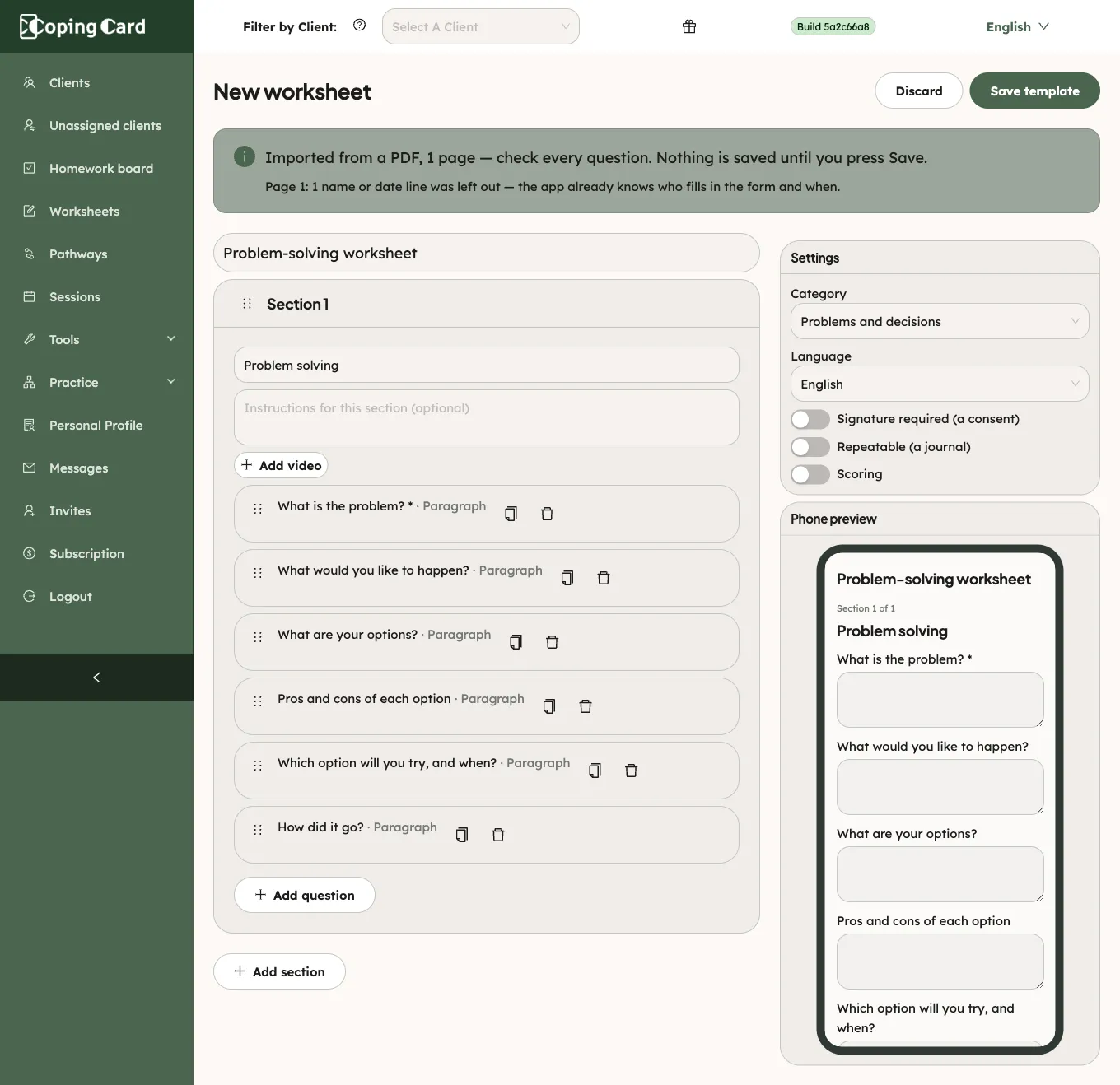
- Check every question and the notes at the top, and change anything that is not right.
- Click Save template.
Import stays greyed out until you tick the box. Your practice is responsible for the forms it imports, including their copyright. You tick the box once: saving the imported form does not ask again.
The imported form opens in the same editor as a new worksheet. See Create a worksheet. Nothing is saved until you click Save template. To drop the import, click Discard.
Several photos become the pages of one form, in the order you add them. The notes at the top say what changed from the paper, for example a name or date line that was left out because the app already knows who fills in the form and when. A YouTube or Vimeo address printed on the sheet becomes the section’s video. A consent without a question gets an I have read and agree box before the signature.
Import a whole packet
Section titled “Import a whole packet”If you import a packet with several documents, such as an intake form, consents and questionnaires in one PDF, CopingCard lists what it found:
- Documents to check: each form or consent, with its pages. Click Check and edit to open one, and Back to the documents to return.
- Standard questionnaires: questionnaires such as the PHQ-9 or GAD-7 are not rebuilt as worksheets. The ones already in CopingCard’s assessments are added to a packet as they are. Others are listed as not added.
- Left out: pages with nothing for the client to fill in, with the reason.
Then:
- Click Save all to save every ticked document as a worksheet, or click Make an intake packet.
- For a packet, check the name in Packet name and the list of what the client receives.
- Click Make the packet.
The intake packet is a pathway: when you enrol a new client in it, they receive all its forms and questionnaires at once. See Send new clients an intake packet.
If the import does not work
Section titled “If the import does not work”- If the portal says the form looks filled in, import a blank copy instead.
- If it says no form was found in the file, use a PDF, a Word file or clear photos of a blank form.
- If the upload is over 20 MB, remove some pages or use smaller photos.
- If it says the form reader is busy, wait a minute and click Import again.