

Find a client and open their page
The Clients list shows your clients. A therapist sees their own clients, and a practice admin sees every client of the practice. You can open a client’s page from the eye icon when the client allows it: for your own clients, when they allow you to view their data; for a colleague’s client, when they allow practice admins to view their data.
Open a client’s page
Section titled “Open a client’s page”- In the portal menu, click Clients.
- Find the client. Names and e-mail addresses are hidden by default, so that they are not shown by accident in a video session. Point at the number in the ID column to see the name, or click Show Clients Personal Info to show everyone’s details. They hide again after one minute, or when you click Hide Clients Personal Info.
- Click the eye icon in the client’s row.
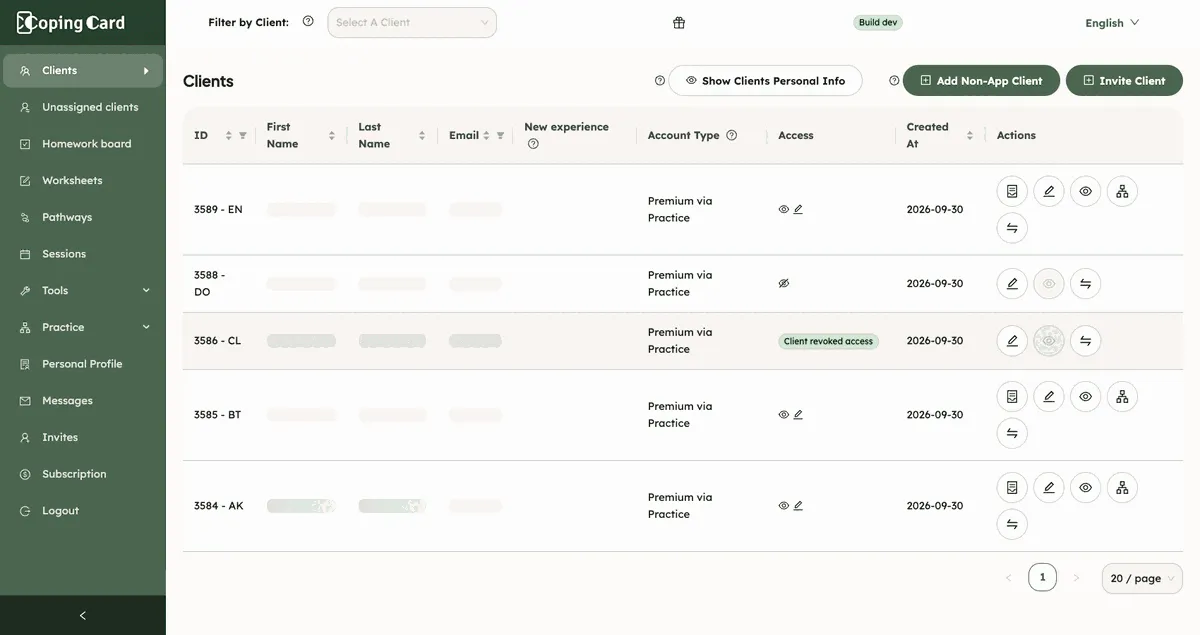
If the eye icon is greyed out, the client does not allow you to view their data from this list. If they are your own client, you can still open their page from the Homework board. Click the column titles to sort the list, and use the filter icons next to ID and Email to find one client.
Read a row
Section titled “Read a row”| Column | Shows |
|---|---|
| ID | The client’s number and their initials. Point at it for the full name. |
| Account Type | Free, Premium, Premium via Practice or Non-App Client. See Set a client’s account type. |
| Access | An eye icon if the client allows viewing and a pencil icon if they allow editing. For a colleague’s client, a practice admin sees what that client allows practice admins. A crossed eye means no access. Client revoked access means the client switched all their sharing options off. |
| New experience | A label CopingCard shows for some clients. It changes nothing you see or do. |
| Created At | The date the client’s account was created. |
The icons in Actions open, from the left: the Dysfunctional Thoughts Test for the client, the row’s edit mode, the client’s page, and the Case Formulation / Conceptualization. A practice admin also has an icon to move a client to another therapist. The test and formulation icons appear when the client allows you to edit their data (for a practice admin and a colleague’s client: allows practice admins to edit), and they work for a client with a Premium account.
What the client’s page shows
Section titled “What the client’s page shows”The client’s page has these tabs: Overview, Homework, Worksheets & documents, Check-ins, Diary card, Assessments, Safety plan, Behavioral Activation, Values and Sleep & activity. Overview starts with General Info, then Review Sessions, App Usage Info and the usage charts. See See a client’s activity in the app. The Homework tab is described in Track a client’s homework.
| Tab | What it shows | Page |
|---|---|---|
| Check-ins | The client’s mood check-ins; record one in session. | Check in on how you are today |
| Diary card | The client’s diary card and its week. | Fill in a diary card |
| Assessments | Every questionnaire result; take one in session. | Take a PHQ-9 or GAD-7 assessment |
| Safety plan | The client’s safety plan; edit it with them. | Make and use your safety plan |
| Behavioral Activation | The client’s week of activities. | Plan activities with Behavioral Activation |
| Values | The client’s values, wheel and wind rose. | Find what matters to you with Values |
| Sleep & activity | The sleep, activity and heart rate the client shares with you. | Share health data from your phone |
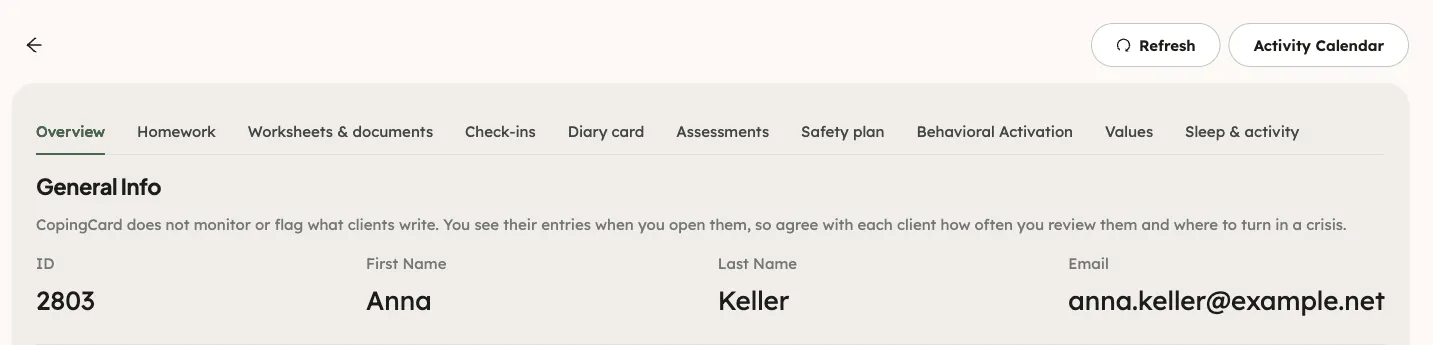
The page shows what the client has shared with you. If a client does not let you view their data, the Check-ins, Diary card and Sleep & activity tabs read The client doesn’t share this with you. CopingCard does not watch or flag what clients write. You see their entries when you open them, so agree with each client how often you review them and where they can turn if they are in danger.
Who can open a client’s page
Section titled “Who can open a client’s page”- You can open the page of a client who allows you to view their data.
- A practice admin can also open the page of a colleague’s client when that client allows practice admins to view their data.
- If a client switches all sharing off, they stay on the list and their eye icon is greyed out. Their own therapist can still open their page from the Homework board; a practice admin cannot open it for a colleague’s client.