

Find what matters to you with Values
Values are what matters to you, such as family, learning or fun. The Values tool helps you find yours, see how closely you are living by them, and plan small things to do in their name. It has a card sort, a wheel and a questionnaire, and all of them feed one profile.
For clients
Section titled “For clients”You need the latest version of the CopingCard app, signed in.
Open Values
Section titled “Open Values”- Tap the Tools tab at the bottom of the screen.
- In the list of tools, tap Values. It comes after Dysfunctional Thoughts Test.
The first time, My values invites you to start with the card sort. It has three doors: Card sort, Values wheel and Questionnaire. A fourth, Wind rose, is described in Compare ways of living with the Wind rose.
Sort the value cards
Section titled “Sort the value cards”- On My values, tap Card sort.
- Choose Quick set · 30 cards · about 4 minutes or Full set · 83 cards · about 10 minutes.
- Tap Start sorting.
- For each card, decide how important that value is to you. Swipe right for Very important, up for Important and left for Not important. A button for each answer is on the screen too.
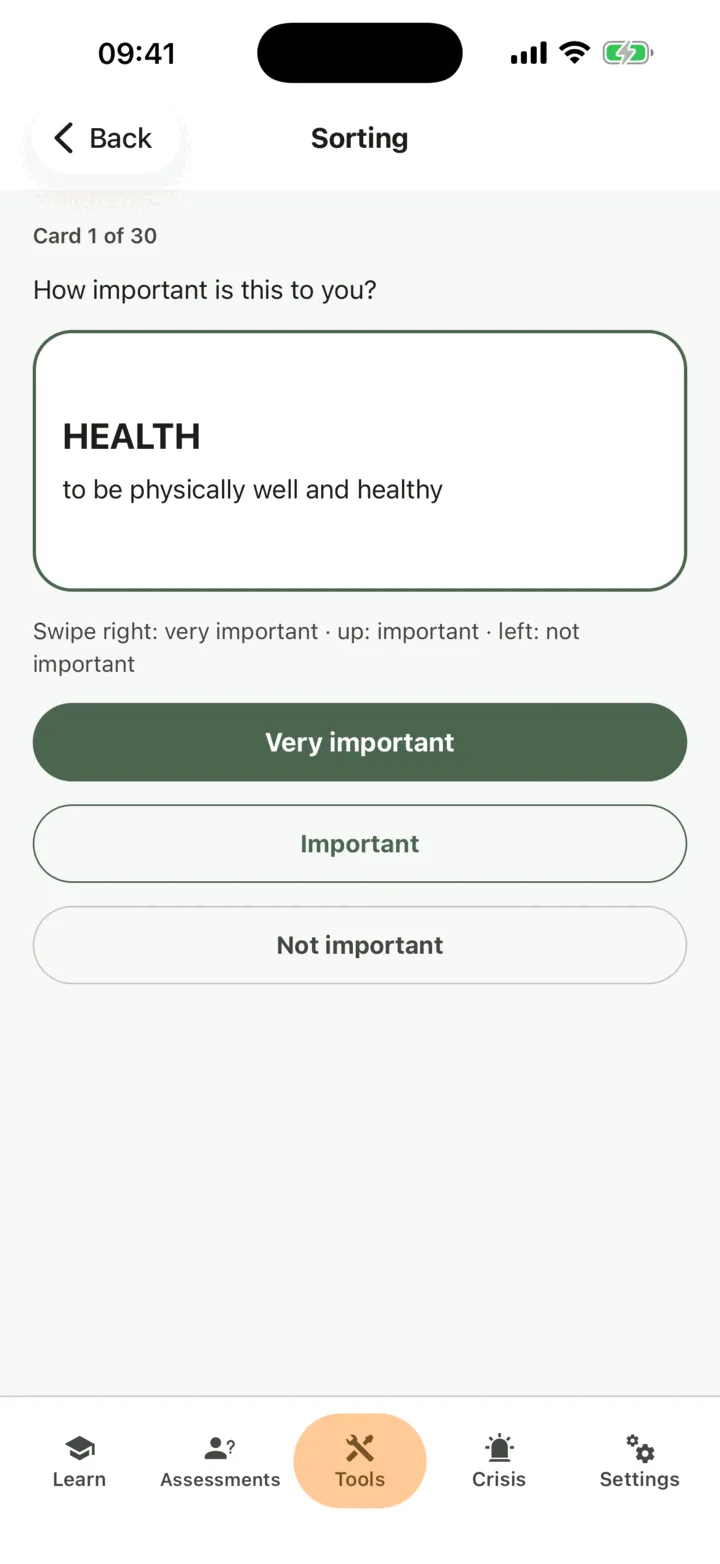
- To change your mind about the last card, tap Back one card.
- When the cards are done, put your very important values in order under Put your very important values in order. The first matters most to you, and up to 10 are kept in your order. Press and hold the handle on a card and drag it, or tap Move up or Move down.
- Tap Done.
You need at least 3 very important values. If you have fewer, the screen offers cards from Important that you can add. If you leave in the middle, Continue the sort I started takes you back to where you were.
My top values lists the values you ranked first, with how many cards went into each pile. They are on your profile now. From there you can tap Put them on the wheel, Plan an activity or My profile. The cards are the Personal Values Card Sort, which is in the public domain.
Rate your values wheel
Section titled “Rate your values wheel”A wheel has an area for each part of life you want to look at. You rate each area twice: where you are now, and where you want to be.
- On My values, tap Values wheel, then Set up my wheel.
- Choose a set of areas: Five areas (the default), Four areas (bull’s eye), Eight areas (wheel of life) or My own areas.
- Tap Create my wheel.
- For each area, write a line under What matters to me here. Then mark Where I am now and Where I want to be, from 0 to 10.
- Tap Save my rating.
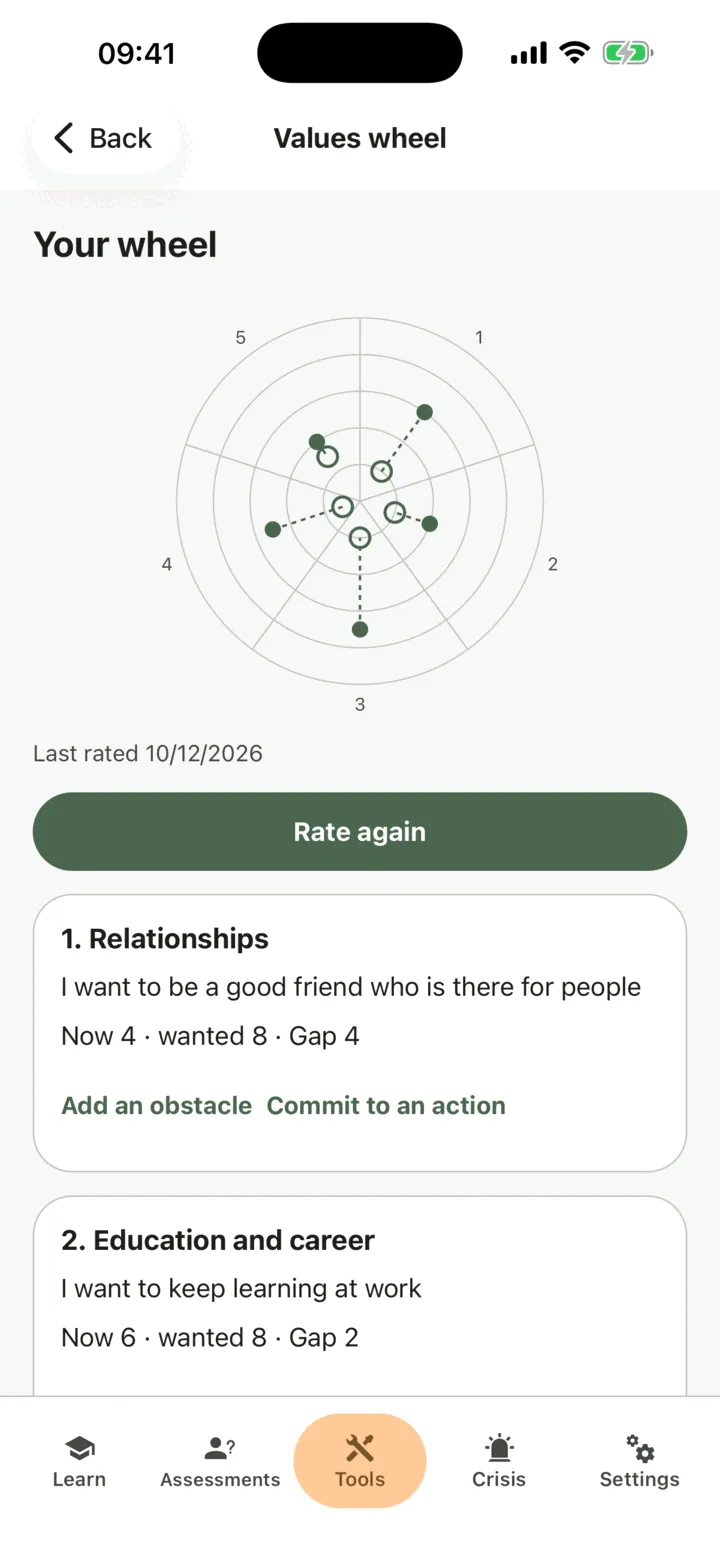
Save my rating stays off until every area has both marks. The wheel then shows the Gap for each area, and a dartboard. To rate again later, tap Rate again. Earlier ratings are kept.
For an area, you can also act on the gap:
- Tap Add an obstacle, write The obstacle and say how much it stops you, from 1 to 7. Tap Save.
- Tap Commit to an action, write What I will do and When, and tap Add to my to-do list.
- To put it in your phone’s calendar, tap Add to calendar. The calendar gets a copy. If you change the action in CopingCard later, the calendar does not change.
The action is on your Homework list, and you can mark it done there.
Take the questionnaire
Section titled “Take the questionnaire”- On My values, tap Questionnaire.
- For each of the ten areas of life, rate how important it is to you and how consistently you lived by it this past week, from 1 to 10.
- Tap See my result.
See my result needs both ratings for all ten areas. The result gives a score out of 100 and lists the areas with the biggest gap first. A higher score means you are living closer to what matters to you. Take it again later and the screen shows what changed since last time.
Plan an activity for a value
Section titled “Plan an activity for a value”- On My values, tap a value, then Plan an activity.
- Write The activity and say how hard it is, from 1 (easiest) to 10 (hardest).
- Tap Add.
To get ideas, write what you would like to do under What I would like to do and tap Suggest ideas. An AI service makes a list of ideas from easiest to hardest: the text you type is sent to it for that. The ideas are suggestions, not advice. Tap Keep on the ones you want, and they join your list. If the service is busy, the app says so, and you can try again in a few minutes. Your activities are the same list that Plan activities with Behavioral Activation uses.
Read your profile
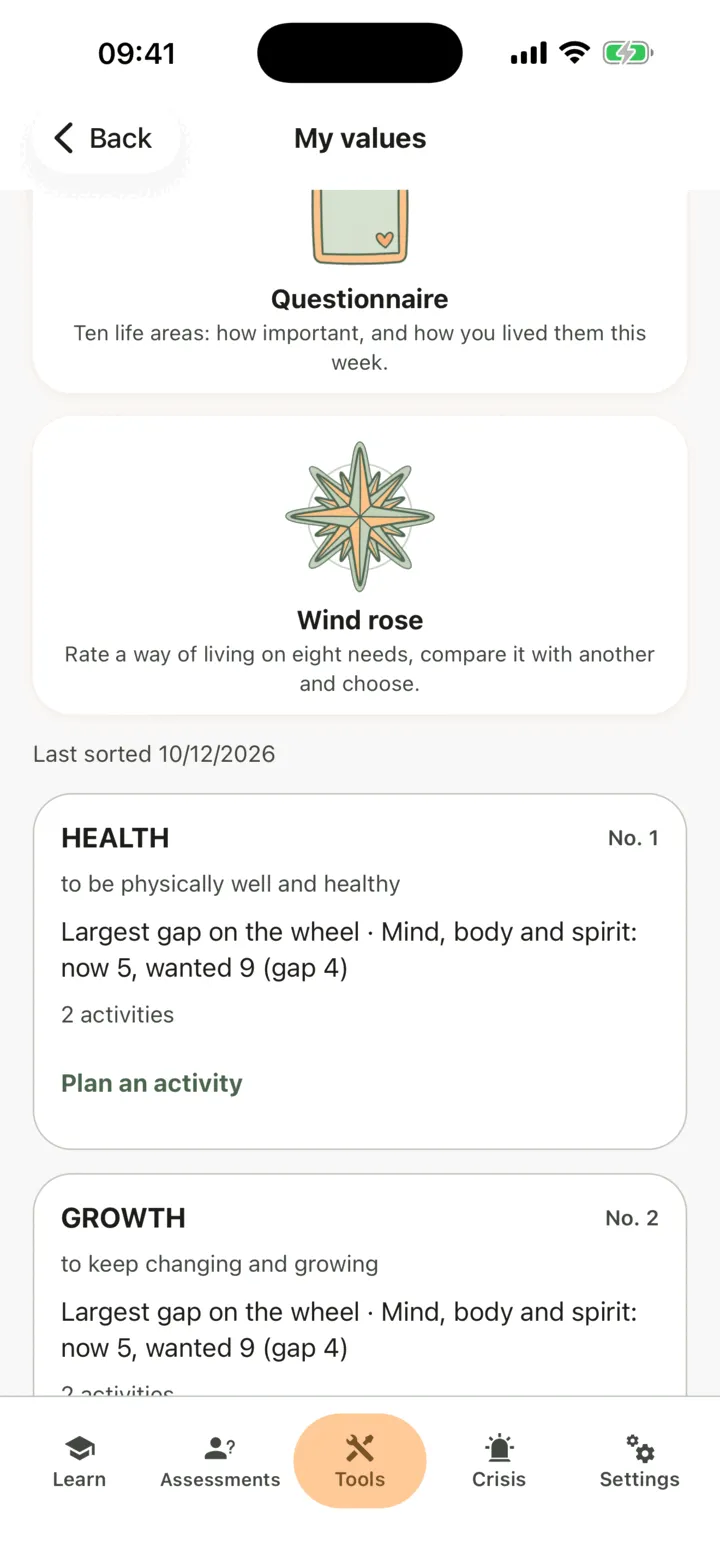
Section titled “Read your profile”On My values, your ranked values come first. Each one shows what you have done in its name. A value that sits in two areas of life shows the largest gap on the wheel and in the questionnaire. In the coping card editor, you can link a card to a value with Link to a value, and it then shows Linked to a value.
Who sees your values
Section titled “Who sees your values”If you are connected with a therapist, they can read your values on your page in their portal when they open it, if you allow them to view your data. The admins of their practice can too if Allow practice admins to view my data is on. They are not alerted when you sort, rate or plan. A therapist can rate your wheel with you in a session only while you still share something with them. If you share nothing, the save is refused. See Choose what your therapist can see.
For therapists
Section titled “For therapists”A client’s values show on the Values tab of their page. You see them if the client lets you view their data, or, as a practice admin, lets practice admins view it. The client does the exercises on their phone. The tab is read only, apart from rating the wheel with them.
Read the profile
Section titled “Read the profile”- In the portal menu, click Clients and open the client’s page: see Find a client and open their page.
- Click the Values tab.
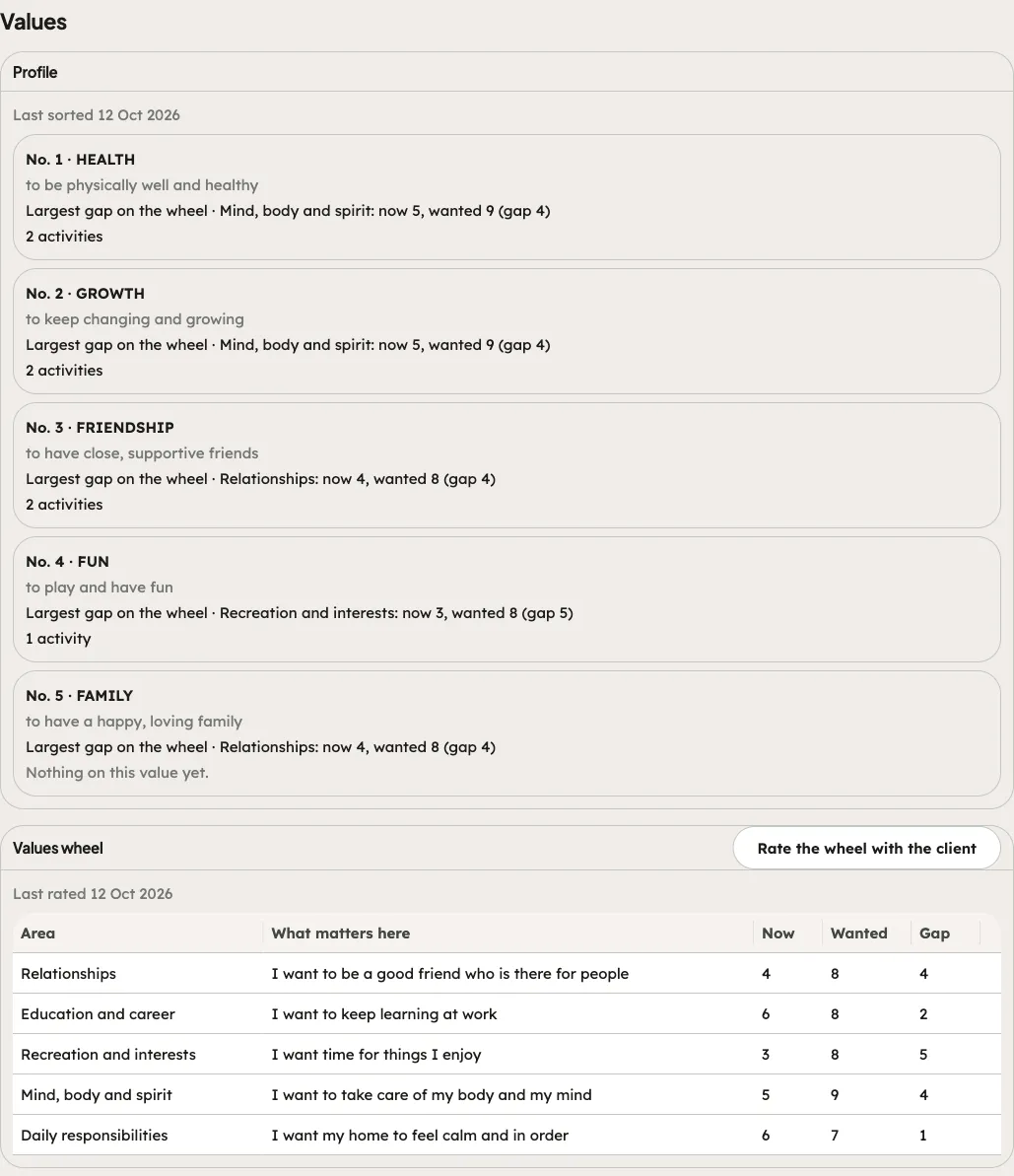
Under Profile you see each ranked value with the date of the last sort. For a value it shows the largest gap on the wheel and in the questionnaire, the committed actions marked to do or done, the activities and the linked records. The questionnaire score is shown out of 100. Values wheel lists each area with Now, Wanted and Gap, and the client’s obstacles. If the client has done nothing yet, the tab says what they need to do on their phone first.
Rate the wheel with the client
Section titled “Rate the wheel with the client”- On the Values wheel card, click Rate the wheel with the client.
- The dialog starts from the client’s last rating. Change what you agree on for each area: what matters, Now (0–10) and Wanted (0–10).
- Click Save rating.
Save rating stays off until every area has both marks. The wheel then says it was rated in session, with your name. Your rating is your practice’s record. It does not complete a wheel the client was asked to do. The client needs to have set up their wheel first. If the client shares nothing with you, the portal tells you so and nothing is saved.
Assign a values exercise
Section titled “Assign a values exercise”- In the Values tab, find Assign a values exercise. You can also click Assign homework on the Homework tab, with Tool under Kind.
- Under Exercise, choose Values card sort, Values wheel, Valued Living Questionnaire or Wind rose.
- Change the Title the client sees if you want, and add a Due (optional) date and A note for the client (optional).
- Click Assign.
The portal confirms that it is on the client’s homework list. The exercise is marked done by itself when the client finishes it on their phone. A wheel rating you make in session does not complete a wheel the client was asked to do. See Assign homework to a client.