

Schema modes
Schema modes come from schema therapy (Jeffrey Young), where a “schema” means something different from the cognitive schemas in Aaron Beck’s cognitive therapy. A schema mode is a state you slip into, with its own feelings and ways of acting, for example a harsh inner critic or a part of you that feels small and scared. This tool lets you name the modes you know in yourself, tap the ones that are here right now and see how your week looks. It is free for everyone and needs no therapist.
For clients
Section titled “For clients”You need the latest version of the CopingCard app, signed in.
Open your modes
Section titled “Open your modes”- Tap the Tools tab at the bottom of the screen.
- Tap Schema modes.
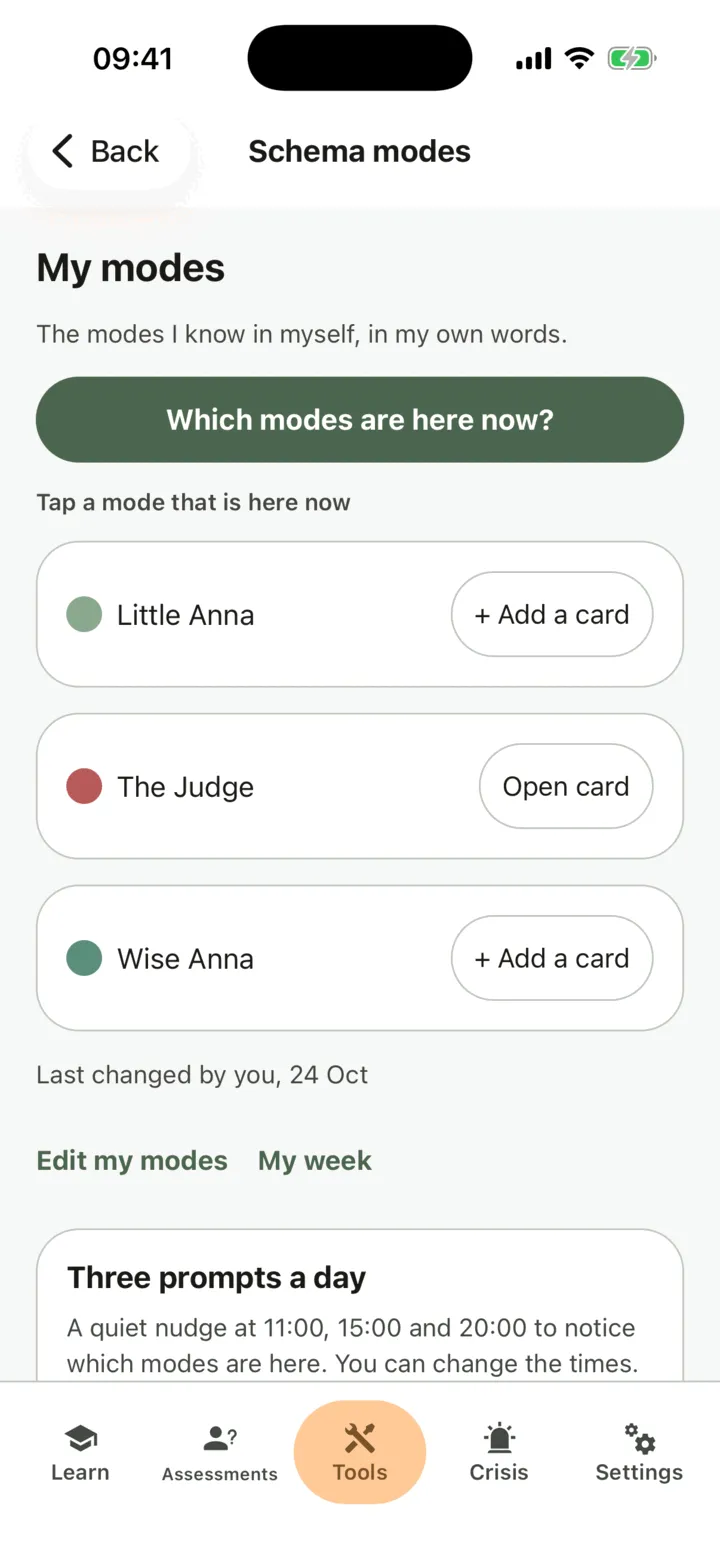
The screen My modes starts with the Which modes are here now? button, so a check-in is one tap away. Below it is the list of the modes you know in yourself. The first time, it shows the common seven, and says so. Under Tap a mode that is here now, each mode has a row. Tap the row to open Which modes are here now? with that mode already selected. At the end of the row, a button shows Open card if you linked a coping card to the mode, or + Add a card if you did not.
Set up your modes
Section titled “Set up your modes”- On My modes, tap Edit my modes.
- Under Start from, choose The common seven or All fourteen.
- Turn on the modes you want to track. The Healthy Adult is always on.
- Under In my words, give a mode your own name, for example “The Judge”. Choose a Color for it.
- To add a mode of your own, tap Add my own mode, write A name for this mode, choose It is a… Child, Coping or Critic mode, and tap Add. You can add up to 6 of your own.
- Tap Save my modes.
You can change your modes any time. A mode you switch off stays in your history, grayed out, with its last name and color. If your therapist prepared your modes with you, the screen says who last changed them. The latest change counts, whoever made it.
Link a coping card to a mode
Section titled “Link a coping card to a mode”- On My modes, tap + Add a card on the mode’s row. A sheet opens for that mode. You can also find the mode’s card in the set-up with Edit my modes.
- Under My coping cards, find your card. Type in Search my cards to narrow the list. The sheet shows your five most recent cards; tap the button under the list that shows how many cards you have, to see the rest. Tap Use this card on the card you want.
To change it later, tap Change card. To remove it, tap Unlink. Both are in the set-up, on The card for this mode. To read the linked card, tap Open card on the mode’s row.
To make a new card for the mode, tap Create a new card below the list. It is there even when you have no coping cards yet. The usual coping-card editor opens: see Keep and review your coping cards. When you save, the card is created, linked to the mode, and you are back on the mode, which shows Linked: (the card’s name). If you leave without saving, nothing is linked. If the card is saved but cannot be linked, the card is kept, the list opens again, and the screen says Your card is saved, but we could not link it to this mode. Pick it below, or check your connection and try again. Pick the card from the list, or check your connection and try again.
Check in
Section titled “Check in”- On My modes, tap Which modes are here now? at the top.
- Tap the modes that are here right now. Several can be.
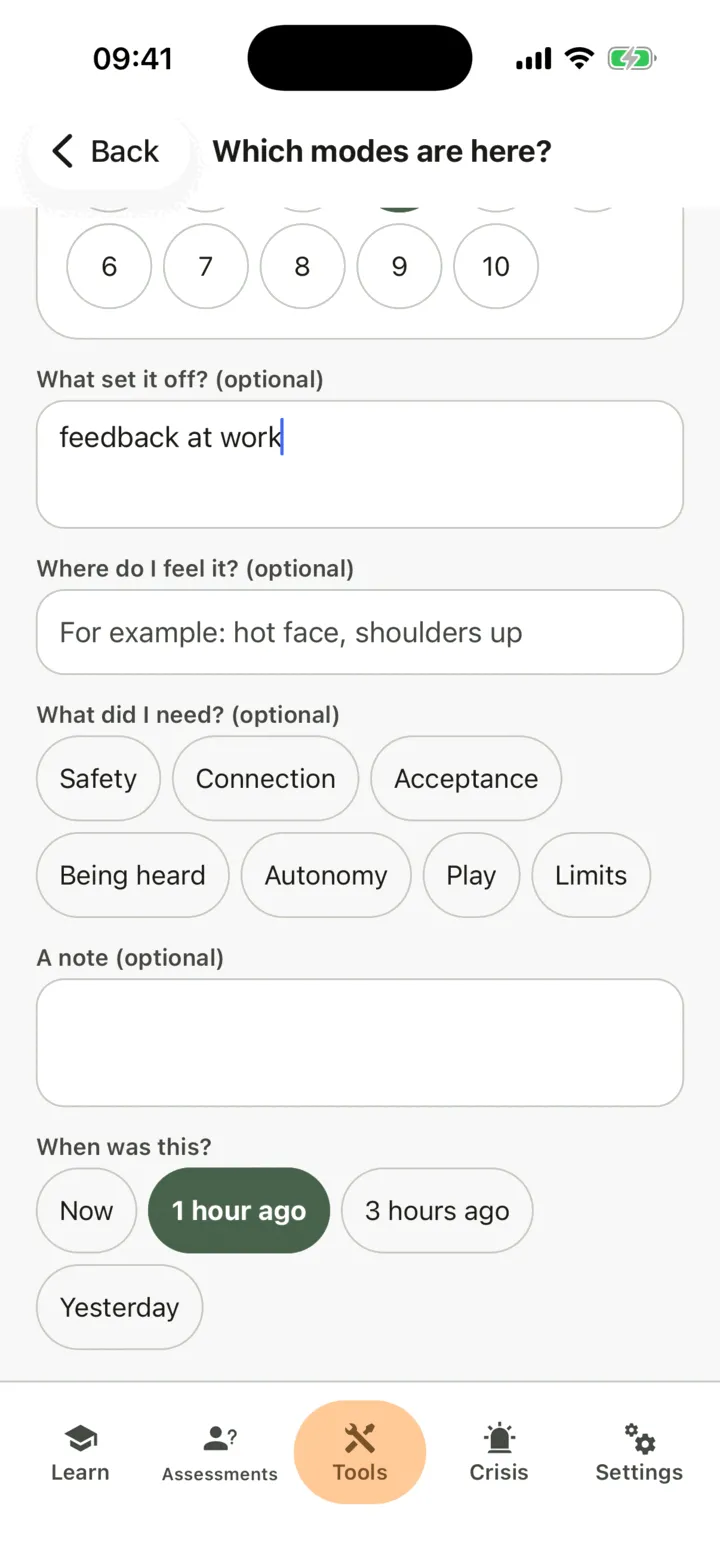
- For each one, tap a number from 0 to 10 for how strong it is.
- If you like, write What set it off? (optional) and Where do I feel it? (optional), and choose What did I need? (optional).
- Under When was this?, choose Now, 1 hour ago, 3 hours ago or Yesterday.
- Tap Save.
After you save, the card of the strongest of your critic, child and coping modes that has a card linked opens. If none of them has a card, nothing opens. A check-in is never scored, and the app tells you nothing about what it means. Without a connection, the app keeps the check-in on your phone and sends it when you are online.
If your screen shows Three prompts a day, tap Turn the prompts on for a quiet nudge at 11:00, 15:00 and 20:00. You can change the times.
Read your week
Section titled “Read your week”- On My modes, tap My week.
- Choose 7 days or 30 days.
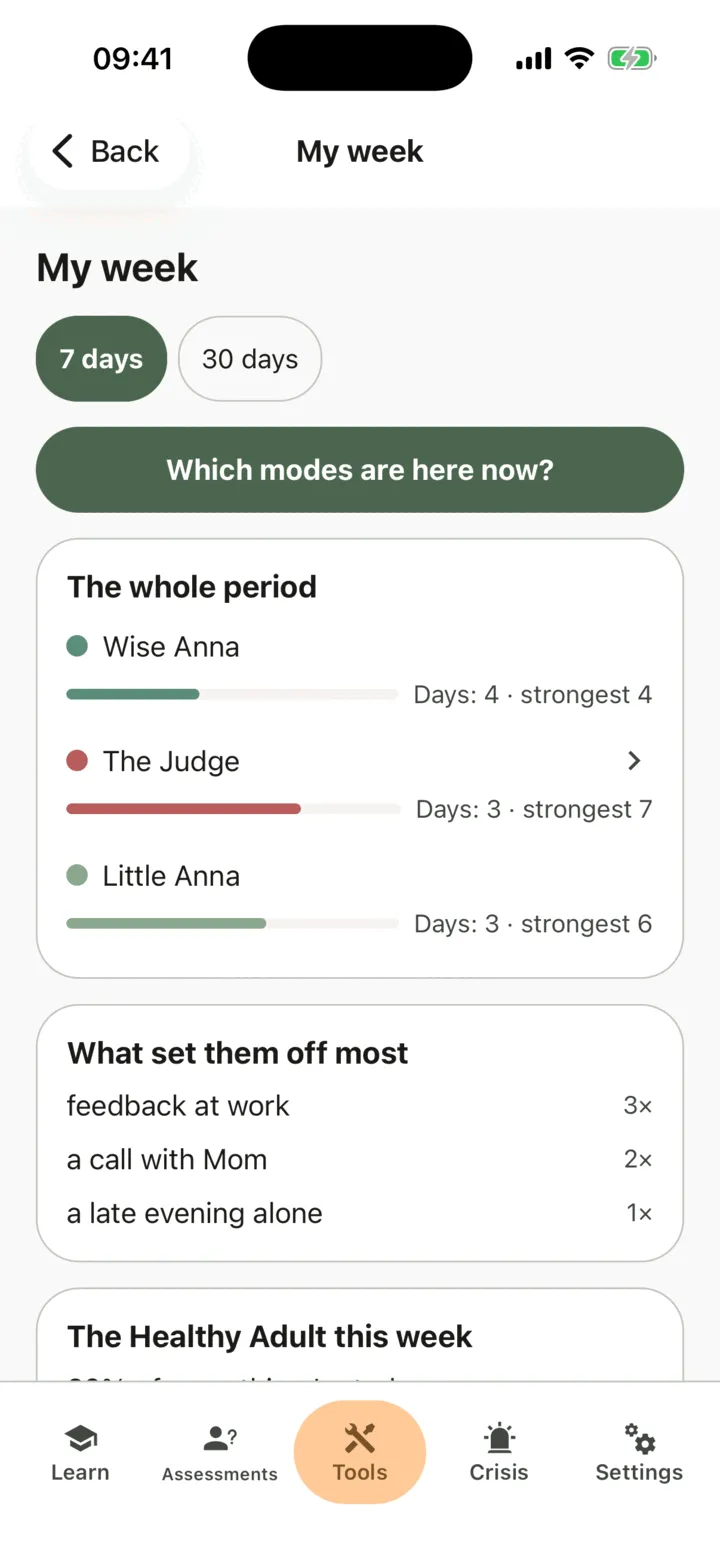
The whole period comes first. For each mode that showed up, it shows on how many days it was here and how strong it was at most; tap a mode to open its card. What set them off most counts your triggers. The Healthy Adult this week shows its share of everything you rated, how often it was present and its average strength; if you did not rate the Healthy Adult that week, it says so instead of showing a percentage. Day by day has one row for each day with the number of check-ins and the strongest mode; tap a row to see that day’s bars. Under Check-ins you see the last three. Tap the three dots beside an entry, tap Delete and confirm to remove it. Tap All check-ins to see the full list; the three dots work there too. The free app shows your last 7 days. With Premium, you see your whole history: see Premium and the free plan.
Who sees it
Section titled “Who sees it”If you allow your therapist to view your data, they see your modes and check-ins on your page in their portal, and so do the practice admins if you allow them to view your data. They see them when they open the page, and they are not alerted when you check in. See Choose what your therapist can see.
For therapists
Section titled “For therapists”A client’s modes show on the Schema modes section of their page. You read it if the client lets you view their data, or, as a practice admin, lets practice admins view it. If not, the section reads The client doesn’t share this with you. To set up the modes or assign check-ins, the client must still share something with you. The section shows the client’s words and numbers as they are, with no alerts, scores or advice. CopingCard does not alert you when a client checks in.
Read the mode map
Section titled “Read the mode map”- In the portal menu, click Clients and open the client’s page: see Find a client and open their page.
- Click Formulation, then Schema modes.
- Under Period, choose 7 days, 30 days, 90 days or Custom, with a From and a To date.
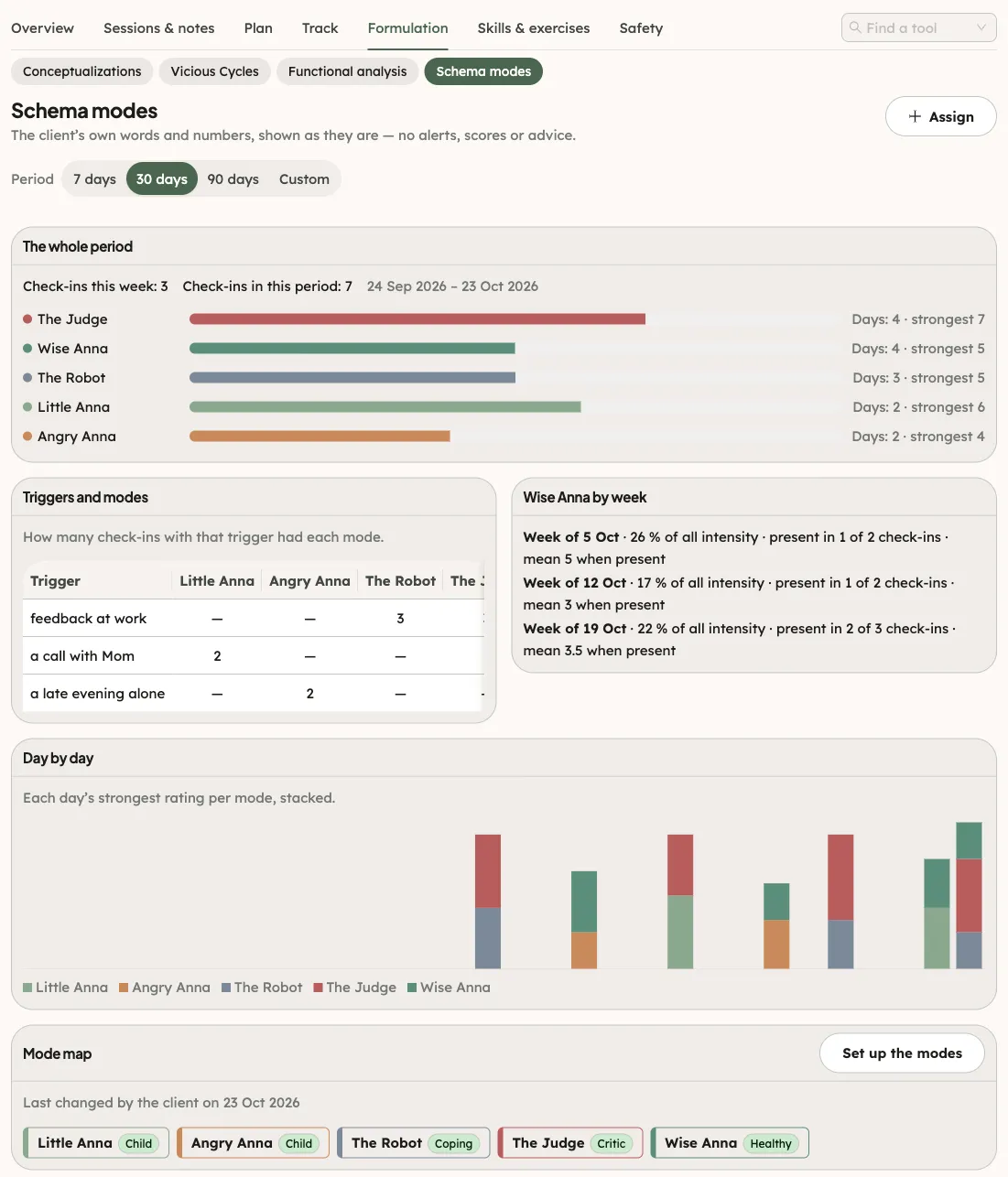
The client’s results come first. The whole period shows a bar for each mode that showed up, with the days it was here and how strong it was at most, the same view as My week in the app. Triggers and modes counts, for each trigger the client wrote, how many check-ins had each mode. The Healthy Adult has its own card, week by week. Day by day stacks each day’s strongest rating per mode. The Mode map is last: each mode, its type, whether a card is linked and whether it is switched off, and a line that says who last changed the modes. The therapist’s section always shows the whole history, whatever the client’s plan.
If the client has no check-in in the period, The whole period says so in one line and the cards of triggers, Healthy Adult and days stay out; the Mode map still shows.
Set up the modes with the client
Section titled “Set up the modes with the client”- In the Mode map card, click Set up the modes. A panel opens at the side.
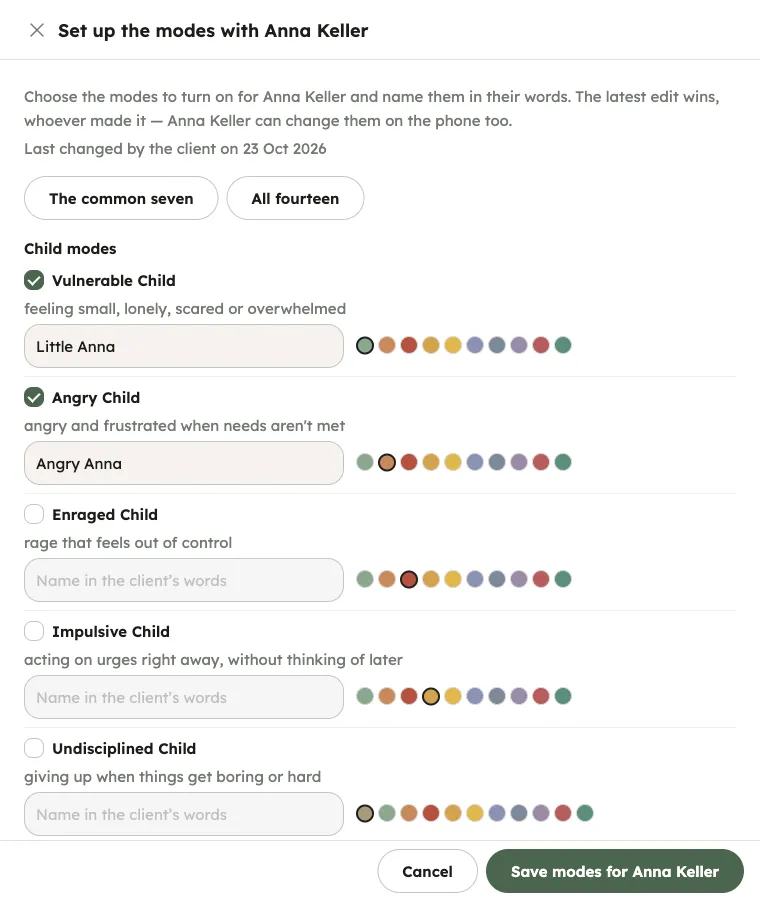
- Click The common seven or All fourteen to start from a set.
- Switch on the modes to turn on for the client, and write each name in the client’s words under Name in the client’s words.
- Choose a color for each mode.
- To add the client’s own modes, click Add my own mode, write Name of the new mode and choose its Type. The client can have up to 6.
- Click the save button, which names the client.
The modes are on the client’s phone as soon as they are saved. The latest edit wins, whoever made it, so the client can change them on the phone too. To close the panel without saving, click Cancel; if you changed something, the portal asks first whether to discard it.
Assign daily check-ins
Section titled “Assign daily check-ins”- In the header of the section, click Assign.
- The Assign homework panel opens with the mode check-in chosen. Check the Title and the Instructions.
- Under Deadline, the check-in repeats daily from tomorrow at 09:00, for 7 days. Change the days under For how many days, or the time and start.
- Click Assign.
Each day is completed by the client’s first mode check-in of that day. A check-in always comes from the client’s phone. See Assign homework to a client.