

Create a worksheet
Any therapist of your practice can create worksheets. They belong to your practice, and every therapist of the practice can assign them. You can start from scratch, or from a template in the CopingCard library.
Create a worksheet
Section titled “Create a worksheet”- In the portal menu, click Worksheets.
- Click New worksheet. To start from a CopingCard template instead, click Use this template in its row.
- Type the name in Worksheet name.
- In the first section, add a title in Section title (optional) and what the client should do in Instructions for this section (optional).
- Click Add question, type the question in Question, and choose the type of answer. To make it required, switch on Required.
- Add more questions with Add question, and more sections with Add section.
- Under Settings, choose the Category and the Language.
- Click Save template.
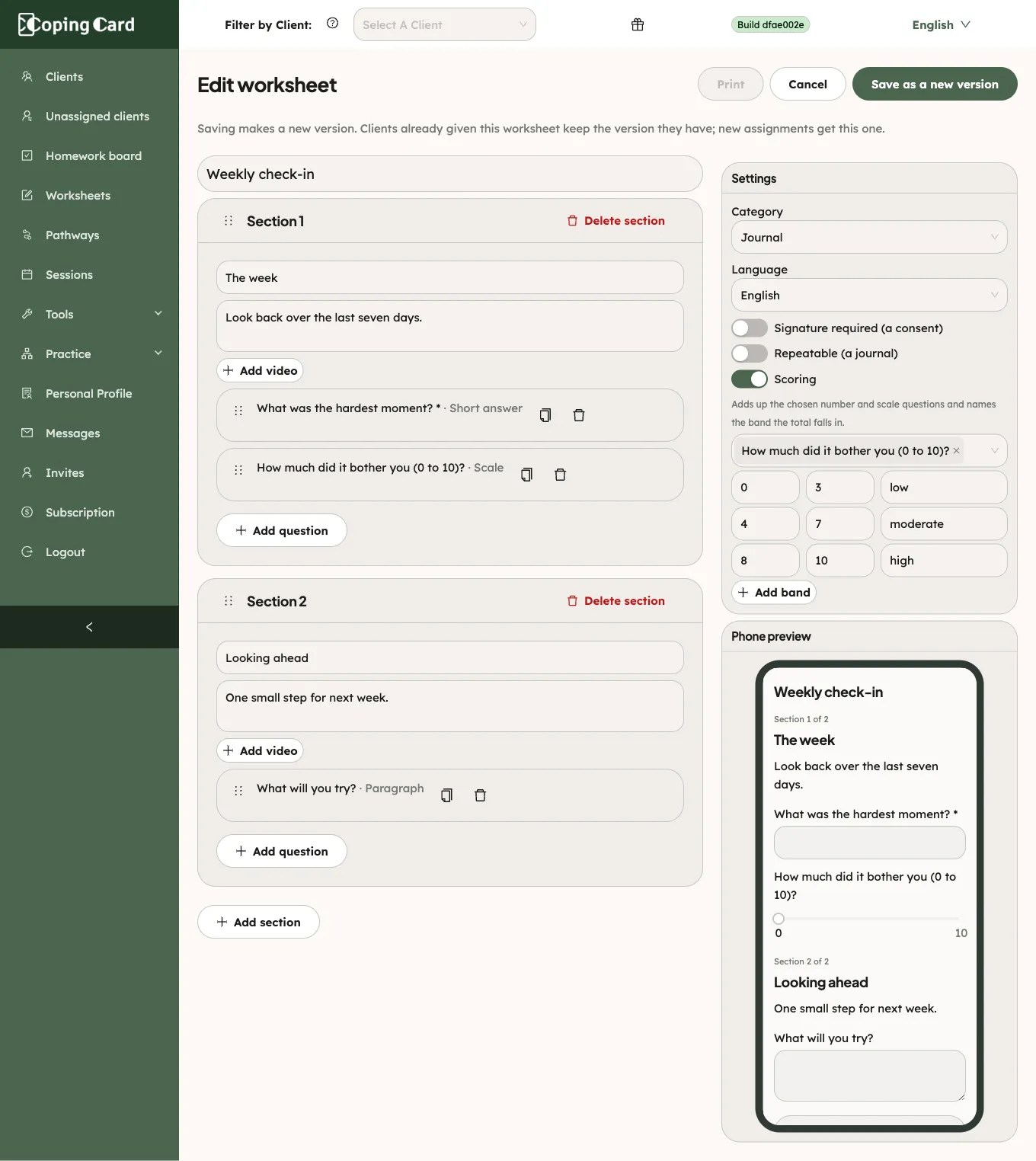
As you work, Phone preview shows the worksheet as the client will see it in the app. After you save it, the worksheet is on the Worksheets list as Your practice, ready to assign as homework.
A copy of a CopingCard template becomes your practice’s own worksheet, which you can change freely. The CopingCard original stays as it is.
Types of answers
Section titled “Types of answers”| Type | The client |
|---|---|
| Short answer | Types a few words. |
| Paragraph | Types a longer answer. |
| Number | Enters a number. |
| Scale | Picks a number on a scale, from From to To. |
| One choice | Picks one option. |
| Several choices | Picks one or more options. |
| Date | Picks a date. |
| Tick box | Ticks a box. |
To change the order of questions or sections, drag them by their handle. You can also use the keyboard: focus the handle, press Space, move with the arrow keys, and press Space again.
Add a video to a section
Section titled “Add a video to a section”- In the section, click Add video.
- Choose A video from the Learn library and pick one, or choose A YouTube or Vimeo link and paste the link.
- Give the video the title the client sees.
The client can play the video in the app, above the section’s questions. Watching it is optional and is not recorded. CopingCard does not store the video: a YouTube or Vimeo video plays from its own site. To remove the video, click Remove.
Settings
Section titled “Settings”- Signature required (a consent): the client signs the form in the app after sending it, by typing their full name.
- Repeatable (a journal): the client can fill the form in again and again, and each time is a new entry. A journal cannot ask for a signature.
- Scoring: adds up the answers to the number and scale questions you choose under Questions to add up, and names the band the total falls in. Add the bands with Add band. You see the score and band with the client’s answers.
Change or retire a worksheet
Section titled “Change or retire a worksheet”To change a worksheet, click Edit in its row, make your changes, and click Save as a new version. Clients who were already given the worksheet keep the version they have. New assignments get the new version.
To stop using a worksheet, click Retire in its row, say why, and click Retire. It leaves your list and the list you assign from. Clients who already have it can still fill it in, and every answer stays readable. Only your practice’s own worksheets can be changed or retired.