

Create a pathway
Any therapist of your practice can create pathways. A pathway belongs to your practice, and every therapist of the practice can put clients on it.
Create a pathway
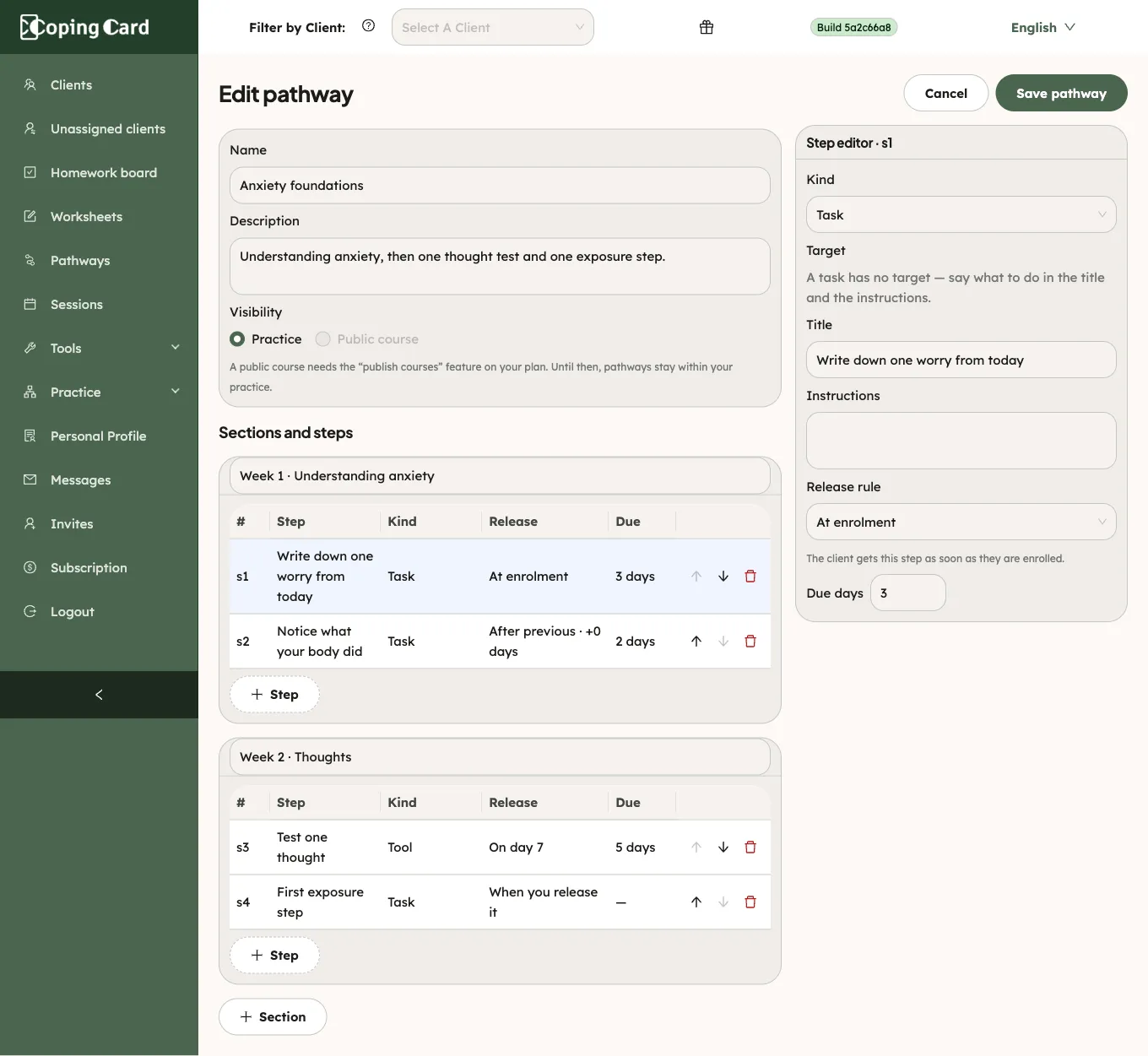
Section titled “Create a pathway”- In the portal menu, click Pathways.
- Click New pathway.
- Fill in Name and Description.
- Name the first section, for example “Week 1”.
- Add the steps of the section, as described below.
- To add another section, click Section, name it and add its steps.
- Click Save pathway.
The pathway is on the Pathways list with its number of steps and its version. You can now put a client on it.
Add a step
Section titled “Add a step”- In the section, click Step.
- In the step editor, choose the Kind of homework and its Target, such as the tool or the article. For a worksheet, first open the dropdown under Target, which reads All categories, and choose a category: the list then shows only that category’s worksheets.
- Fill in Title and, if you want, Instructions. The client sees both.
- Under Release rule, choose when the client gets the step.
- For On a day, set the Day. For After the previous step, set the Delay days.
- In Due days, set how many days the client has to do it.
| Release rule | The client gets the step |
|---|---|
| At enrolment | As soon as they are put on the pathway. |
| On a day | That many days after the start. |
| After the previous step | When the step before it is done or skipped, after the delay you set. |
| When you release it | When you release it from the client’s progress page. |
The first step of a pathway cannot wait for a previous one. To change the order of steps, use the arrows in their rows. To remove a step, click the bin icon.
Change, copy or retire a pathway
Section titled “Change, copy or retire a pathway”On Pathways, each pathway’s row has Edit, Duplicate and Retire.
- Edit: make your changes and click Save pathway. The portal asks to save a new version and says how many clients are on the current one. Clients already on the pathway keep their version; clients you put on it later get the new one.
- Duplicate: opens a copy with “(copy)” after its name. Change it and click Save pathway. When you put a client on a pathway, each copy is listed right under its original, so you can choose which one a client gets.
- Retire: the pathway can no longer be chosen for new clients. Clients already on it finish it as it is.