

Take a PHQ-9 or GAD-7 assessment
The PHQ-9 and the GAD-7 are short questionnaires. Each asks how often a set of problems has bothered you over the last two weeks, and gives a score. The app calls them assessments. Three more questionnaires, the DASS-21, the PCL-5 and the GDS-15, are in the same list on the Assessments tab. None of them replaces advice from a mental health professional, and the app says so beside every result.
For clients
Section titled “For clients”You need the latest version of the CopingCard app, signed in.
Take an assessment
Section titled “Take an assessment”- Tap the Assessments tab at the bottom of the screen.
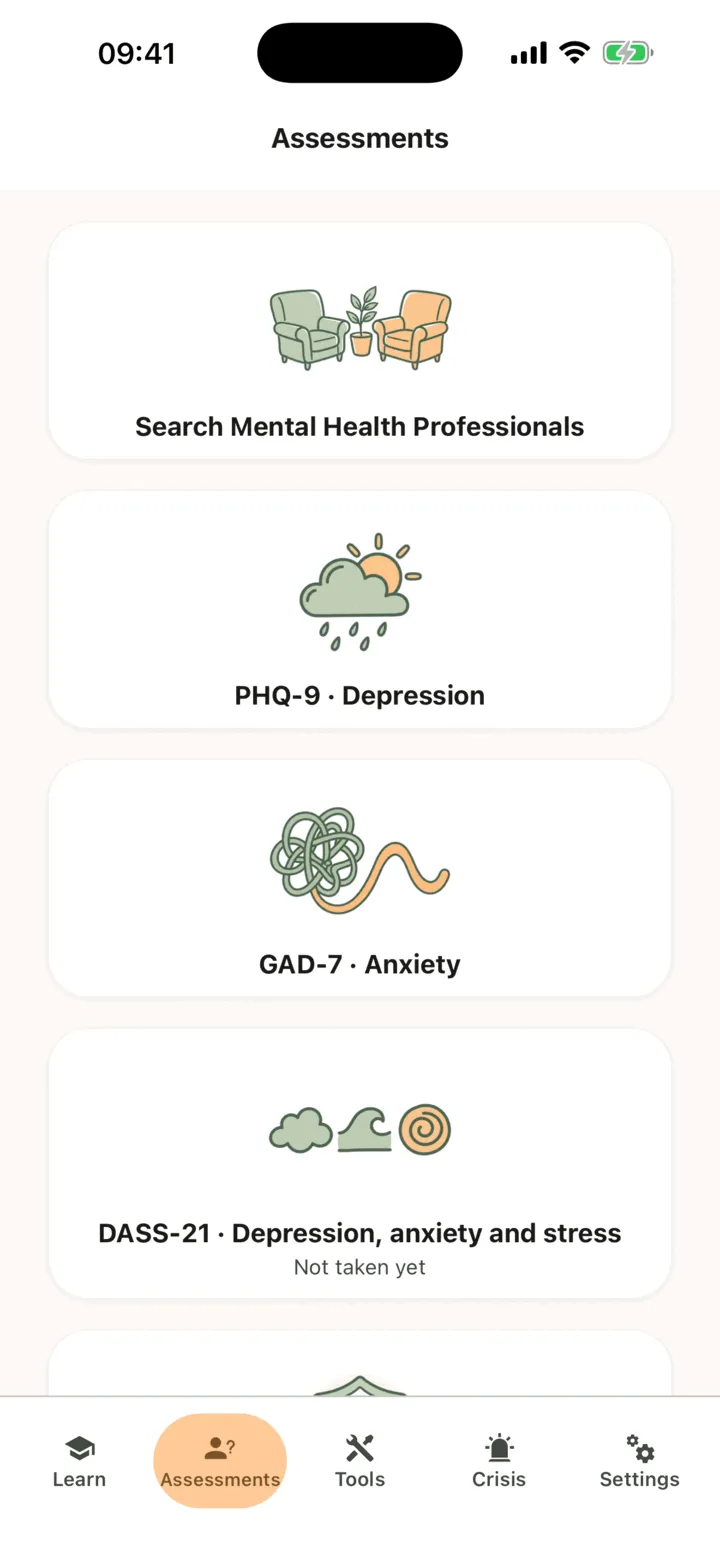
- Tap PHQ-9 · Depression, or GAD-7 · Anxiety.
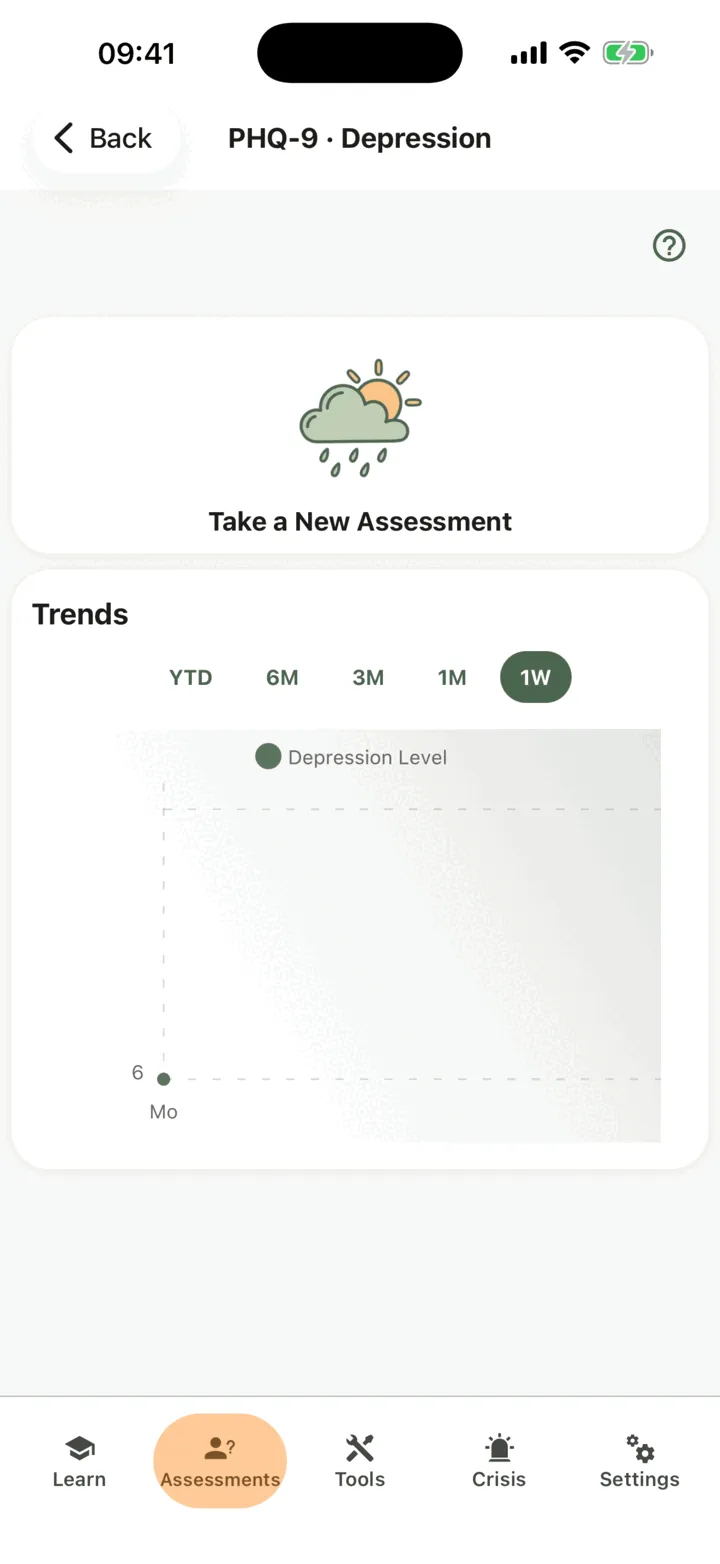
- Tap Take a New Assessment.
- Tap the answer that fits, from Not at all to Nearly every day. Next Question stays greyed out until you choose one.
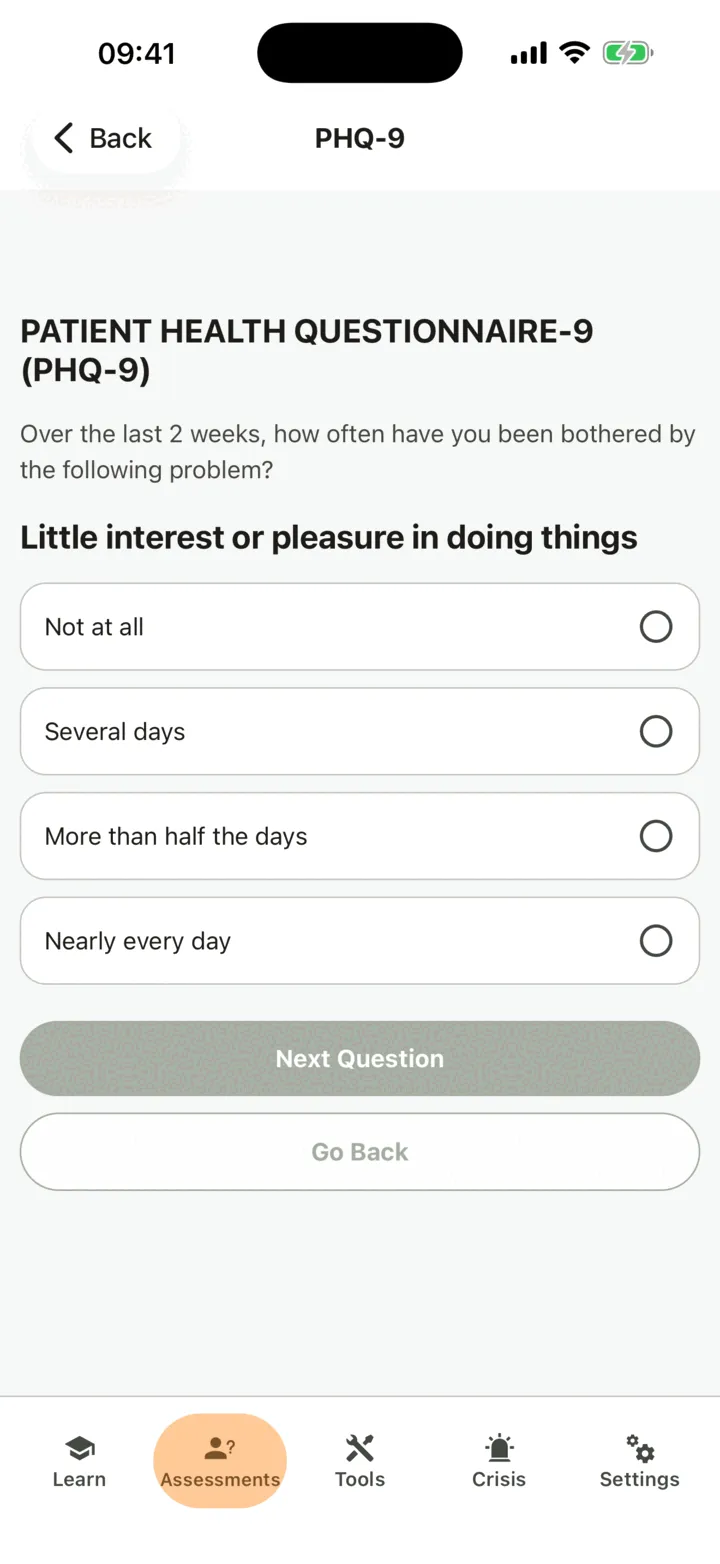
- Tap Next Question. To change an earlier answer, tap Go Back.
- Repeat for every question. The PHQ-9 has nine questions and the GAD-7 has seven.
- If you chose any answer but the first, one more question asks how difficult these problems have made things. Answer it the same way. It is not part of the score.
- On the last question, tap See Result.
The app saves the assessment when you tap See Result: there is no separate save. If it cannot save it, it tells you so. Check your connection and tap See Result again.
Read your result
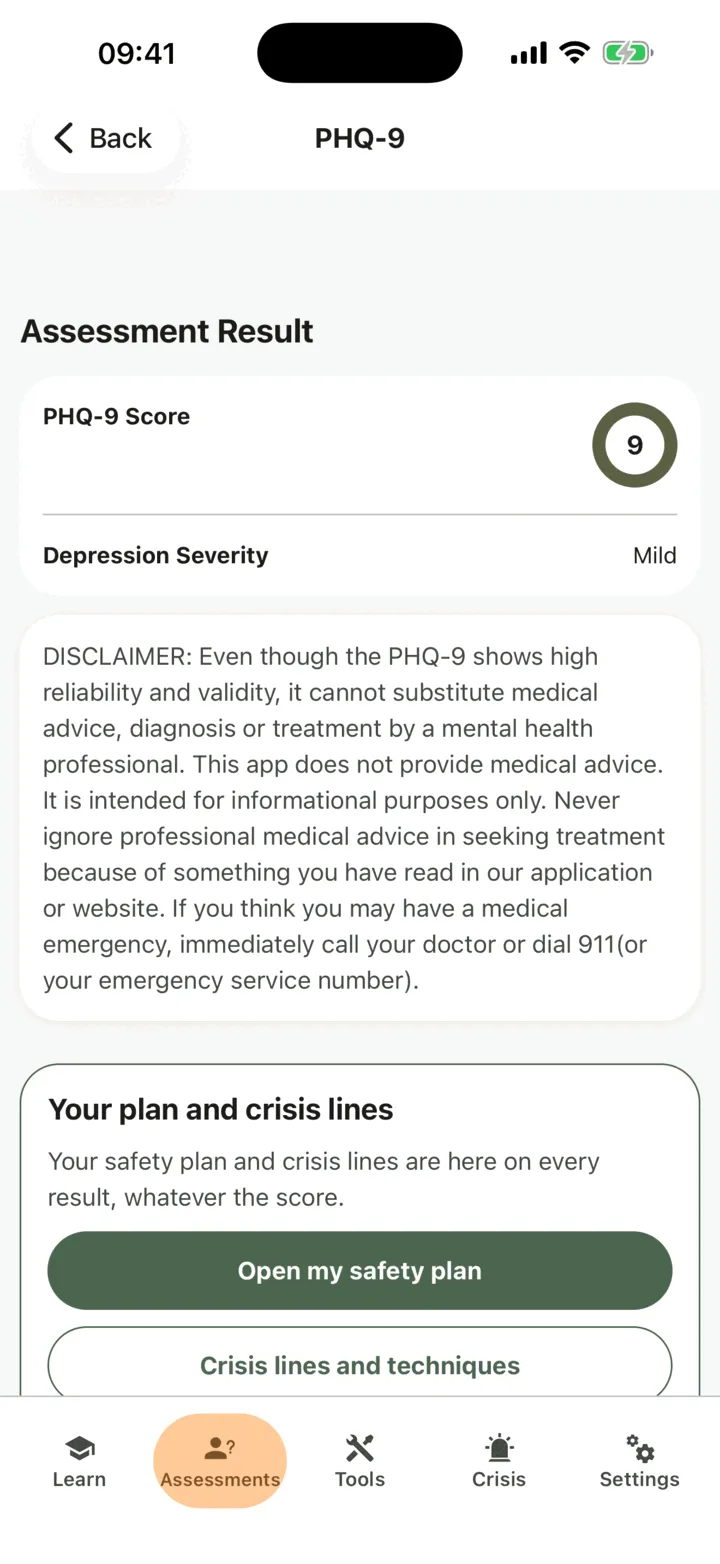
Section titled “Read your result”The Assessment Result screen shows your score, for example PHQ-9 Score, and your severity, Depression Severity or Anxiety Severity. The PHQ-9 bands run from none-minimal to severe. The GAD-7 bands are Minimal, Mild, Moderate and Severe. The screen gives no treatment advice. A note below says that the result cannot replace a professional’s advice. If your score is above 9, the screen also offers Go to Therapists Search: see Find a therapist and send a message.
On every result, whatever the score, a card, Your plan and crisis lines, offers your safety plan. If you have one, tap Open my safety plan. If not, tap Make a safety plan, or tap Crisis lines and techniques to open the list of help lines. The card is the same for every score, and nothing in the app reacts to a score. See Make and use your safety plan.
Set or turn off the reminder to retake it
Section titled “Set or turn off the reminder to retake it”Below the result, Next Assessment Reminder shows a date one month ahead, with the switch on. The reminder is a notification on your phone at that time. If notifications for CopingCard are off in your phone’s settings, the reminder does not arrive.
- On the Assessment Result screen, tap the pencil next to the date.
- Choose a date and time, then tap Ok.
- To turn the reminder off, tap the switch.
- When you are done, tap Go back to assessments.
On the free plan, the reminder cannot be set too soon after the assessment; choosing an earlier date opens the subscription screen. See Premium and the free plan.
See your scores over time
Section titled “See your scores over time”- On the Assessments tab, tap PHQ-9 · Depression or GAD-7 · Anxiety.
- Under Trends, read the chart. It shows one point for each day you took the assessment, with the score of the first one that day.
- To change the time range, tap 1W, 1M, 3M, 6M or YTD.
The chart appears after your first result. The longer ranges need Premium, and on the free plan tapping one opens the subscription screen. If you took an assessment recently, the free plan can also open the subscription screen when you tap Take a New Assessment. The help circle next to the title explains what the assessment is.
Take the DASS-21, PCL-5 or GDS-15
Section titled “Take the DASS-21, PCL-5 or GDS-15”These three are open to everyone. A therapist can also give you one, with a due date.
- On the Assessments tab, find the questionnaire in the list, below PHQ-9 · Depression and GAD-7 · Anxiety. The tiles are named DASS-21 · Depression, anxiety and stress, PCL-5 · Post-traumatic stress and GDS-15 · Depression in older adults.
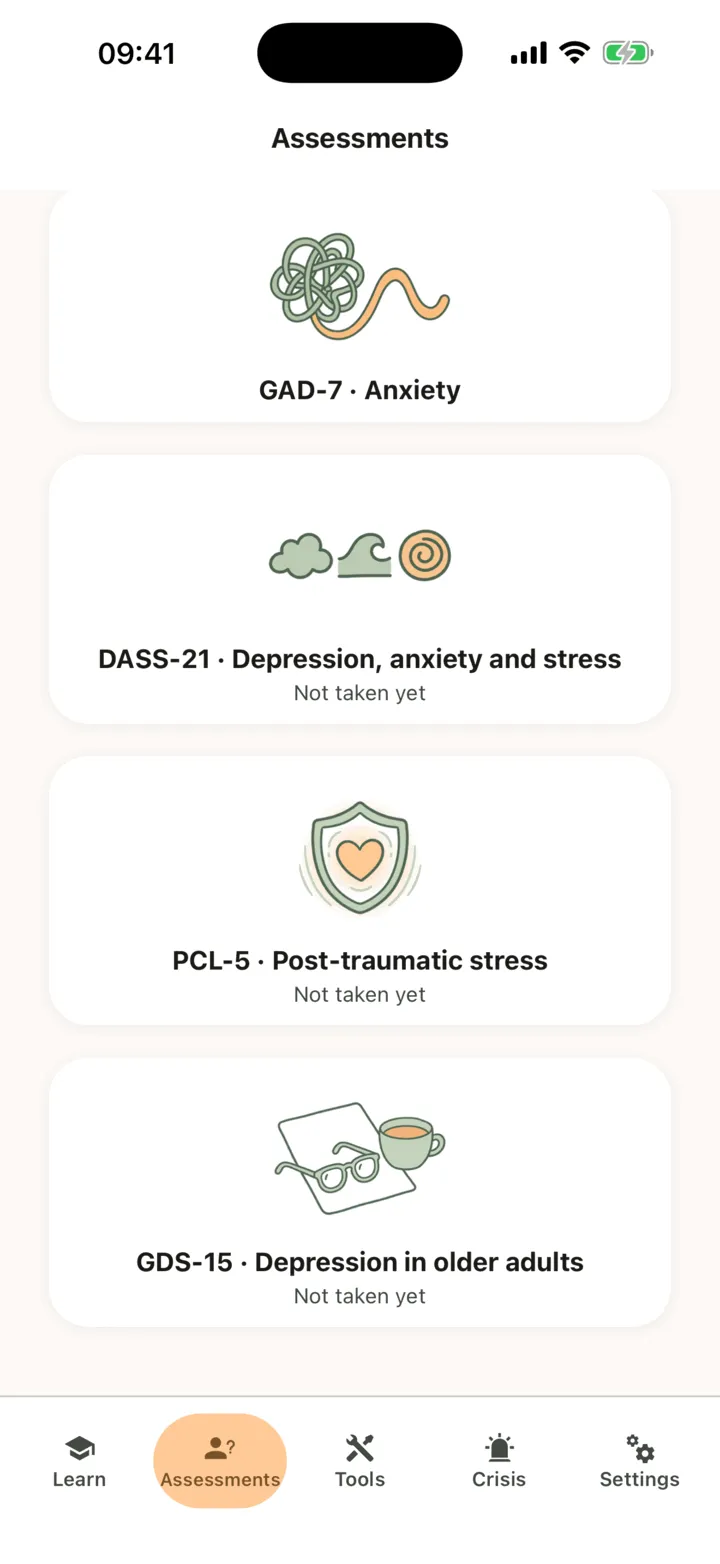
- Tap the questionnaire. Its tile shows Not taken yet, or the result of the last time you took it. One your therapist gave you shows who gave it and when it is due instead.
- Read the introduction. It tells you how many questions there are, how you answer, and where the questionnaire comes from. Tap Start.
- Choose an answer for each question. The questions come one at a time, with Next and Back at the bottom of the screen.
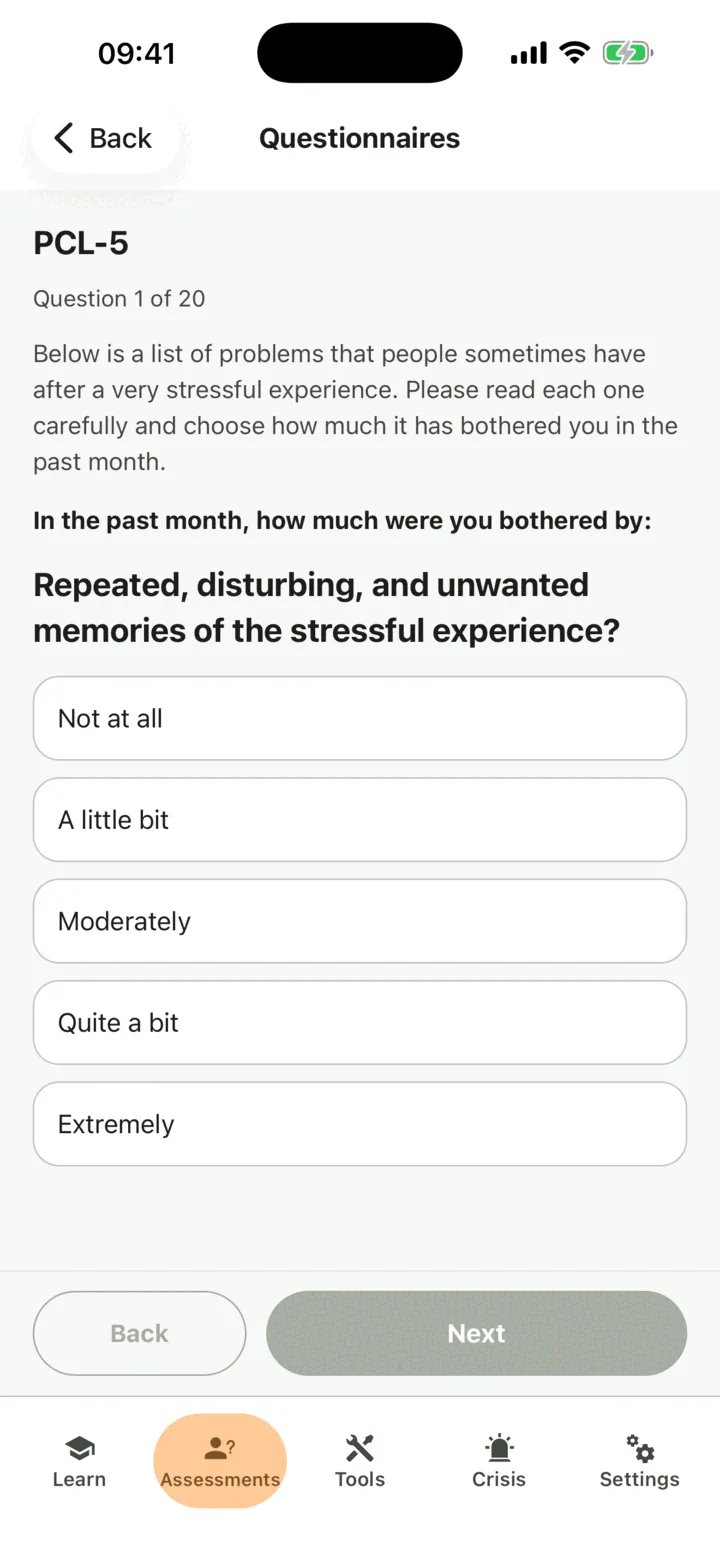
- On the last question, tap See result.
The DASS-21 has 21 questions about the past week. The PCL-5 has 20 questions about the past month, after a very stressful experience. The GDS-15 has 15 yes or no questions about the past week, made for older adults.
The result shows your Total score and, for the DASS-21 and the PCL-5, your score By scale. The DASS-21 gives a band for Depression, Anxiety and Stress, from Normal to Extremely severe, and no total band. The PCL-5 and the GDS-15 give a Range against a screening cut-off. The result also says how it changed since last time. A line says that the bands are the published ones and that this is not a diagnosis. The same card, Your plan and crisis lines, is on the result. Tap History to see your earlier results, and Back to the questionnaires to leave.
Who can see your results
Section titled “Who can see your results”Your results are your own work in the app. If you connect with a therapist, the options on the Data Sharing with Therapists screen in Settings decide who sees them. This holds for all five questionnaires. With Allow viewing my data on, your therapist sees your results in the CopingCard portal. With Allow practice admins to view my data on, the admins of your therapist’s practice see them too. They see them when they open your page: they are not alerted when you take an assessment. If those options are off, your results do not show on your therapist’s page. See Choose what your therapist can see.
For therapists
Section titled “For therapists”A client takes the assessments in the app. The portal shows the results and cannot take one for the client. You see a client’s results only if they let you view their data, or, as a practice admin, let practice admins view it. CopingCard does not monitor or flag results: you see them when you open the list or the client’s page.
Read the results
Section titled “Read the results”- In the portal menu, open Tools and click Assessments.
- Read the columns Client ID, Type, Score, Severity and Passed At. To sort, click the title of Client ID, Score or Passed At. Client ID and Type have filters, and the Type filter offers PHQ-9 and GAD-7.
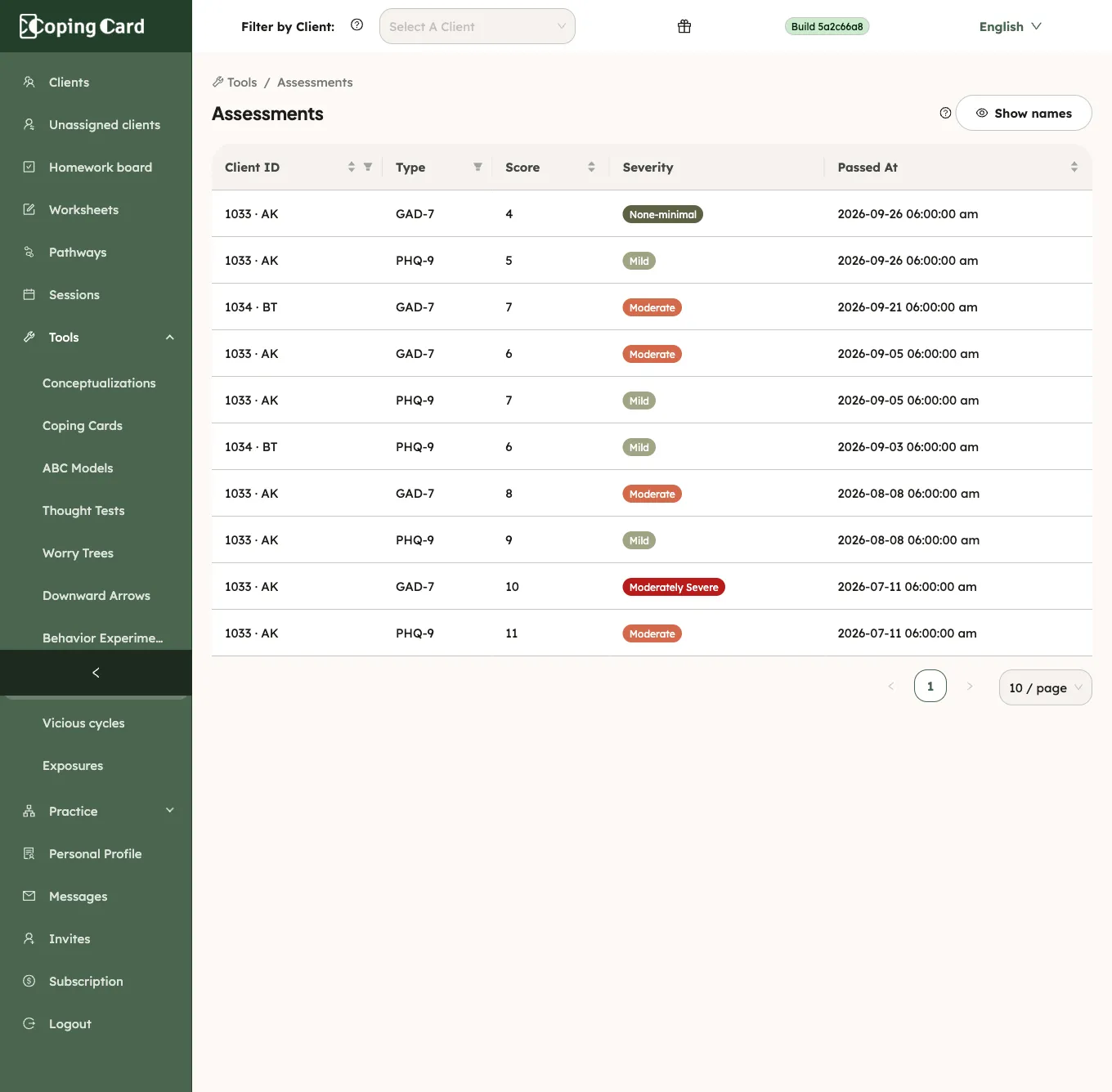
- To see one client, choose them under Filter by Client in the header.
Severity is the band the app also shows the client. A client who does not share their results with you has no rows in the list.
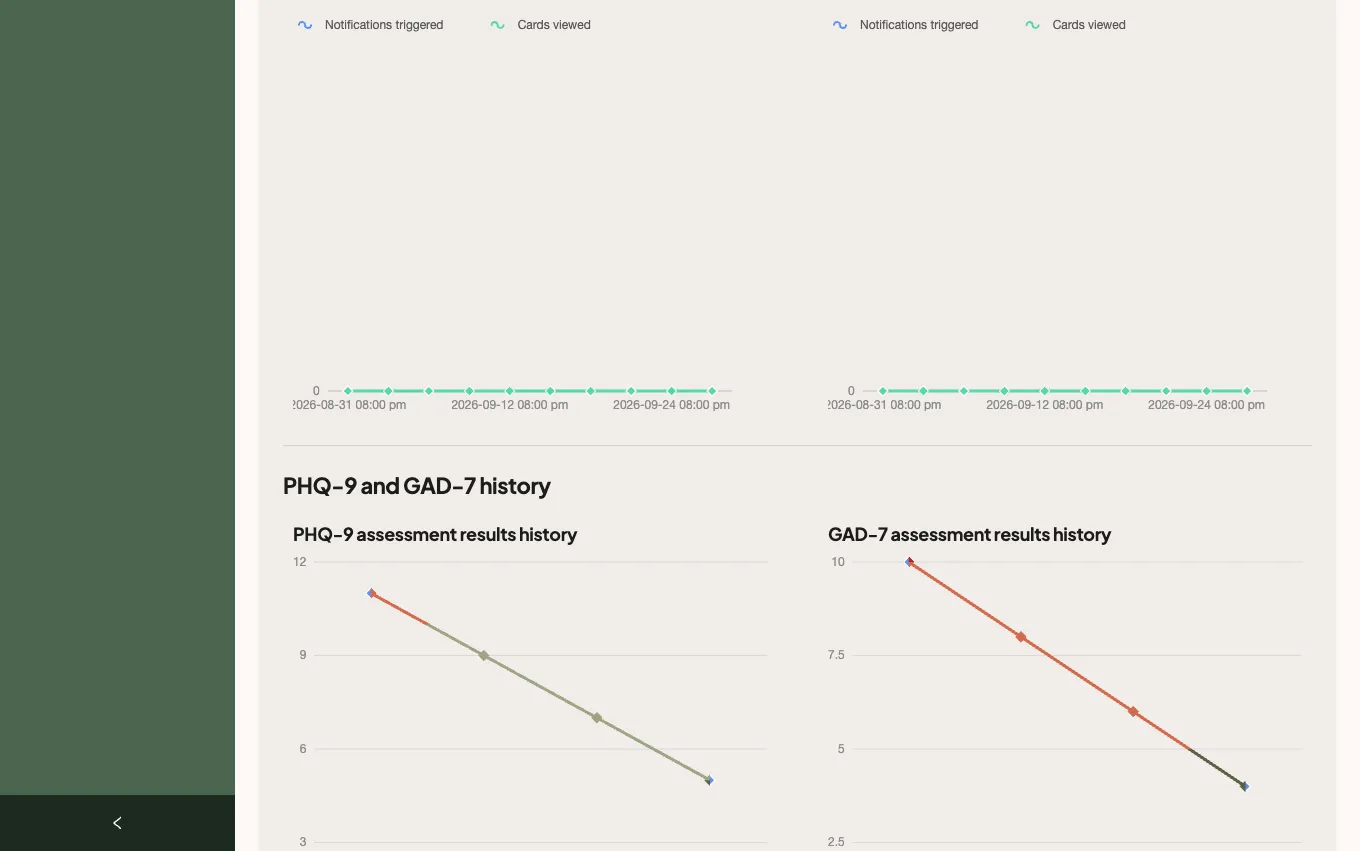
A client’s page shows the same results over time. Open it as in Find a client and open their page, and on the Overview tab find PHQ-9 and GAD-7 history, with one chart for each assessment. If the client does not share, the section reads The client doesn’t share this with you. Each assessment taken also appears in the client’s Activity Log: see See a client’s activity in the app.
Read every questionnaire on the client’s page
Section titled “Read every questionnaire on the client’s page”The client’s page has an Assessments tab with all five questionnaires, the client’s own and the ones entered in session.
- Open the client’s page and click the Assessments tab.
- To look at one, choose it, or choose All questionnaires.
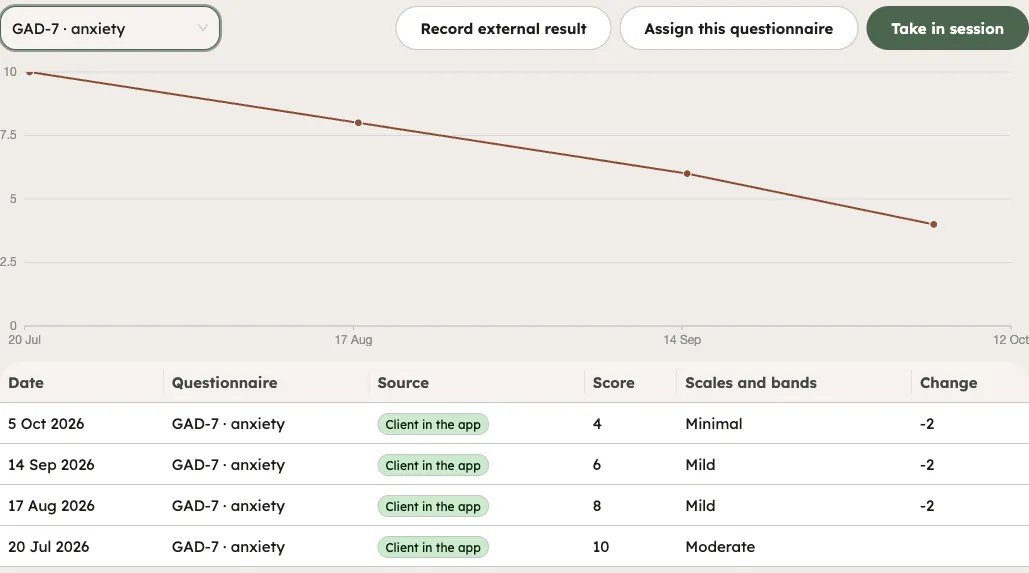
Each row shows the date, the questionnaire, the Source, the score, the scales with their bands and the Change since the previous take. The source is Client in the app, Entered in session or Recorded by the practice. With one questionnaire chosen, the chart Scores over time appears, and for the PCL-5 a line says what size of change counts as reliable. A PHQ-9 row shows item 9, its question and the client’s answer, as a plain line, always, with no colour and no badge. Nothing is sent to you when a client takes a questionnaire: you see it when you open the tab. As on the list above, you see a client’s results only if they let you view their data, or, as a practice admin, let practice admins view it.
Record a result taken elsewhere
Section titled “Record a result taken elsewhere”- On the Assessments tab, click Record external result.
- Write the Questionnaire name, the Score, the Highest possible score and the date it was taken. Add a Note (optional) if you want.
- Click Save.
The portal confirms that the result is recorded, and the row reads Recorded by the practice. Only the name and the score are kept, not the questions. The date cannot be in the future.
Take a questionnaire in session
Section titled “Take a questionnaire in session”- On the Assessments tab, click Take in session.
- Choose the questionnaire, read the questions with the client, and choose their answers. The total is worked out as you go.
- Click Save the result. It stays off until every question has an answer.
The row is marked Entered in session. It is your practice’s record. It is not an assigned task, it sends nothing to the client, and it does not complete homework. The DASS-21 can be entered in session without an assignment. You can do this only for a client who shares their work with you.
Assign an assessment as homework
Section titled “Assign an assessment as homework”- On the client’s page, open the Homework tab and click Assign homework. On the Assessments tab you can also choose a questionnaire and click Assign this questionnaire.
- Under Kind, choose Questionnaire.
- Under What, choose PHQ-9 · depression, GAD-7 · anxiety, DASS-21 · depression, anxiety, stress, PCL-5 · symptoms after a stressful experience or GDS-15 · mood, for older adults.
- Fill in the rest and click Assign.
The homework is marked done by itself when the client takes that questionnaire in the app after you assigned it. A GAD-7 does not complete PHQ-9 homework, and a questionnaire taken before you assigned it does not count. A questionnaire you enter in session does not complete it. Homework that repeats, such as a monthly PHQ-9, is one piece of homework with a date for each time. The full steps are in Assign homework to a client.