

Keep and review your coping cards
A coping card has an automatic thought on the front and a more realistic thought on the back. You keep your cards in the app and can set reminders that bring a card back to you during the day.
For clients
Section titled “For clients”You need the latest version of the CopingCard app, signed in.
Make a card
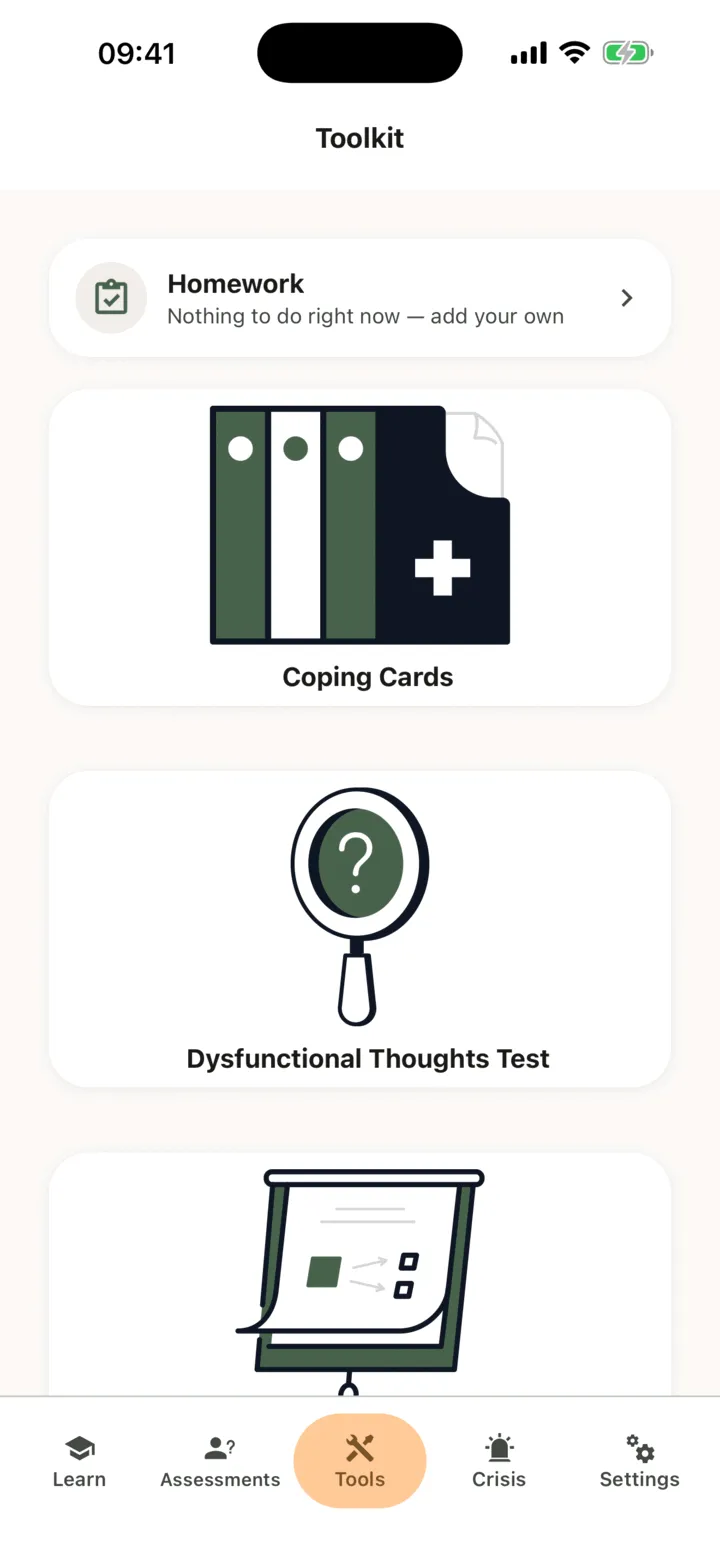
Section titled “Make a card”- On the Tools tab, tap Coping Cards.
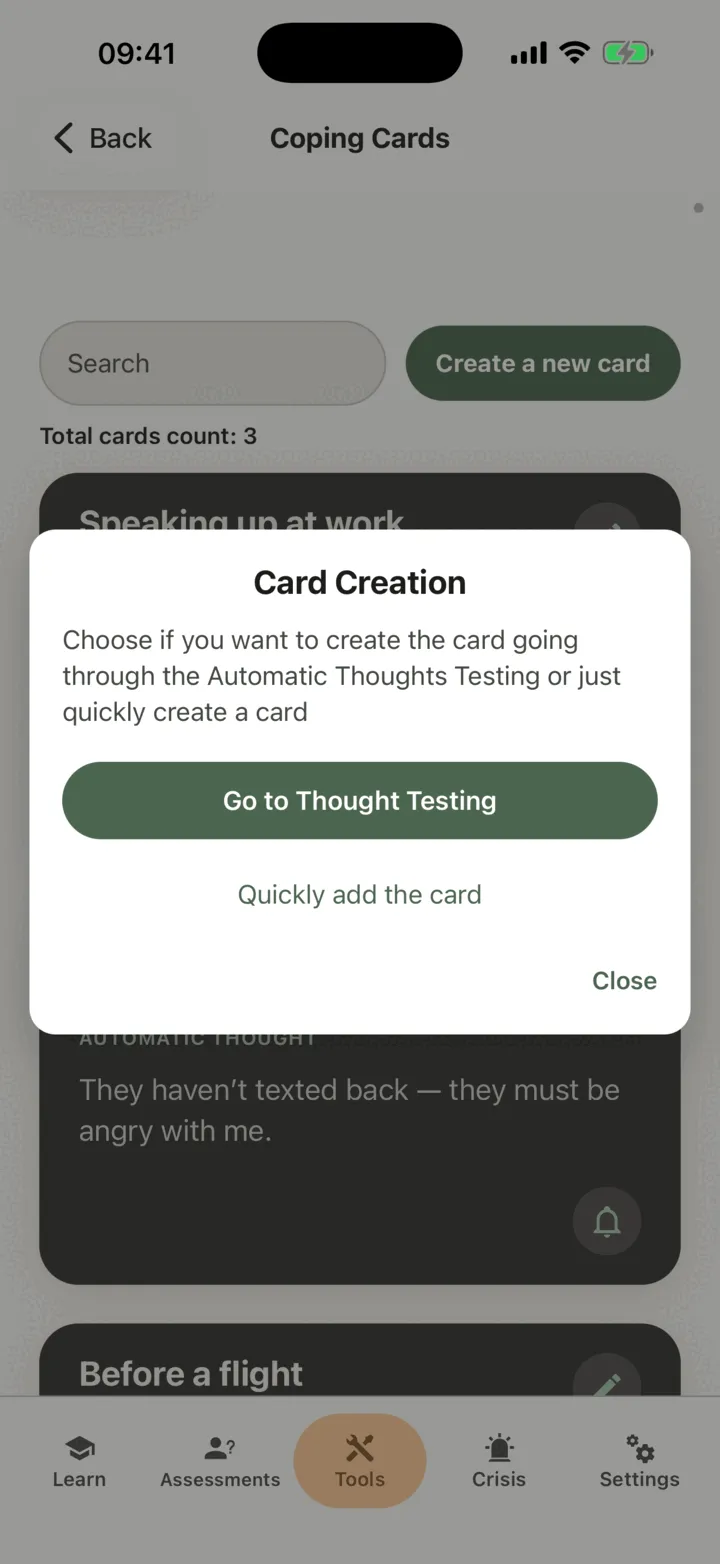
- Tap Create a new card. If you have no cards yet, tap Create your first Card.
- On Card Creation, tap Quickly add the card. To build the card by testing a thought step by step, tap Go to Thought Testing instead: see Test a thought with the Dysfunctional Thoughts Test.
- In Card name, type a name if you want one. You can leave it empty.
- In Automatic thought, write the thought that comes to you.
- In Alternative explanation, write the more realistic thought. Put each realistic thought on its own line: each line becomes its own thought on the back of the card. The first is shown as it is, and the next ones are numbered 2, 3 and so on.
- Tap Save. Save stays off until both thoughts have text.
Under the fields the app notes that what you write here is not monitored in real time. The note has a link, Crisis lines and techniques, that opens the app’s help for urgent situations.
Read and change your cards
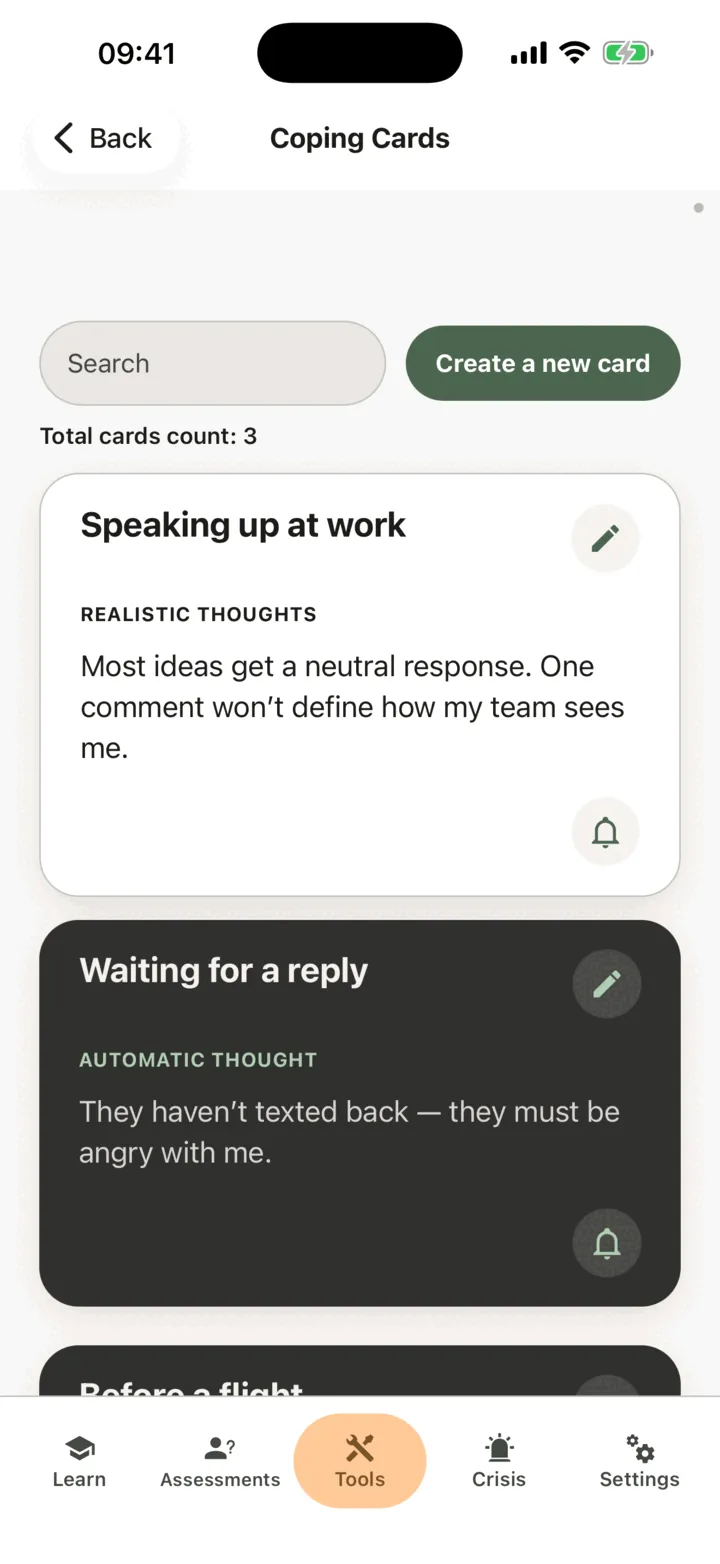
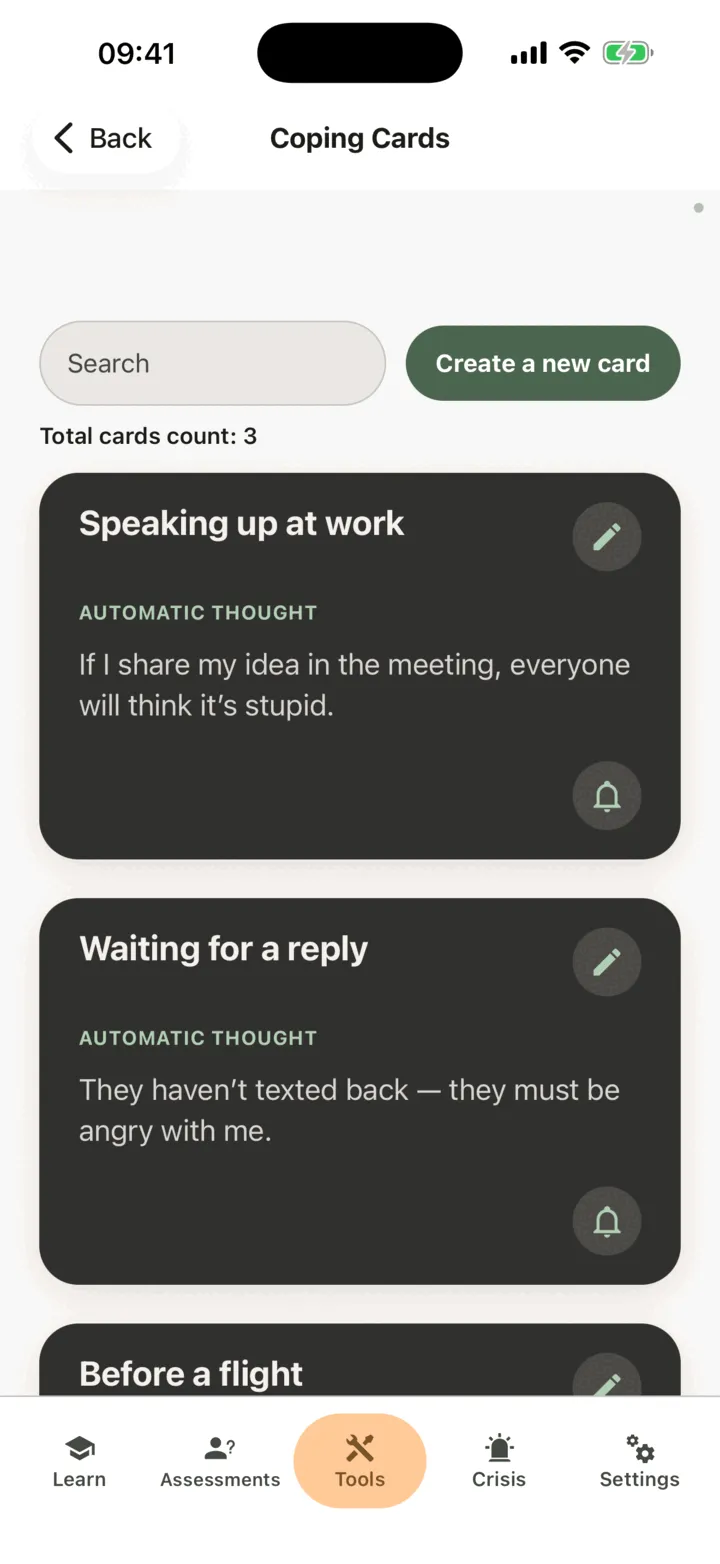
Section titled “Read and change your cards”- On Coping Cards, tap a card to flip it. The front shows Automatic thought, the back shows Realistic thoughts.
- To find a card, type in Search. To go back to the full list, tap Reset Cards Filter.
- To change a card, tap the pencil on it, change the text and tap Save.
- To delete a card, tap the pencil, tap Delete, then tap Confirm on Card deletion.
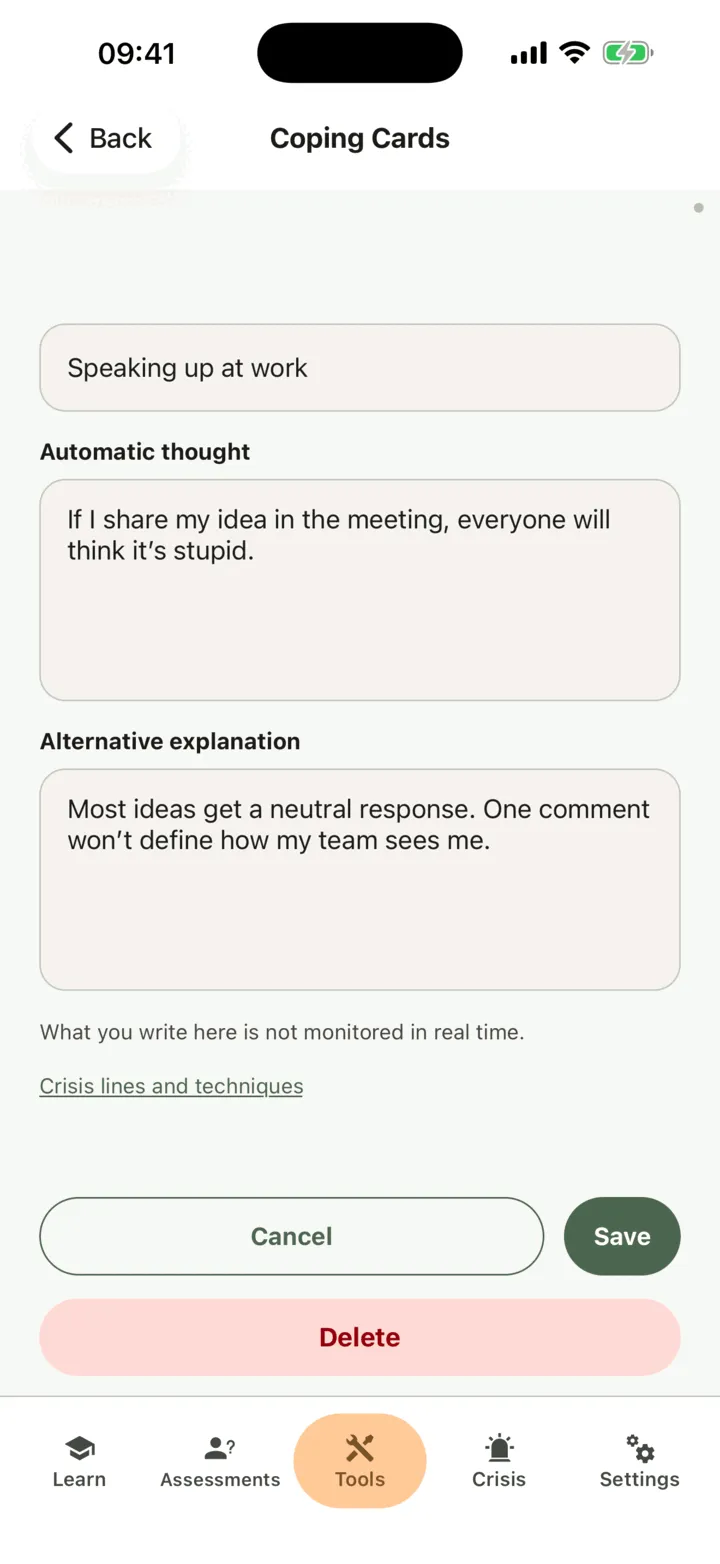
Deleting a card also deletes its reminders. You cannot undo it.
Set reminders for a card
Section titled “Set reminders for a card”- On a card, tap the bell. The screen is called Coping Card Notifications.
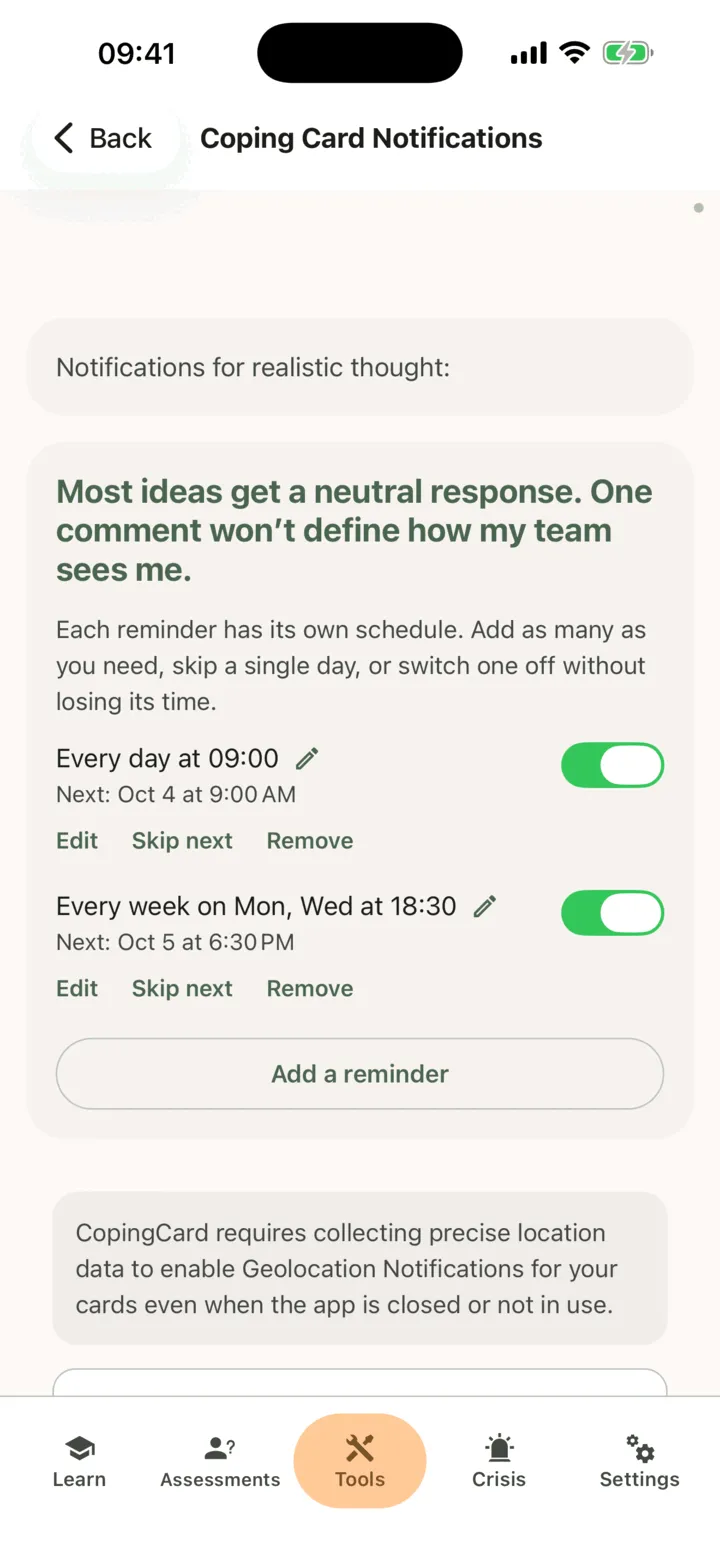
- Tap Add a reminder.
- Under How often, choose Daily, Weekly, Monthly or One time.
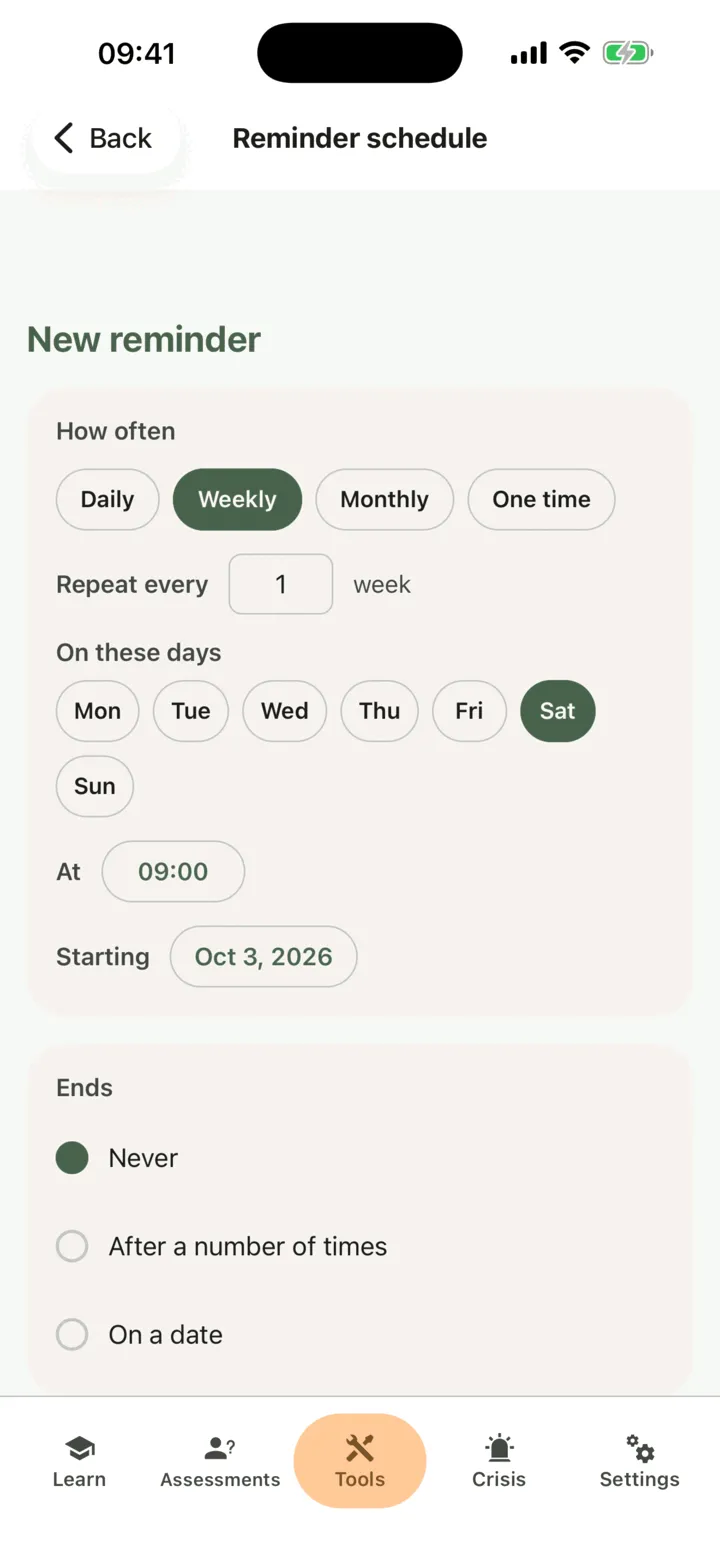
- Set the time and the start date, and for a repeating reminder choose when it ends.
- Tap Save reminder.
Each reminder has its own schedule. On a reminder you can tap Edit, Skip next to skip the next time only, or Remove. A reminder you switch off moves to Switched off and keeps its time, so you can switch it back on.
The first time you set a reminder the phone asks for permission to send notifications. If you refuse, reminders are saved but nothing arrives until you allow notifications for CopingCard in the phone’s settings.
To be reminded at a place, use the place section of the same screen:
- Tap Select from saved locations to pick a place you saved before, or tap Add location to add a new one.
- Switch on Notify when approaching, Notify when leaving, or both.
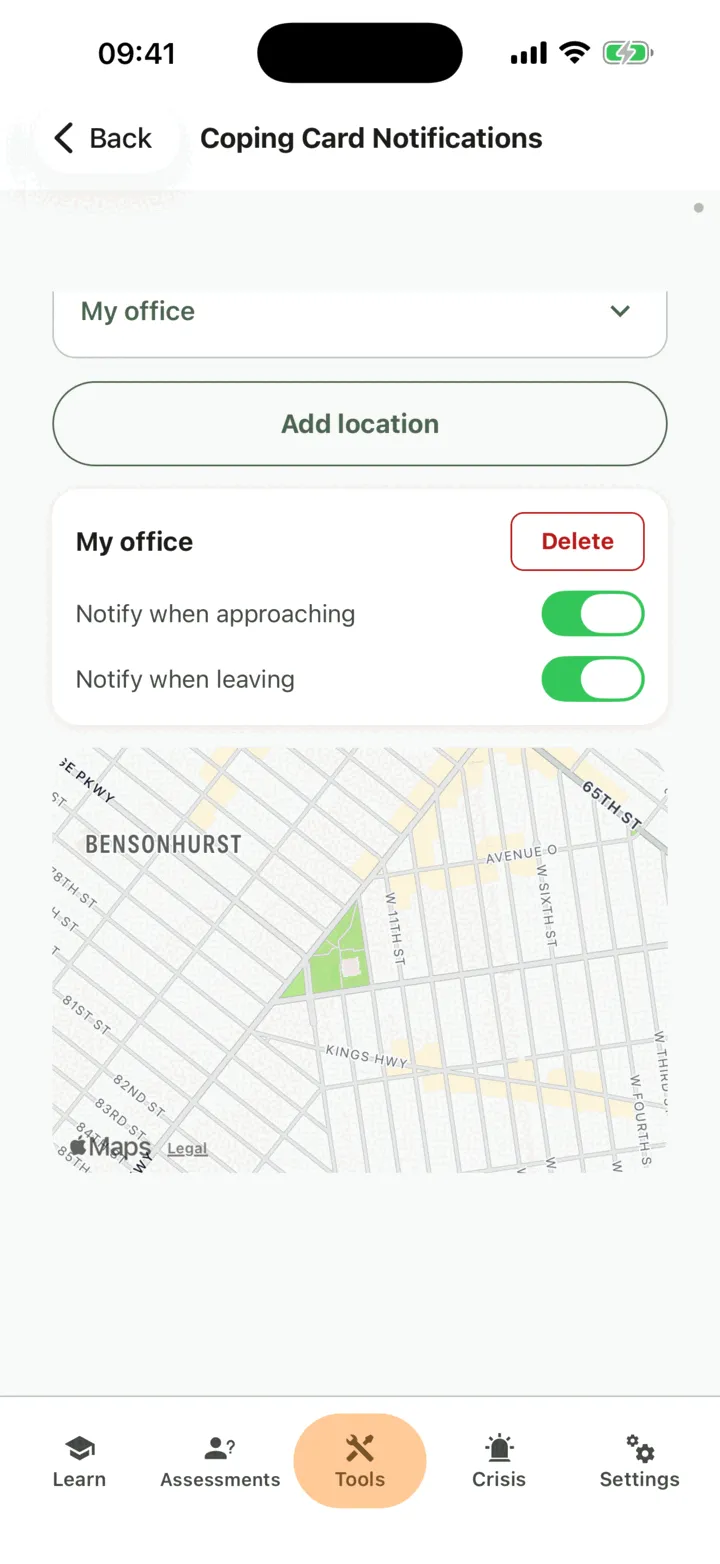
Place reminders need the phone’s location access set to always allow. The app asks for it only after you have switched on a place reminder, and it explains why.
On the free plan there is a limit on reminders by time and by place. When you reach it the app offers Premium, and you can carry on without. See Premium and the free plan.
Who can see your cards
Section titled “Who can see your cards”If you connect with a therapist, the options on the Data Sharing with Therapists screen in Settings decide who sees your cards. With Allow viewing my data on, your therapist sees them in the CopingCard portal. With Allow practice admins to view my data on, the admins of your therapist’s practice see them too. Your therapist and the admins see a card when they open it: they are not alerted when you add one. With Allow editing my data or Allow practice admins to edit my data on, they can also change your cards. See Choose what your therapist can see.
For therapists
Section titled “For therapists”In the portal you can read a client’s coping cards, change them and add a new one. You see a card only if the client lets you view their data, or, as a practice admin, lets practice admins view it. CopingCard does not monitor or flag what clients write: you see a card when you open the list.
See a client’s cards
Section titled “See a client’s cards”- In the portal menu, open Tools and click Coping Cards.
- To see one client’s cards, use the filter on the Client ID column, or choose the client in Filter by Client at the top of the page.
- Click the plus sign at the start of a row to see the card as the client sees it.
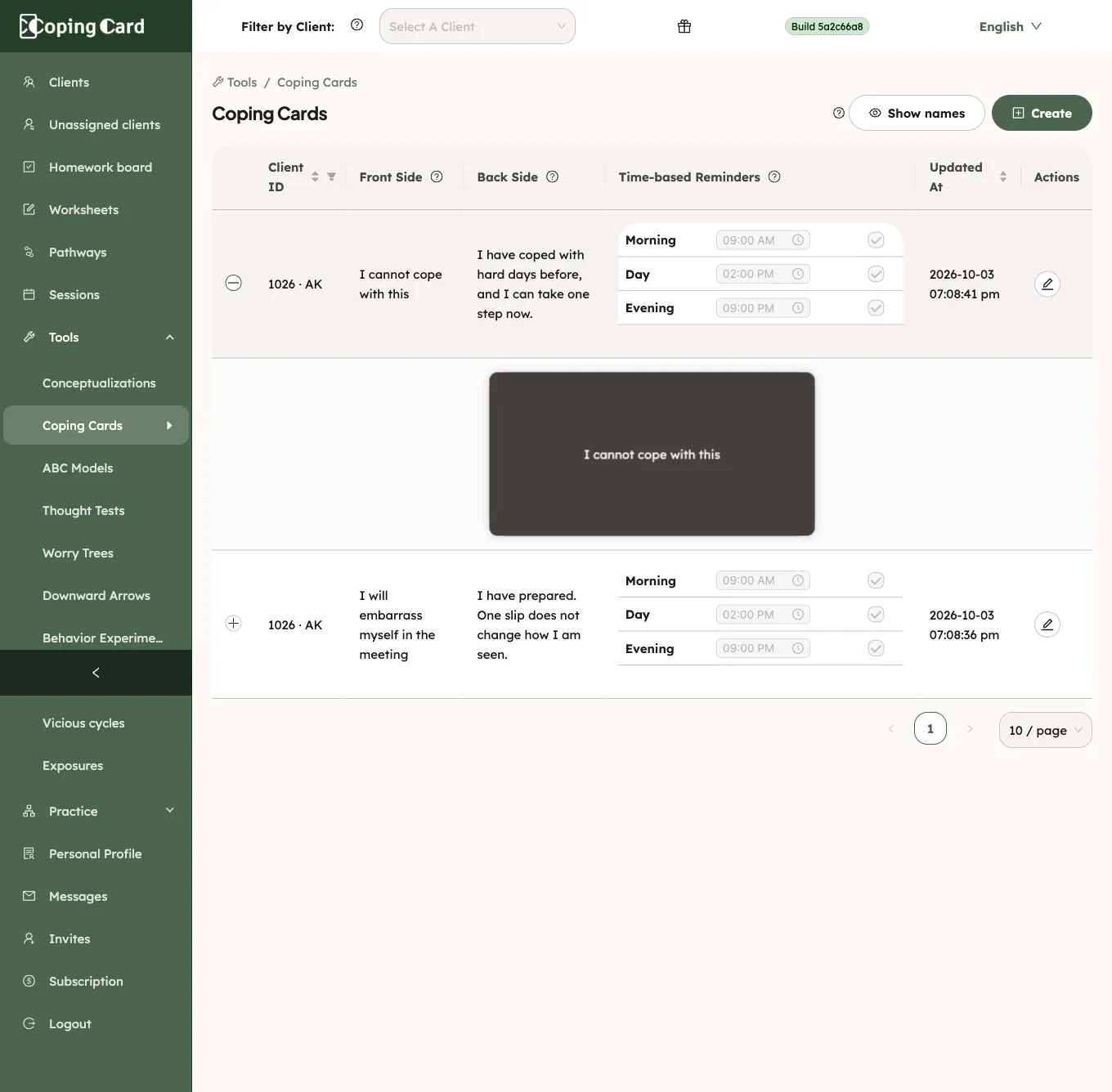
The table shows Front Side, Back Side and Time-based Reminders for each card.
Change a card or its reminders
Section titled “Change a card or its reminders”- On the Coping Cards list, click the pencil in the client’s row.
- Change Front Side, Back Side or the reminders.
- Click Save.
The pencil is always shown. It is greyed out, with a tooltip, when the client has no Premium account, or when the client does not let you edit their data (as a practice admin: does not let practice admins edit it). You cannot change the card’s name here.
Write a card for a client
Section titled “Write a card for a client”- On the Coping Cards list, click Create.
- Under Select a Client, choose the client. The list shows only clients with a Premium account who allow you to edit their data.
- Fill in Front Side and Back Side.
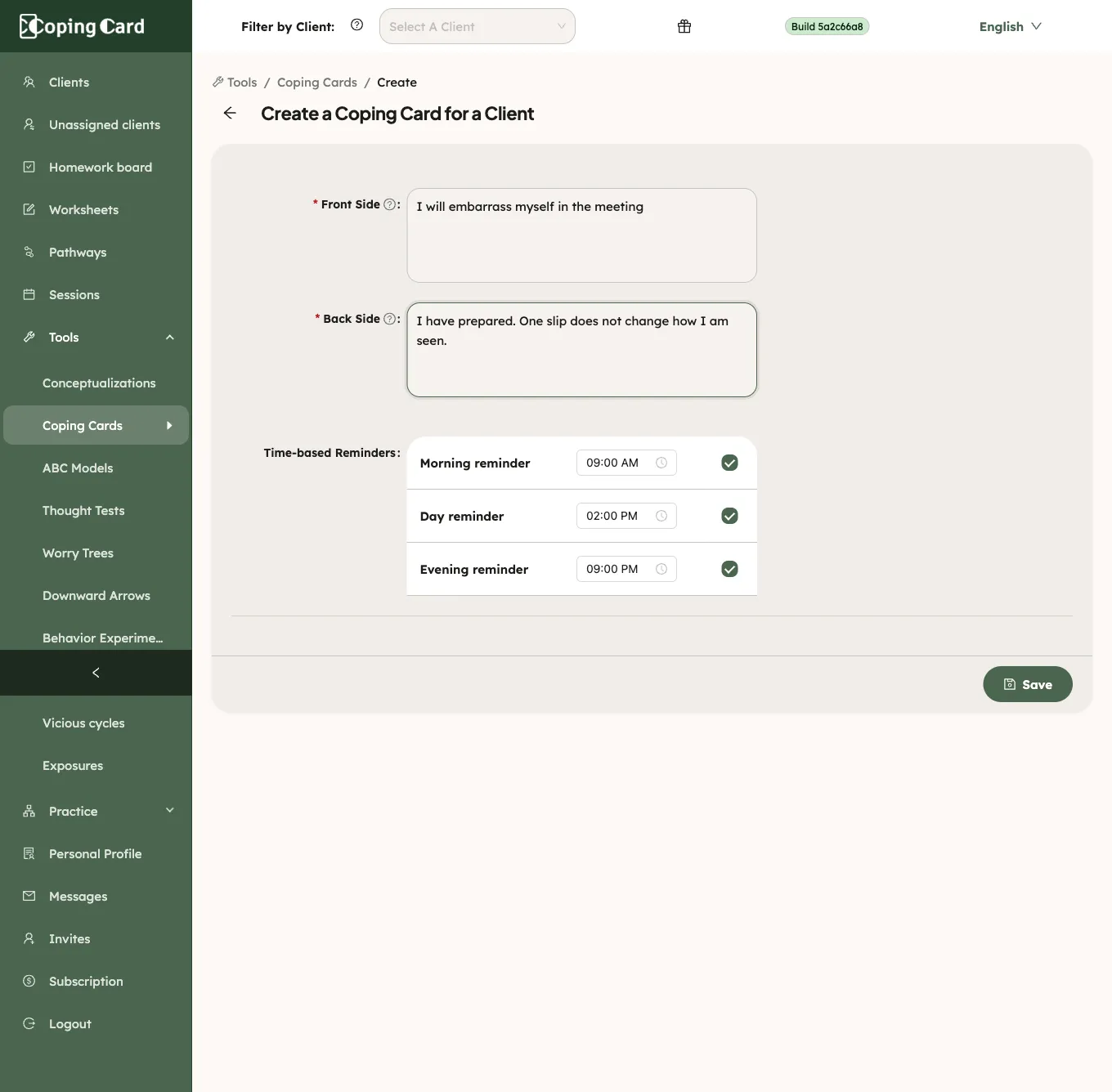
- Click Save.
The portal confirms that the card was created, and it appears in the client’s Coping Cards in the app. For a client on the newest version of the app, you set the reminders after you save the card; for other clients the Time-based Reminders are on the same page.
Assign it as homework
Section titled “Assign it as homework”A coping card is not something you can assign. To send a client to make one, assign homework with kind Task, or with kind Tool and Test a thought, which ends with a coping card: see Test a thought with the Dysfunctional Thoughts Test.