

Find your way around the portal since 1.7.0
Version 1.7.0 of the portal changes the menu and the client page. Everything you used before is still there, in a new place. Your clients’ records did not move or change: they are where your clients left them, and you open them from a different door. This page maps the old place to the new one.
The menu
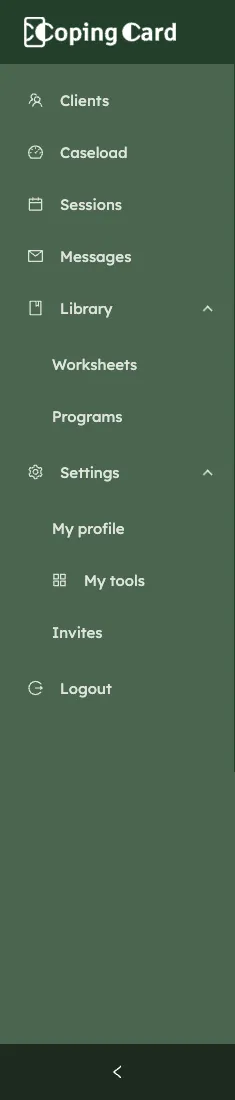
Section titled “The menu”The menu now reads Clients, Caseload, Sessions, Messages and Library, then Practice for practice admins and Settings.
| Before | Now |
|---|---|
| Clients | Clients, the same list. Practice admins still have Unassigned clients as its own entry. |
| Homework board | Caseload, on the Homework tab. It is the same board. |
| Not there | Caseload, on the Overview tab: your clients side by side. See See which clients need a look. |
| Worksheets | Library, then Worksheets. |
| Its own entry for the programs list | Library, then Programs. See Programs. |
| Sessions | Sessions, the same list. Each client’s sessions are also on their page, under Sessions & notes. |
| Tools, with ten lists | Gone from the menu. See Tools below. |
| Practice | Practice, for practice admins, as before. |
| Personal Profile | Settings, then My profile. |
| Invites | Settings, then Invites. |
| Subscription | Settings, then Subscription, for practice admins. |
| Not there | Settings, then My tools: choose the tools you see. |
| Messages | Messages, the same page. |
The client page
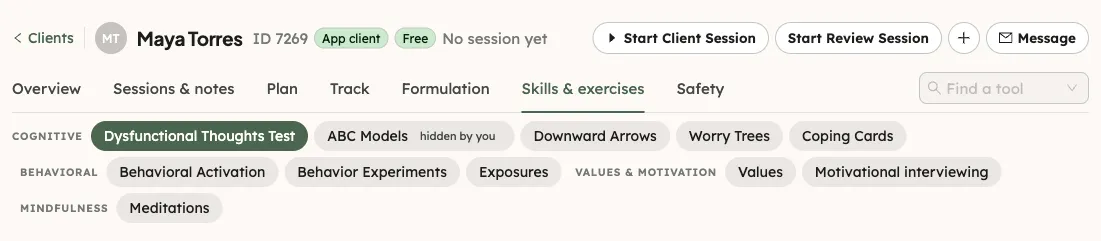
Section titled “The client page”Open a client from Clients as before: see Find a client and open their page. The page now starts with one header line that stays at the top: the client’s name, ID and chips, the last session, and four buttons.
| Before | Now |
|---|---|
| Start Client Session and Start Review Session only in the header bar, beside Filter by Client | The same two buttons in the client page header. The header bar does not show on a client’s page. On the other pages Filter by Client and its buttons are where they were. |
| Assign homework on the Homework board or on the client’s Homework tab | The same, and a button in the client page header: see Assign homework to a client. |
| Messages in the menu, with every message | Message in the client page header opens Messages showing only this client’s messages. |
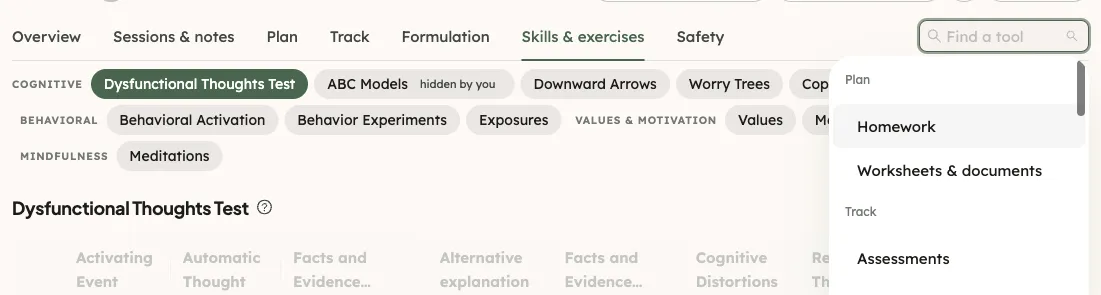
The row of tabs became two rows. The first row has Overview, Sessions & notes, five groups (Plan, Track, Formulation, Skills & exercises and Safety) and Find a tool. Click a group, and its tools show in the second row. When the first row is short of room, Find a tool is a magnifier icon.
| The tab before | Now |
|---|---|
| Overview | Overview. Its old content, General Info, Review Sessions, the usage charts and the Activity Calendar, is under the second pill, Client details & activity. The first pill, Since the last session, is new. See See a client’s activity in the app. |
| Homework | Plan, then Homework |
| Worksheets & documents | Plan, then Worksheets & documents |
| Check-ins | Track, then Check-ins |
| Diary card | Track, then Diary card |
| Assessments | Track, then Assessments |
| Sleep & activity | Track, then Sleep & activity |
| Safety plan | Safety, then Safety plan |
| Behavioral Activation | Skills & exercises, then Behavioral Activation |
| Values | Skills & exercises, then Values |
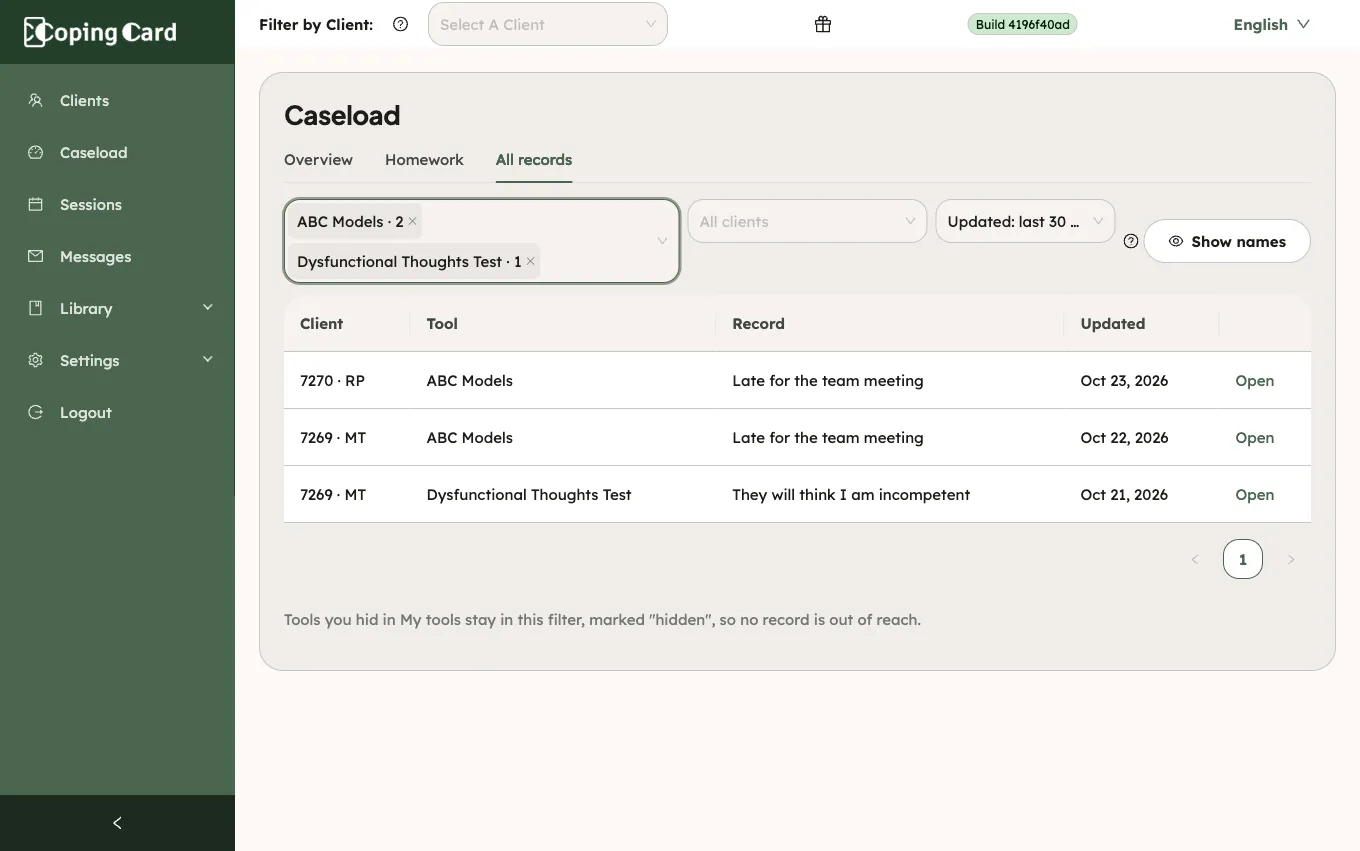
The Tools menu had ten lists, each showing one tool’s records for all your clients, or for the client chosen in Filter by Client. Now each tool is a section of the client’s page, and the records of all your clients are in Caseload, on the All records tab. A bookmark to an old list opens All records with that tool ticked.
To create a record for a client, open the tool’s section on their page and use its Create button. To go to any tool by name, use Find a tool.
| Tool | Where on the client page | Before | Help page |
|---|---|---|---|
| Homework | Plan, Homework | A tab | Assign homework to a client |
| Worksheets & documents | Plan, Worksheets & documents | A tab | Worksheets |
| Assessments | Track, Assessments | A tab and a list in Tools | Take a PHQ-9 or GAD-7 assessment |
| Check-ins | Track, Check-ins | A tab | Check in on how you are today |
| Diary card | Track, Diary card | A tab | Fill in a diary card |
| Sleep diary | Track, Sleep diary | New in 1.7.0 | Keep a sleep diary |
| Sleep & activity | Track, Sleep & activity | A tab | Share health data from your phone |
| Conceptualizations | Formulation, Conceptualizations | A list in Tools | |
| Vicious Cycles | Formulation, Vicious Cycles | A list in Tools | Map a vicious cycle |
| Functional analysis | Formulation, Functional analysis | New in 1.7.0 | Functional analysis |
| Schema modes | Formulation, Schema modes | New in 1.7.0 | Schema modes |
| Dysfunctional Thoughts Test | Skills & exercises, Dysfunctional Thoughts Test | A list in Tools | Test a thought with the Dysfunctional Thoughts Test |
| ABC Models | Skills & exercises, ABC Models | A list in Tools | Log an ABC model |
| Downward Arrows | Skills & exercises, Downward Arrows | A list in Tools | Find a core belief with the Downward Arrow |
| Worry Trees | Skills & exercises, Worry Trees | A list in Tools | Work through a worry with the Worry Tree |
| Coping Cards | Skills & exercises, Coping Cards | A list in Tools | Keep and review your coping cards |
| Behavioral Activation | Skills & exercises, Behavioral Activation | A tab | Plan activities with Behavioral Activation |
| Behavior Experiments | Skills & exercises, Behavior Experiments | A list in Tools | Run a behavior experiment |
| Exposures | Skills & exercises, Exposures | A list in Tools | Build and practice an exposure ladder |
| Values | Skills & exercises, Values | A tab | Find what matters to you with Values |
| Motivational interviewing | Skills & exercises, Motivational interviewing | New in 1.7.0 | Motivational interviewing |
| Meditations | Skills & exercises, Meditations | New in 1.7.0 | Listen to a guided meditation |
| Safety plan | Safety, Safety plan | A tab | Make and use your safety plan |
Under Skills & exercises, the tools sit under four small labels: Cognitive, Behavioral, Values & motivation and Mindfulness.
Caseload, All records and My tools
Section titled “Caseload, All records and My tools”- Caseload has three tabs: Overview, Homework and All records. See See which clients need a look.
- All records is one table of the records of your clients’ tools, with a Tools filter grouped like the client page. It shows a line for each record, and Open takes you to that record’s section on the client’s page: see Find records across all your clients.
- My tools lets you hide the tools you do not use from the client page. Every tool is on until you switch it off, and hiding one deletes nothing: see Hide the tools you do not use.
What stayed the same
Section titled “What stayed the same”The Clients list, its eye icon and the icons in its Actions column work as before. So do Sessions, Messages and Practice.