

Read and watch in Learn
Learn is the part of the app for reading and watching. It has three tabs: Info holds articles, Video holds videos and Courses holds courses you can start yourself: see Follow a program from your therapist. It is for everyone with the app, on the free plan too.
For clients
Section titled “For clients”You need the latest version of the CopingCard app.
Read an article
Section titled “Read an article”- Tap the Learn tab at the bottom of the screen.
- Tap Info. The articles are listed with a title and a short introduction.
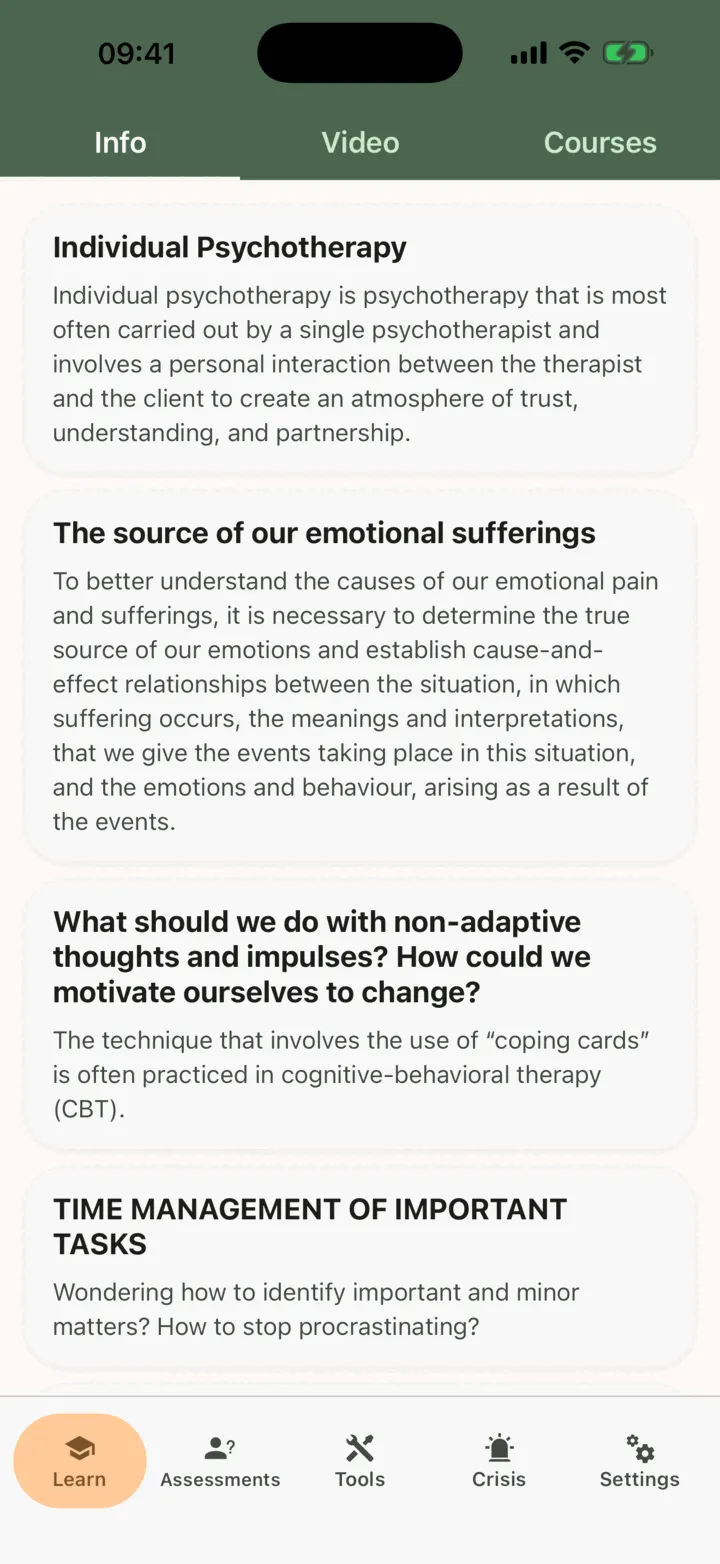
- Tap an article to open it, then scroll to read.
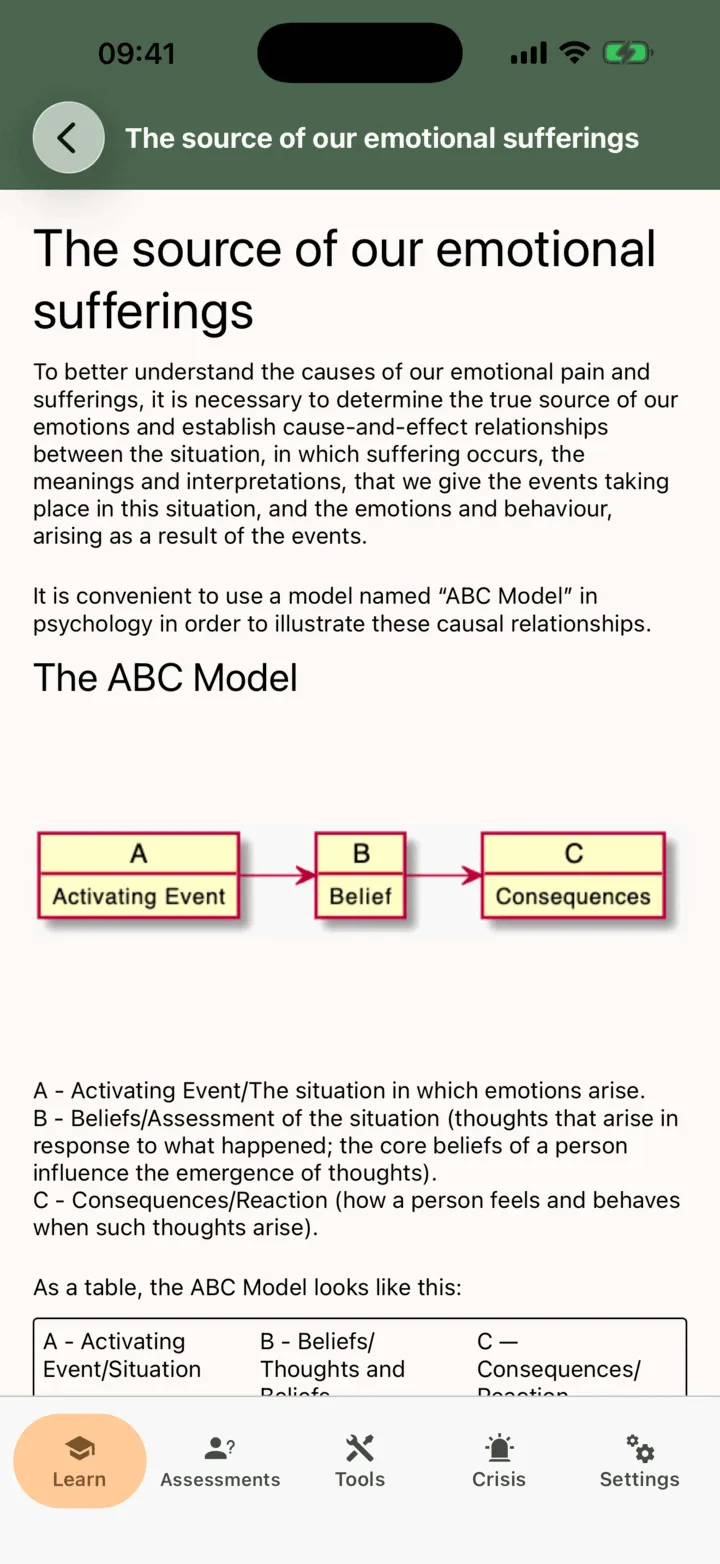
- To go back to the list, use the back arrow.
The articles are stored in the app, so you can read them without an internet connection. They change only when you update the app. The app does not mark an article as read.
Watch a video
Section titled “Watch a video”- On the Learn tab, tap Video.
- Find the video you want and tap play on it. It plays inside its card, and you can scroll to the next one.
Videos play from YouTube, so you need an internet connection. If a video does not start, check your connection and try again. The app does not mark a video as watched.
The articles and videos follow the language of the app. With the app set to Russian, you see the Russian articles and videos. With any other language, you see the English ones.
What the app records
Section titled “What the app records”The app keeps a record that you opened an article, how far you read, and when you played a video and for how long. On your page in your therapist’s portal, the Activity Log lists each article you opened, by title, and each video you played. Your therapist sees it with Allow viewing my data on, and the admins of your therapist’s practice with Allow practice admins to view my data on: see Choose what your therapist can see. If your therapist gave you an article or a video as homework, the homework shows whether you did it. See Watch a video from your therapist.
For therapists
Section titled “For therapists”There is no Learn page in the portal. You use Learn through homework: you pick an article or a video, and the client opens it in the app.
Assign an article or a video
Section titled “Assign an article or a video”- On the client’s page, open the Homework tab and click Assign homework.
- Under Kind, choose Reading to assign an article, or Video to assign a video.
- For a reading, choose the article under What. For a video, choose A video from the Learn library and pick one, or choose A YouTube or Vimeo link and paste the link.
- Fill in the rest and click Assign.
A reading is marked done by the client, who can add a note for you. A video is marked done by itself when the client has watched it to the end in the app. On the Homework board you can also select the client and click Assign homework…. The full steps are in Assign homework to a client.
To put a client on a pathway, which is a program of homework steps, see Put a client on a pathway.