

Log an ABC model
The ABC model connects three things: the situation that set something off (A), what you thought about it (B), and what followed (C). The app keeps each one as a record you can come back to and change.
For clients
Section titled “For clients”You need the latest version of the CopingCard app, signed in.
Log an ABC model
Section titled “Log an ABC model”- On the Tools tab, tap ABC Models.
- Tap Create ABC Model.
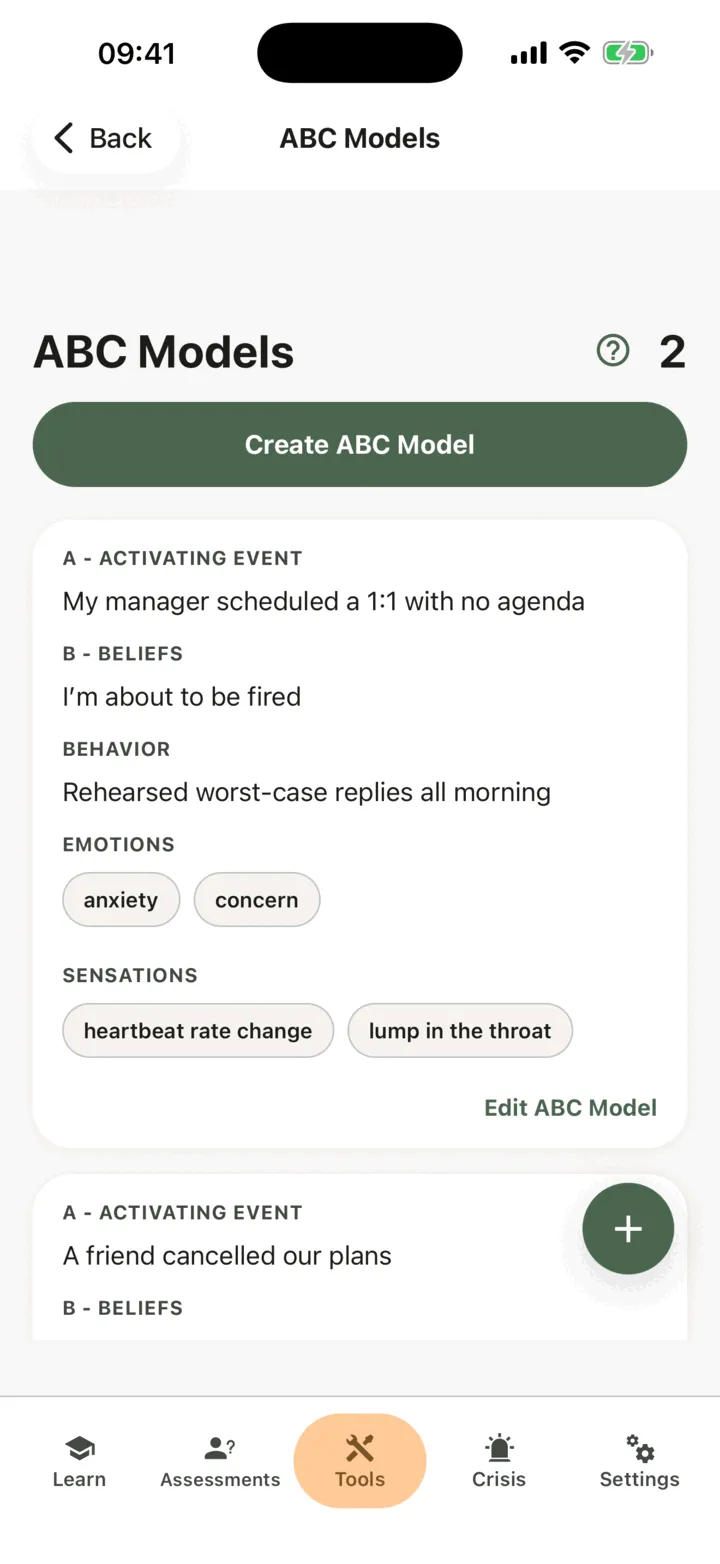
- In A - Activating event, write what happened.
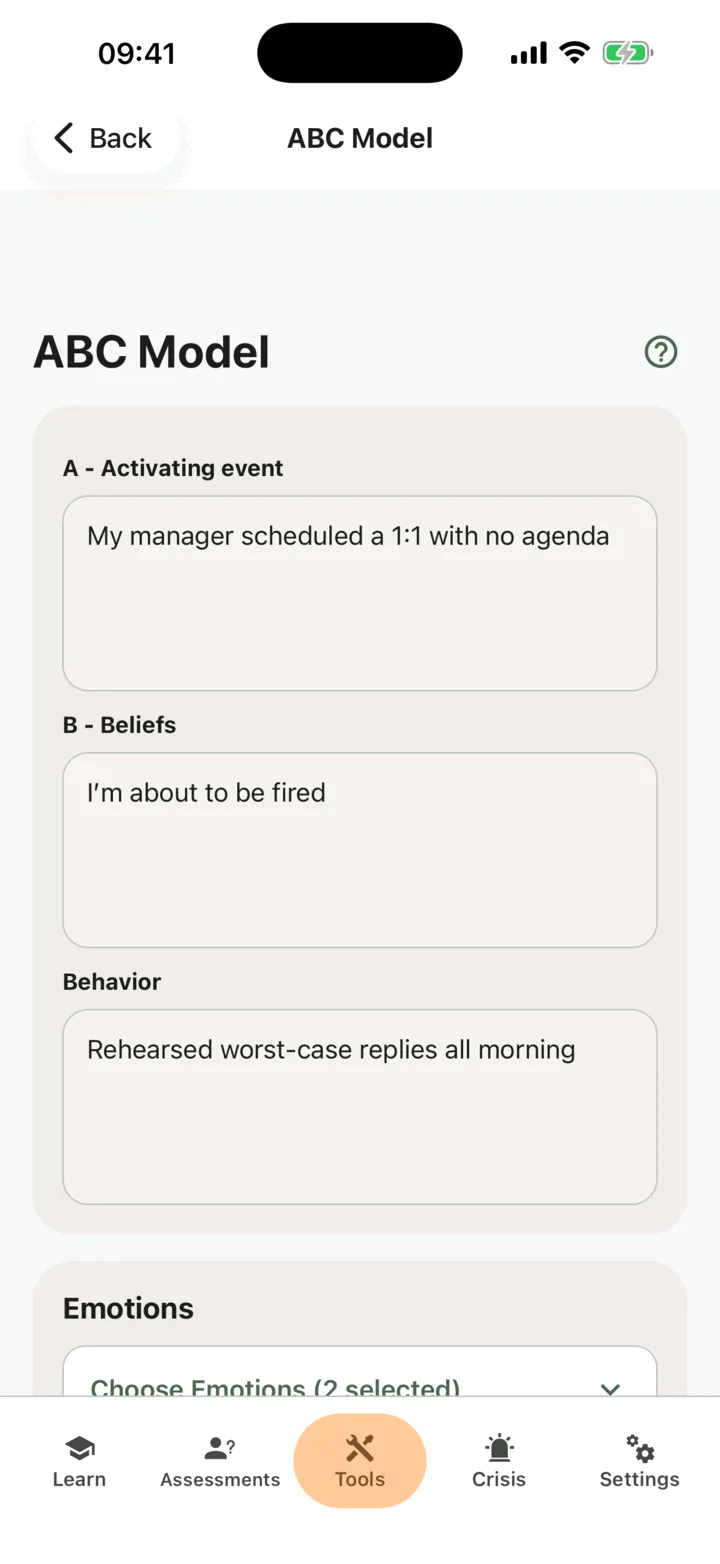
- In B - Beliefs, write what you thought about it.
- In Behavior, write how you reacted.
- Under Emotions, tap Choose Emotions, pick each emotion you felt and tap Confirm. Move the slider next to each emotion to show how strong it was.
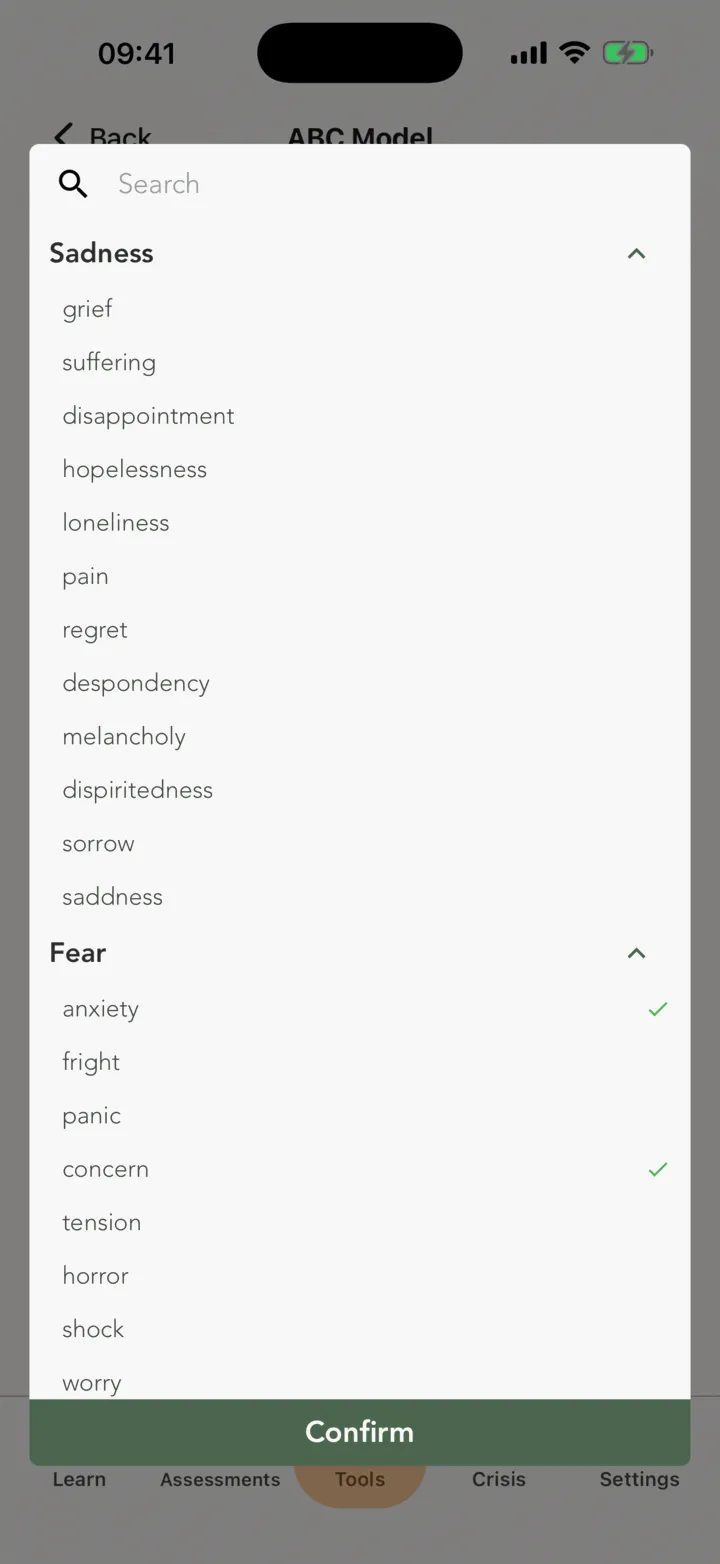
- Under Sensations, tap Choose Sensations, pick what you felt in your body and tap Confirm.
- Tap Save.
The app shows ABC model saved successfully for a moment and stays on the page. There is no box named C in the app: the consequences are what you write in Behavior, Emotions and Sensations. Save stays off until you have entered something.
The app saves nothing until you tap Save. If you leave the page first, what you typed is lost.
Read and change a record
Section titled “Read and change a record”- On ABC Models, find the record. The list shows the newest change first, with your emotions and sensations as tags.
- Tap the record to open it.
- Change anything, then tap Save.
To learn what the model is for, tap the help circle next to the title. You cannot delete a record in the app.
Who can see your ABC models
Section titled “Who can see your ABC models”If you connect with a therapist, the options on the Data Sharing with Therapists screen in Settings decide who sees your ABC models. With Allow viewing my data on, your therapist sees them in the CopingCard portal. With Allow practice admins to view my data on, the admins of your therapist’s practice see them too. They see a record when they open it: they are not alerted when you add one. With Allow editing my data or Allow practice admins to edit my data on, they can also change your records. See Choose what your therapist can see.
For therapists
Section titled “For therapists”In the portal you can read a client’s ABC models and fill one in for them, for example during a session. You see a client’s records only if they let you view their data, or, as a practice admin, let practice admins view it. To write, the client must allow you to edit their data, or allow practice admins to edit it, and must have a Premium account. CopingCard does not monitor or flag what clients write: you see a record when you open the list.
Review a client’s ABC models
Section titled “Review a client’s ABC models”- In the portal menu, open Tools and click ABC Models.
- To see one client’s records, use the filter on the Client ID column, or choose the client in Filter by Client at the top of the page.
The table shows A - Activating event, B - Beliefs and C - Consequences for each record. The C - Consequences cell lists the emotions, behavior and sensations.
Fill in an ABC model for a client
Section titled “Fill in an ABC model for a client”- On the ABC Models list, click Create.
- Under Select a Client, choose the client. The list shows only clients with a Premium account who allow you to edit their data.
- Fill in A - Activating event, B - Beliefs and C - Consequences: Behavior, Emotions and Sensations. Set the strength of each emotion.
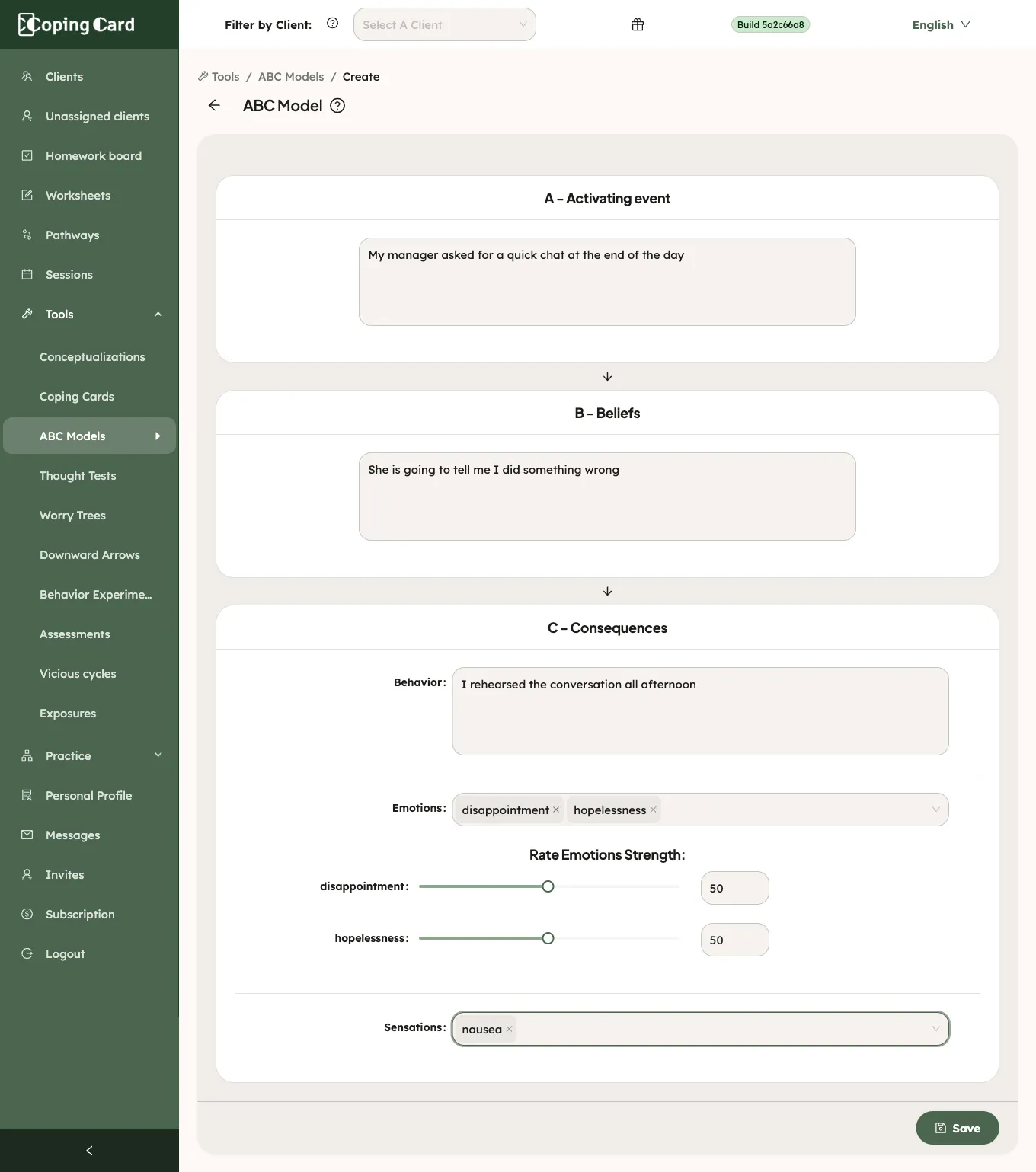
- Click Save.
Save works only after you have chosen a client and entered something. If you leave the page with unsaved changes, the portal asks you to confirm. To change a record later, click the pencil in its row. The pencil is greyed out, with a tooltip, while the client has no Premium account. The record is saved to the client’s account and they see it in their app.
Assign it as homework
Section titled “Assign it as homework”Assign homework with kind Tool and ABC model under What. It is marked done by itself when the client saves a new ABC model in the app, or you save one for them in the portal, after you assigned it. Changing an earlier record does not complete it.